Table of Contents
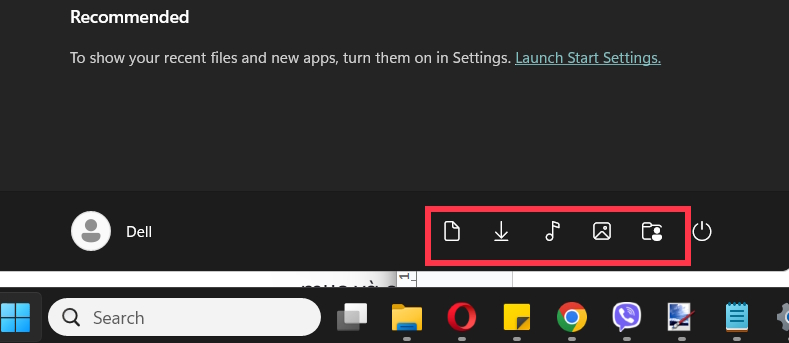
To choose the folder shortcuts beside the Windows 11 Start menu’s power button, open Settings > Personalization > Start > Folders. Turn each shortcut on or off. This changes the icons in Start; it does not create or delete folders or their contents.
Add folder shortcuts
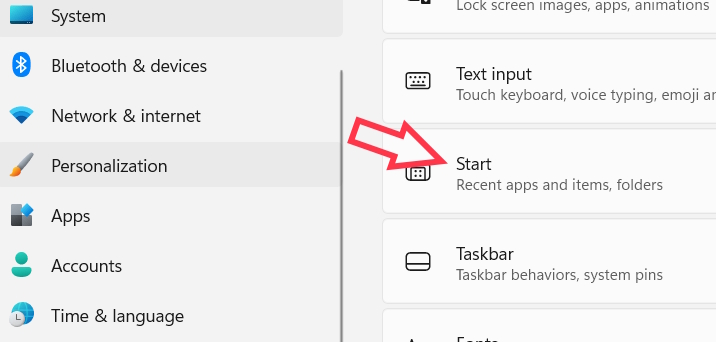
Press Windows + I to open Settings. Select Personalization, then Start.
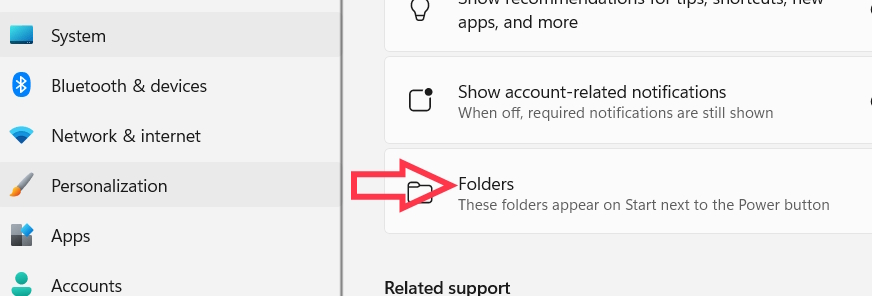
Select Folders. The exact layout can vary with your Windows build.
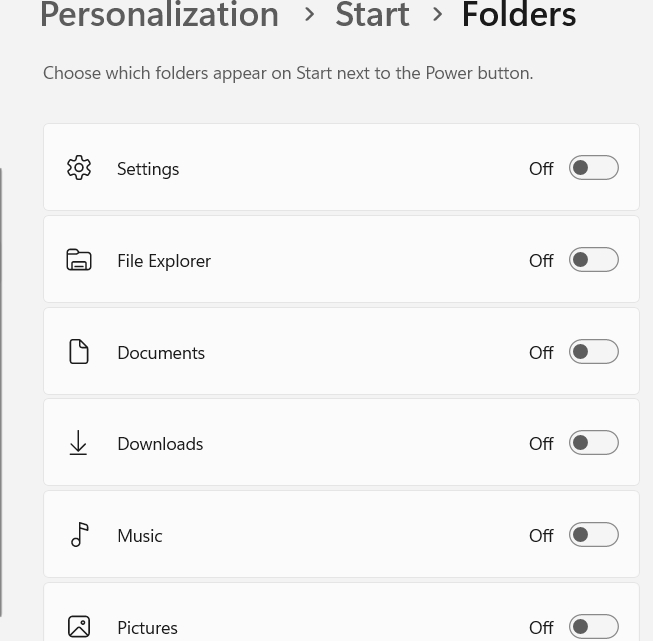
The available switches include shortcuts such as Documents, Downloads, Music and Pictures, along with options such as Settings and File Explorer. Choose only the ones you use regularly.
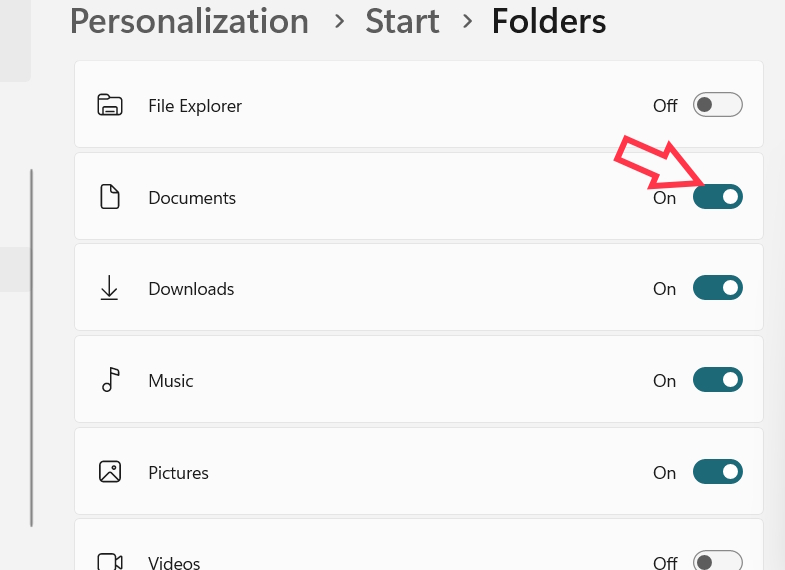
Set a switch to On to show its icon.
Open Start and look beside the power button. Select an icon to open its folder or destination.
Remove a shortcut
Return to Settings > Personalization > Start > Folders and turn the corresponding switch Off. The icon disappears from Start, while the files remain accessible through File Explorer. You can turn the switch on again whenever needed.
What about a folder that is not listed?
This settings page offers a predefined list; it does not let you add an arbitrary project folder beside the power button. For a custom folder, find it in File Explorer, right-click it and use Pin to Start when available. That creates a shortcut in Start’s pinned area instead.
The same distinction applies when pinning Windows Tools. For other organization options, see ways to organize frequently used files and folders.
Related Articles
 Instructions to Remove the All Apps Option on Windows 10 Start5 minutes read
 Reveal the First Image of the Improved Start Menu, Remove Live3 minutes read
 Start Menu Windows 11: Complete Guide4 minutes read
 How to Add Folder Shortcuts to the Start Menu on Windows 113 minutes read
 3 Ways to Fix Start Menu on Windows 10 Stopped Working5 minutes read
 How to Customize the Windows 10 Start Menu4 minutes read
Reader Comments 0
Sign in with email or Google to join the discussion.