Table of Contents
Explore 4 tips to fix hidden Windows errors and quickly recover corrupted files.
If you're lucky, Windows will report an error related to corrupted or unreadable files. Whether or not there's an error, there are still many ways to quickly recover system files without resorting to drastic measures like wiping your hard drive and reinstalling from scratch.
Why do Windows files get corrupted?
Prevention is better than cure, so understanding the causes of file errors will help you avoid them in the future. Some common reasons include:
- The power went out suddenly.
- Interrupting a crucial part of the Windows update process.
- The storage drive is degraded or about to fail.
- Malware or malfunctioning software.
Just a few corrupted bytes in a critical DLL file can cause Windows to start behaving strangely immediately. So how do you fix it?
Below are four lesser-known but extremely effective tools for 'patching' Windows.
1. Use System File Checker (SFC) for basic errors
When you suspect a file system problem, the first tool to think of is System File Checker , as the name suggests.
You just need to open Command Prompt with administrator privileges, and enter the command:
sfc /scannow
Then press Enter.
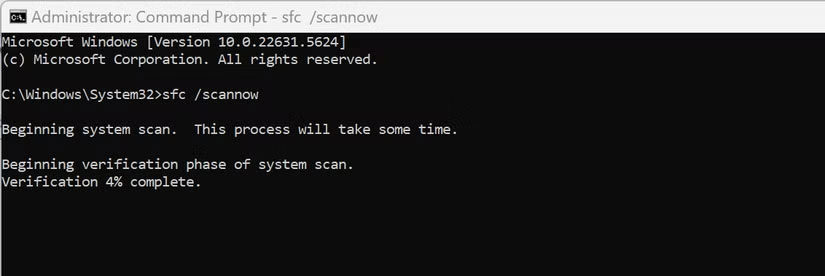
Depending on the error and the machine's speed, this process may take a while. The result will be:
- No errors detected.
- Error detected and fixed successfully.
- Errors were discovered, but not all could be fixed.
The advice is to run SFC after you've used a disk check tool (like chkdsk) to ensure the hard drive is free of physical errors before repairing files.
2. Use DISM to repair the Windows component repository
If the SFC fails to fix the problem, or if it still reports errors even after repair, the next step is to use DISM (Deployment Image Servicing and Management).
This tool can repair the Windows Component Store – which SFC relies on to compare standard files.
Simply open Command Prompt (admin) and type:
DISM /Online /Cleanup-Image /RestoreHealth
Then press Enter.
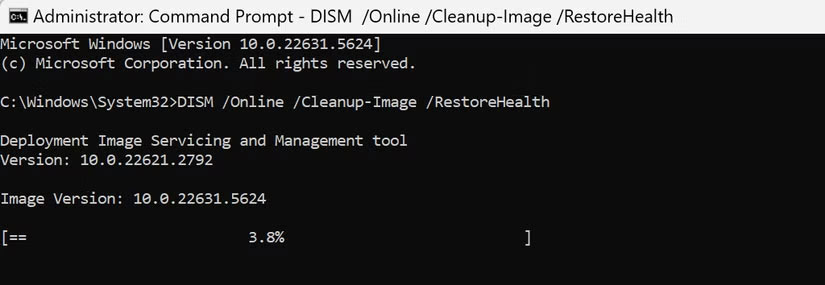
Once DISM is complete, you can run SFC again to confirm everything is working correctly.
3. Fix Windows startup errors when the computer fails to boot into the operating system
The tips above only apply if you can still access Windows. But if your computer won't boot , you'll need to use tools outside of the operating system.
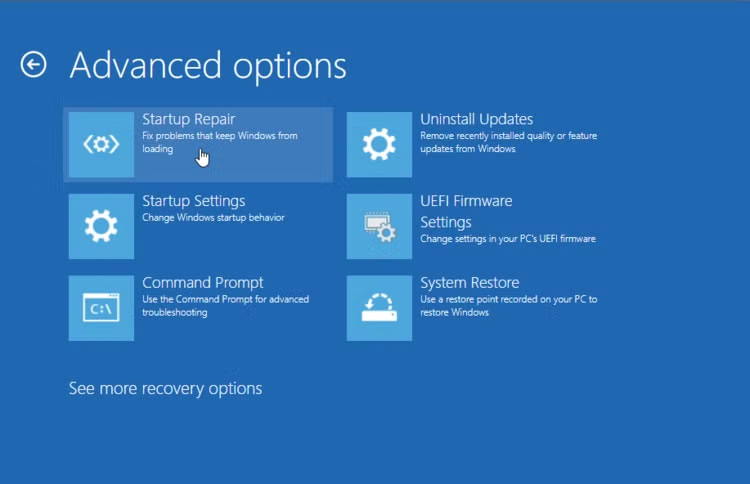
Windows 11 has a Windows Recovery Environment (WinRE) . If your computer fails to start up three times in a row, WinRE will automatically activate. You just need to select Startup Repair and follow the instructions.
If you are using Windows normally but want to access WinRE, hold down the Shift key and select Power > Restart .
4. Use 'repair install' when all other tools fail
If WinRE doesn't work either, it's time to take stronger measures – but not to the point of wiping all the data.
That's an in-place repair install . This process reinstalls Windows from a USB drive but keeps your files and applications intact.
You will need to create a Windows 10/11 installation USB using the Media Creation Tool . Then boot your computer from the USB according to the manufacturer's instructions. In the installation screen, instead of selecting 'fresh install', select:
Repair my PC
This option will repair corrupted files without affecting personal data.
If, after all these steps, Windows is still experiencing serious problems, you will have to perform a complete reinstall. Hopefully, your important data has been backed up to OneDrive or another cloud service.
Final Thoughts
Use this guide as a practical checklist for 4 tips to fix hidden windows errors and quickly recover corrupted files. Work through the steps in order, verify each result, and adjust the options to match your needs.
FAQ
What do you need before following this 4 Tips to Fix Hidden Windows Errors and Quickly Recover Corrupted Files guide?
Review the required tools, accounts, settings, or materials mentioned in the article. Explore 4 tips to fix hidden Windows errors and quickly recover corrupted files.
What are the main steps for 4 tips to fix hidden windows errors and quickly recover corrupted files?
Follow the sections in order, especially Why do Windows files get corrupted?, 1. Use System File Checker (SFC) for basic errors, 2. Use DISM to repair the Windows component repository. Complete each step before continuing and verify the result as you go.
What should you do if the process does not work as expected?
Recheck the prerequisites, update the relevant app or service, review the settings, and repeat the step that caused the issue. Use any troubleshooting notes included in the guide.
Related Articles
 How to Recover Files from a Completely Corrupted Computer8 minutes read
 How to Repair or Restore Corrupted PDF Files6 minutes read
 How to Recover Corrupt Excel Files: Practical Guide12 minutes read
 Recover Corrupted Word 2016 Files6 minutes read
 How to Recover a Corrupted or Lost Word 2016 Document: Restore Word5 minutes read
 Repair, Decompress, Restore Data in Corrupted Rar Archives, Errors in 34 minutes read
Reader Comments 0
Sign in with email or Google to join the discussion.