Table of Contents
Explore working with sheets, including the key concepts, practical examples, important considerations, and useful guidance.
In this lesson, you will learn how to create, rename, move, delete, and copy worksheets.
Use multiple spreadsheets
When you create a new Google Sheets spreadsheet, it has one worksheet, named Sheet1 by default. In the Sheets toolbar at the bottom of the window, you'll see a tab for each worksheet you have. To organize your spreadsheet and make navigation easier, you can create, rename, delete, move, and copy worksheets.
How to create a new worksheet
In this example, the pages of the service log are sorted by month. A new worksheet in the log will be created so that data for the new month can be entered.
1. Click the Add Sheet command in the spreadsheet toolbar.
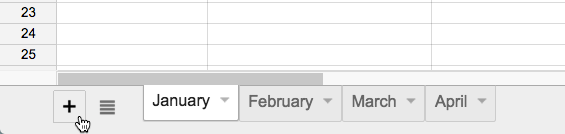
2. A new worksheet will appear on the worksheet toolbar.
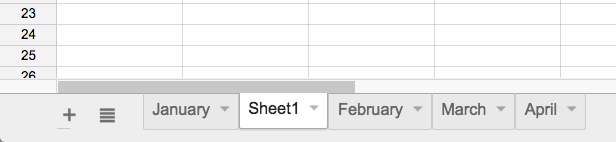
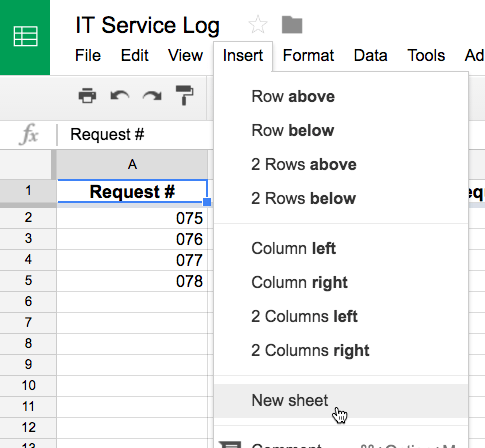
Alternatively, you can create additional sheets by clicking Insert and selecting New sheet from the drop-down menu.
How to rename a worksheet
1. Click on the tab of the worksheet you want to rename. Select Rename. from the menu that appears.
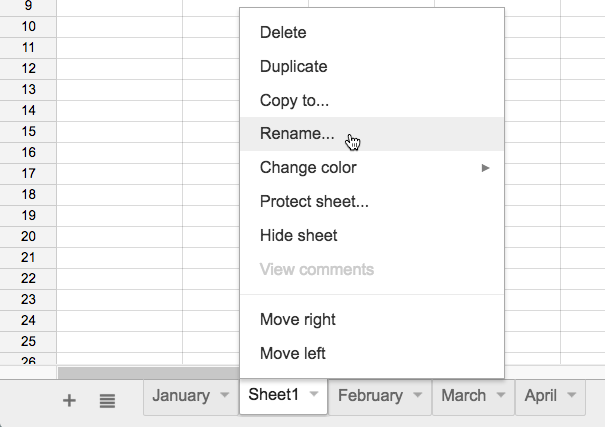
2. Enter the desired name for the worksheet.
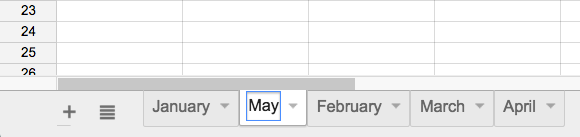
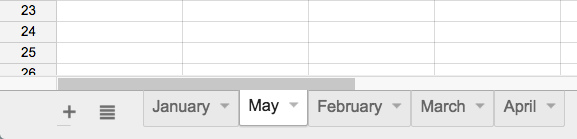
3. Click anywhere outside the tab or press Enter on your keyboard when you're finished, and the worksheet will be renamed.
How to switch to a different worksheet
1. Click on the desired worksheet tab in the worksheet toolbar.
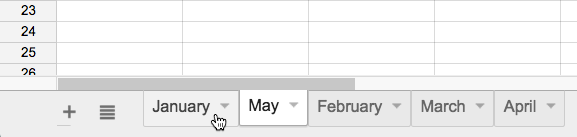
2. The selected worksheet will appear.
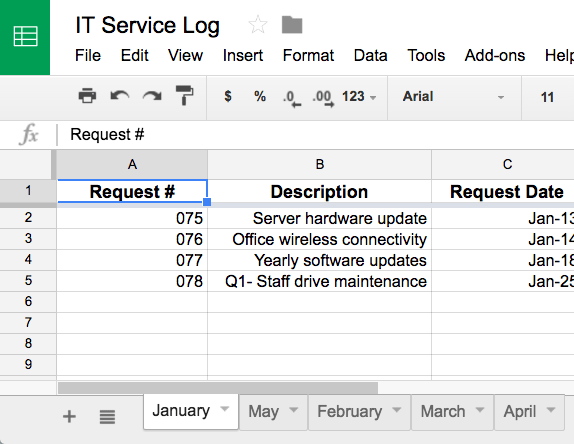
If you want to restrict collaborators from editing specific sheets in your spreadsheet, you can protect those sheets by clicking the desired sheet tab and selecting Protect sheet. from the menu that appears.
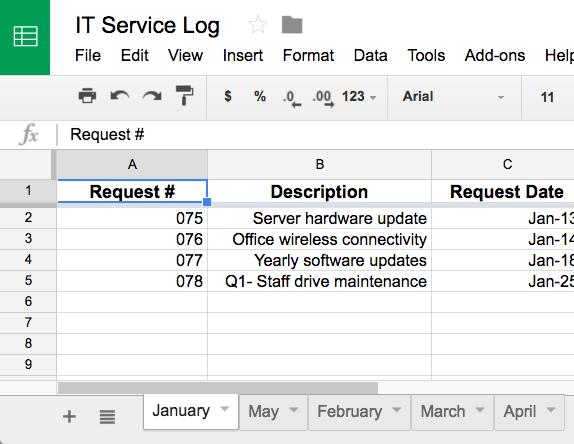
How to move a worksheet
1. Click and drag the tab of the worksheet you want to move.
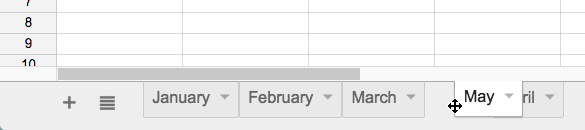
2. Release the mouse button to place the tab in the desired position.
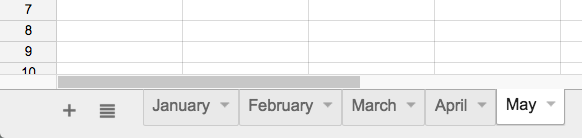
How to copy a spreadsheet
1. Click on the tab of the worksheet you want to copy, then select Duplicate from the menu that appears.
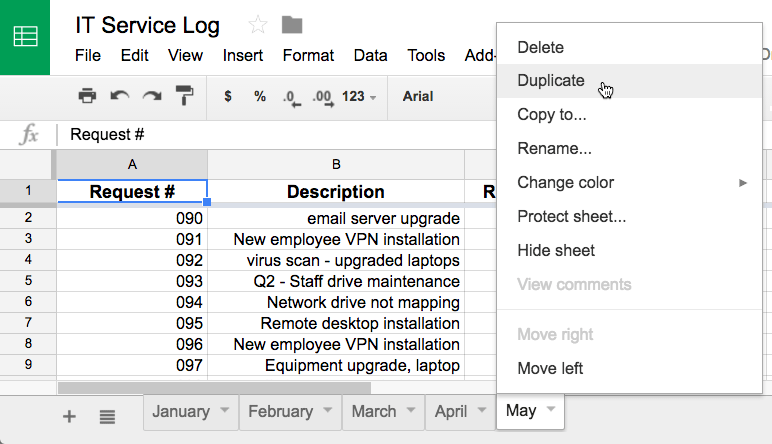
2. A copy of the worksheet will appear on the toolbar. It will be named "Copy of the original worksheet," such as " Copy of May ." You can rename the worksheet if you wish.
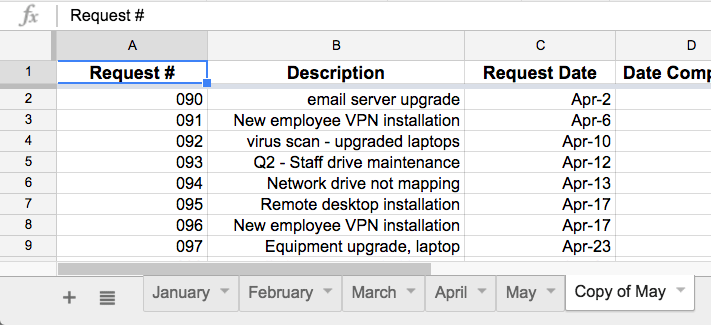
To copy a worksheet to another spreadsheet in Google Drive, click the tab of the worksheet you want to copy, then select Copy to. from the menu that appears. Choose the spreadsheet where you want to place the copy from the list that appears. The copy of the worksheet will appear in the other spreadsheet.
How to delete a worksheet
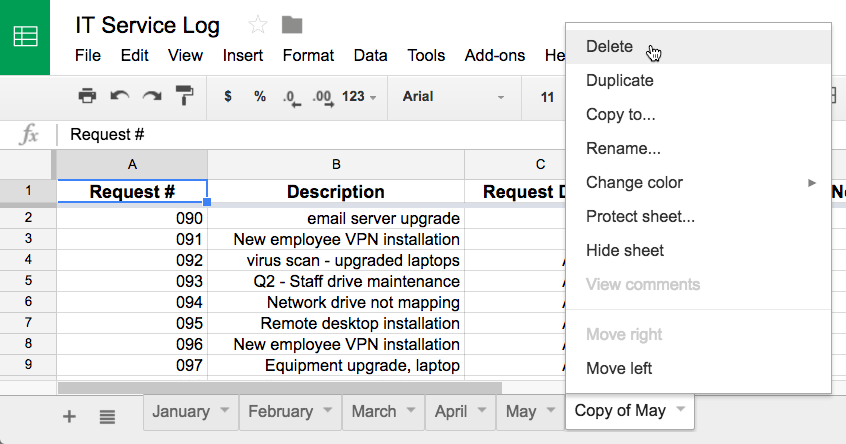
1. Click on the tab of the worksheet you want to delete. Select Delete from the menu that appears.
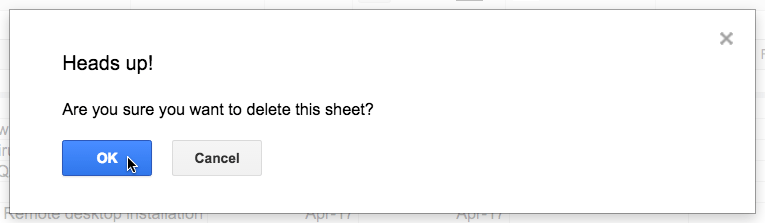
2. A warning dialog box will appear. Click OK and the worksheet will be deleted.
Final Thoughts
Understanding working with sheets makes it easier to evaluate the information and apply the most relevant recommendations. Focus on the key points above and verify details that may change over time.
FAQ
What is working with sheets?
Explore working with sheets, including the key concepts, practical examples, important considerations, and useful guidance.
What key points does this article cover?
The article focuses on Use multiple spreadsheets, How to create a new worksheet, How to rename a worksheet, with practical explanations and examples.
How can you use this information in practice?
Use the explanations to compare options, verify important details, and make a more informed decision. Apply the recommendations that best match your goals and situation.
Related Articles
 Working with Functions: Explained8 minutes read
 The Google Sheets Working Screen: Beginner’s Guide5 minutes read
 How to Quickly Delete Multiple Sheets in Excel3 minutes read
 How to Set up the Right to Edit Spreadsheets on Google Sheets5 minutes read
 How to Write Notes, Comments on Google Sheets4 minutes read
 How to Refine a Google Sheets Canvas with Follow-Up Prompts7 minutes read
Reader Comments 0
Sign in with email or Google to join the discussion.