Table of Contents
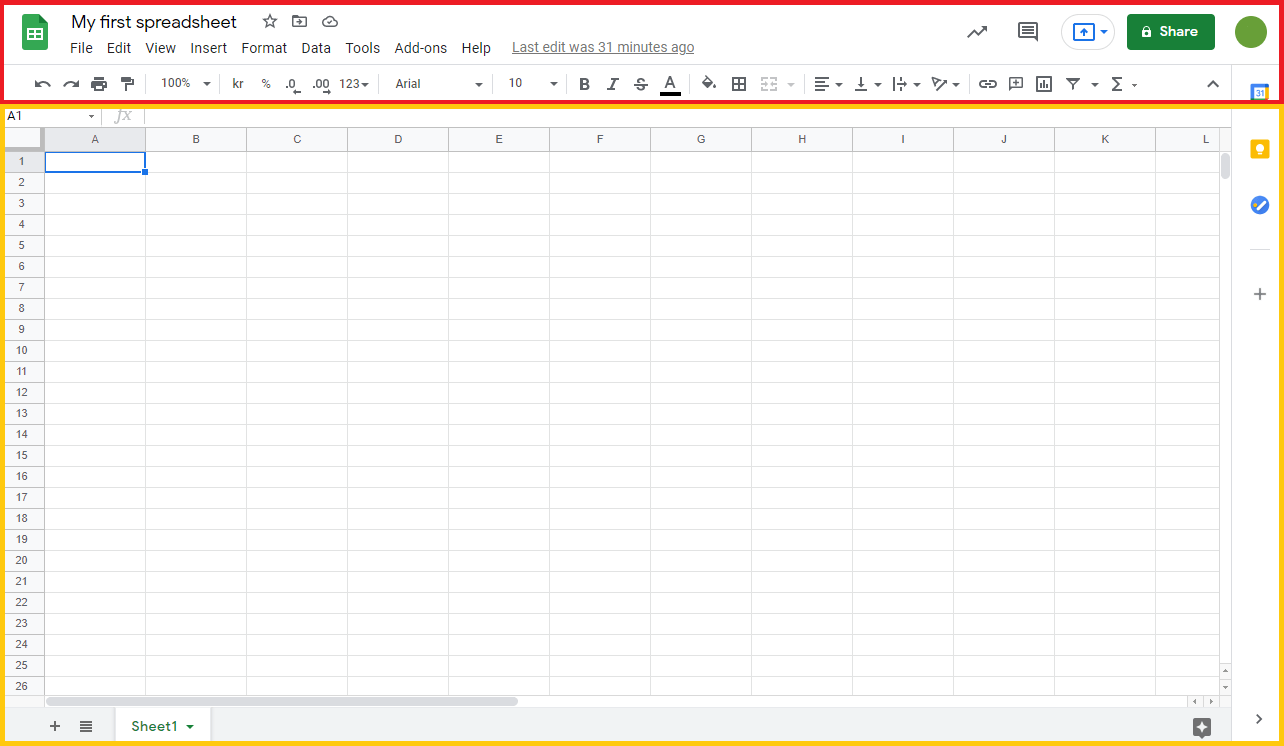
This article will introduce specifically about the working screen on Google Sheets. Google Sheets is similar to Microsoft Excel, divided into 2 main working areas: Ribbon and Sheet (spreadsheet area).
Google Sheets Has become one of the most versatile and widely used tools for organizing and analyzing data. Whether you're managing a personal budget, tracking team projects, or analyzing large data sets, Google Sheets offers a powerful and flexible solution.
You can use Google Sheets to do just about anything. There's serious stuff, like organizing to-do lists, managing leads, and making decisions. And there's fun stuff, like playing Wordle, simulating a baseball game, and creating custom browser homepages.
But before you can create a spreadsheet to track how many minutes your dog has gone without praising him for being good—or things that help you get the actual job done—you have to master the basics.
In this Google Sheets tutorial for beginners, let's get acquainted with the Google Sheets working screen.
This article will introduce specifically about the working screen on Google Sheets. Google Sheets is similar to Microsoft Excel, divided into 2 main working areas: Ribbon And Sheet (spreadsheet area).
As you can see in the image below, the Ribbon area is marked in red frame, the Sheet area is marked in yellow frame:
Learn about the Ribbon
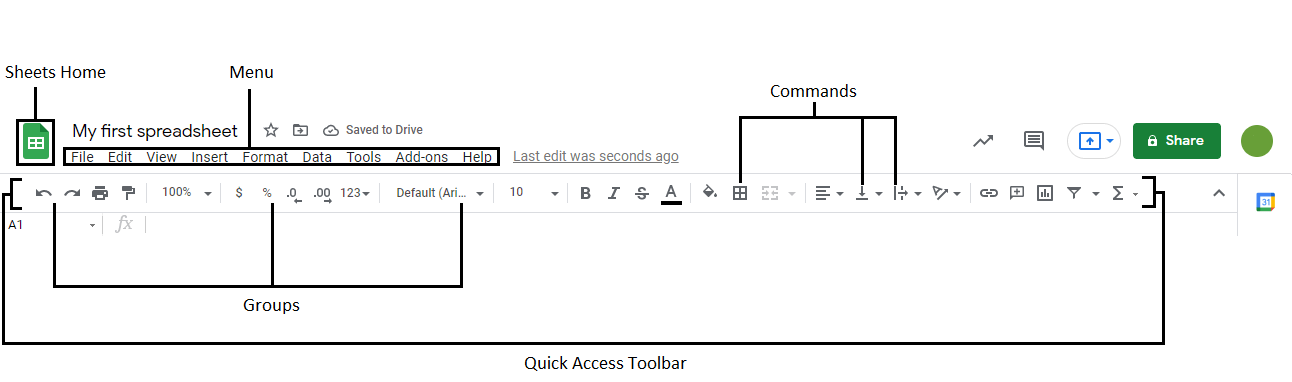
Ribbon provides shortcuts for Google Sheets commands and features, including: inserting charts, changing fonts, font sizes, font colors, printing.
The Ribbon includes the main work areas such as: Sheets Home, Menu, Quick Access Toolbar, Groups, and Commands.
Sheets Home
This button will take you to the Google Sheets home page, where you can create a new spreadsheet or manage the spreadsheets you have created. Basically, it links here: https://docs.google.com/spreadsheets/u/0/
Menu Bar
As the name suggests, the menu bar lets you manage all the actions you can do with your spreadsheet.
Quick Access Toolbar
This quick access toolbar provides the most common and frequently used operations, You can quickly click here instead of having to look for it in the Menu bar.
Groups & Commands
These two sections are also in the Quick Access Toolbar. You can quickly use commonly used task groups such as printing, copying formats, quickly selecting data types,. or some commands such as splitting cells, merging cells, aligning text in cells, drawing table borders.
Learn about Sheets
A sheet is a collection of rows and columns. Rows are numbered from 1 to n, columns are alphabetically labeled AZ, AA-AZ.
From those rows and columns, we get rectangular boxes called cells.
You can enter any value into the cell, including: numbers, letters, links, images.

Each cell has a unique reference, which is the coordinate name of the cell: where the column and row intersect. Note : The letter character of the column name always comes before the number character of the row name.
To simplify understand, let's look at the following example:
In the figure below, the text " Hello world " is entered in column C , row 4. Based on that reference, you can call the address of that cell as cell C4 .

So after this lesson, you have a basic understanding of the main working screen of Google Sheets. Please continue to follow this series in the next lessons!
FAQ
What should you know about the Google Sheets working screen?
In practical terms, this article will introduce specifically about the working screen on Google Sheets. Google Sheets is similar to Microsoft Excel, divided into 2 main working areas: Ribbon and Sheet (spreadsheet area).
Why does the Google Sheets working screen matter?
The article highlights that this article will introduce specifically about the working screen on Google Sheets.
What is the main takeaway?
The main takeaway is that Google Sheets is similar to Microsoft Excel, divided into 2 main working areas: Ribbon and Sheet (spreadsheet area).
Related Articles
 Working with Sheets: Explained5 minutes read
 Working with Functions: Explained8 minutes read
 How to Set up the Right to Edit Spreadsheets on Google Sheets5 minutes read
 How to Write Notes, Comments on Google Sheets4 minutes read
 Tricks Using Google Sheets Should Not Be Ignored7 minutes read
 How to Create Graphs, Charts in Google Sheets5 minutes read
Reader Comments 0
Sign in with email or Google to join the discussion.