Table of Contents
Explore working with functions, including the key concepts, practical examples, important considerations, and useful guidance.
Parts of a function
Similar to entering formulas, the order in which you enter functions into cells is crucial. Each function has a specific order—called syntax—that must be followed for the function to calculate correctly. The basic syntax for creating a formula with a function is to insert an equals sign (=), a function name (for example, AVERAGE is the name of the function to find the average), and an argument. The argument contains the information you want the formula to calculate, such as a range of cell references.

Working with arguments
Arguments can refer to both individual cells and cell ranges and must be enclosed in parentheses. You can include one or multiple arguments, depending on the syntax required for the function.
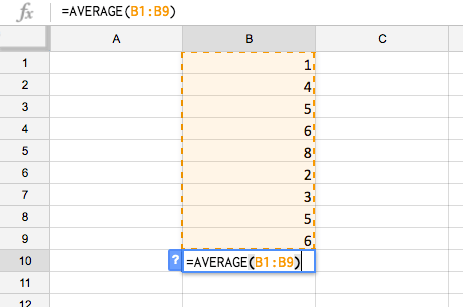
For example, the function =AVERAGE(B1: B9) will calculate the average of the values in the range B1: B9. This function only takes one argument.
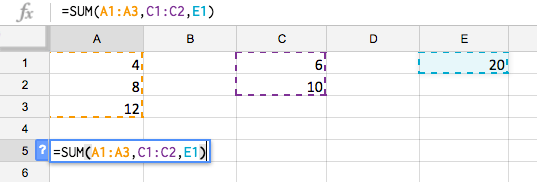
Multiple arguments must be separated by commas. For example, the function =SUM(A1: A3, C1: C2, E1) will add the values of all cells in the 3 arguments.
Create a function
Google Sheets offers many different functions. Here are some of the most common ones you'll use:
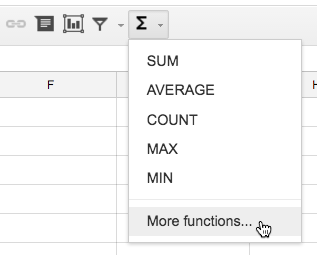
- SUM: This function adds all the values of the cells in the argument.
- AVERAGE: This function determines the average value of the values in the argument. It sums the cells and then divides that value by the number of cells in the argument.
- COUNT: This function counts the number of cells that contain numeric data in their arguments. This function is useful for quickly counting items within a range of cells.
- MAX: This function determines the highest cell value in the argument.
- MIN: This function determines the lowest cell value in the argument.
How to create a function using the Functions button
The Functions button allows you to automatically return results for a range of cells. The answer will be displayed in the cell below the range.
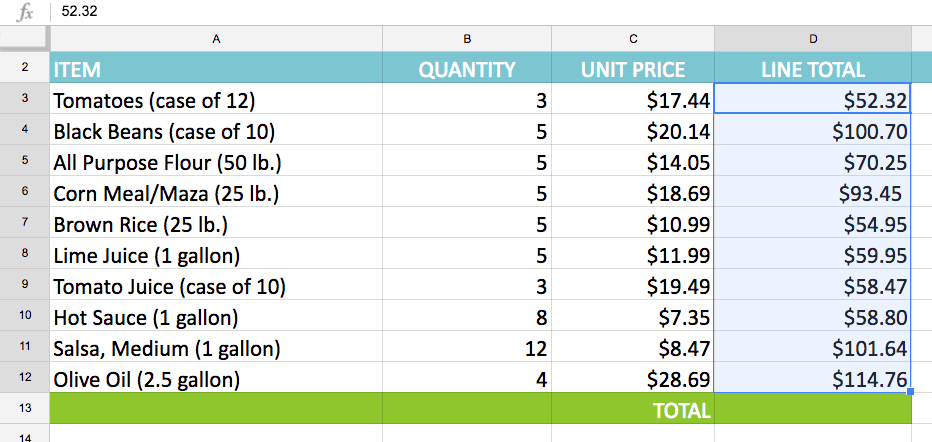
1. Select the range of cells you want to include in the argument. For example, we would select D3: D12.
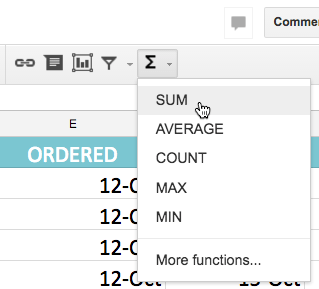
2. Click the Functions button, then select the desired function from the drop-down menu. For example, we would select SUM.
3. The function will appear in the cell directly below the selected cells.
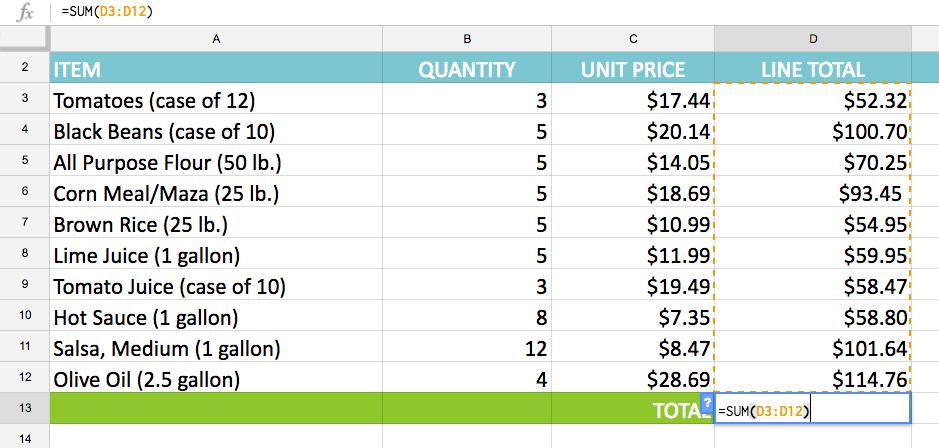
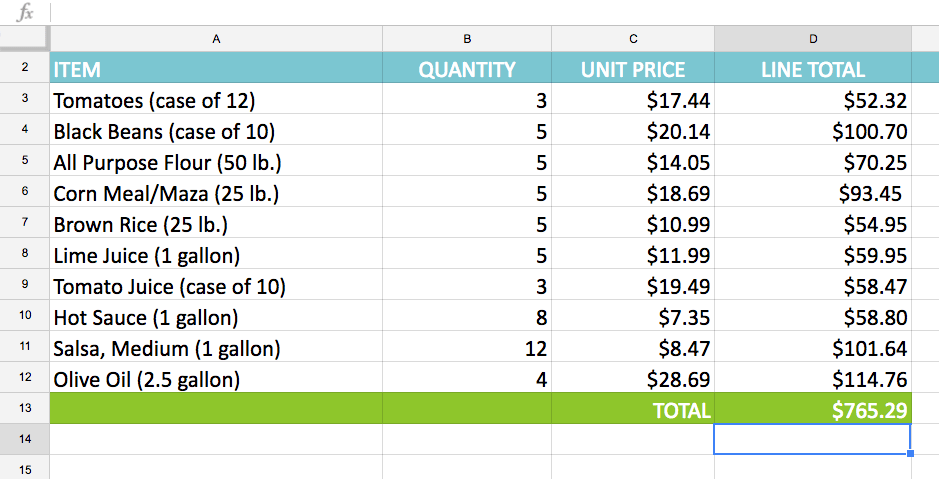
4. Press the Enter key on your keyboard. The function will be calculated and the result will appear in the cell. In the example, the sum of D3: D12 is $765.29.
Create a function manually
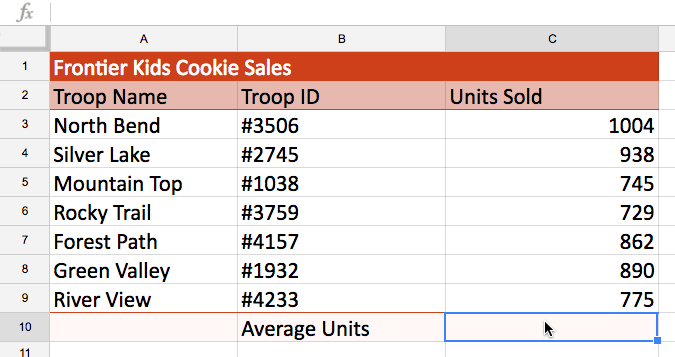
If you already know the function name, you can easily type it yourself. The example below is a table showing cookie sales statistics. The AVERAGE function will be used to calculate the average number of units sold by each team.
1. Select the cell where the answer will appear. For example, we would select C10.
2. Type an equals sign (=), then enter the desired function name. You can also select the desired function from the list of suggested functions that appear below the cell as you type. For example, you would type =AVERAGE.
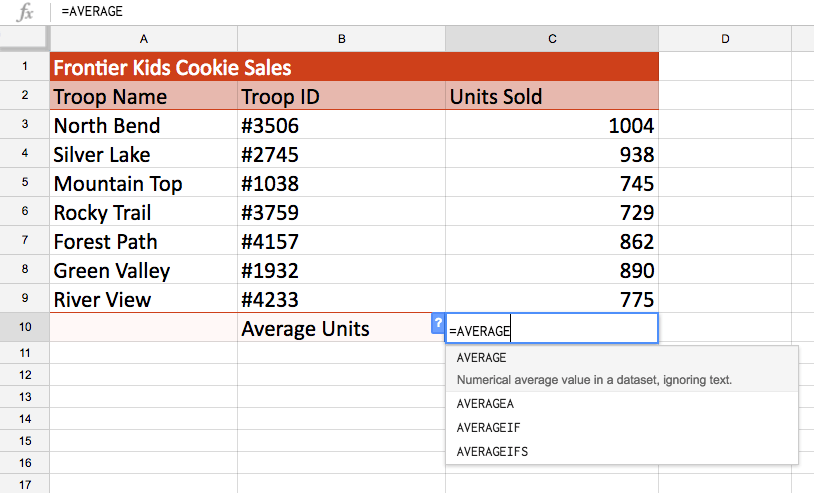
3. When manually entering a function, Google Sheets also displays a window listing the specific arguments the function requires. This window appears when the first parenthesis is entered and remains visible as more arguments are entered.
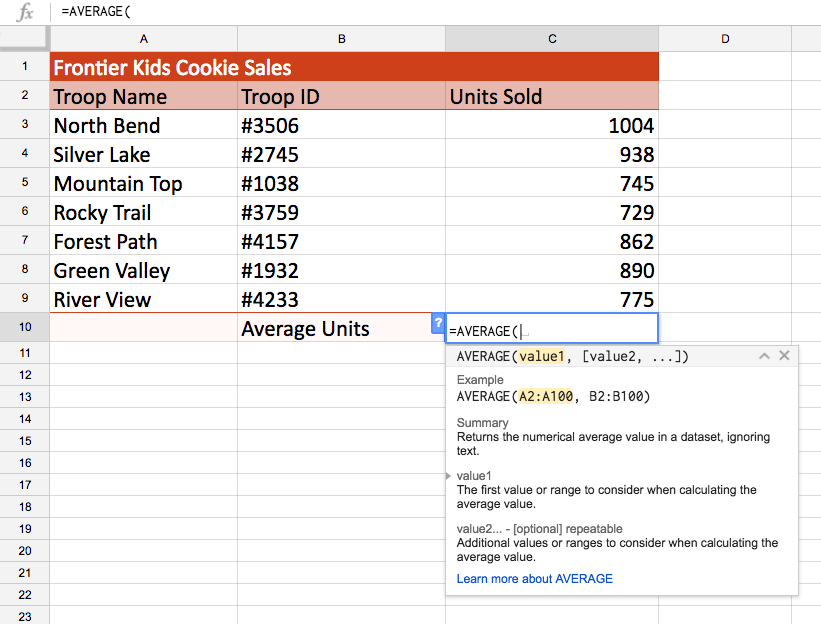
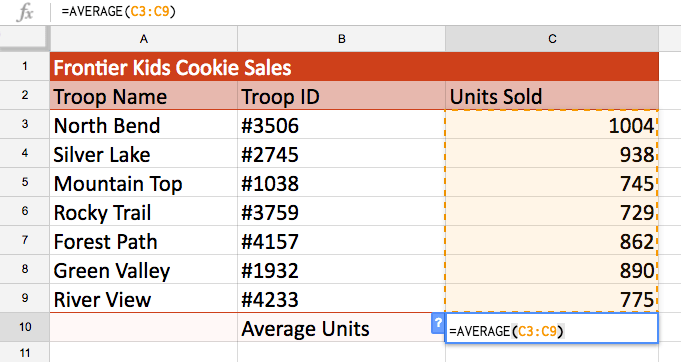
4. Enter the range of cells for the argument inside the parentheses. For example, you would enter (C3: C9). This formula will add the value of cells C3: C9, then divide that value by the total number of values in the range.
5. Press the Enter key on your keyboard and the answer will appear.
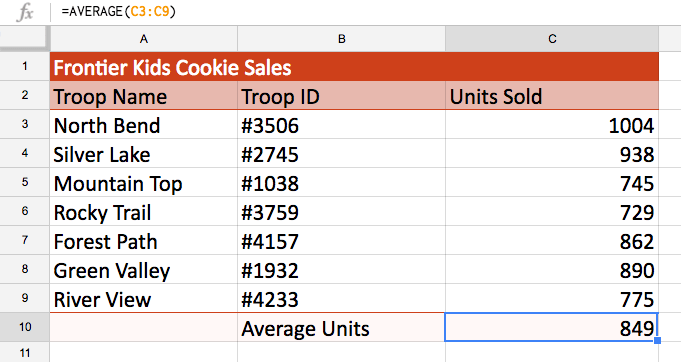
Google Sheets doesn't always tell you if your function has an error, so you should check all your functions yourself.
List of Google Sheets functions
If you have experience using spreadsheets and want to use Google Sheets to perform more advanced calculations, you can explore Google Sheets' list of functions. It's a useful reference for hundreds of functions for financial analysis, statistics, and data.
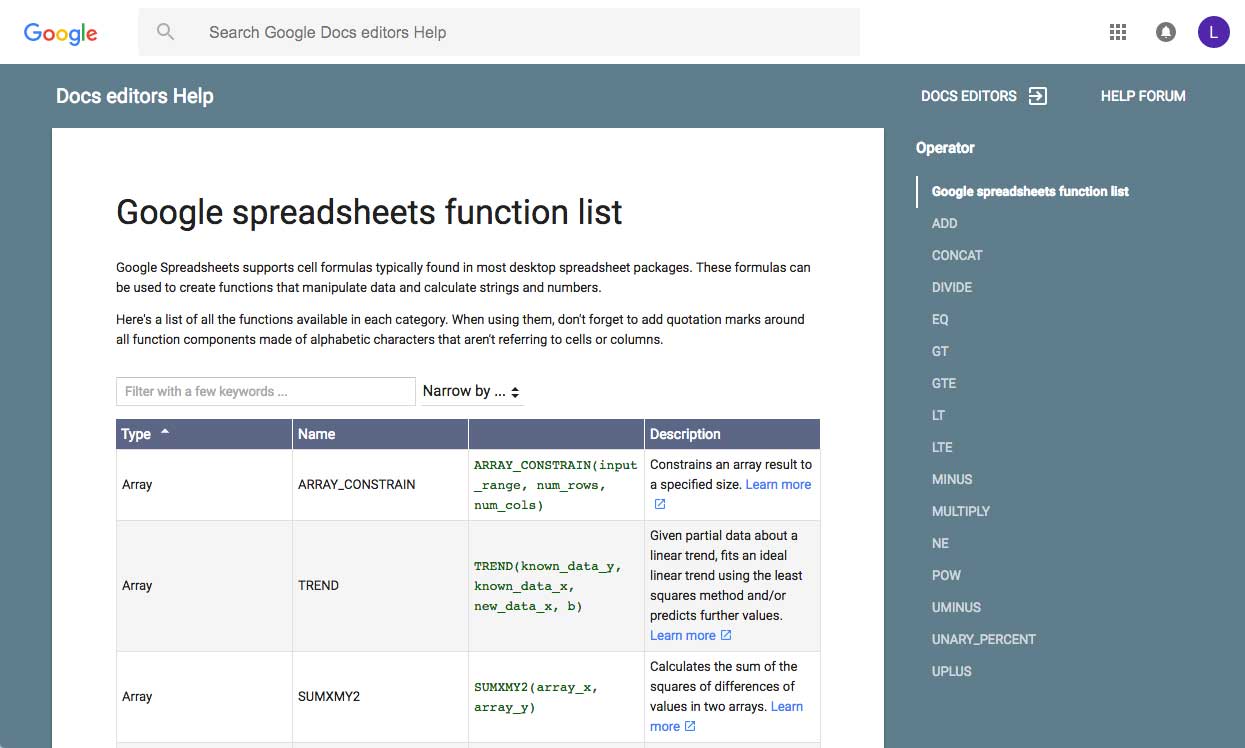
If you are familiar with the functions found in Microsoft Excel's Function Library, you will find that Google Sheets' list of functions contains many similar functions.
How to access the list of functions
Click the Functions button and select More functions. from the drop-down menu. The list of Google Sheets functions will appear in a new browser tab.
If you're comfortable with basic functions, you might want to try a more advanced one like the VLOOKUP function. You can check out TipsMake.com's article on how to use the VLOOKUP function in Excel for more information. Like most functions, the VLOOKUP function works the same way in Excel and Google Sheets.
Final Thoughts
Understanding working with functions makes it easier to evaluate the information and apply the most relevant recommendations. Focus on the key points above and verify details that may change over time.
FAQ
What is working with functions?
Explore working with functions, including the key concepts, practical examples, important considerations, and useful guidance.
What key points does this article cover?
The article focuses on Parts of a function, Working with arguments, Create a function, with practical explanations and examples.
How can you use this information in practice?
Use the explanations to compare options, verify important details, and make a more informed decision. Apply the recommendations that best match your goals and situation.
Related Articles
 Complete Financial Functions in Excel You Should Know23 minutes read
 Tips for Working with Functions in Excel5 minutes read
 Summary of Trigonometric Functions in Excel6 minutes read
 Steps to Fix Fn Key Not Working in Windows 106 minutes read
 Recursive Function in Python7 minutes read
 Comparison Functions in Excel - How to Use Comparison Functions and5 minutes read
Reader Comments 0
Sign in with email or Google to join the discussion.