Table of Contents
Learn how to create complex formulas with clear steps, practical tips, and troubleshooting guidance for a reliable result.
Order of operations
Google Sheets calculates formulas based on the following order of operations:
- The operations are placed in parentheses.
- Exponential calculations (e.g., 3^2)
- Multiplication and division, whichever comes first.
- Addition and subtraction, whichever comes first.
Create complex formulas
In the example below, we'll demonstrate how Google Sheets solves a complex formula using the order of operations. The complex formula in cell D6 calculates sales tax by adding the prices together and multiplying by the tax rate of 5.5% (written as 0.055).
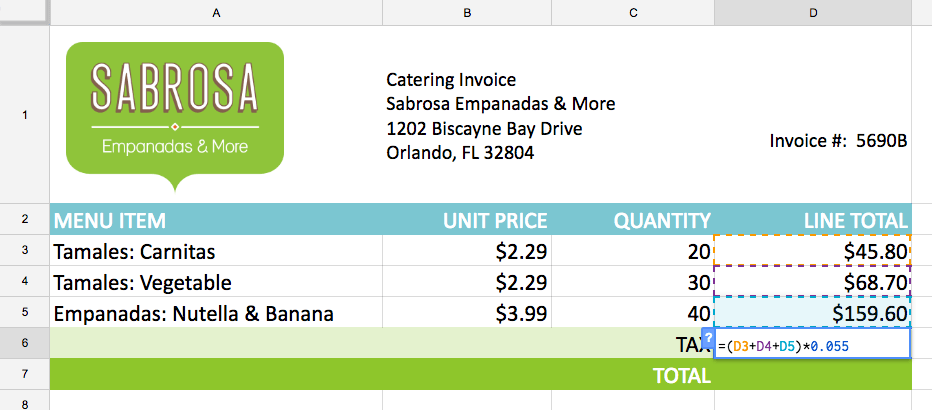
Google Sheets follows the order of operations and first adds the values inside the parentheses: (D3 + D4 + D5) = $274.10. Then, multiply by the tax rate: $274.10 * 0.055. The result will show the tax as $15.08.
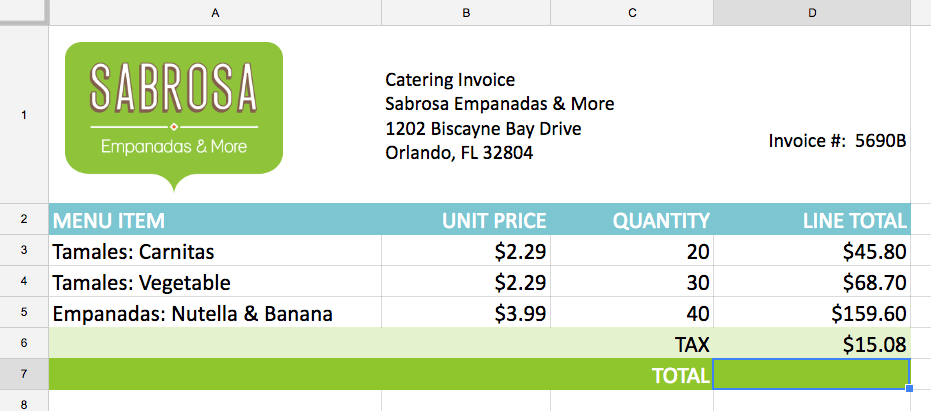
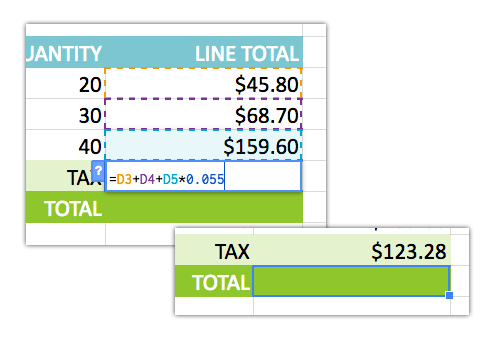
It's especially important to follow the order of operations when creating formulas. Otherwise, Google Sheets won't calculate the result correctly. In the example, if the parentheses aren't included, the multiplication will be calculated first, and the result will be incorrect. Parentheses are often the best way to specify which calculation should be performed first in Google Sheets.
How to create a complex formula using the order of operations
The example below will use cell references along with numerical values to create a complex formula to calculate a subtotal for a food and beverage bill. The formula will calculate the cost of each item on the menu first, then add these values.
1. Select the cell that will contain the formula. For example, we would select cell C5.
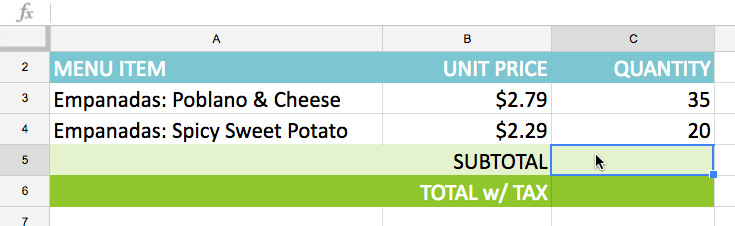
2. Enter your formula. For example, you would enter =B3*C3+B4*C4. This formula will follow the order of operations, first performing the multiplication: 2.79*35 = 97.65 and 2.29*20 = 45.80 . Then, it will add these values to calculate the sum: 97.65+45.80.
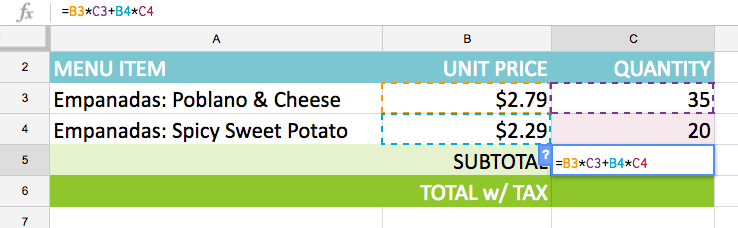
3. Double-check the accuracy of the formula, then press Enter on the keyboard. The formula will calculate and display the result. In the example, the result shows the subtotal of the order is $143.45.
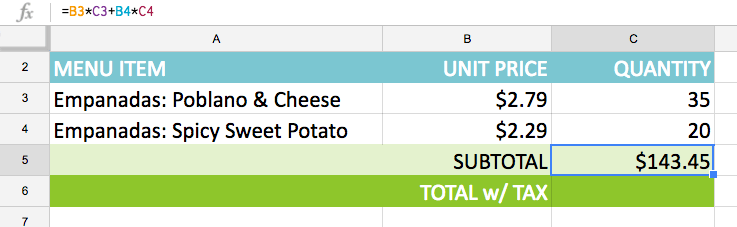
Note: Google Sheets doesn't always tell you if a formula is wrong, so you need to check all your formulas yourself.
Final Thoughts
Use this guide as a practical checklist for how to create complex formulas. Work through the steps in order, verify each result, and adjust the options to match your needs.
FAQ
What do you need before following this How to Create Complex Formulas guide?
Review the required tools, accounts, settings, or materials mentioned in the article. Learn how to create complex formulas with clear steps, practical tips, and troubleshooting guidance for a reliable result.
What are the main steps for how to create complex formulas?
Follow the sections in order, especially Order of operations, Create complex formulas, How to create a complex formula using the order of operations. Complete each step before continuing and verify the result as you go.
What should you do if the process does not work as expected?
Recheck the prerequisites, update the relevant app or service, review the settings, and repeat the step that caused the issue. Use any troubleshooting notes included in the guide.
Related Articles
 A Complete Guide to Excel 2016 (Part 14): Create Complex Formulas6 minutes read
 Excel 2019 (Part 13): Creating Complex Formulas6 minutes read
 How to Use ChatGPT to Write Excel Formulas9 minutes read
 How to Create Random Text in Word4 minutes read
 How to Use AI to Create Functions and Formulas in Canva Sheets5 minutes read
 How to Write Mathematical Formulas in Word Very Easily: Complete Guide15 minutes read
Reader Comments 0
Sign in with email or Google to join the discussion.