Table of Contents
Explore adjust these 5 settings to double the functionality of your second screen.
Make sure the refresh rate is correct!
Many high-end monitors have low refresh rates
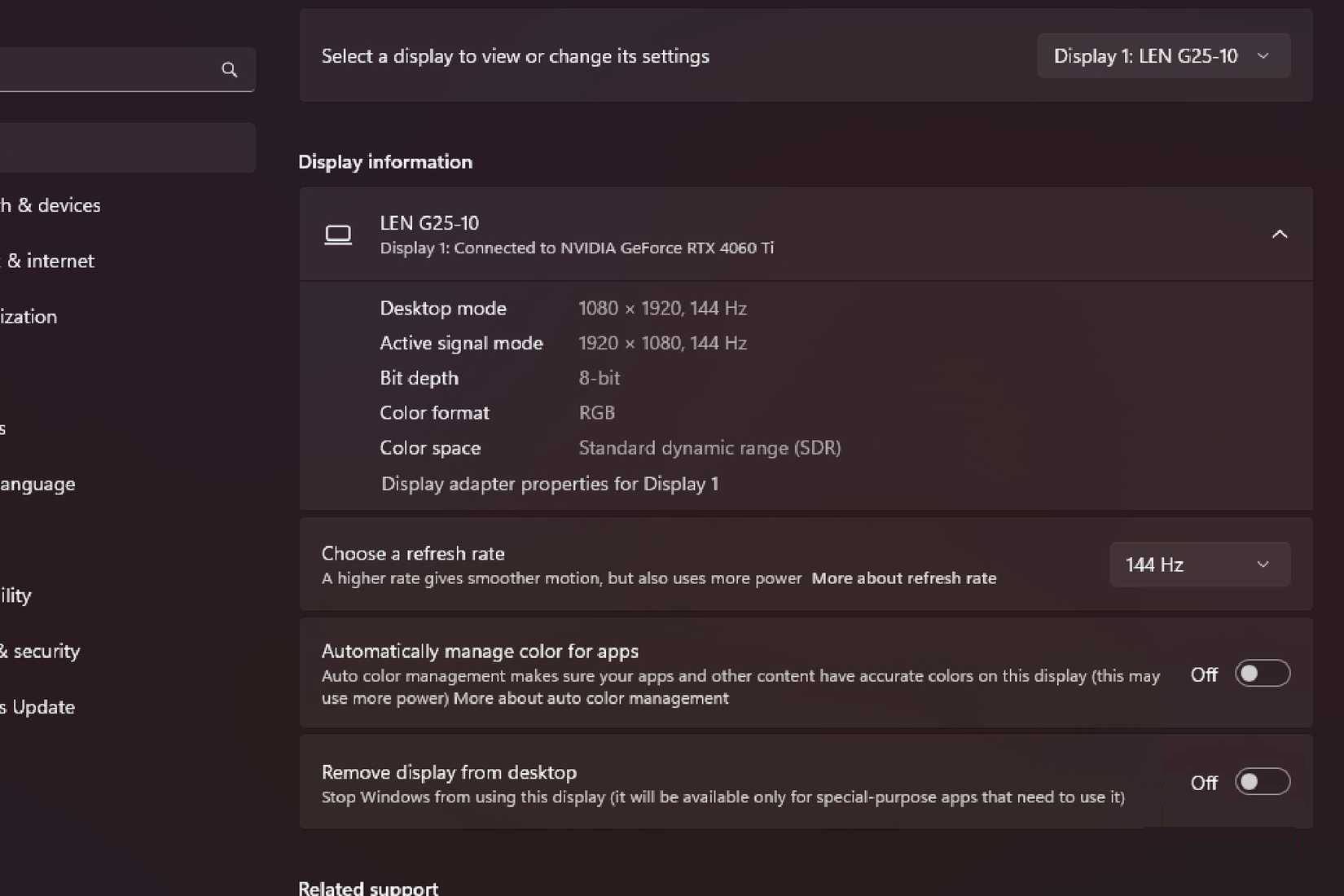
One of the most important things many people want to consider when preparing to upgrade their monitor is the refresh rate. People often can't tell the difference between frame rates above 60 frames per second, but are so used to higher refresh rates that 60Hz feels unnatural. Even so, the number of times you have to help someone adjust their refresh rate because they say their monitor isn't good is quite high.
While some users might expect their monitor to immediately default to the highest possible refresh rate, this isn't always the case. Check in Display Settings and make sure you've selected the Hz rate you want to use for your monitor. It can switch from a choppy image to a velvety smooth one in just a few clicks, saving you money and hassle.
Use alternative connections and built-in configurations
The monitor can handle a surprising amount of heavy workload, especially when properly powered
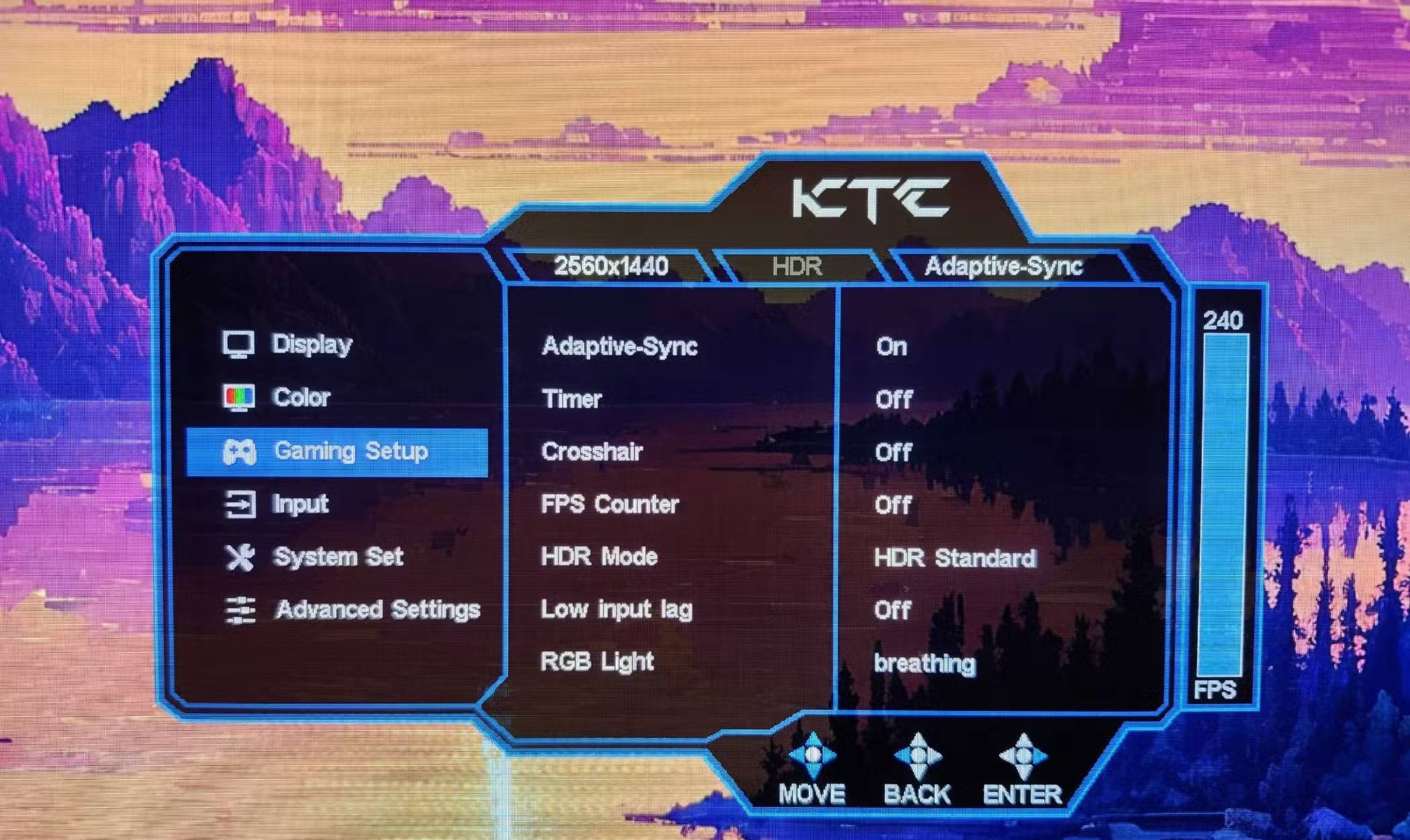
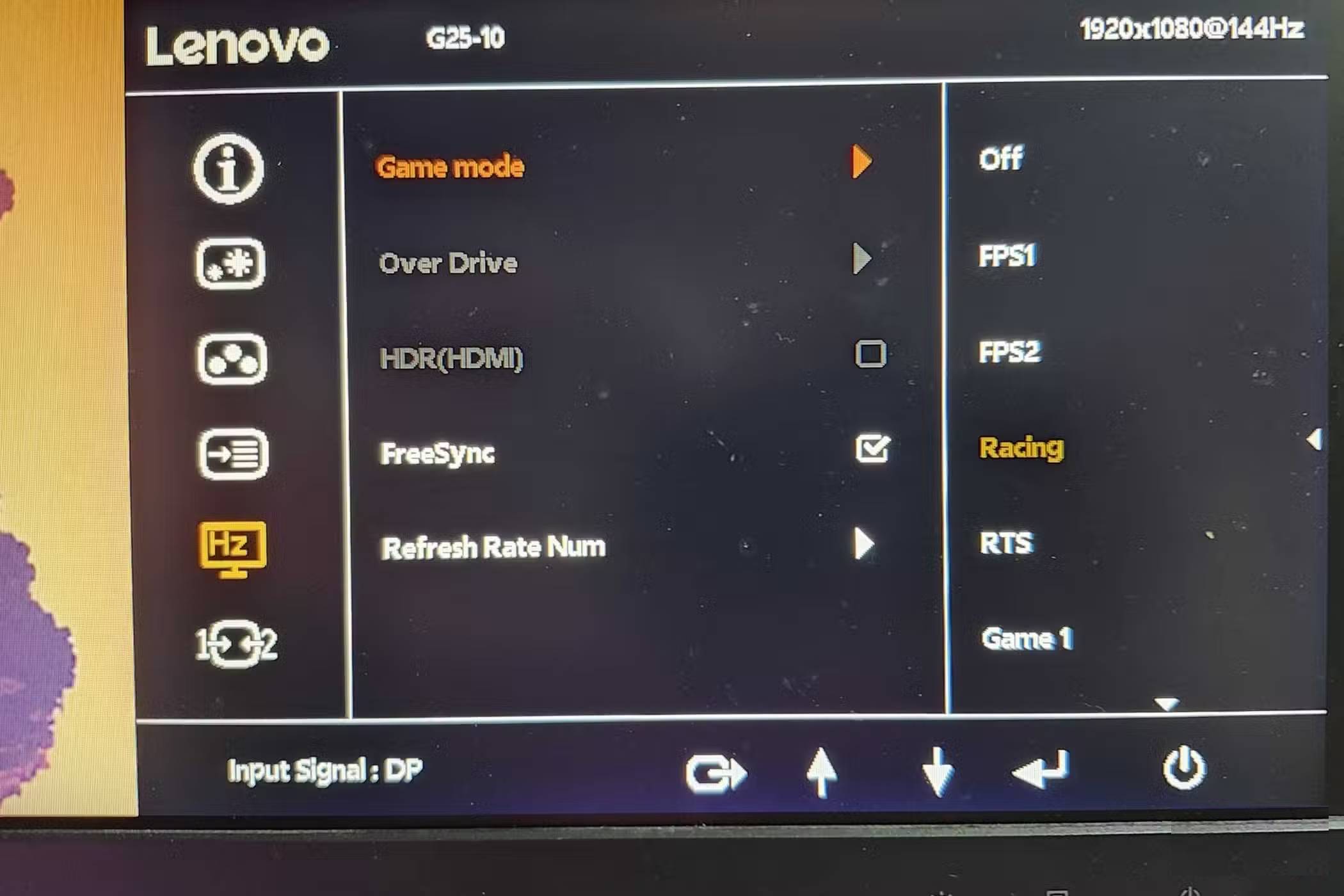
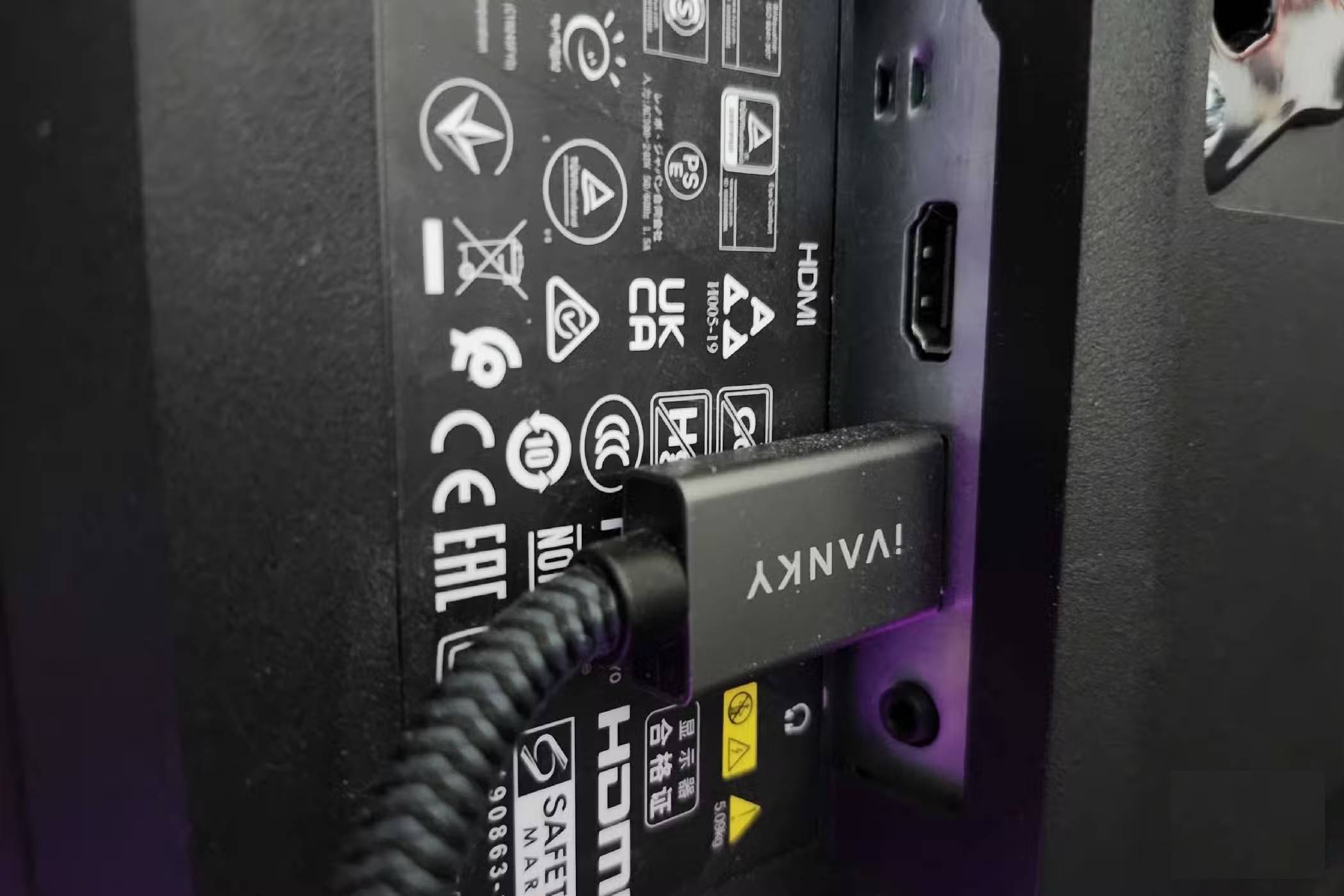
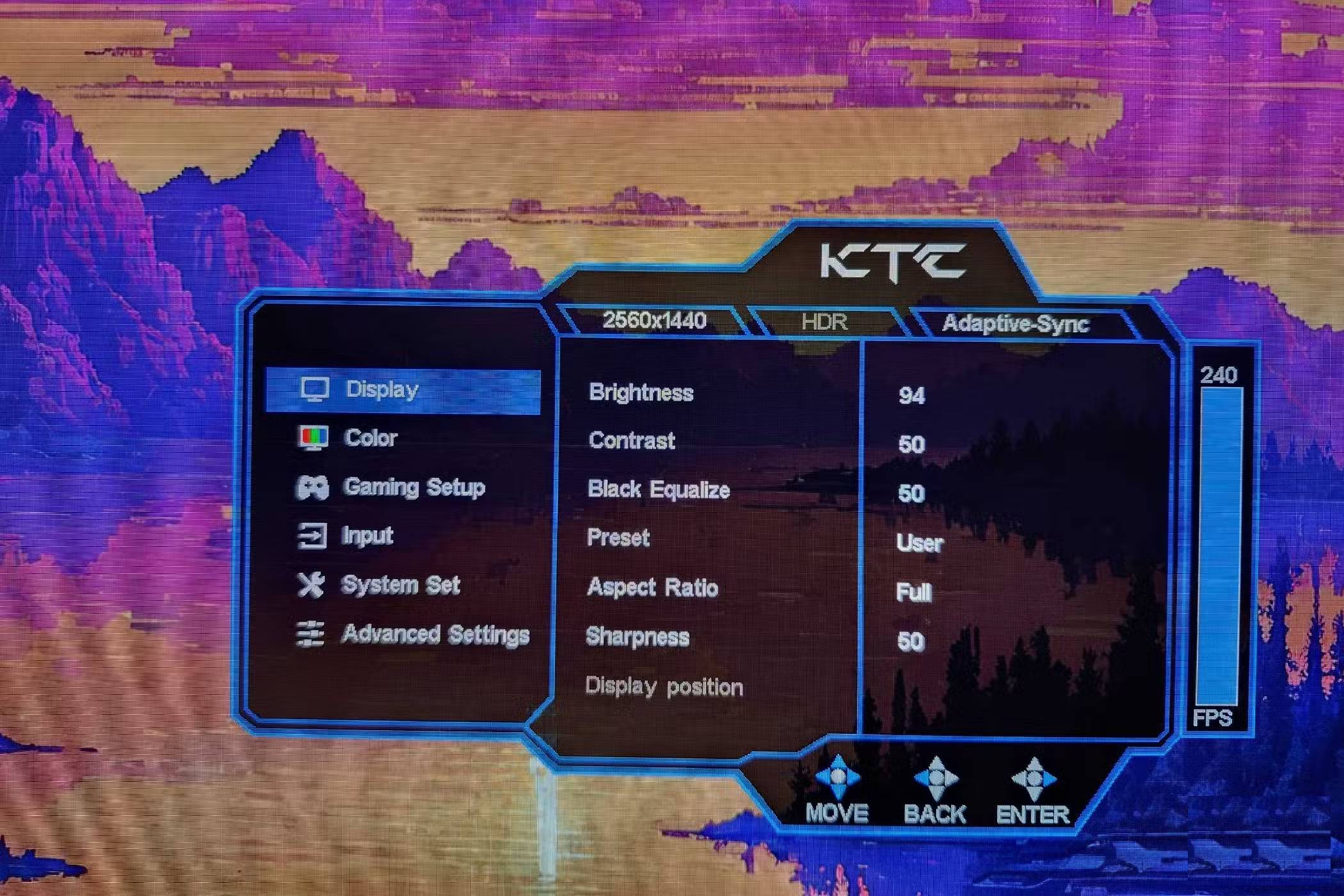
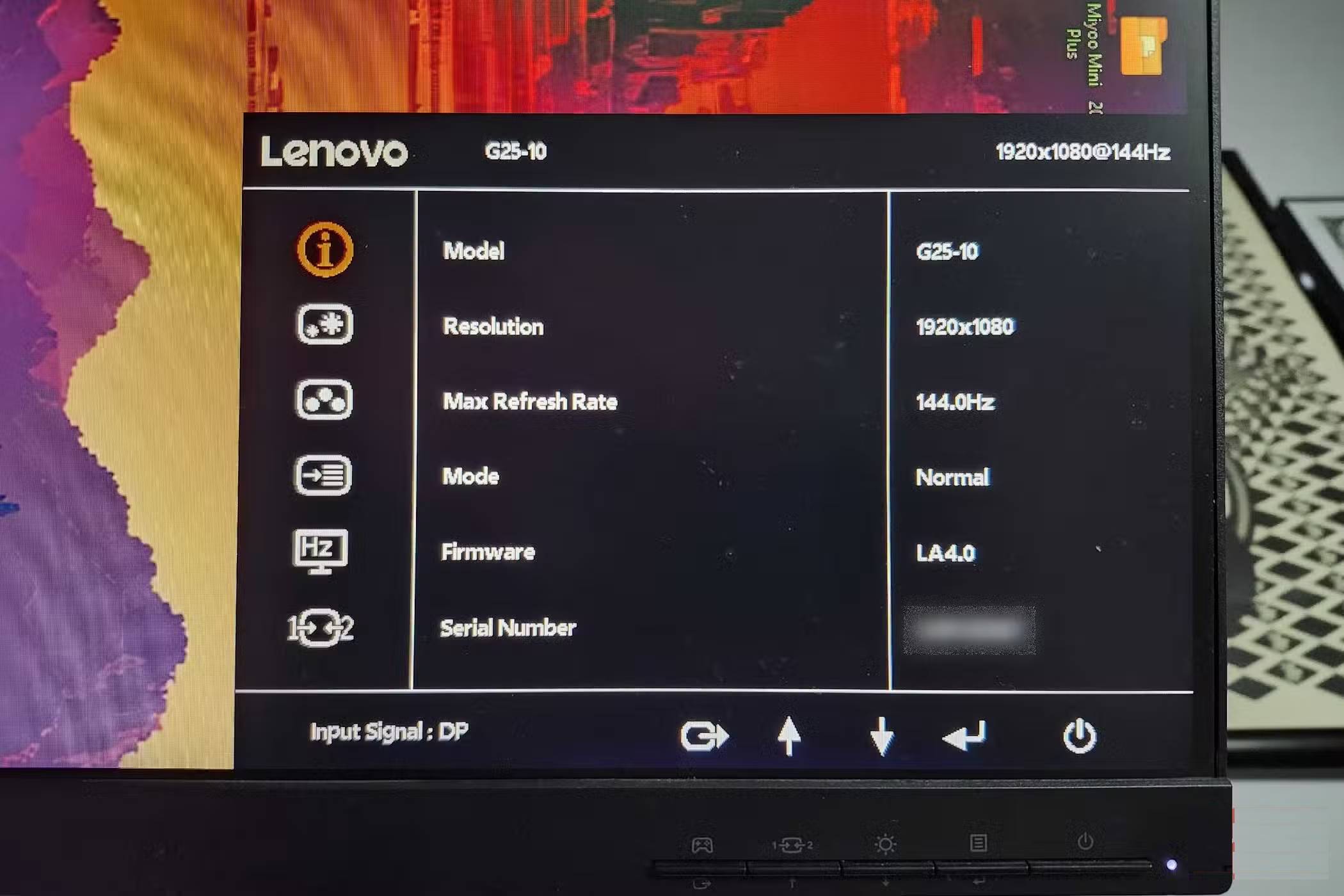
Most people already know this, but it's just a friendly reminder – double-check your monitor settings and make sure you're using the correct connector for best results. Screen burn-in on OLED displays is real, and monitors have many settings to ensure they last as long as possible, and you can only adjust them through the built-in menu.
But choosing the best cable is also crucial. Some monitors work well with HDMI, but others work better with DisplayPort. Research your specific monitor and see which one will give you the best results – and do some research on cables as well. You might be paying too much for things you don't really need.
Hide the taskbar for a cleaner interface
In addition, it prevents accidental clicks
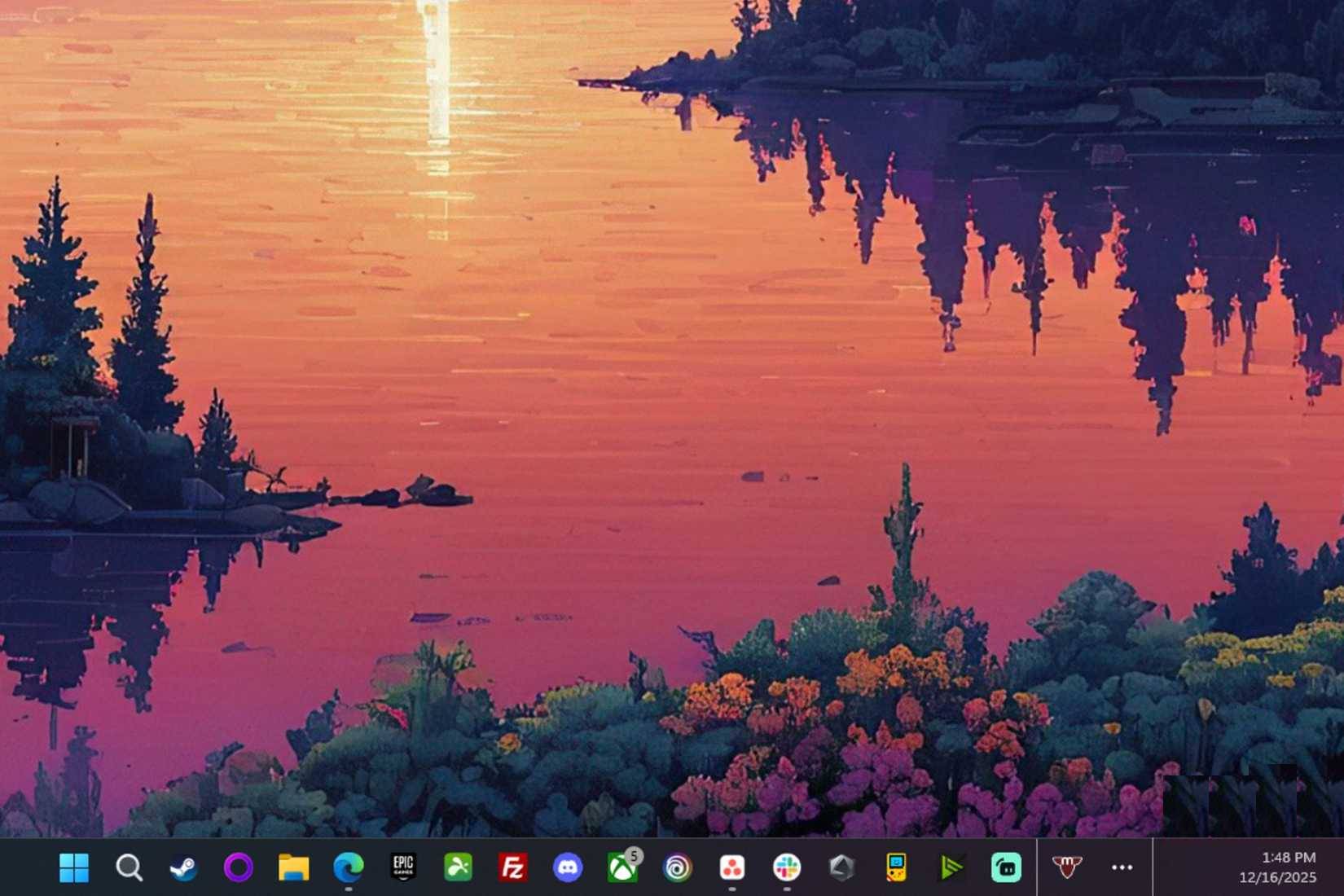
Aesthetics are incredibly important, and a little extra screen space on a second monitor is really great. Recently, many people have been hiding the taskbar on their vertical monitors, and while it might sound silly to hide a few extra pixels of space, it actually makes the screen look bigger.
If you want to try it yourself, it's quite simple. Windows 11 provides a way to do this with just a few clicks. Follow these steps to do it yourself:
- Right-click on the taskbar on the second screen.
- Open Taskbar Settings
- Search for Taskbar behaviors
- Turn off Show my taskbar on all displays
Any program minimized to the second screen will now default to the main taskbar, giving you more space for whatever you want. You could try playing a desktop game on the second screen, such as Rusty's Retirement .
Learn more about Windows PowerToys
You will be delighted to discover this toolkit
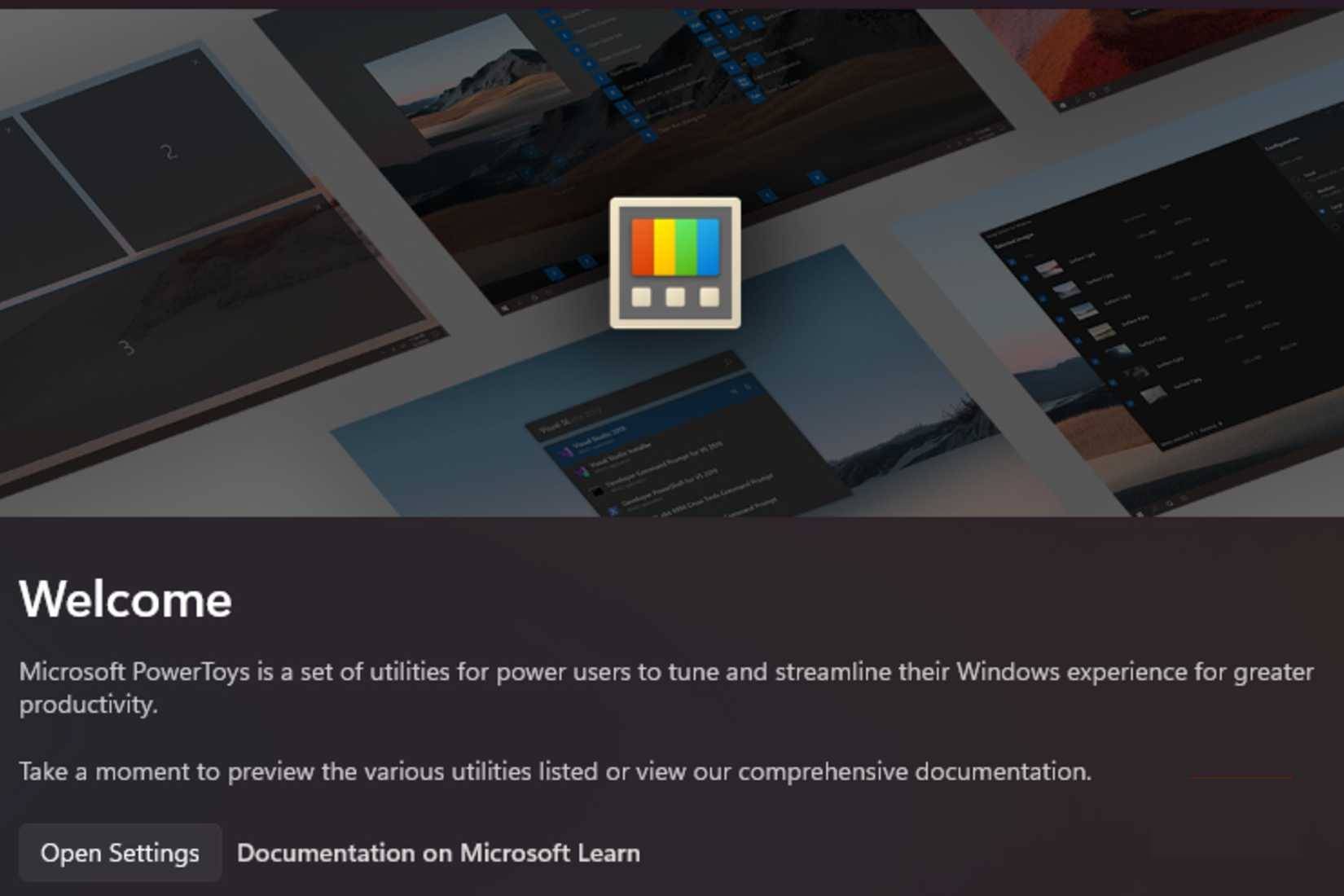
After exploring and using Dual Monitor Tools for a while, many people have suggested considering Microsoft PowerToys, an open-source software that has completely changed the way you use computers. To be fair, Dual Monitor Tools has a lot to offer – you'll increasingly appreciate the customization options PowerToys provides. Plus, it's easier to understand for all types of users, while still offering an incredible amount of features.
Having tools like FancyZones, Always On Top, and a mouse cursor finder is really great. Using a high-resolution mouse sometimes makes you wonder, "Where did my mouse cursor go?" This is an easy way to track something as simple as that.
Don't hesitate to try multiple programs at the same time
DisplayFusion is also a great tool for customizing your PC
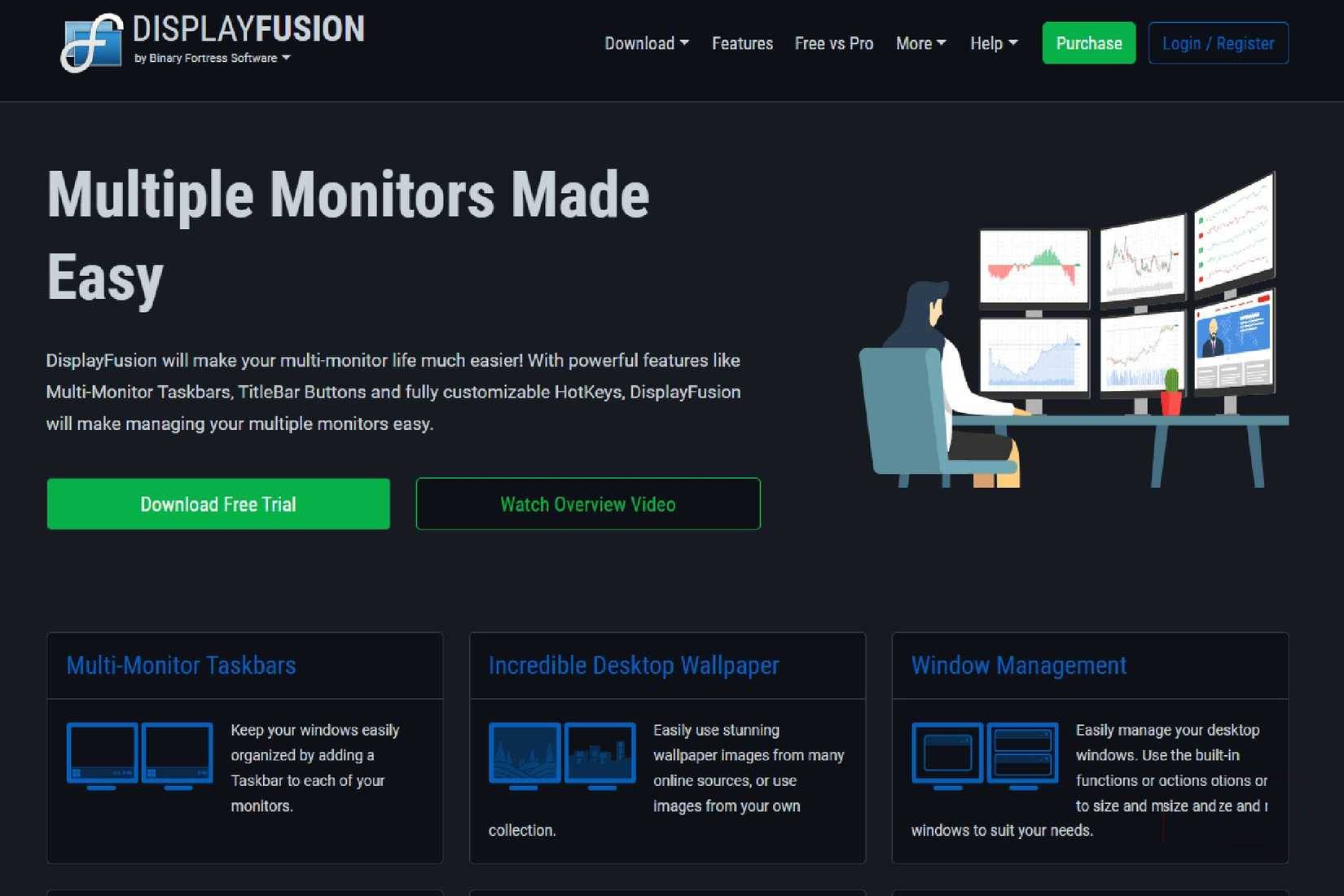
Like PowerToys, DisplayFusion has been recommended by many. It's an incredibly versatile program, offering numerous customization options that work in parallel with PowerToys, while still providing enough flexibility to customize your PC to your specific specifications. There's even a version you can purchase on Steam if you're hesitant to buy from the official website.
Upgrading to the official Pro version costs $40 for a lifetime license.
Final Thoughts
Understanding adjust these 5 settings to double the functionality of your second screen makes it easier to evaluate the information and apply the most relevant recommendations. Focus on the key points above and verify details that may change over time.
FAQ
What is adjust these 5 settings to double the functionality of your second screen?
Explore adjust these 5 settings to double the functionality of your second screen.
What key points does this article cover?
The article focuses on Make sure the refresh rate is correct!, Many high-end monitors have low refresh rates, Use alternative connections and built-in configurations, with practical explanations and examples.
How can you use this information in practice?
Use the explanations to compare options, verify important details, and make a more informed decision. Apply the recommendations that best match your goals and situation.
Related Articles
 3 Default Settings That Make 4K TV Screens Look Blurry: Explained8 minutes read
 How to Double Tap to Turn Off Android Phone Screen3 minutes read
 What Is the Best Color Correction for the Screen?13 minutes read
 Adjusting Screen Brightness on an Asus Laptop4 minutes read
 The Fastest and Simplest Ways to Adjust Screen Refresh Rate8 minutes read
 How to Change Screen Resolution on Computers and Laptops5 minutes read
Reader Comments 0
Sign in with email or Google to join the discussion.