Table of Contents
Magic Formulas in Canva Sheets turns a plain-language request into a spreadsheet formula. It can help with totals, percentages, counts, and conditional results, but you still need to check the cell references and output. This guide uses the attendance examples shown in the screenshots.
Generate a formula
- Open a Canva Sheet with labeled columns and select the cell where the first result belongs.
- Type = and choose Magic Formulas from the available options.
- Describe the exact calculation and columns. For example: “In E2, calculate attendance rate from sessions scheduled in B2 and absences in C2; leave the result blank if B2 is zero.”
- Review the suggested formula and sample result, then choose Insert if both make sense.
- If you need the calculation for more rows, copy or drag the formula down and verify that relative references point to the correct row.
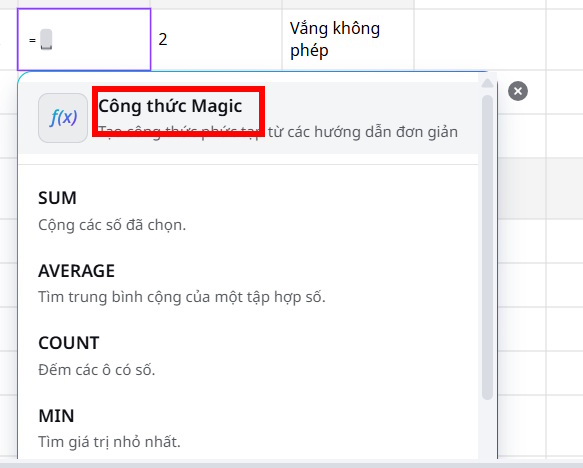


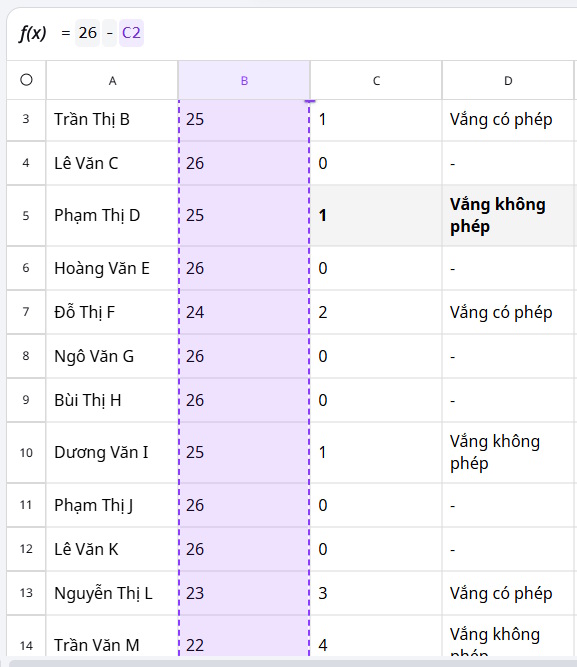
Canva describes Magic Formulas as a plain-language formula generator. If the menu label differs from an older screenshot, look for the Magic Formulas action in the current Sheets interface. For basic sheet creation and manual formulas, see the Canva Sheets setup guide.
Give unambiguous conditions
“More than two absences is a warning; fewer than two is a reminder” leaves exactly two unspecified. State every outcome: “If absences are three or more, show Warning; otherwise show Reminder. Leave blank if the absence cell is empty.” A formula suggestion can only be as precise as the rule you provide.


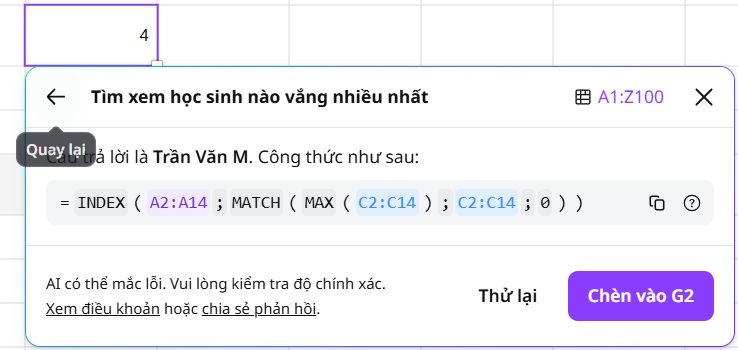
For a count from a notes column, define the exact text or category to count and whether different spellings should match. To find the highest absence count, specify whether ties should return one student or all tied students. These choices change the formula, even when the question sounds simple.

Check a generated formula before relying on it
- Confirm that the referenced cells and ranges contain the intended inputs and do not include a header or total row.
- Test zero, blank, and boundary values such as exactly two absences.
- Check percentage formatting separately from the calculation; a number like 0.75 may need percent formatting to display as 75%.
- Compare a few results with a manual calculation. If a suggestion fails, rewrite the request with explicit column names and rules.
For a non-AI alternative, enter a familiar formula directly, such as =SUM(C2:C10) to total numeric values in that range. When writing instructions for AI, specifying the desired table or formula output is useful; see prompt output formats.
Related Articles
 How to Create a Spreadsheet Chart in Canva Sheets4 minutes read
 How to Create Complex Formulas5 minutes read
 Guide to Translating Canva Sheets Data Tables3 minutes read
 How to Create a Simple Recipe7 minutes read
 How to Create Data Sheets in Canva3 minutes read
 Google Sheets Functions to Simplify Your Budget Spreadsheets: What You Need to Know6 minutes read
Reader Comments 0
Sign in with email or Google to join the discussion.