Table of Contents
Explore importxml function.
What is IMPORTXML in Google Sheets?
The formula for the IMPORTXML function in Google Sheets is as follows:
=IMPORTXML(url, xpath_query)
The IMPORTXML function imports data from any of the various structured data types, including XML, HTML, CSV, TSV, RSS, and ATOM XML.
It retrieves information from all XML fields. You can use it to import publicly available information on the Internet. Therefore, you are not allowed to use it with websites that require login to access.
When should you use IMPORTXML in Google Sheets?
- Extracting data from the web
- When you need data on the page but cannot activate Screaming Frog.
How to use IMPORTXML in Google Sheets
Before delving into the practical use of IMPORTXML, you need to understand the arguments in the formula:
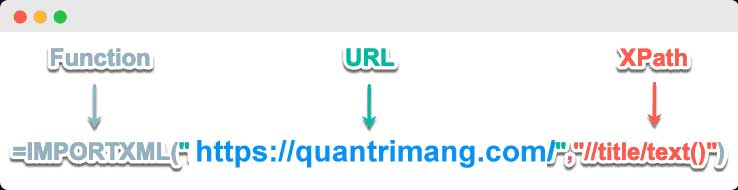
URL
- This is the URL of the website where you want to import the data.
- Includes the protocol (https:// or http://).
- The URL value must be included in quotation marks or referenced to a cell containing appropriate text.
XPath Query
- XPath queries run on the data of the provided URL.
- Each result from an XPath query is placed in its own row in the spreadsheet.
- XPath is a query language used to retrieve information from the web.
- It has its own syntax, which you can learn more about in online sources.
Things you need to know about XPath:
- Data on the web is displayed and stored in XML format.
- Data query language.
- You can customize Xpath arguments to suit your web search needs.
The IMPORTXML function allows you to import data directly from the web into your spreadsheet. Simply look at the web source code at the location where you want to import the data, find the usable HTML element, and extract it using XPath queries.
To find HTML elements, you have to look at the website's code. For example, on a wiki page, right-click on the page and select "View page source" from the menu that appears. When the source page is open, you will see its HTML code. For example, on Wikipedia:
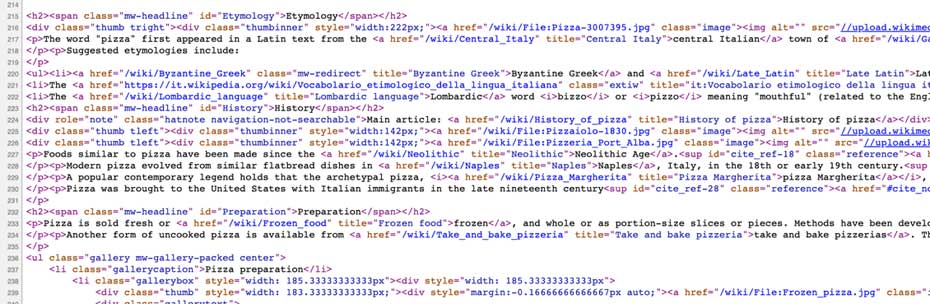
You may already be familiar with HTML tabs like
,
, … You need to use these tags in xpath_query to import the desired data from the web.
Here's an example of how to use IMPORTXML in Google Sheets:
Above are the things you need to know about using IMPORTXML in Google Sheets . Hopefully, this article is helpful to you.
Final Thoughts
Understanding importxml function makes it easier to evaluate the information and apply the most relevant recommendations. Focus on the key points above and verify details that may change over time.
FAQ
What is importxml function?
Explore importxml function.
What key points does this article cover?
The article focuses on What is IMPORTXML in Google Sheets?, When should you use IMPORTXML in Google Sheets?, How to use IMPORTXML in Google Sheets, with practical explanations and examples.
How can you use this information in practice?
Use the explanations to compare options, verify important details, and make a more informed decision. Apply the recommendations that best match your goals and situation.
Related Articles
 How to Use IMPORTXML in Google Sheets4 minutes read
 5 Hidden Functions in Google Sheets That Excel Doesn't Have: Practical Guide6 minutes read
 How to Align Spreadsheets Before Printing on Google Sheets3 minutes read
 Google Sheets Automatically Creates Tables with Just 13 minutes read
 How to Use IMPORTRANGE in Google Sheets: Examples and Fixes13 minutes read
 How to Use the AND and OR Functions in Google Sheets7 minutes read
Reader Comments 0
Sign in with email or Google to join the discussion.