Table of Contents
Few people know that Windows 11 has an Emergency Restart option, which allows you to restart your computer immediately when the system freezes or becomes unresponsive – without holding the power button.
Most people are familiar with pressing the power button to force the computer to shut down, but if that doesn't work and the system is still completely frozen, Windows 11 also has a Special hidden option called Emergency Restart – the last resort to restart the computer when all else fails.
A secret feature in Windows 11
Microsoft often makes a big splash when it adds new features to Windows, but there are also tools that are quietly added that are almost unknown. Emergency Restart Is a prime example – an option that has probably existed since Windows XP, but is rarely mentioned by users or Microsoft itself.
This is a feature that lets you force your computer to restart immediately when the system freezes, goes into a loop, or becomes completely unresponsive. If you normally have to hold the power button for 10 seconds to 'hard shutdown' your computer, with Emergency Restart , you can do the same thing but 'gentler' and safer - no physical impact on the hardware.
How to enable Emergency Restart
To access Emergency Restart , users just need to press Ctrl + Alt + Del – the familiar operation used to open Task Manager . But instead of selecting the task manager, when the screen displays the options menu, Hold down the Ctrl key and click on the power icon in the lower right corner .
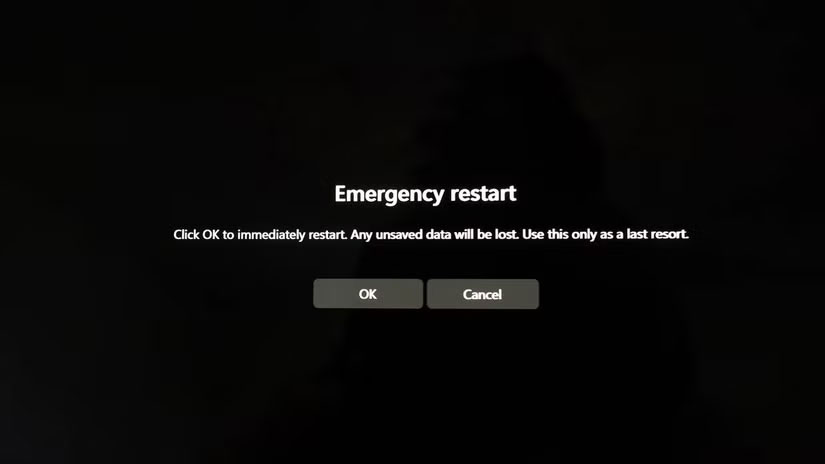
Immediately after that, Windows will display the message:
'Click OK to immediately restart. Any unsaved data will be lost. Use this only as a last resort.' (Click OK to restart immediately. Any unsaved data will be lost. Use this option only as a last resort.)
Press 'OK' and the machine will shut down and restart as normal. It may look like a normal reboot, but the process is a little different.
How does Emergency Restart work?
Essentially, An Emergency Restart Is the equivalent of a 'hard reset', like when you hold down the power button to force a shutdown. It doesn't erase data, it doesn't reset Windows, and it doesn't 'wipe everything' like resetting a phone. It's just another way to force a reboot – useful when your device is completely unresponsive to your mouse, keyboard, or virtual power button.
Of course, if your device has a physical power button and it works properly, there's no particular reason to use this feature instead of the traditional way. Emergency Restart Is simply a backup option in case the power button is faulty or not working.
Aside from the 'last resort' warning, there's no need to worry: this won't harm Windows or your hardware, it will just cause you to lose any unsaved data. After restarting, your computer will function perfectly as before.
There are many ways to shut down and restart Windows
In fact, Windows has quite a few ways to restart or shut down that few people know. For example, you can open Command Prompt And type the command:
Shutdown /r
This command also forces the system to reboot immediately. Additionally, on the Microsoft Learn Site, there is a list of different commands and options for shutting down, restarting, and hibernating. It's never a bad idea to know a few options — especially when one of them could save you when you need it most.
FAQ
What should you know about Windows 11 has an 'emergency shutdown' option most users miss?
In practical terms, few people know that Windows 11 has an Emergency Restart option, which allows you to restart your computer immediately when the system freezes or becomes unresponsive – without holding the power button.
Why does Windows 11 has an 'emergency shutdown' option most users miss matter?
The article highlights that a secret feature in Windows 11 Microsoft often makes a big splash when it adds new features to Windows, but there are also tools that are quietly added that are almost unknown.
What is the main takeaway?
The main takeaway is that emergency Restart is a prime example – an option that has probably existed since Windows XP, but is rarely mentioned by users or Microsoft itself.
Related Articles
 Set the Shutdown or Hibernate Time for the Computer3 minutes read
 Sleep or Shutdown: Which Option Is Better for Your PC?8 minutes read
 How to Add Shutdown to the Right-click Menu on Windows 104 minutes read
 Instructions to Prevent Shutdown on Windows 10 Computers5 minutes read
 How to Create Slide to Shutdown Function on Windows 104 minutes read
 PC Shutdown Timer: Simple and Easy Ways to Schedule PC Shutdown8 minutes read
Reader Comments 0
Sign in with email or Google to join the discussion.