Table of Contents
Learn how to restart the taskbar on Windows 11 with clear steps, practical tips, and troubleshooting guidance for a reliable result.
How to restart the Taskbar on Windows 11
Step 1
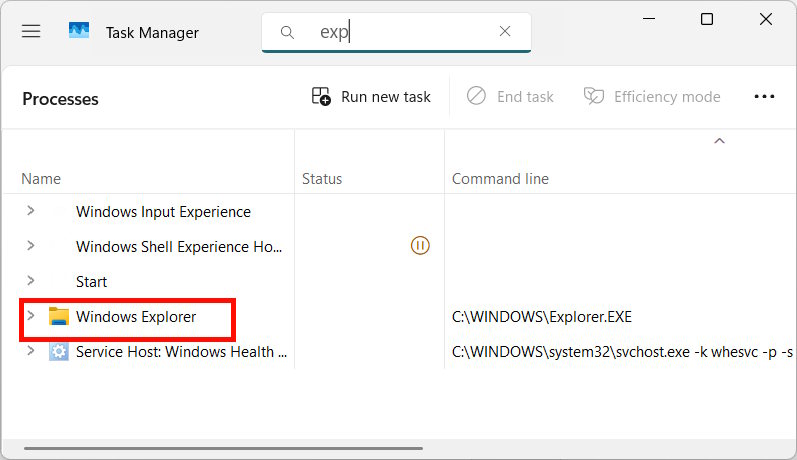
Users press the Ctrl + Shift + Esc key combination to open Task Manager .
Next, the user locates the Windows Explorer task in the Task Manager interface.
Step 2
Next, right-click on Windows Explorer and select Restart from the menu that appears.
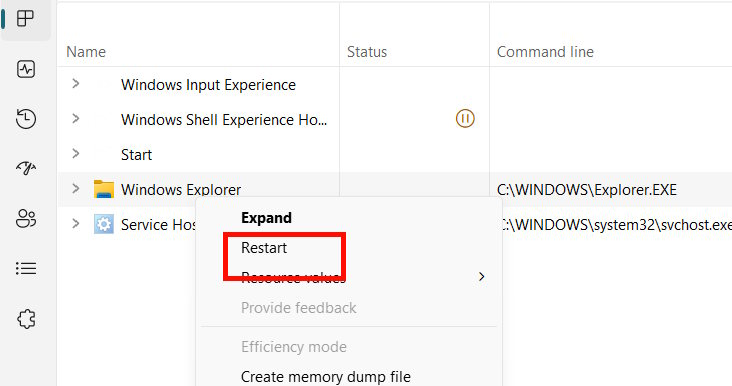
After completing the steps above, the screen will flicker and the taskbar will disappear for a second or two before reappearing. The taskbar will now be more responsive and function more smoothly, with all icons and functions restored.
While restarting Windows Explorer often fixes the problem, if the taskbar is still not working properly, a full system restart may be necessary to resolve deeper system conflicts.
If your taskbar consistently freezes after opening a particular program, that program might be the cause. Try updating the application or, temporarily uninstalling it, to see if the problem disappears.
Final Thoughts
Use this guide as a practical checklist for how to restart the taskbar on windows 11. Work through the steps in order, verify each result, and adjust the options to match your needs.
FAQ
What do you need before following this How to Restart the Taskbar on Windows 11 guide?
Review the required tools, accounts, settings, or materials mentioned in the article. Learn how to restart the taskbar on Windows 11 with clear steps, practical tips, and troubleshooting guidance for a reliable result.
What are the main steps for how to restart the taskbar on windows 11?
Follow the sections in order, especially How to restart the Taskbar on Windows 11, Step 1, Step 2. Complete each step before continuing and verify the result as you go.
What should you do if the process does not work as expected?
Recheck the prerequisites, update the relevant app or service, review the settings, and repeat the step that caused the issue. Use any troubleshooting notes included in the guide.
Related Articles
 How to Restart Windows Explorer When It Hangs Without Losing Data3 minutes read
 How to Customize the Taskbar in Windows: Step-by-Step Guide15 minutes read
 Ways to Restart a Windows 11 PC4 minutes read
 6 Ways to Restart Your Windows Computer from Simple to 'Pro'6 minutes read
 Instructions for Pinning Folders to Windows Taskbar4 minutes read
 Do You Know What Is the Optimal Location of the Windows8 minutes read
Reader Comments 0
Sign in with email or Google to join the discussion.