Table of Contents
Explore types of cell references, including the key concepts, practical examples, important considerations, and useful guidance.
Relative references
By default, all cell references are relative references. When copied across multiple cells, they change based on the relative positions of the rows and columns. For example, if you copy the formula =A1+B1 from row 1 to row 2, the formula will become =A2+B2. Relative references are especially convenient whenever you need to repeat the same calculation across multiple rows or columns.
How to create and copy formulas using relative references
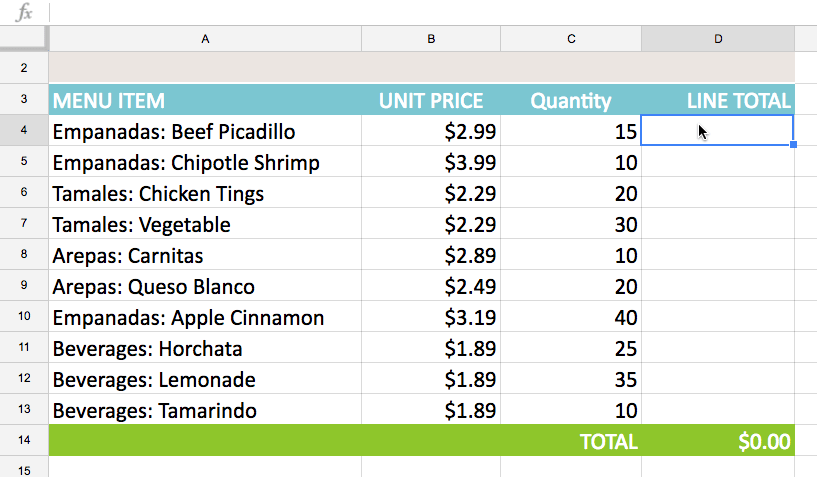
The following example aims to create a formula that multiplies the price of each item by the quantity. Instead of creating a new formula for each row, you can create a single formula in cell D4 and then copy it to the other rows. Relative references will be used to ensure the formula calculates the exact total for each item.
1. Select the cell that will contain the formula. For example, we would select cell D4.
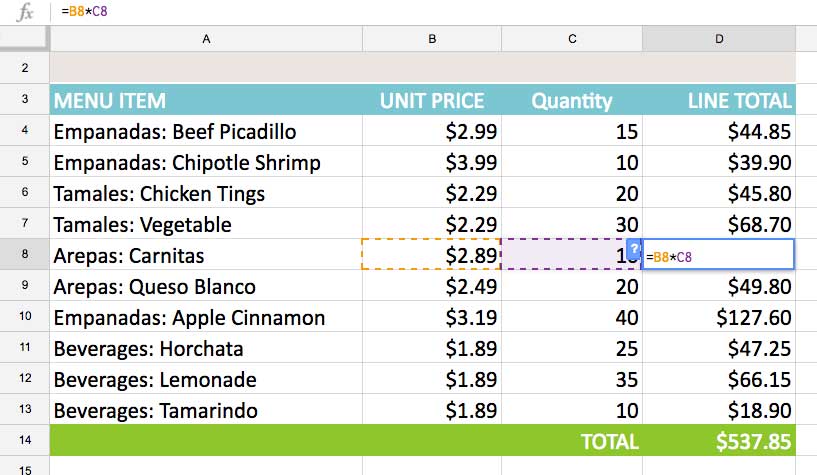
2. Enter the formula to calculate the desired value. For example, you would enter =B4*C4.
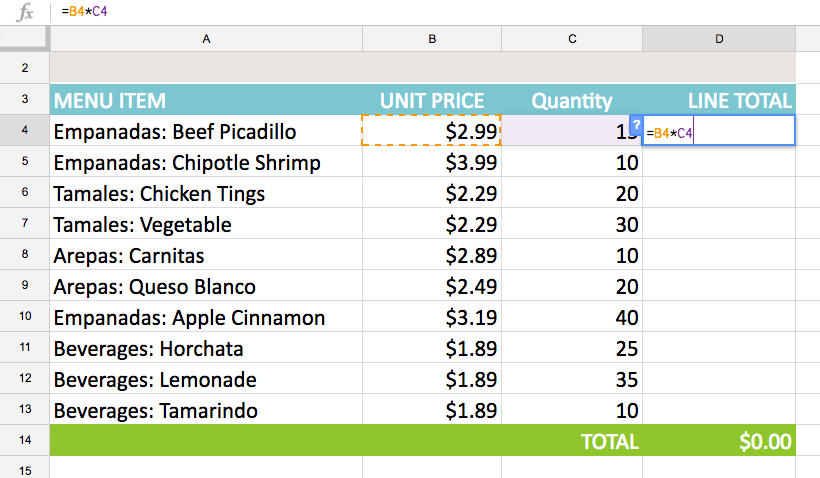
3. Press Enter on the keyboard. The formula will be calculated and the result will be displayed in the cell.
4. Select the cell you want to copy. For example, select cell D4 . The fill handle will appear in the bottom right corner of the cell.
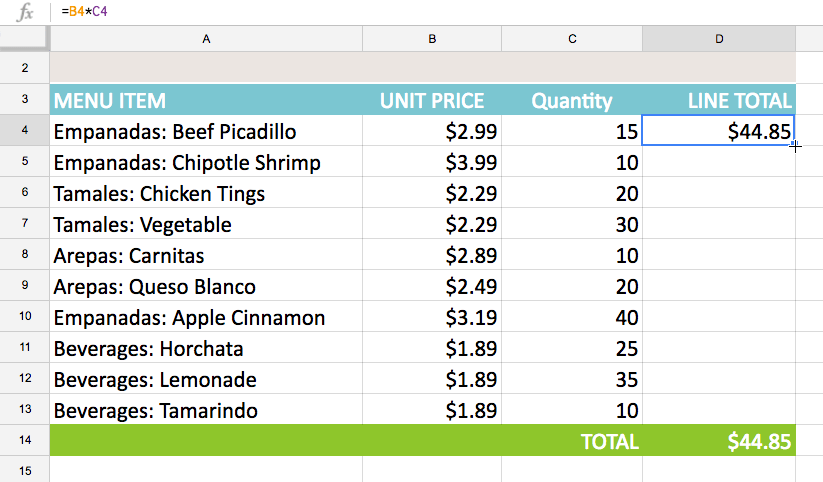
5. Click and drag the fill handle to the cells you want to fill. For example, we would select cells D5: D13.
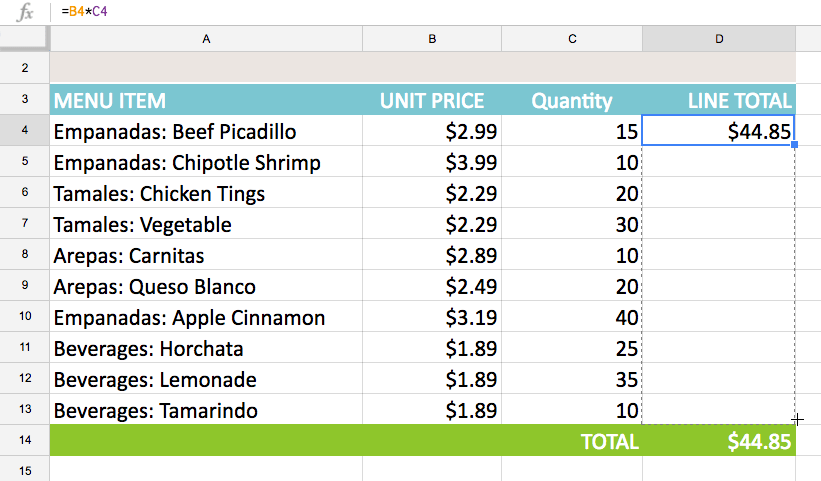
6. Release the mouse button. The formula will be copied to the selected cells with relative references, displaying the result in each cell.
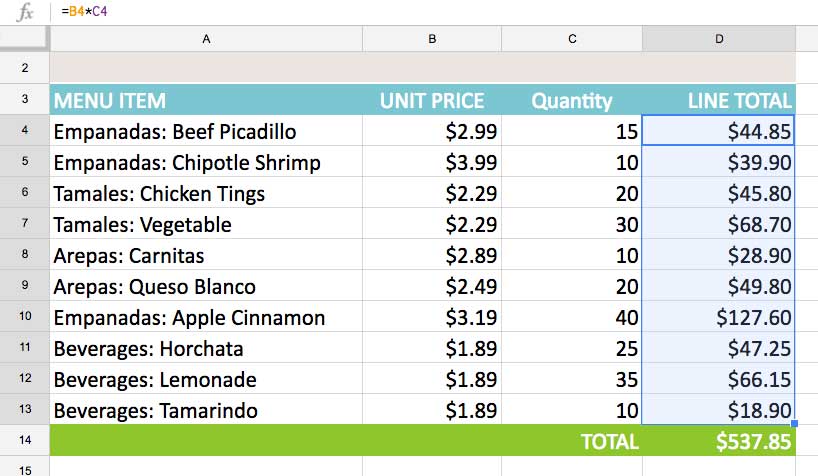
You can double-click on filled cells to check the accuracy of the formula. Relative cell references should be different for each cell, depending on their row.
Absolute reference
Sometimes you might not want the cell reference to change when copying or filling a cell. You can use an absolute reference to keep a row and/or column constant in a formula.
An absolute reference is specified in a formula by adding a dollar sign ($). It can precede a column reference, a row reference, or both.

You'll most likely use the $A$2 format when creating formulas that contain absolute references. The other two formats are used less frequently.
How to create and copy formulas using absolute references
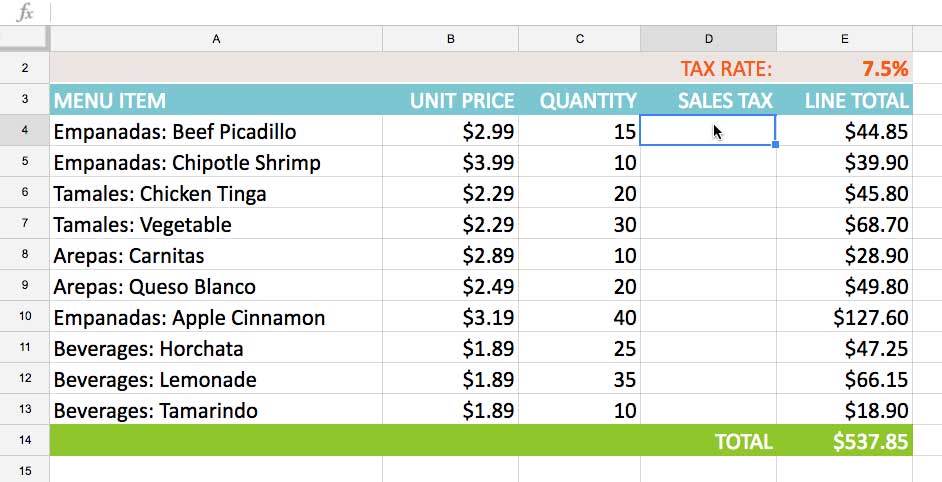
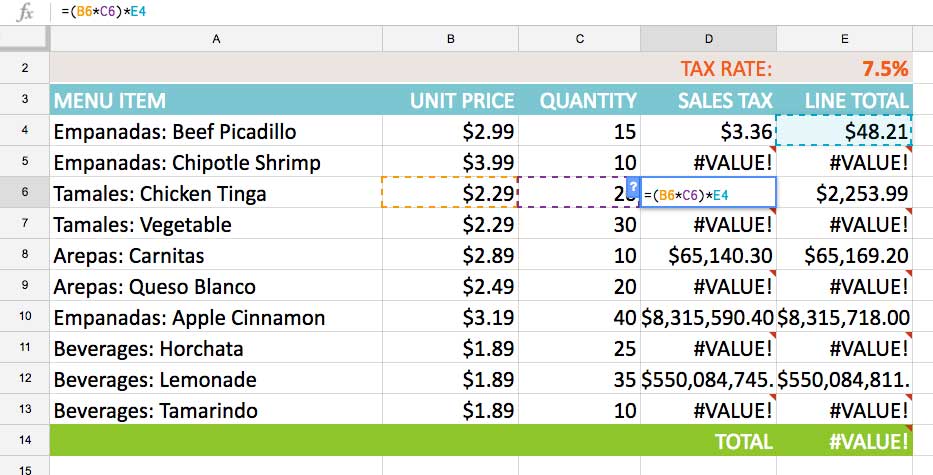
The example below will use cell E2 (containing a 7.5% tax rate) to calculate the sales tax for each item in column D. To ensure the reference to the tax rate remains constant—even if the formula is copied and filled into other cells—cell $E$2 will be set as the absolute reference.
1. Select the cell that will contain the formula. For example, we would select cell D4.
2. Enter the formula to calculate the desired value. For example, you would enter =(B4*C4)*$E$2 , making $E$2 an absolute reference.
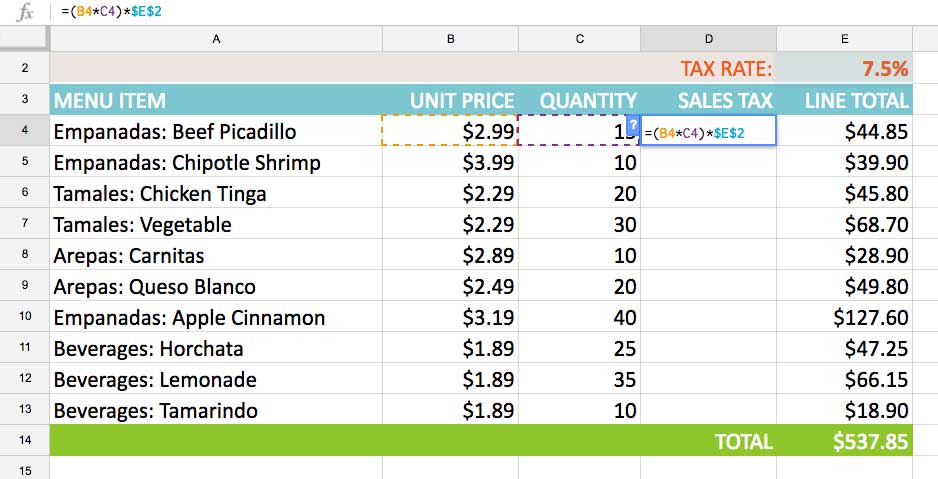
3. Press Enter on the keyboard. The formula will perform the calculation, and the result will be displayed in the cell.
4. Select the cell you want to copy. For example, select cell D4 . The fill handle will appear in the bottom right corner of the cell.
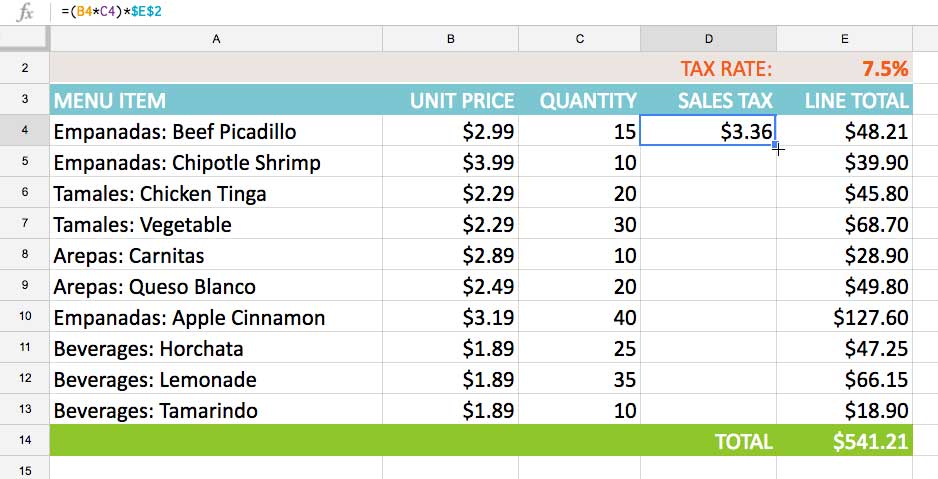
5. Click and drag the fill handle into the cells you want to fill (cells D5: D13 in the example).
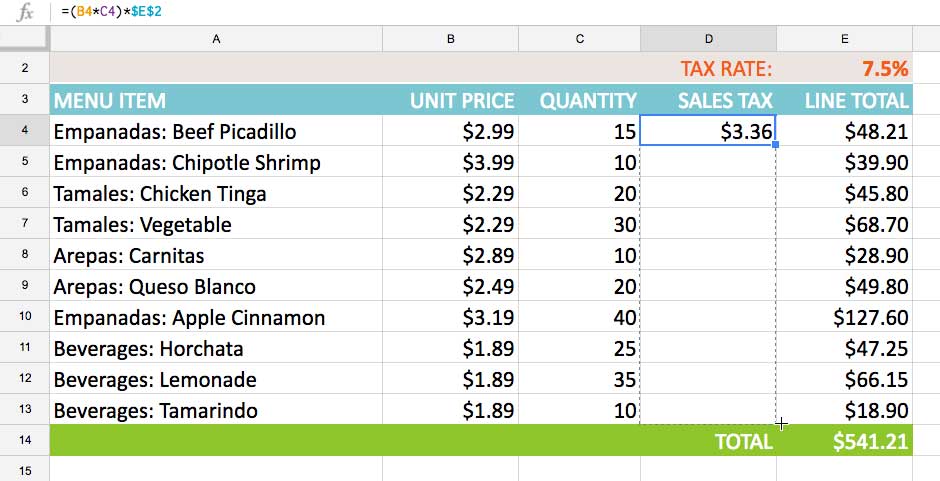
6. Release the mouse button. The formula will be copied to the selected cells with absolute references, and the values in each cell will be calculated.
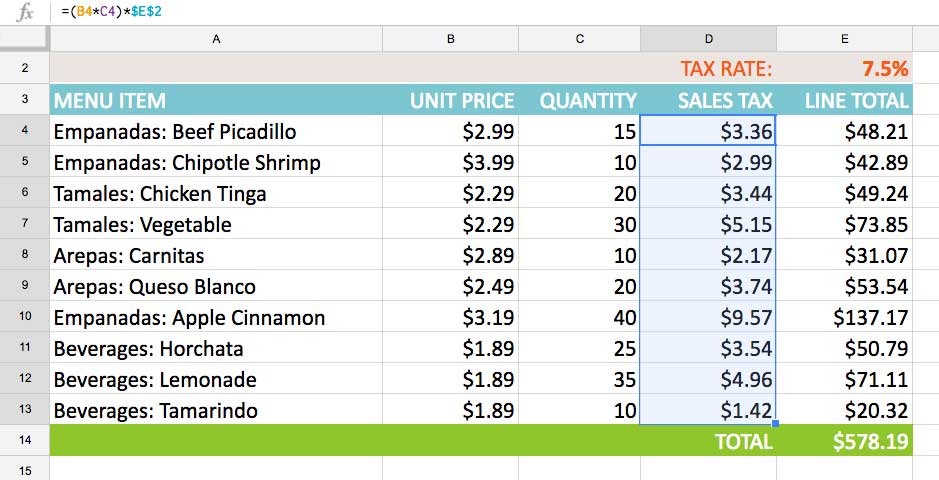
You can double-click on filled cells to check the accuracy of the formula. Absolute references must be the same for each cell, while other references are relative to the cell's row.
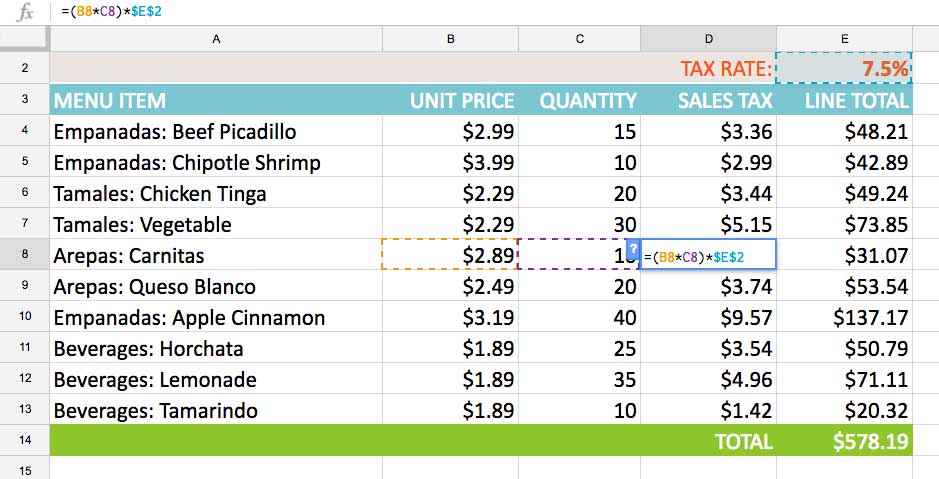
Make sure to include the dollar sign ($) whenever you're making an absolute reference across multiple cells. Without the dollar sign, Google Sheets will interpret it as a relative reference, producing an incorrect result when copied to other cells.
Final Thoughts
Understanding types of cell references makes it easier to evaluate the information and apply the most relevant recommendations. Focus on the key points above and verify details that may change over time.
FAQ
What is types of cell references?
Explore types of cell references, including the key concepts, practical examples, important considerations, and useful guidance.
What key points does this article cover?
The article focuses on Relative references, How to create and copy formulas using relative references, Absolute reference, with practical explanations and examples.
How can you use this information in practice?
Use the explanations to compare options, verify important details, and make a more informed decision. Apply the recommendations that best match your goals and situation.
Related Articles
 Excel 2019 (Part 14): Relative and Absolute Cell References9 minutes read
 Complete Guide to Excel 2016 (Part 15): Relative and Absolute9 minutes read
 Excel 2016 - Lesson 15: Relative and Absolute Cell References9 minutes read
 How to Create References - a List of References to Standard References in4 minutes read
 How to Always Catch Pop Culture References8 minutes read
 How to Fix Quickly Fix the Save with References to Unsaved7 minutes read
Reader Comments 0
Sign in with email or Google to join the discussion.