Table of Contents
Learn how to create a simple recipe with clear steps, practical tips, and troubleshooting guidance for a reliable result.
Create a simple recipe
One convenient and time-saving feature of Google Sheets is its ability to add, subtract, multiply, and divide numerical data for you. Google Sheets uses mathematical expressions called formulas to handle these calculations easily. This lesson will focus on formulas containing a mathematical operator.
Most of the time, you'll use the address of a cell in a formula. This is called using a cell reference. The advantage of using a cell reference is that you can change the value in the referenced cell and the formula will automatically recalculate. Using cell references in formulas ensures that the values in your formula are accurate.
Mathematical operators
Google Sheets uses standard operators for formulas: the plus sign for addition (+), the minus sign for subtraction (-), the asterisk for multiplication (*), the forward slash for division (/), and the caret (^) for exponents.
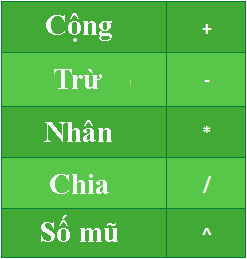
All formulas must begin with an equals sign (=). This is because the cell contains—or is equal to—the formula and the value it calculates.
Use cell references
When a formula contains a cell address, it is using a cell reference. Creating formulas with cell references is useful because you can update the numerical value in the cell without having to rewrite the formula.
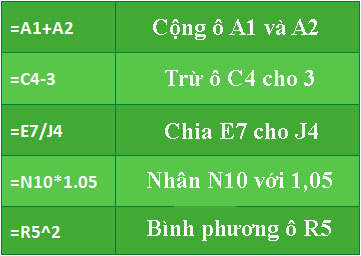
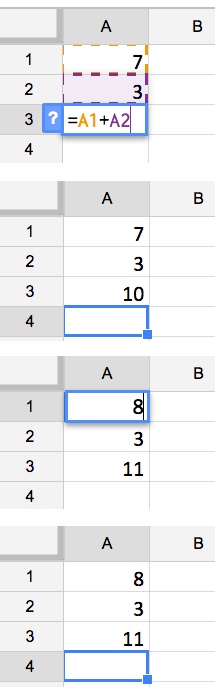 By combining mathematical operators with cell references, you can create many simple formulas in Google Sheets. Formulas can also include a combination of a cell reference and a number.
Create a recipe
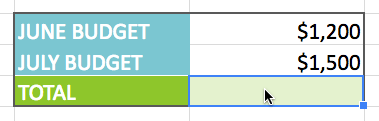
The example will use simple formulas and cell references to help calculate the budget.
How to create a recipe
1. Select the cell that will display the calculated value.
 2. Type the equals sign (=).
3. Enter the address of the first cell you want to reference in the formula. A dotted border will appear around the referenced cell.
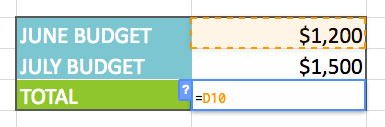 4. Enter the operator you want to use. For example, type the plus sign (+).
5. Enter the address of the cell you want to reference second in the formula.
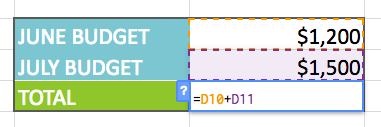 6. Press the Enter key on your keyboard. The formula will be calculated and Google Sheets will display the result.
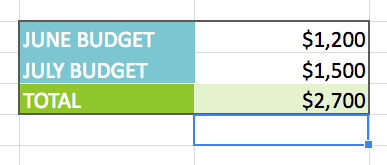 To see how the formula recalculates, try changing the value in either cell. The formula will automatically display the new value.
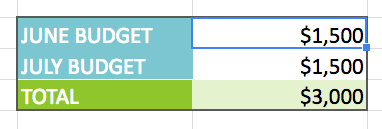
Google Sheets doesn't always tell you if a formula is wrong, so you need to check all your formulas.
How to create formulas using the point-and-click method
Instead of typing cell addresses, you can point and click on the cells you want to include in your formula.
1. Select the cell that will display the calculated value.
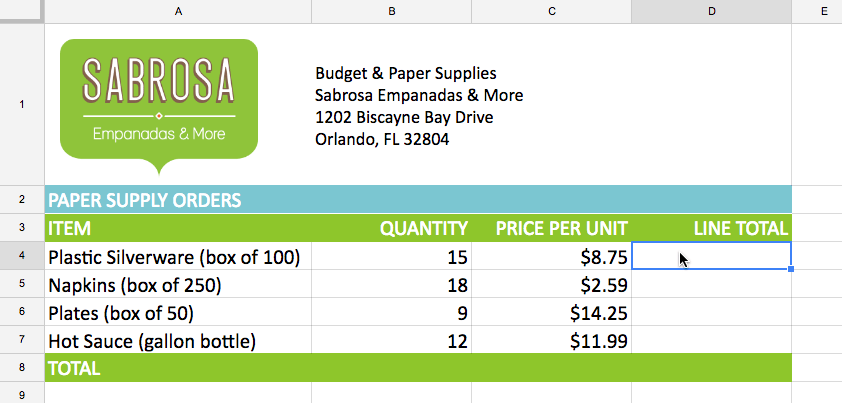
2. Type the equals sign (=).
3. Click on the first cell you want to reference in the formula. The address of that cell will appear in the formula.
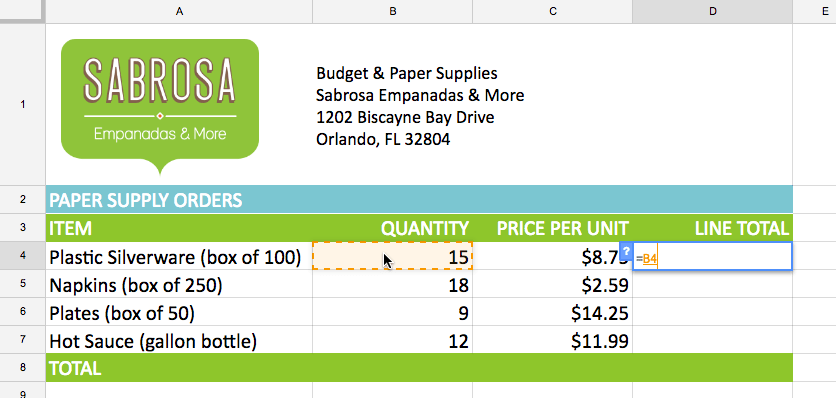
4. Enter the operator you want to use in the formula. For example, type the multiplication sign (*).
5. Click on the cell you want to reference as the second reference in the formula. The address of that cell will appear in the formula.
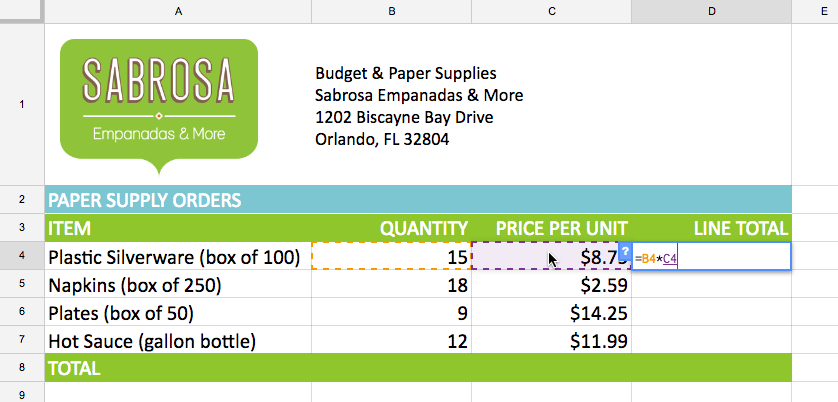
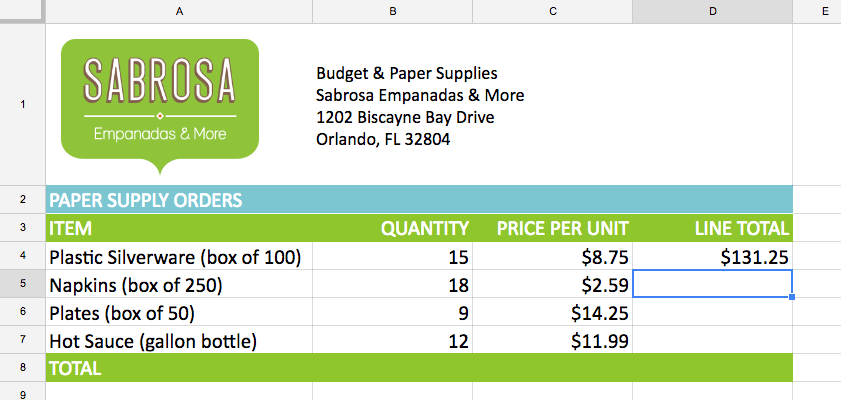
6. Press the Enter key on your keyboard. The formula will be calculated and the value will appear in the cell.
How to edit a formula
Sometimes you might want to modify an existing formula. For example, you might have entered an incorrect cell address into your formula, so you need to correct it.
1. Double-click the cell containing the formula you want to edit. The formula will be displayed in the cell.
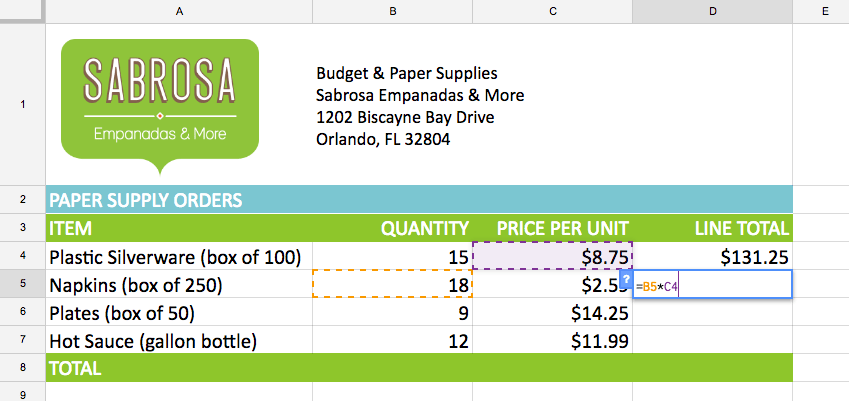
2. Make the desired adjustments to the formula. For example, replace C4 with C5.
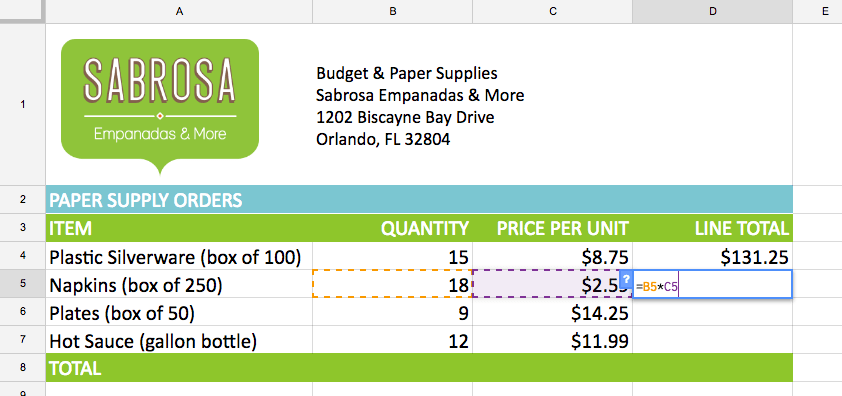
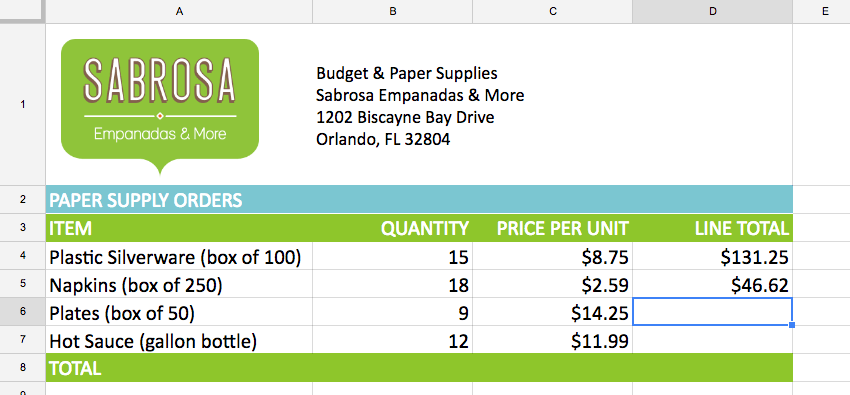
3. When you're finished, press the Enter key on your keyboard. The formula will recalculate and the new value will be displayed in the cell.
Final Thoughts
Use this guide as a practical checklist for how to create a simple recipe. Work through the steps in order, verify each result, and adjust the options to match your needs.
FAQ
What do you need before following this How to Create a Simple Recipe guide?
Review the required tools, accounts, settings, or materials mentioned in the article. Learn how to create a simple recipe with clear steps, practical tips, and troubleshooting guidance for a reliable result.
What are the main steps for how to create a simple recipe?
Follow the sections in order, especially Create a simple recipe, Mathematical operators, Use cell references. Complete each step before continuing and verify the result as you go.
What should you do if the process does not work as expected?
Recheck the prerequisites, update the relevant app or service, review the settings, and repeat the step that caused the issue. Use any troubleshooting notes included in the guide.
Related Articles
 The Recipe for Making Yogurt Jelly Is Extremely Simple: Key Facts4 minutes read
 Reveal the Legendary Recipe of KFC Fried Chicken Since 19404 minutes read
 The Recipe for Making Things in Minecraft4 minutes read
 How to Make Gato Cake with Rice Cooker, the Recipe Is Simple3 minutes read
 Delicious 'Valentine' Mocktail Recipes for Your Lover5 minutes read
 Anyone Can Create a Small and Simple Website with These 10 Websites10 minutes read
Reader Comments 0
Sign in with email or Google to join the discussion.