Table of Contents
Editing your own writing is hard enough, but editing quickly is even harder. These built-in features in Microsoft Word will change the way you proofread. Proofreading is still not hands-free, but it is less of a chore.
1. Start with the Editor (Spelling & Grammar) tool
Word's Editor panel is the quickest way to spot common errors. You can access it with a Microsoft 365 subscription, and it's a good alternative to Grammarly.
- Press F7 (or select Home > Review > Editor ).
- Work through the list in order - spelling in red, grammar in blue, then style tips in purple.
- Click a suggestion to accept it, or click the arrow to ignore it.
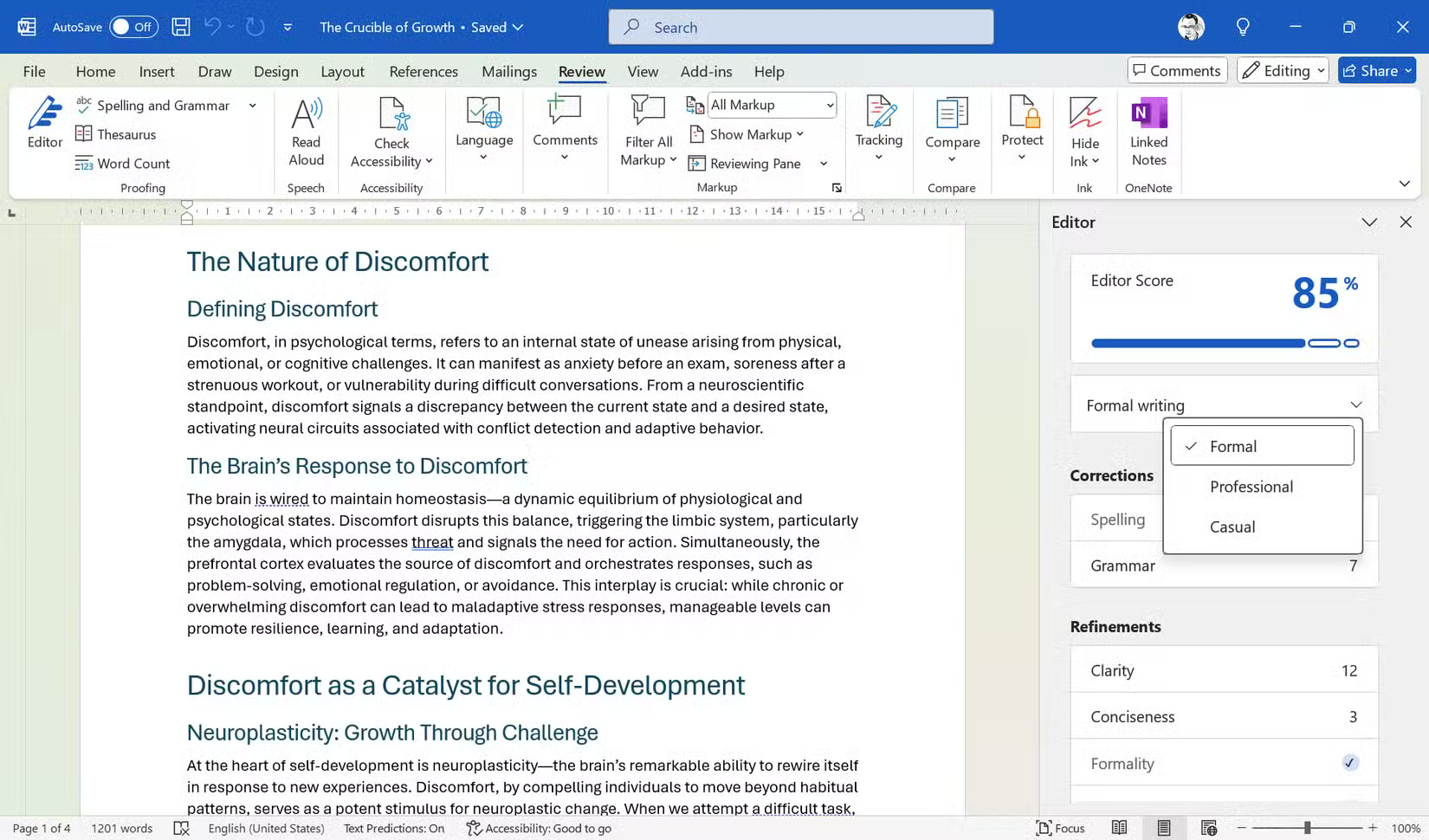
2. Use Editor to help you
Navigate to File > Options > Proofing . Under Writing Style , select Grammar & Refinements and click Settings . Turn on the checks you need (such as Conciseness or Passive Voice ) and turn off the checks you don't.
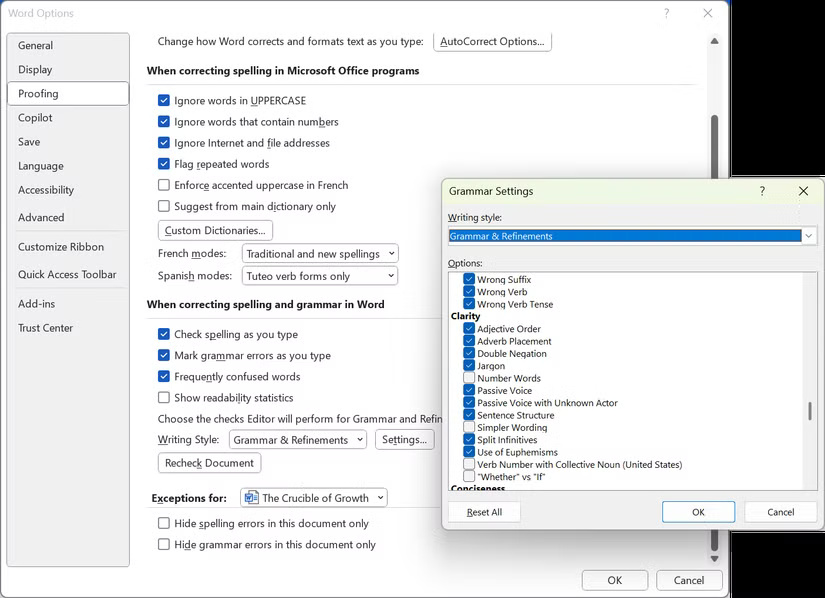
3. Explore the Review tab for more tools
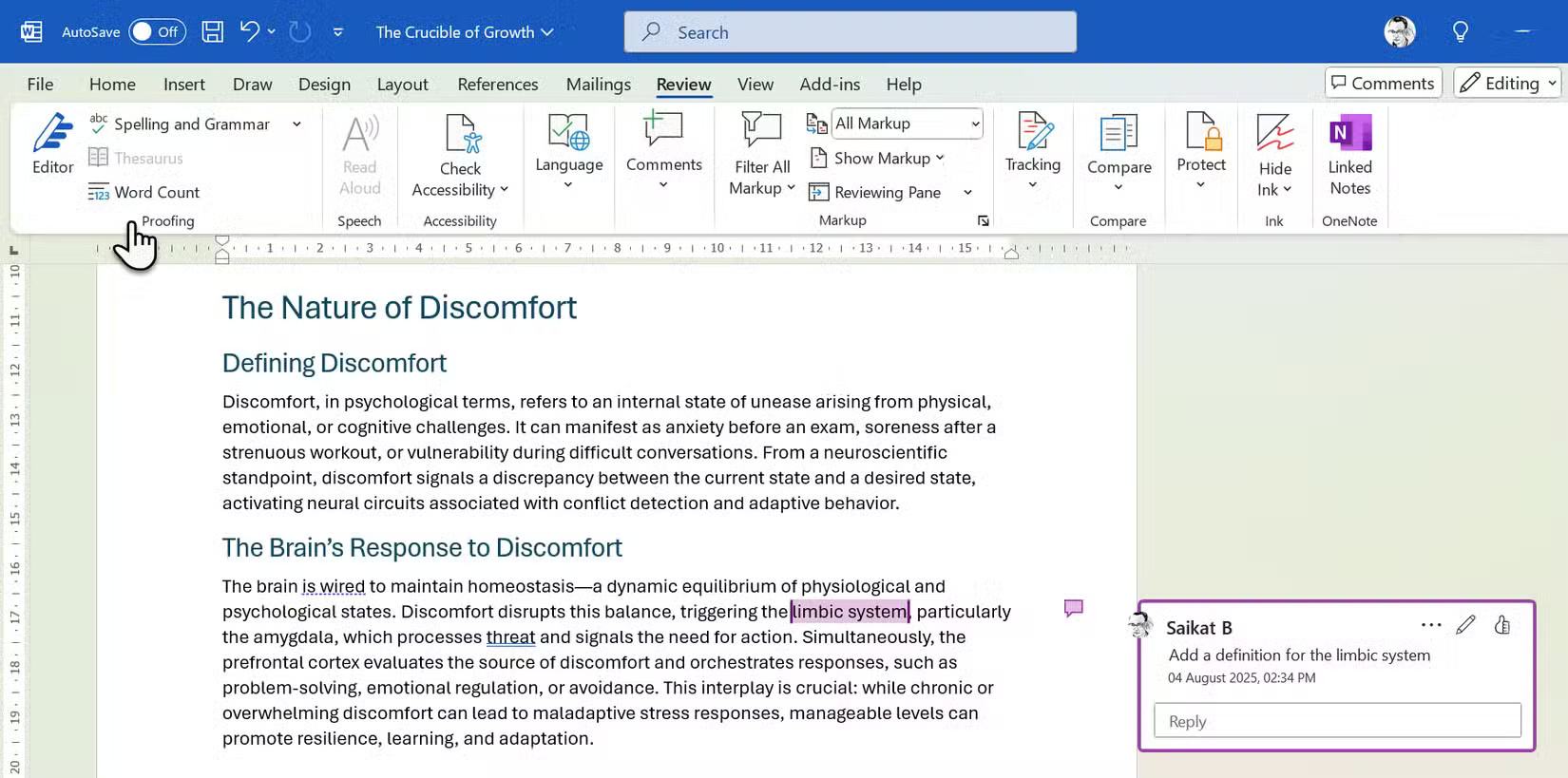
The Review tab is your proofreader's dashboard. There are three tools that will save you time on every draft.
- Thesaurus : Highlight a word, select the Thesaurus , and find better alternatives to increase clarity or variety.
- Word Count : Check under Review > Word Count to make sure you hit your length goal without manually counting.
- Comments : Select text, click New Comment and add notes for yourself or collaborators.
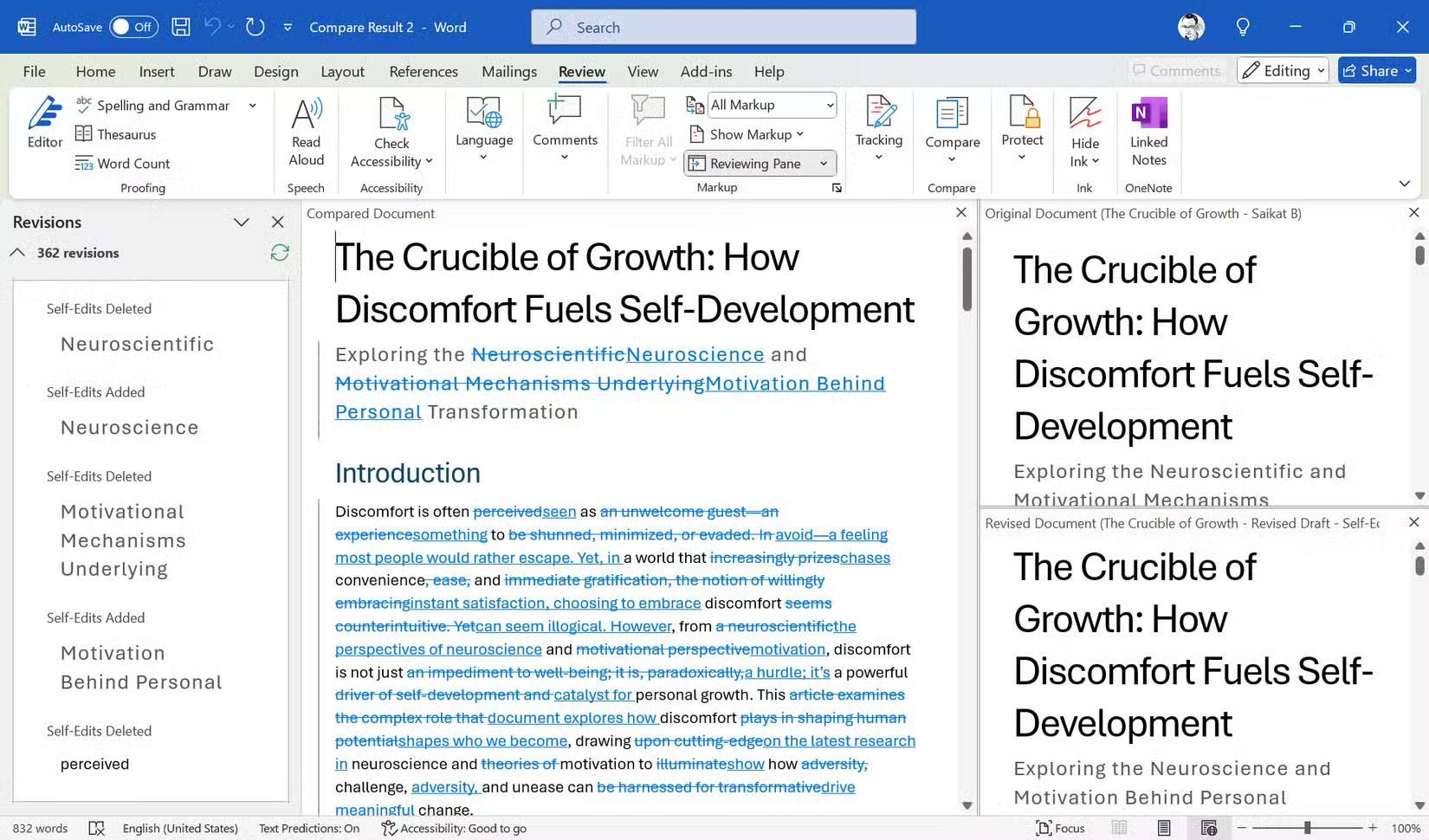
4. Compare documents and combine
Working with multiple drafts? Use Review > Compare . Select the original and revised versions. Then click OK . Word creates a third file that shows all the changes. You can also combine and save the changes to either existing document.
Comparing Word documents is important for collaborative editing, but it's also quite handy when you're working on your drafts.
5. Check readability statistics
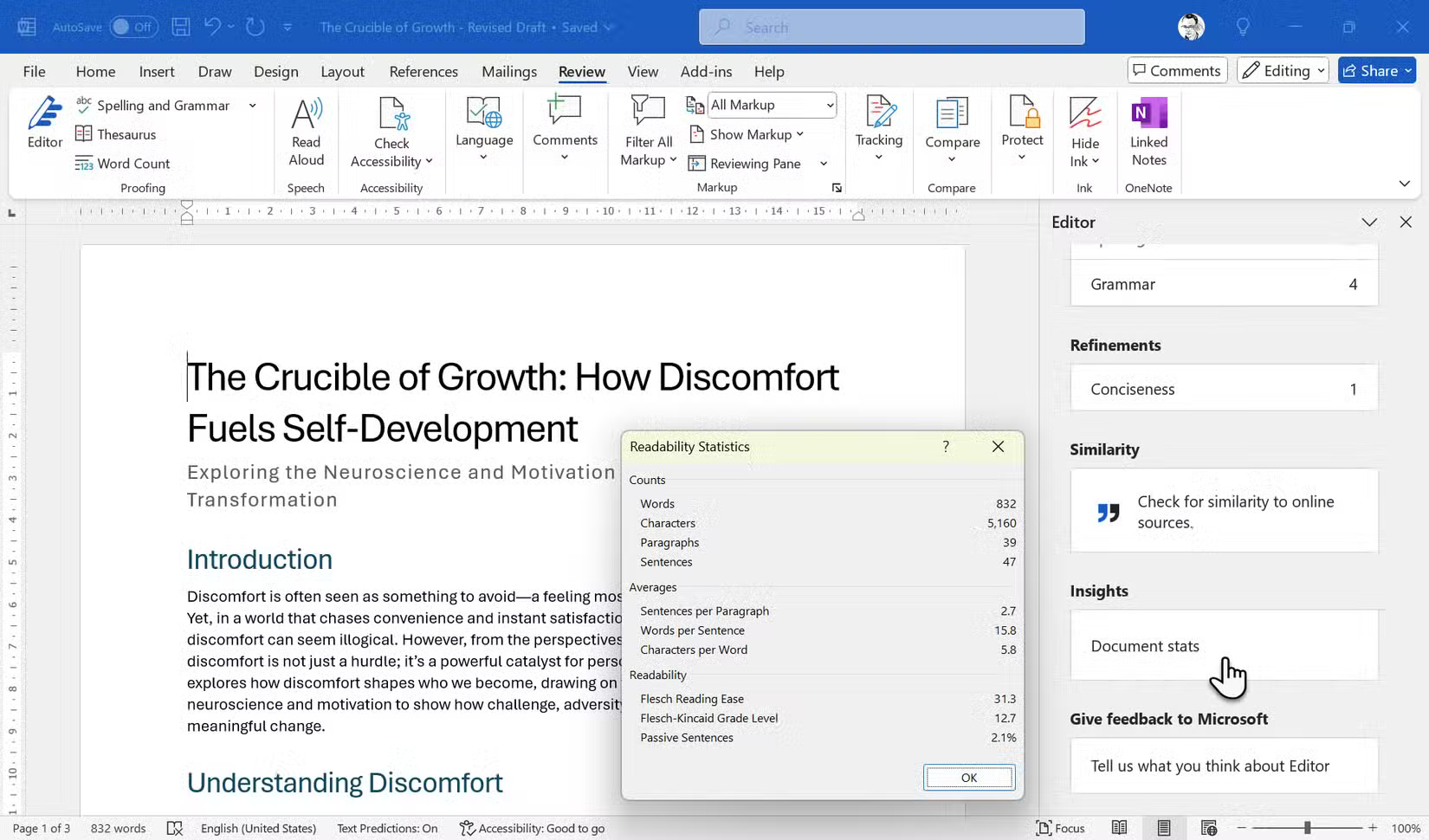
Writing clearly is better than writing flowery. Turn on readability scoring (via File > Options > Proofing ) once and let Word score every draft. Select Show readability statistics . Then run Spelling & Grammar on your finished draft.
On the Editor pane, click Document stats to display a dialog box with readability metrics.
6. Take advantage of Track Changes for collaborative editing
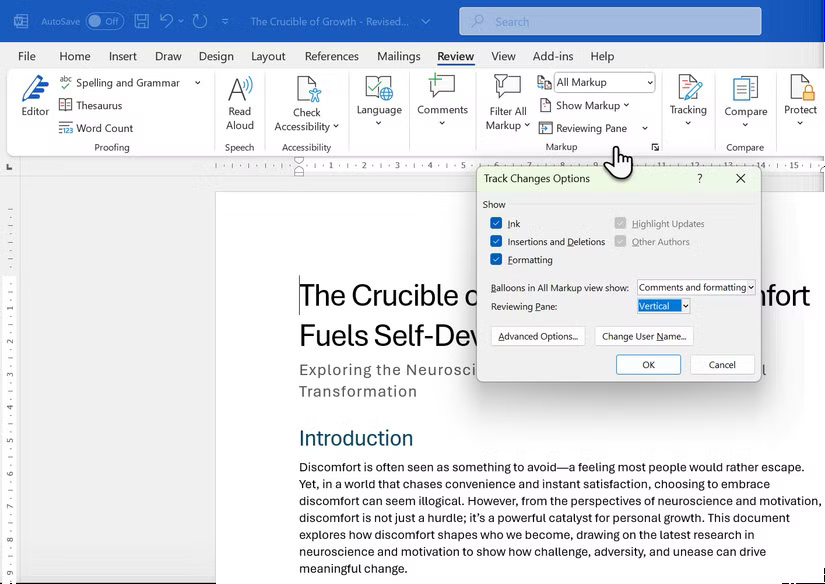
Press Ctrl + Shift + E and go to Review > Markup to record all edits.
- Simple Markup makes documents easy to read; All Markup shows all inserted and deleted content.
- Use Accept or Reject in the Review tab to quickly approve edits.
- Add inline questions with Ctrl + Alt + M .
7. Use Find & Replace for quick fixes
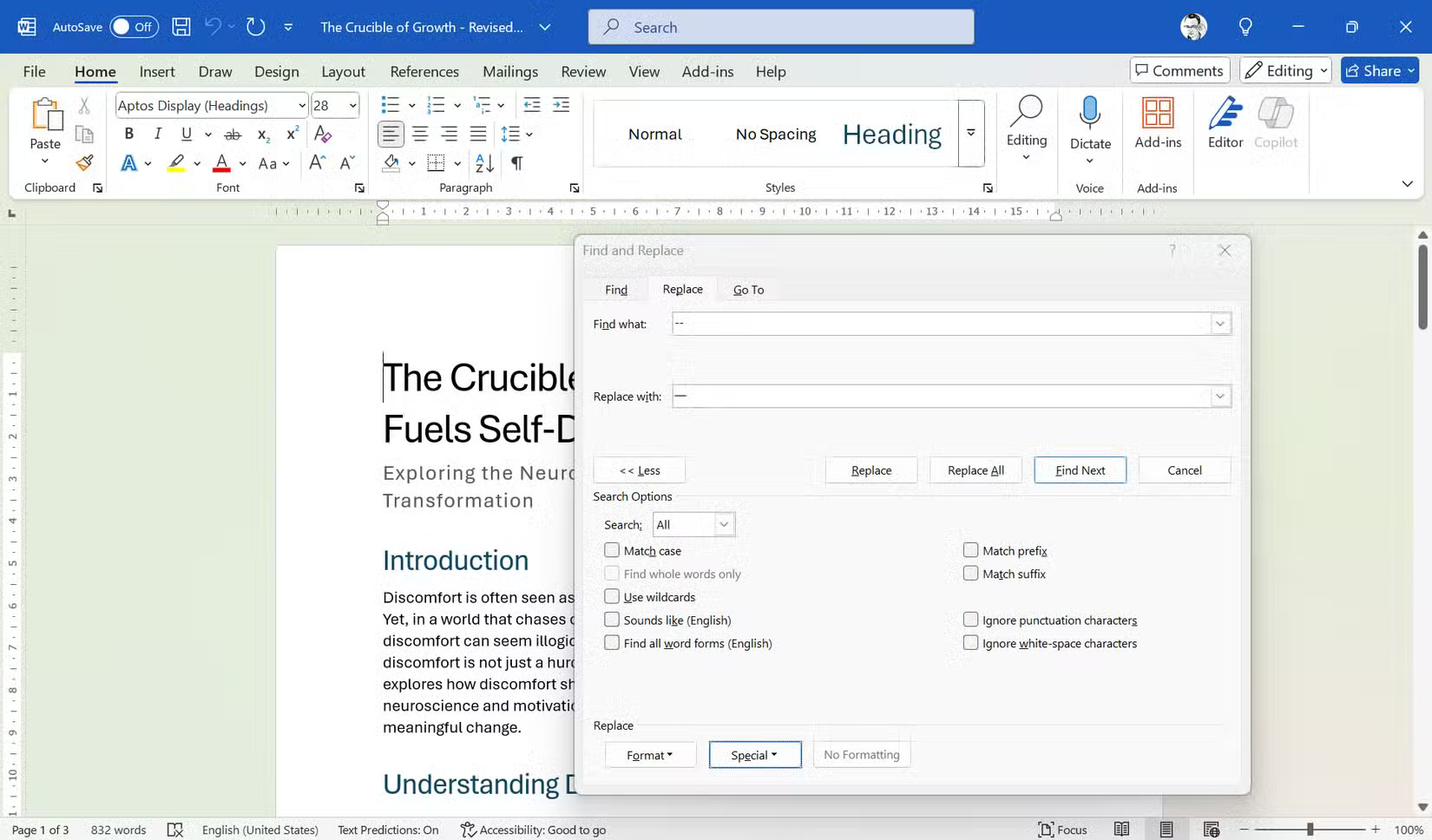
Find & Replace is one of the most overlooked editing tools in Word. Press Ctrl + H and use the dialog box to search your document. Some common errors and typos you can look for include:
- Double spaces : Press the space bar twice in the Find field. Press the space bar once in the Replace field.
- Year updates : Replace '2024' with '2025' in just two clicks. Be careful, especially around New Year's Eve.
- Punctuation upgrade : There is a big difference between a "short" dash and a "long" dash. Swap them accordingly in the Find & Replace dialog.
8. Listen with Read Aloud
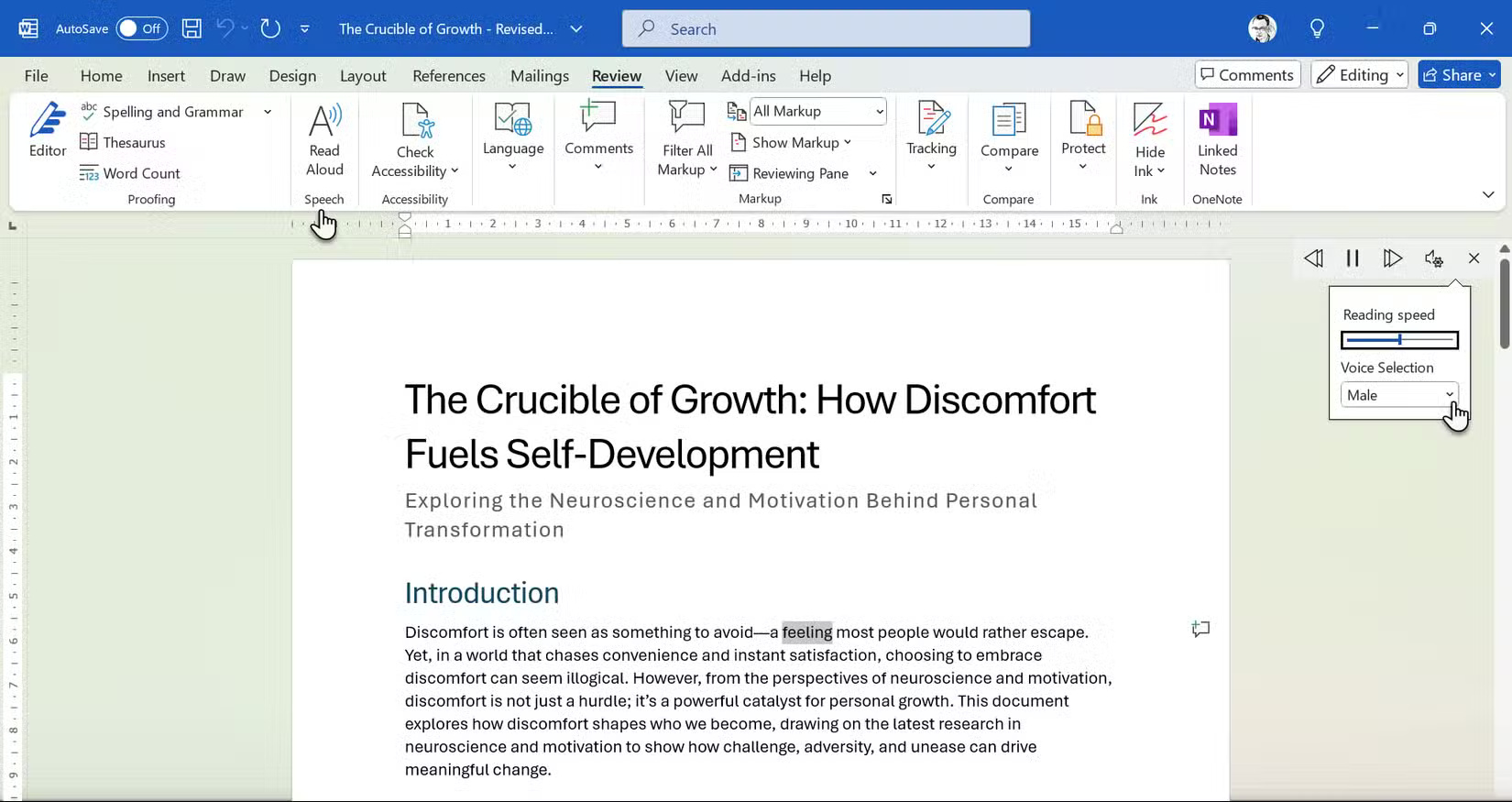
Our ears catch what our eyes miss. Select any text and press Ctrl + Alt + Space (or choose Review > Read Aloud ). Word will highlight each word as it reads.
Remember these shortcuts for more efficient use.
- Alt + Right Arrow accelerates; Alt + Left Arrow decelerates.
- Ctrl + Space pause or resume.
It is recommended to close your eyes while listening. This feature also allows you to pause or skip sections when you need to focus.
9. Change your view for a fresh perspective
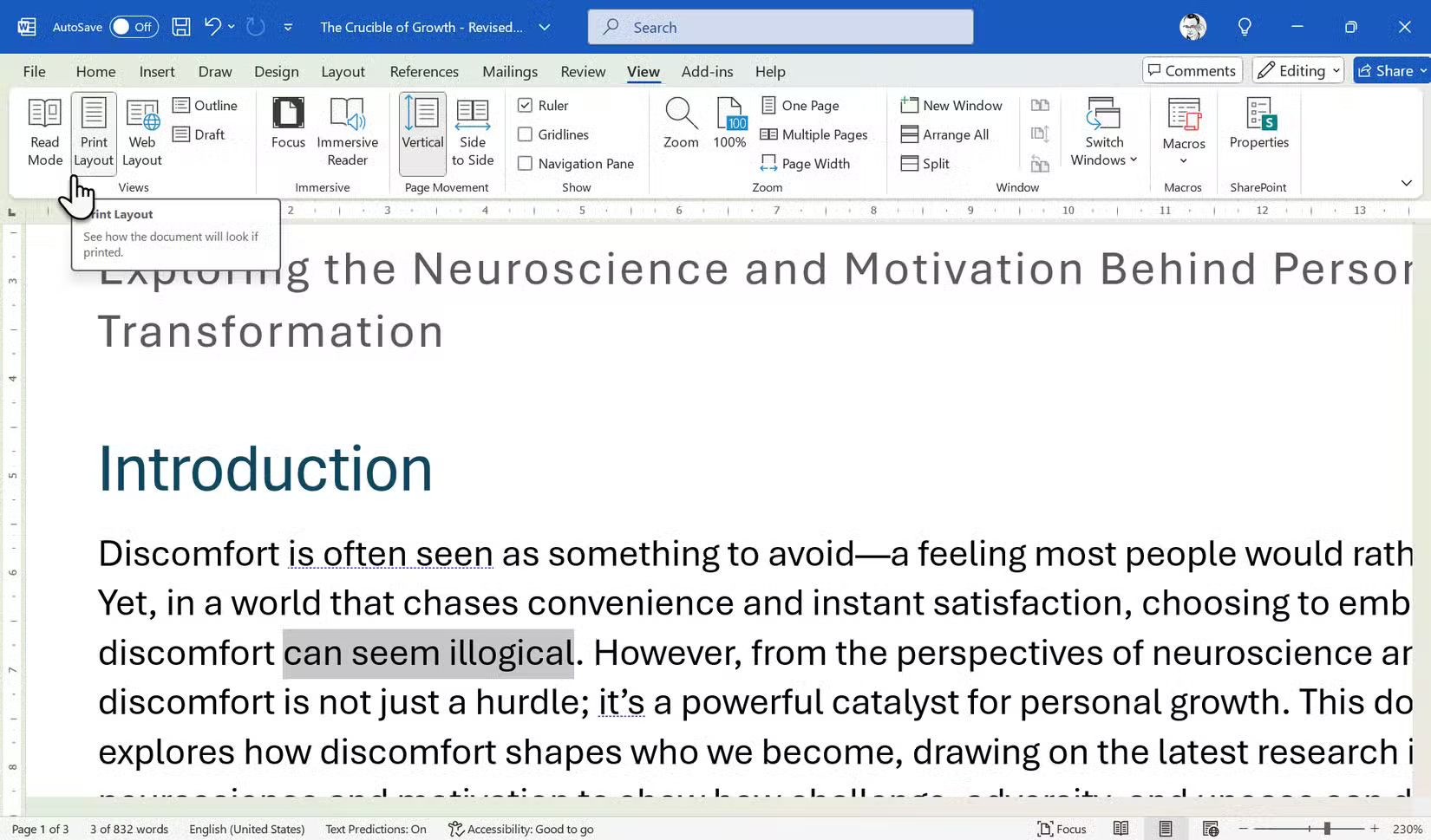
After a while, the same layout will get distracting. Break the pattern by switching views from the View tab.
- Web Layout : View your document as a seamless web page to check overall structure and spacing.
- Outline View : Focus on headings and hierarchy to ensure logic. See something out of order in Outline View? Drag it to fix the structure without digging through the text.
- Read Mode : This mode is not suitable for editing because it hides the ribbon. This mode is designed for comfortable reading with a distraction-free view.
10. Master essential keyboard shortcuts
You don't need hundreds of shortcuts; just remember a few of the most common ones. Also, pressing Alt turns on Key Tips , which displays letters on the ribbon and Quick Access Toolbar that match commands. Then, pressing Alt along with these letters lets you use those shortcuts without a mouse.
Reference: Summary of shortcut keys to help process text faster in Microsoft Word for more details.
11. Customize Word for Faster Proofreading
Tweak a few Word settings to reduce repetitive editing.
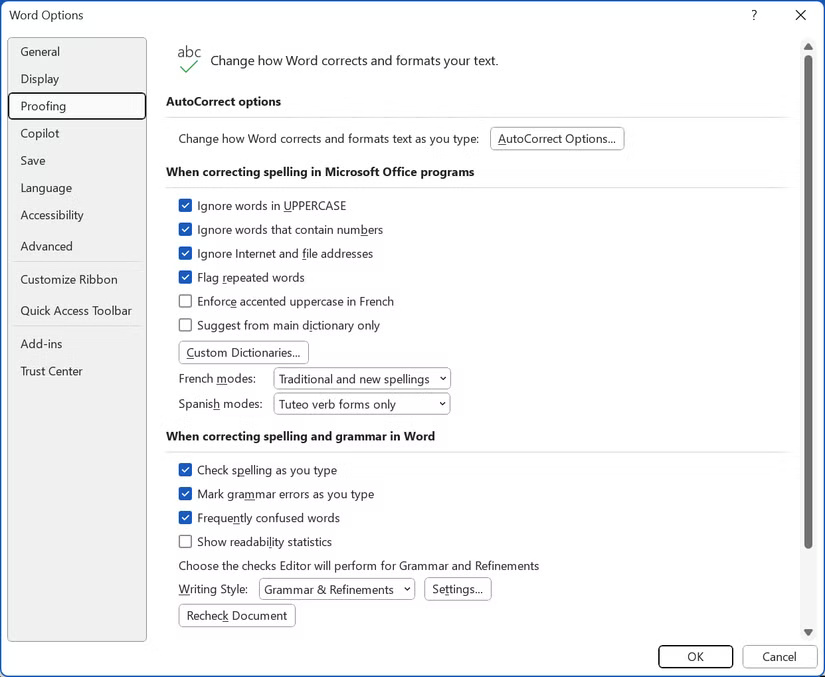
- Proofing rules : In File > Options > Proofing , turn on the options you appreciate (Oxford comma) and turn off the proofing options you don't appreciate.
- AutoCorrect : Add common typos once; Word will correct them for you.
- Custom dictionary : Add specialized terms so they are not underlined in red.
- Quick Access Toolbar : Click the drop-down menu > More Commands . Add Read Aloud , Track Changes and Accept Change for one-click access.
- Navigation Pane : Turn on View > Navigation Pane to switch between sections.
With these settings, Word does a little work before you start proofing.
Final Thoughts
Overall, Proofread Twice as Fast with These 11 Helpful Word Tips! is best understood by considering the main facts, practical context, and limitations together. Use the details above as a clear starting point and confirm time-sensitive information when necessary.
FAQ
What does this article explain about Proofread Twice as Fast with These 11 Helpful Word Tips!?
Editing your own writing is hard enough, but editing quickly is even harder. These built-in features in Microsoft Word will change the way you proofread. Proofreading is still not hands-free, but it is less of a chore.
What should you know about 1. Start with the Editor (Spelling & Grammar) tool?
Word's Editor panel is the quickest way to spot common errors. You can access it with a Microsoft 365 subscription, and it's a good alternative to Grammarly.
Should time-sensitive details be verified?
Yes. Software features, game codes, product specifications, prices, and research findings can change. Confirm important details with an official or primary source when accuracy affects your decision.
Related Articles
 Tips for Using Microsoft Word to Edit Essays Faster5 minutes read
 11 Tips and Tricks to Use Microsoft Word Online You Should Know8 minutes read
 Useful Word Tips You Should Not Miss8 minutes read
 Useful Tips on Microsoft Word 20167 minutes read
 How to Fix Font Errors Word, Excel, Transcoding Fonts Super Fast3 minutes read
 How Does the Word in Microsoft Word Jump?: Word Error Jumps Word4 minutes read
Reader Comments 0
Sign in with email or Google to join the discussion.