Table of Contents
The best way to protect photos on a Mac depends on how you use them. The Photos app's locked Hidden album is convenient for everyday privacy. An encrypted disk image gives a folder its own passphrase and preserves the original files. A password-protected PDF is useful when you need to share a fixed collection as one document.
Choose the right protection
| Method | Best for | Main limitation |
|---|---|---|
| Locked Hidden album | Keeping photos out of the normal Photos library view | Uses Touch ID or the Mac login password, not a separate album password |
| Encrypted disk image | Protecting original photos, videos, and folders with a separate passphrase | You must eject it after use and keep the passphrase safe |
| Password-protected PDF | Sharing several images as one viewable document | Changes the collection into a PDF rather than protecting the original image files |
| FileVault | Protecting the entire startup disk if the Mac is lost or stolen | Does not hide files from someone using your unlocked account |
Option 1: Use the locked Hidden album in Photos
On macOS Ventura or later, the Hidden album is locked by default and requires Touch ID or your login password.
- Open Photos and select one or more photos or videos.
- Control-click the selection and choose Hide Photos, or choose Image > Hide Photos.
- To access them later, choose View > Show Hidden Photo Album, select Hidden under Utilities, and click View Album.
If iCloud Photos is enabled, hiding an item on one device hides it on the other devices using the same library. Hiding is not deletion, and it is not a separate encrypted vault. Apple's Hidden album guide documents the current behavior.
Option 2: Put the originals in an encrypted disk image
An encrypted disk image is the most flexible built-in choice when you want a separate passphrase. When opened, it mounts in Finder like a drive; when ejected, its contents are encrypted.
- Place the photos in a folder, then open Disk Utility.
- Choose File > New Image > Image from Folder, select the folder, and click Open.
- Choose where to save the disk image and select an option from the Encryption menu. Enter and verify a strong, unique passphrase.
- For a collection you plan to edit, choose a read/write image format. Choose a read-only or compressed format for a finished archive that should not change.
- Click Save, wait for Disk Utility to finish, and test the resulting image before removing any source files.
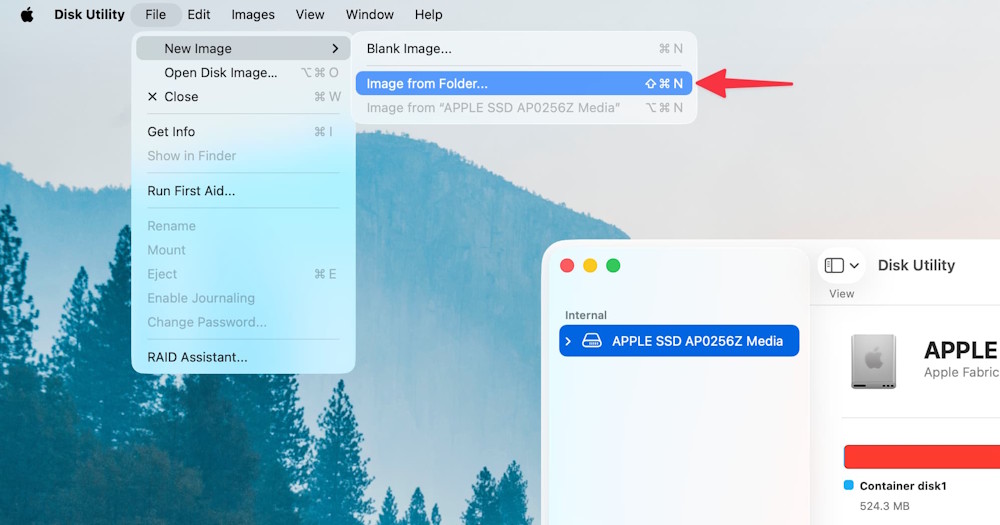
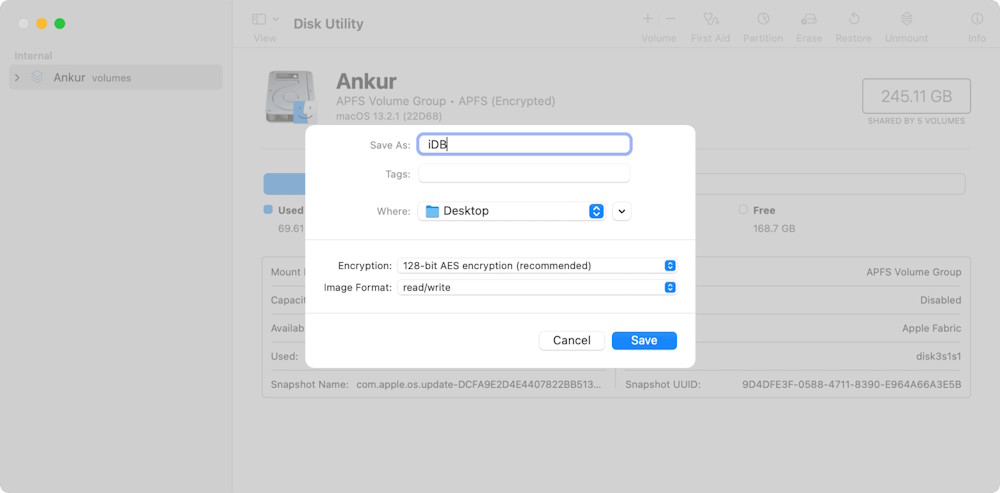
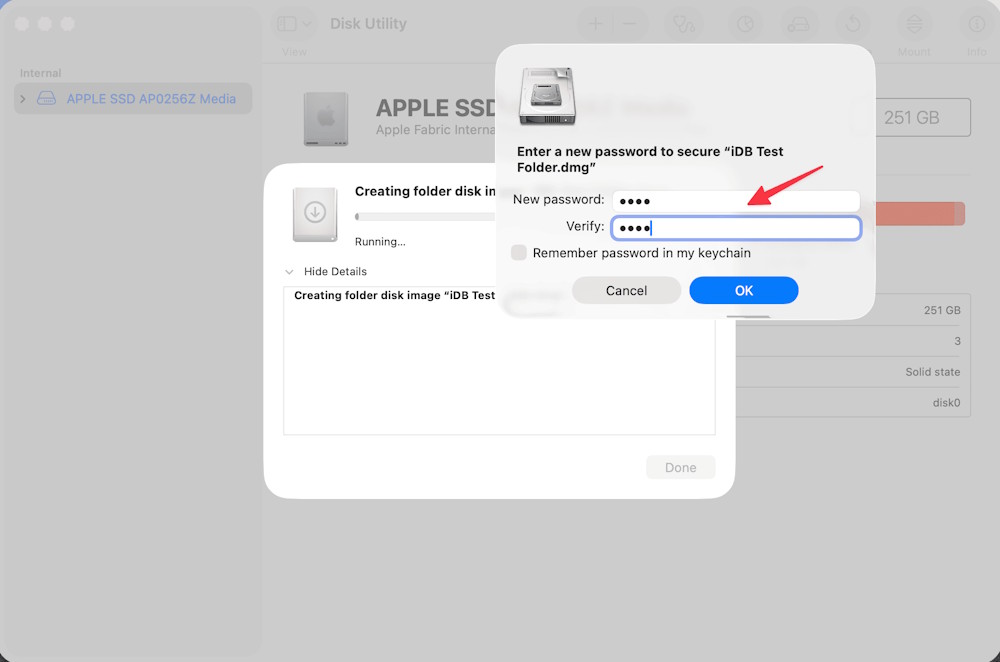
When prompted, do not save the passphrase in your login Keychain if the goal is to require a separate secret from anyone already using your account. Always eject the mounted image when you finish; files remain accessible while it is mounted. Apple provides the full choices in its Disk Utility disk-image guide. TipsMake also explains what a DMG file is and why the format supports encrypted folders.
Option 3: Convert images to a password-protected PDF
This works well for a set of scans or photos that recipients should open as one document. Keep the original images separately if you need their full resolution, metadata, or independent editing.
- In Finder, select the images in the intended order, Control-click, and choose Quick Actions > Create PDF.
- Open the PDF in Preview.
- Choose File > Export, give the protected copy a new name, and click Permissions.
- Select Require Password To Open Document, enter and verify the opening password, then set the required owner password.
- Click Apply, then Save. Close the file and reopen it to verify that the password prompt appears.
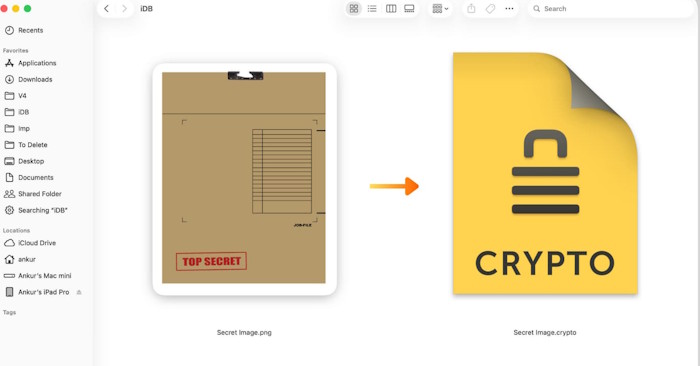
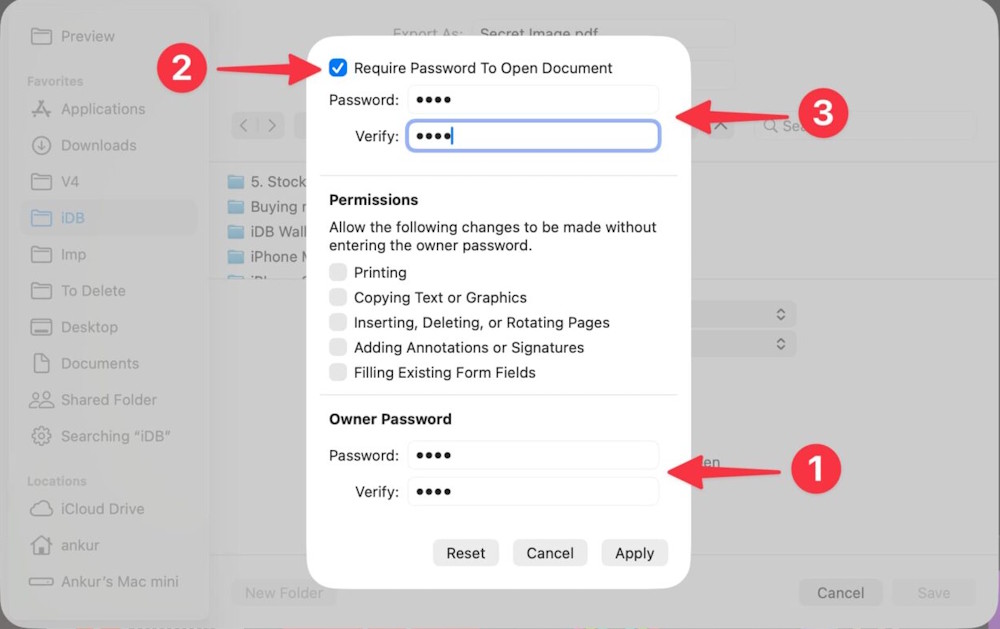
Apple's Preview instructions distinguish the opening password from permissions that limit printing, copying, or annotations. TipsMake has a broader guide to password-protecting PDF files.
Why Finder's ZIP command is not enough
Finder's Compress command creates a ZIP archive but does not offer a password field. The archive shown below is useful for packaging files, not for protecting them.
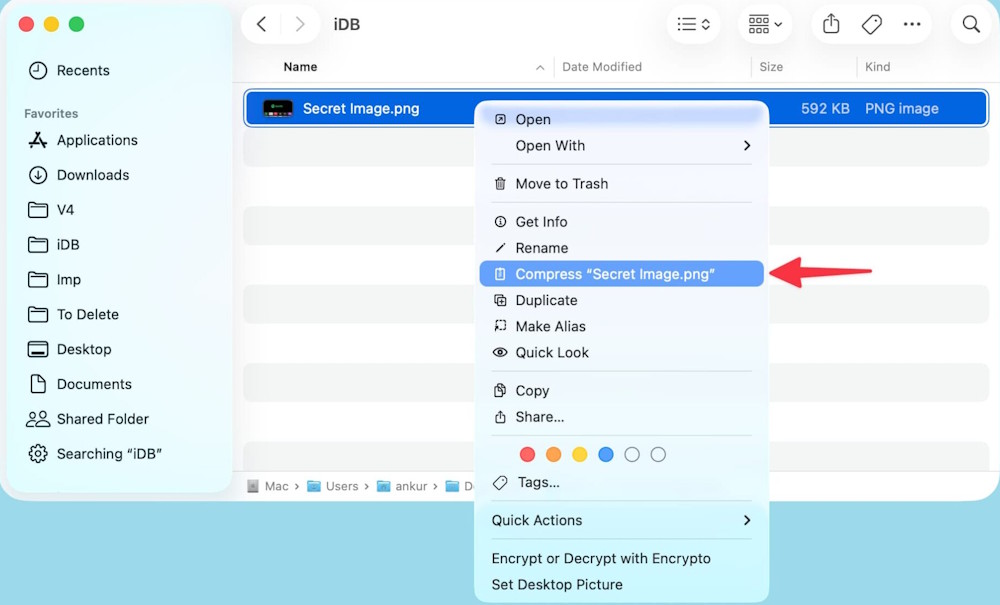
Some command-line and third-party ZIP tools support encryption, but formats and strength vary. For private photos kept on a Mac, an encrypted disk image avoids that ambiguity. If files must be shared with Windows users, use a reputable archive tool that clearly offers modern AES encryption and verify that the recipient's software can open it.
Protect the Mac as well as the folder
Enable FileVault under System Settings > Privacy & Security to protect the startup disk when the Mac is off or locked. Store the recovery key somewhere other than the Mac. Also use a separate macOS account for each person, require a password after sleep, and lock the screen before stepping away. Apple's FileVault guide explains the recovery choices.
Encryption does not replace a backup. Keep a verified backup of the photos and the encrypted container, and retain the passphrase or recovery information in a trusted password manager. Without the passphrase or an available recovery method, the protected files may be permanently inaccessible.
Related Articles
 How to Change Icloud Password?4 minutes read
 How to Password Protect a Website: Practical Guide9 minutes read
 How to Set Excel Password to Secure Data File8 minutes read
 How to Set Password for Folder and File in Windows9 minutes read
 8 Ways to Protect Simple Digital Personal Information3 minutes read
 How to Password Protect PDF Files: Complete Guide8 minutes read
Reader Comments 0
Sign in with email or Google to join the discussion.