Table of Contents
If a Word document contains many labels such as 1:, 2:, or Question 12:, you can format the repeated part with Find and Replace instead of selecting every occurrence. The key is to replace each match with itself while applying bold formatting.
Important: The basic ^#: search below bolds only a one-digit number and the following colon. It does not automatically bold all text on the same line. Save a copy of the document first and use Find Next or Replace on a few matches before choosing Replace All.
Bold one-digit labels such as 1: through 9:
1. Open the Replace dialog
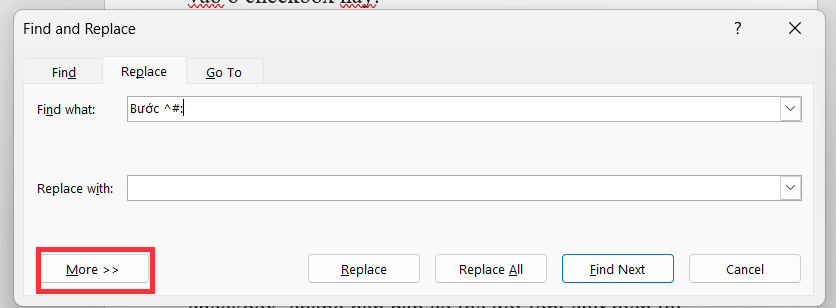
Press Ctrl + H. In Find what, enter:
^#:
^# is Word’s special code for any single digit; the colon is treated as a normal character. Leave Use wildcards off for this method.
2. Set the replacement formatting
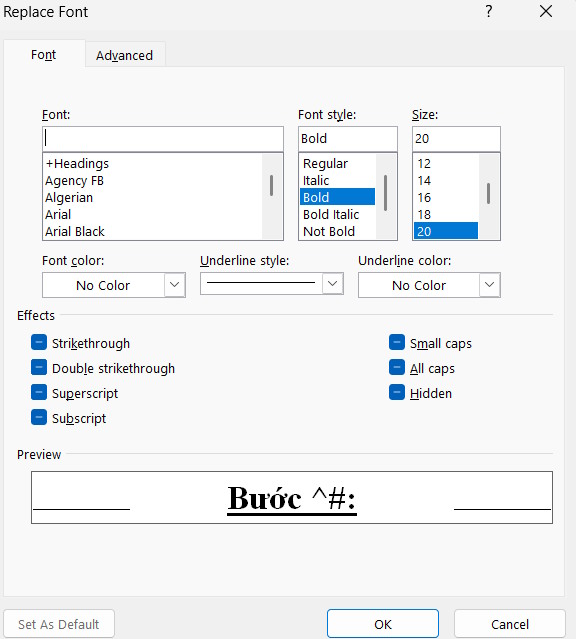
Select More to expand the dialog. Click in the Replace with box, choose Format > Font, select Bold, and confirm with OK.
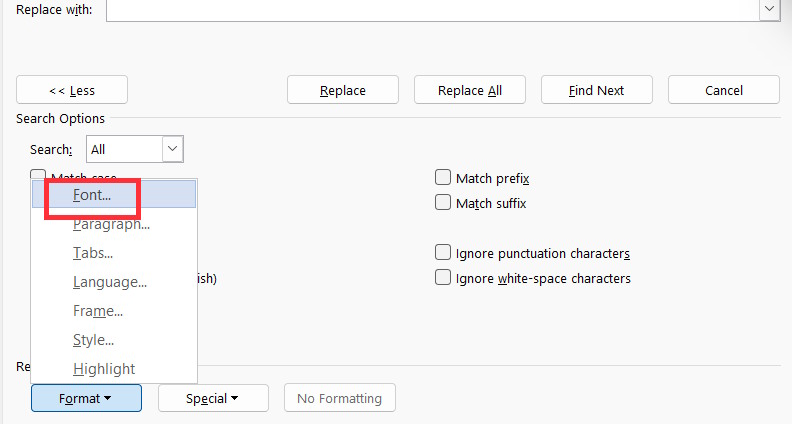
The preview in the Font dialog should show the formatting you intend to apply. Avoid changing the typeface or size unless every matching label should receive those changes too.
3. Replace the match with itself
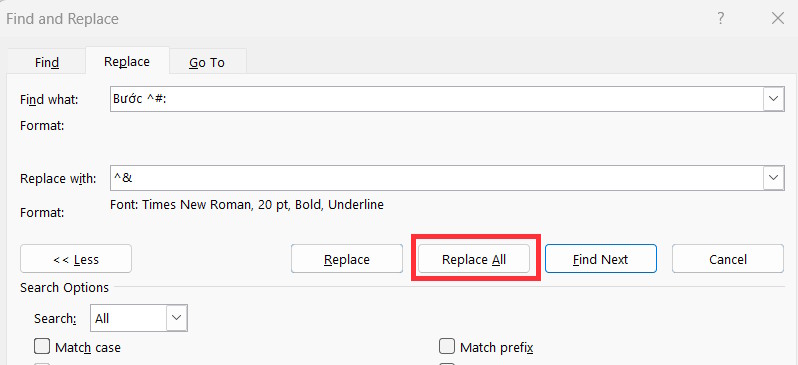
In Replace with, enter:
^&
^& means “the text that was found.” Word therefore keeps the number and colon unchanged while applying the bold format selected in the previous step.
4. Check matches before replacing all
Choose Find Next to inspect the first match. If it is a label that should be bold, select Replace. Check several locations, then use Replace All only when the pattern is safe throughout the document. Word reports how many replacements it made.
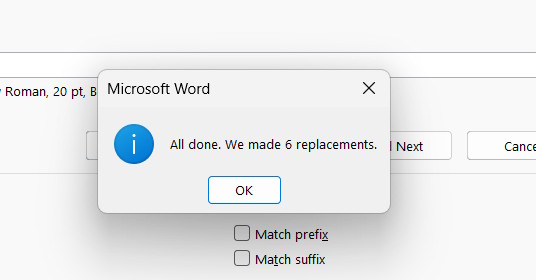
The matching labels should now appear in bold while the surrounding text retains its original formatting.
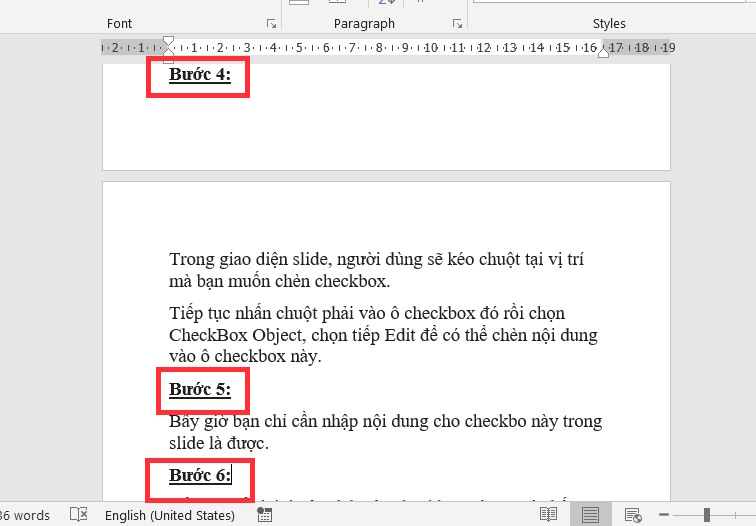
Handle labels from 10: through 99:
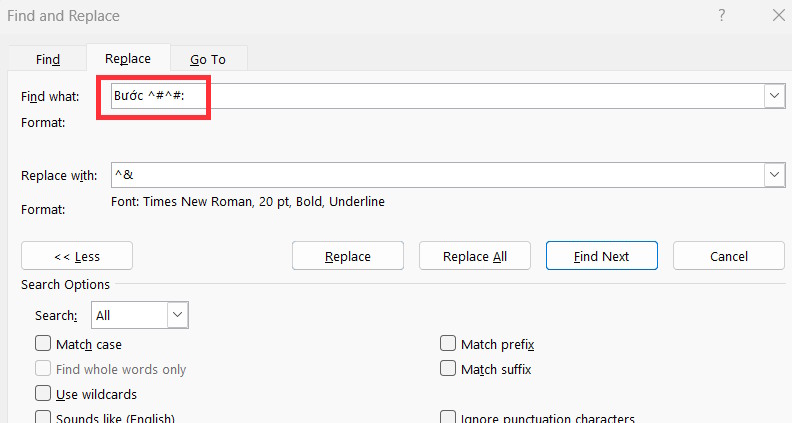
The one-digit code will also find the final digit and colon inside a label such as 12:. To format both digits, run a second pass with this value in Find what:
^#^#:
Keep ^& in Replace with and keep Bold set under Format. Preview the first few matches again before selecting Replace All.
If the document mixes one-, two-, and three-digit labels, repeat the same idea with three ^# codes for the three-digit group. Run the longest pattern first when you want to avoid briefly formatting only the last part of a longer label.
How to avoid changing times and other numbers
A broad search for a digit followed by a colon can also match text such as 9: in a time or ratio. Narrow the job before using Replace All:
- Select only the section or table column that contains the labels, then open Find and Replace.
- Add fixed text when the labels use it consistently. For example, search for
Question ^#:instead of^#:. - Use Find Next and individual Replace actions when the document contains mixed uses of numbers and colons.
- Press Ctrl + Z immediately if Replace All changes unintended text.
Microsoft’s Word Find and Replace guide explains how to combine searches with formatting and wildcard controls. For more Word fundamentals, see our Microsoft Word usage guide.
Use Heading styles when the entire line is a heading
Bold formatting changes appearance only. If these lines are true document headings, apply Heading 1, Heading 2, or another appropriate style to the whole line. Heading styles give the document a usable outline, support a table of contents, and make sections appear in Word’s Navigation pane.
Select a heading and choose the required style in Home > Styles. You can modify that style once to update every heading that uses it. Microsoft’s heading-style instructions cover the process; our overview of document structure explains why meaningful headings help readers navigate a long file.
Related Articles
 A Guide to Quickly Bolding Headings in Word3 minutes read
 How to Repeat the Title Bar in the Word List Table: Word Tips4 minutes read
 How to Repeat the Table Header Bar in Word7 minutes read
 Proofread Twice as Fast with These 11 Helpful Word Tips!8 minutes read
 How to Create Automatic Table of Contents in Word 2016 Simple and Fast6 minutes read
 Quickly Identify File Locations in Word 2013: Quickly Locate Files3 minutes read
Reader Comments 0
Sign in with email or Google to join the discussion.