Table of Contents
You can avoid retyping a national heading and motto in Word by saving reusable text or a reusable formatted block. Use AutoCorrect for a short text shortcut. If the heading includes a table and carefully arranged formatting, save the complete block with AutoText instead.
Prepare the wording and layout using your organization’s approved document example. Word can reproduce what you save; it does not check whether a heading meets official formatting requirements.
1. Prepare the heading and layout
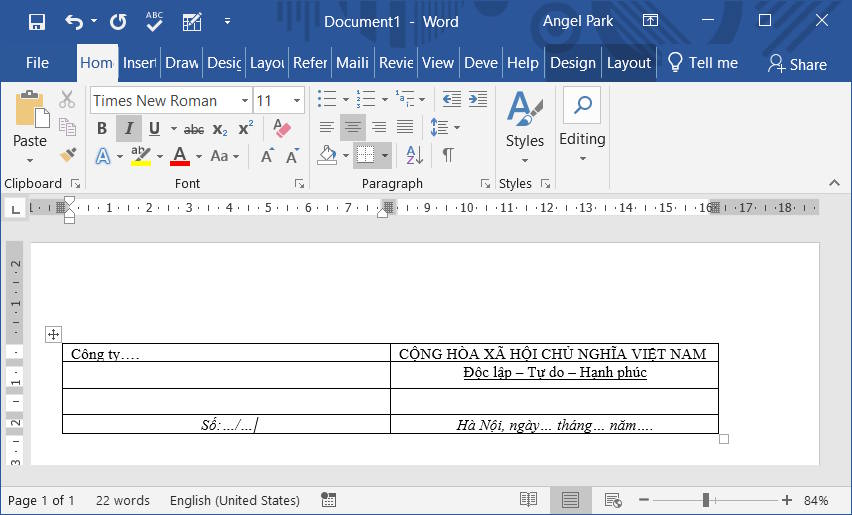
Type the heading and motto exactly as required. If the document has two aligned heading areas, use a table with enough rows and columns for that layout. The number of cells shown in the screenshot is an example, not a required setting.
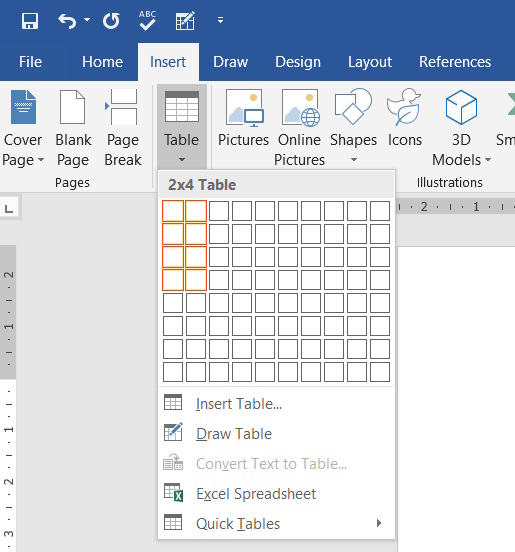
Set the font, alignment, paragraph spacing, and column widths before saving the block. Check accented characters and punctuation against the approved text.
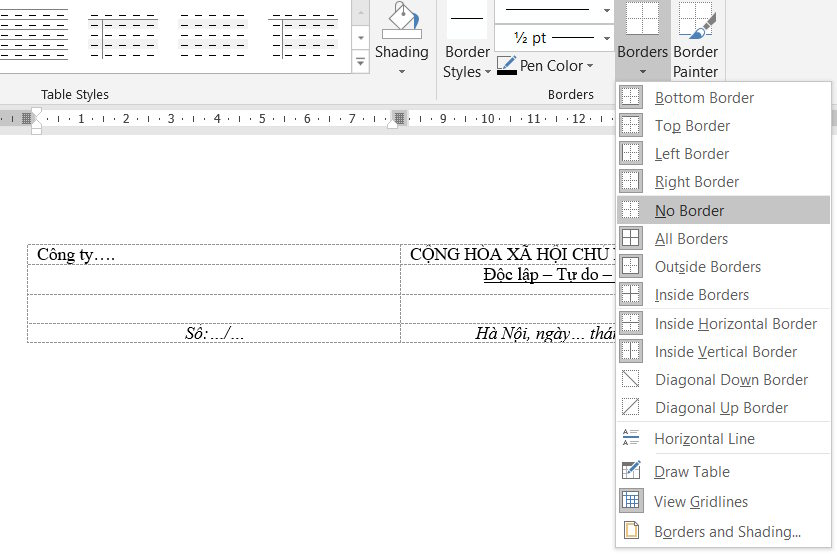
Select the table, open its border controls, and choose No Border. This hides printed borders; it does not delete the table or its contents. Nonprinting gridlines may still appear while you edit.
2. Create an AutoCorrect shortcut for short text
These steps apply to desktop Word on Windows. Select the text you want to reuse before opening the settings. Microsoft’s reusable text guide describes AutoCorrect entries of up to 255 characters.
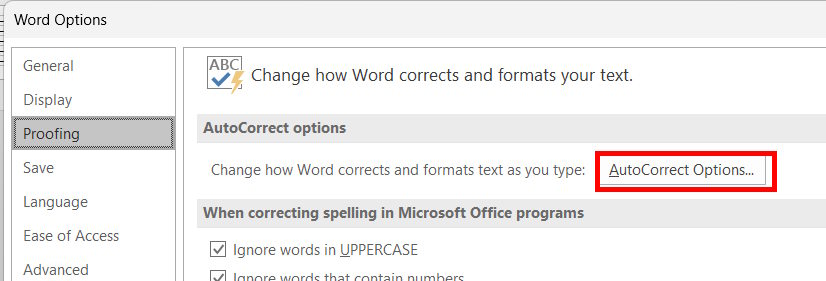
- Go to File → Options → Proofing → AutoCorrect Options.
- On the AutoCorrect tab, enable Replace text as you type.
- Enter an uncommon shortcut, such as
qhheader, in Replace. - Check that With contains the intended text. Do not assume the table layout has been captured.
- Select Add, then confirm the dialogs.
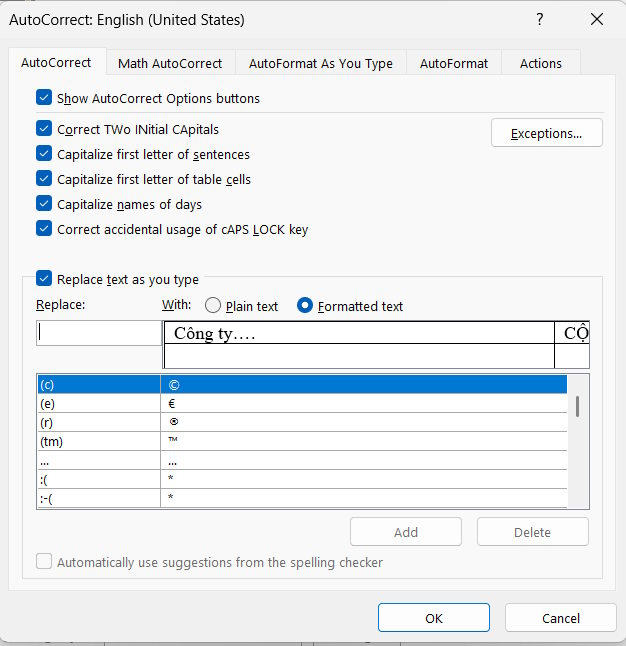
Type the shortcut in a test document and press Space or Enter to trigger replacement. Check the result before using it in a real document.

3. Save a complete formatted block with AutoText
If you need the whole table-based heading, select the complete block and choose Insert → Quick Parts → AutoText → Save Selection to AutoText Gallery. Give it a recognizable name, such as “National heading.” Later, insert it from the same AutoText gallery.
Microsoft’s Quick Parts guide explains the gallery workflow. AutoText is stored with a Word template; keep that template if you need to preserve or move the entry. Word for the web does not offer the same AutoText and custom AutoCorrect-entry features.
If replacement or formatting is wrong
Confirm that the shortcut is entered exactly and that automatic replacement is enabled. Revise the saved entry if its text is wrong; use AutoText if a short AutoCorrect entry cannot reproduce the layout you need.
See how to configure AutoCorrect in Word for the replacement settings. If Vietnamese characters are incorrect before you save the entry, address the input problem first using the Vietnamese typing troubleshooting guide.
Related Articles
 Instructions on How to Set up Microsoft Word to Create Backups5 minutes read
 How to Create Automatic Table of Contents Effectively in21 minutes read
 How to Create Automatic Table of Contents in Word 20164 minutes read
 How to Create and Use Macros in Word: Step-by-Step Guide4 minutes read
 How to Number Order in Word: How to Number the Word in Word7 minutes read
 How to Enable Hyphenation in Word to Create a Hyphen?4 minutes read
Reader Comments 0
Sign in with email or Google to join the discussion.