Table of Contents
Learn how to create professional presentation slides with kimi AI with clear steps, practical tips, and troubleshooting guidance for a reliable result.
How to create presentation slides using Kimi AI
Step 1
We access Kimi AI via the link below and then proceed to log in. Click "Log in" to log in.
https://www.kimi.com/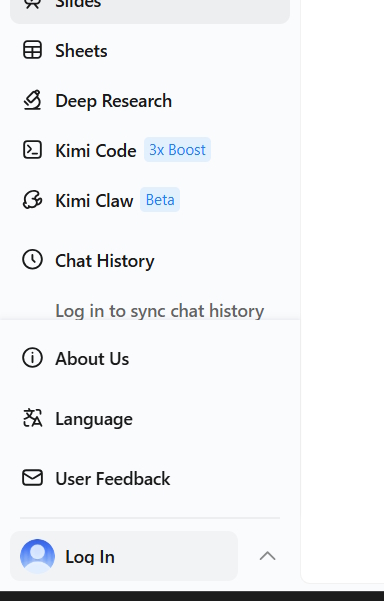
Choose to log in using your Google account or your phone number.

Step 2
Now, click the plus icon to select the document you want to convert to a slideshow.
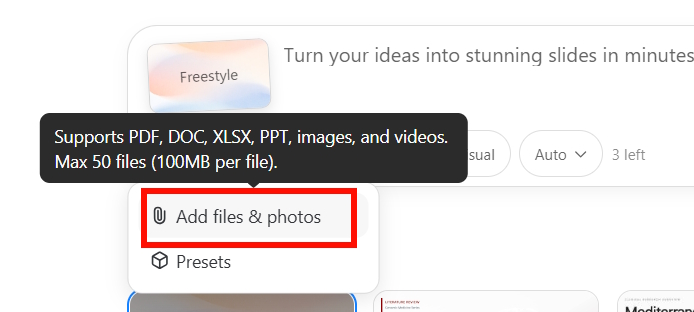
Next, below you choose the slide style you want to create , or you can let Kimi AI automatically create a style for your presentation slides.
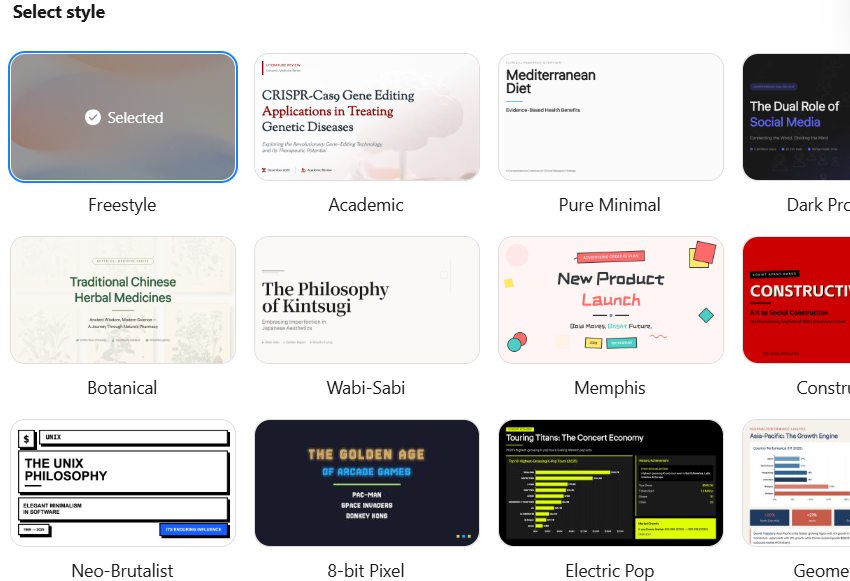
Step 3;
Enter the command below to convert to a slide format. You need to specify the type of slide you want so that Kimi AI can analyze it more thoroughly, then press submit.
AI prompt: "Help me with how to create presentation slides using kimi ai for How to Create Professional Presentation Slides with Kimi AI. Provide clear steps, examples, and practical recommendations in US English."
Kimi AI will create an outline from the content you upload , and then convert that outline into a slide.

Step 4
Click on the "View" option to see the presentation slides you created in Kimi AI.
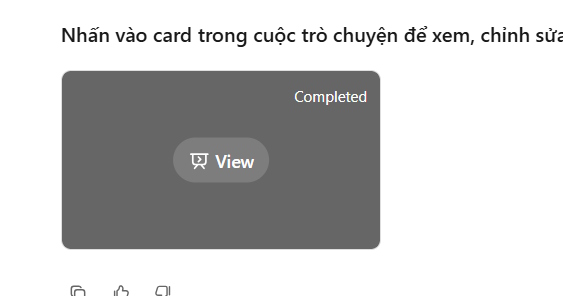
Presentation slides created on Kimi AI can also be modified; simply click on the content and edit it as needed.
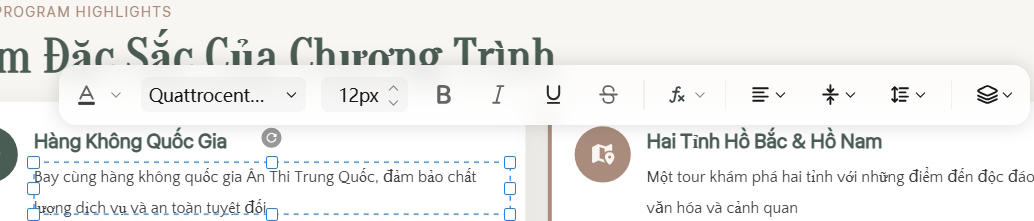
Finally, click the Download button to download the presentation slides.

We can see that presentation slides created using Kimi AI from text are much more professional. Images are added to the slides by Kimi AI to make them more visually appealing. However, the free version of Kimi AI may have font errors, so you need to be careful.

Final Thoughts
Use this guide as a practical checklist for how to create professional presentation slides with kimi ai. Work through the steps in order, verify each result, and adjust the options to match your needs.
FAQ
What do you need before following this How to Create Professional Presentation Slides with Kimi AI guide?
Review the required tools, accounts, settings, or materials mentioned in the article. Learn how to create professional presentation slides with kimi AI with clear steps, practical tips, and troubleshooting guidance for a reliable result.
What are the main steps for how to create professional presentation slides with kimi ai?
Follow the sections in order, especially How to create presentation slides using Kimi AI, Step 1, Step 2. Complete each step before continuing and verify the result as you go.
What should you do if the process does not work as expected?
Recheck the prerequisites, update the relevant app or service, review the settings, and repeat the step that caused the issue. Use any troubleshooting notes included in the guide.
Related Articles
 How to Create Presentation Slides on ChatGPT5 minutes read
 MS PowerPoint 2007 - Lesson 3: Create a Slideshow11 minutes read
 Creating a Professional Presentation7 minutes read
 How to Create Presentation Slides Using ChatGPT4 minutes read
 Top 6 Free and Open Source Software to Create Professional Presentations6 minutes read
 How to Choose the Right Number of Slides for a Powerpoint9 minutes read
Reader Comments 0
Sign in with email or Google to join the discussion.