Table of Contents
Canva's Magic Write can turn selected text from a presentation slide into a multiple-choice question. This is useful for a quick knowledge check during a lesson, but AI-generated questions and answer keys must be reviewed before sharing them with students.
Create a question from slide content
Step 1: Open the presentation and finish the source slide. Make sure the slide contains enough accurate information for a question and answer to be derived from it.
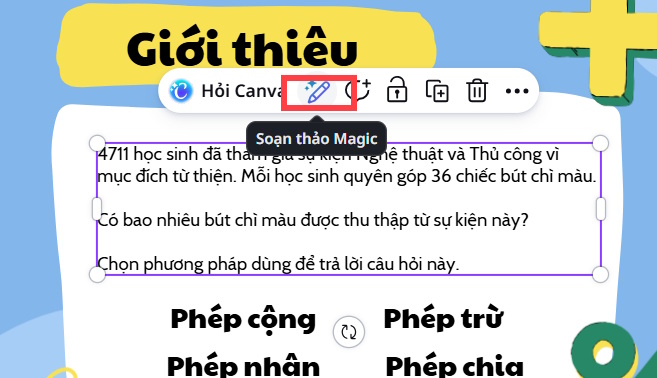
Step 2: Highlight the specific text you want Magic Write to use, then select the Magic Write icon.
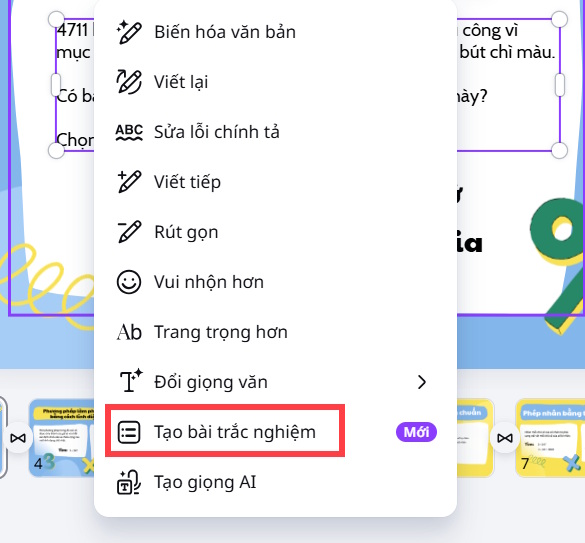
Choose Create quiz from the menu.
Step 3: Canva generates a multiple-choice question from the selected content.

If the question is unclear or too easy, generate another version or edit it manually.
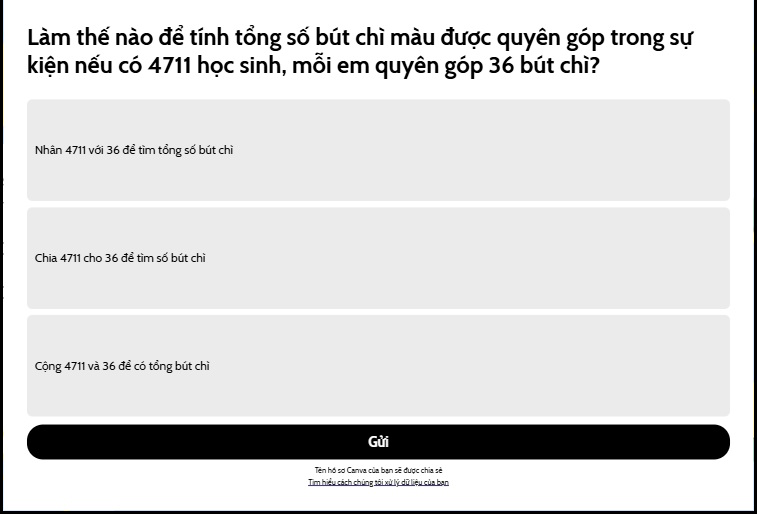
Review the generated question
Before publishing, check that:
- the correct answer is supported by the slide;
- only one option is correct unless multiple answers are intentional;
- distractors are plausible but not misleading;
- the wording does not depend on missing context;
- names, dates, formulas, and units are accurate; and
- the question measures the lesson objective rather than a trivial detail.
Do not assume that regenerating a question makes it more accurate. Edit the result directly when you know what needs to change.
Share the quiz and collect responses
Step 4: Use Canva's sharing or presentation controls to send the quiz to participants and collect their answers.
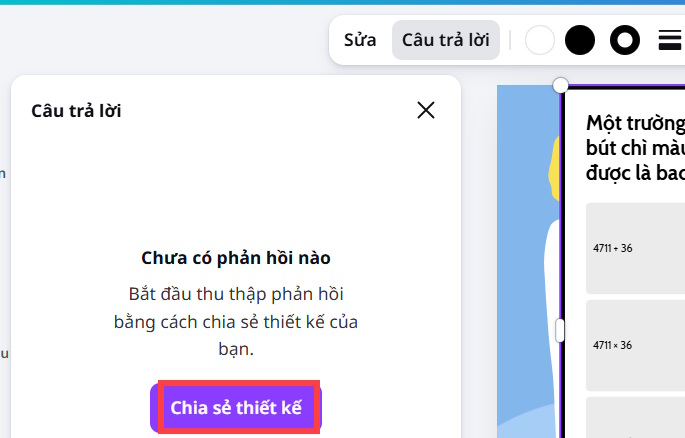
Open Answers to review submitted responses and available details such as the respondent and submission time. The exact labels may differ as Canva updates the interface.
Select Link to spreadsheet if you want to organize the response data in a sheet.

The spreadsheet can show respondents, submission times, and selected choices.
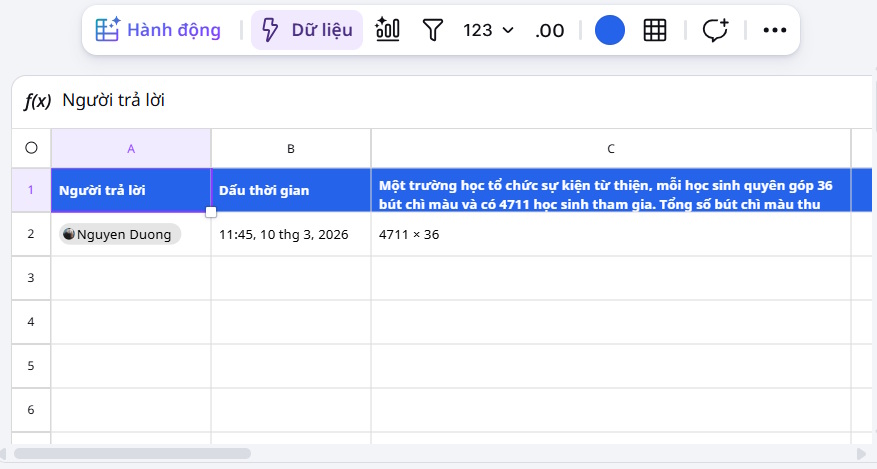
When collecting student names or other personal information, follow the school's privacy rules and limit access to the response sheet.
Related Articles
 This Is How to Create Multiple-choice Question Slides in Canva5 minutes read
 What Is Magic Write in Canva? Basic Usage of Magic Write: Clear Explanation6 minutes read
 Guide to Creating Multiple Choice Questions on Vnedu4 minutes read
 How to Create a Personal Writing Style in Magic Write Canva4 minutes read
 Instructions on Creating Canva Sheets Using Magic Write: Explained5 minutes read
 Quickly Create Multiple-choice Quizzes from Videos Using Magic School AI5 minutes read
Reader Comments 0
Sign in with email or Google to join the discussion.