Table of Contents
Canva AI can turn a topic or uploaded source into a presentation outline and a designed set of slides. It is useful for creating a first draft, but the generated deck still needs editorial review: facts, structure, visuals, citations, and speaker intent are your responsibility.
The names and placement of Canva's AI controls may vary by account, plan, language, and rollout. The workflow below follows the interface shown in the screenshots.
1. Start a presentation in Canva AI
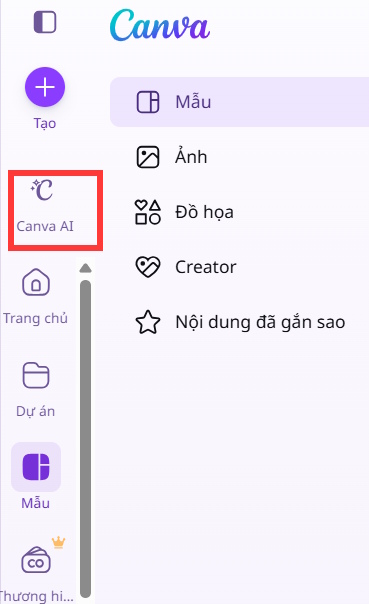
Sign in to Canva and open Canva AI.
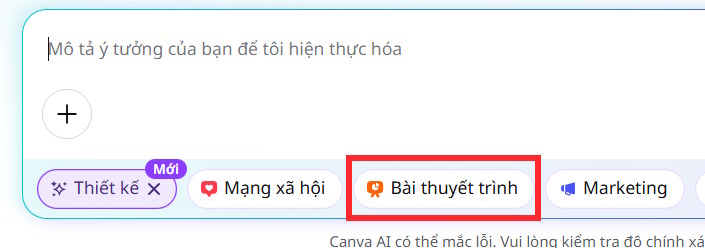
Select the design option, then choose Presentation as the output format.
2. Set the audience, style, and length
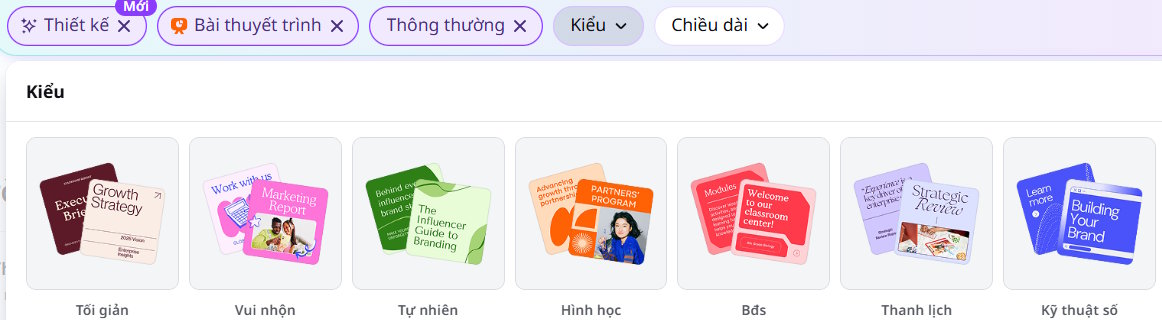
Open the presentation settings shown in the creation panel.

Choose a visual style and a slide count, or let Canva estimate the length. The right number of slides depends on the talk, not on how much text the AI can generate. For a live presentation, one clear idea per slide is usually easier to follow than several dense paragraphs.
3. Write a useful presentation prompt
A topic alone produces a generic deck. Include the audience, purpose, duration, required sections, tone, and evidence constraints.
Prompt template:
Create a [number]-slide presentation for [audience].

Goal: [what the audience should understand or do].
Context: [relevant background].
Include: [required sections, examples, or data].
Tone: [professional, instructional, persuasive, etc.].
Visual direction: [clean charts, documentary photos, minimal icons, brand colors].
Sources: Use only the uploaded document. Mark any missing fact instead of inventing it.
End with: [decision, summary, or call to action].
Enter the prompt and submit it.

4. Review the outline before designing
Canva AI may present the main ideas as an editable outline. Read the full sequence before creating slides.
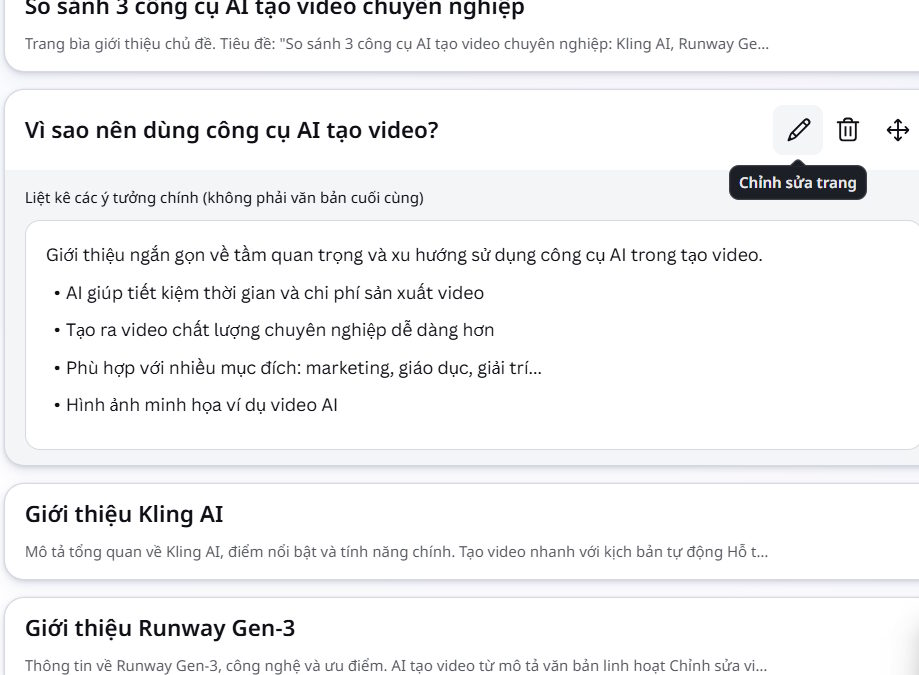
Delete repeated points, move background information earlier, and make sure the conclusion follows from the evidence. Add a missing slide only when it advances the story.
When the outline is ready, choose Create design.

5. Choose a generated design
Canva may generate several visual directions. Compare them for readability, hierarchy, and fit with the audience—not only for decoration.

Select the strongest option, adjust the palette if needed, and open it in Canva Editor.
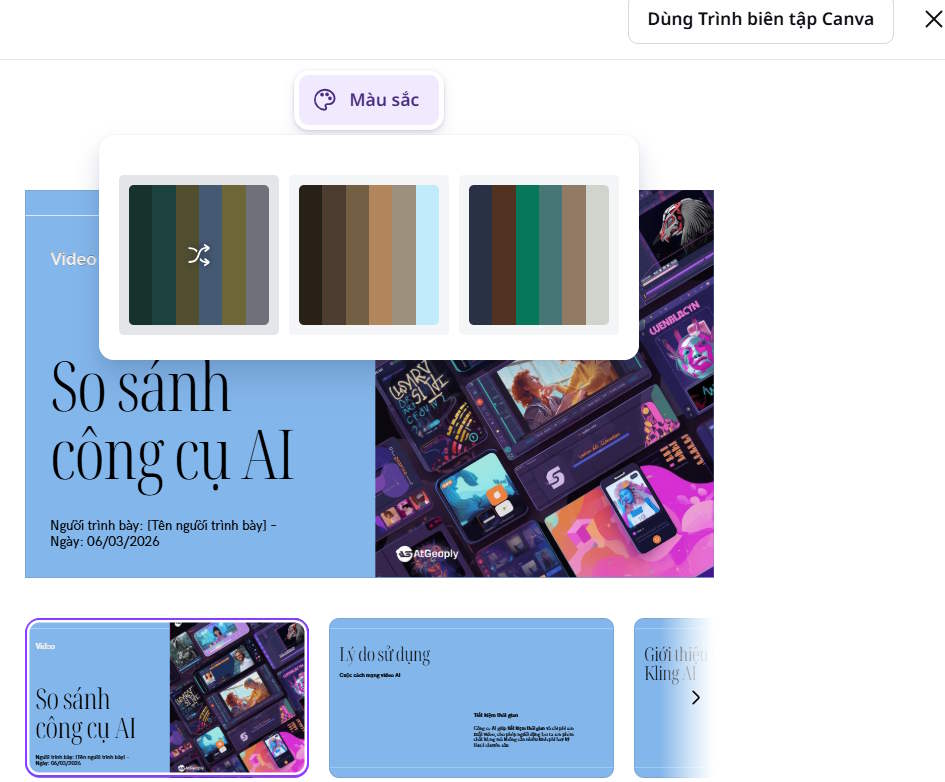
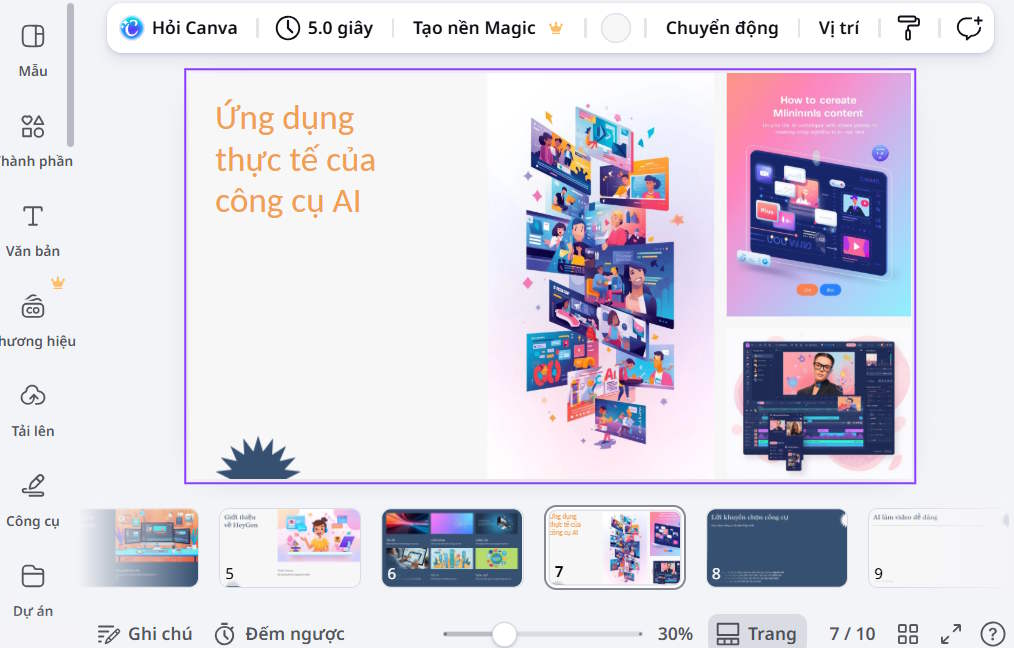
The deck is now editable with Canva's normal presentation tools.
6. Create slides from an uploaded document
If the presentation must follow a report, brief, or notes, use the attachment control to add the source supported by your Canva account.
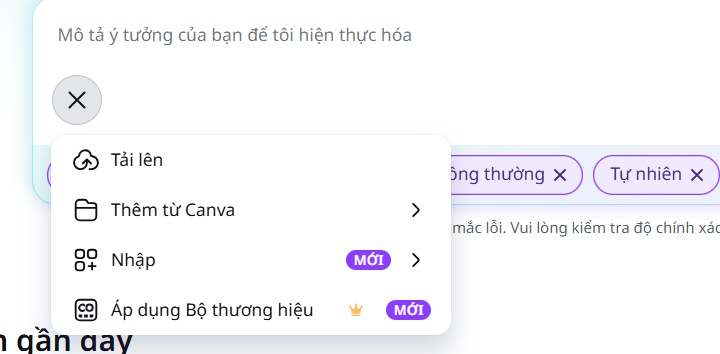
Then tell Canva exactly how to use it. Ask the tool to stay within the source, preserve named dates and units, and flag gaps rather than filling them with assumptions.
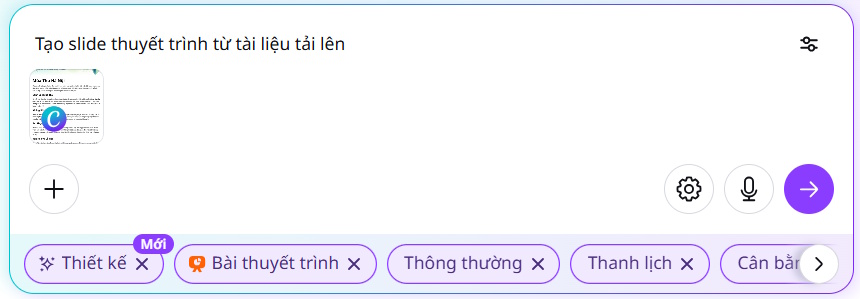
Do not upload confidential, regulated, or copyrighted material unless you are authorized to process it through Canva and the account's privacy settings meet your requirements.
How to improve the generated deck
Rewrite slide titles as conclusions
“Quarterly Sales” merely names a topic. “Enterprise renewals drove Q3 growth” tells the audience what the slide means. Use titles that carry the argument.
Reduce on-slide text
Move explanations into speaker notes. Keep only the wording needed to understand the visual and remember the main point.
Replace decorative charts
AI-generated charts can be visually convincing without representing real data. Rebuild every chart from verified numbers and label units, dates, and sources.
Check images and licenses
Make sure visuals accurately represent the subject and are permitted for the intended use. Replace generic AI images when a real product, person, location, or process must be shown.
Apply one visual system
Use consistent type sizes, spacing, colors, image treatment, and chart styles. Generated slides may look individually polished while failing to feel like one deck.
Pre-presentation checklist
- Every statistic, date, quotation, and name has been verified.
- Each slide supports one clear point.
- Text is readable from the back of the room.
- Charts use real data and correctly labeled axes.
- Images are relevant and licensed.
- Animations do not distract from the message.
- The talk fits the allotted time when rehearsed.
- The exported PDF or PowerPoint has been checked for layout changes.
Canva AI is best used to accelerate the blank-page stage. A strong presentation still comes from a deliberate story, reliable evidence, and human editing after the first draft is generated.
Related Articles
 How to Translating Presentation Slides in Canva AI3 minutes read
 How to Create Presentation Slides on ChatGPT5 minutes read
 How to Create Professional Presentation Slides with Kimi AI5 minutes read
 This Is How to Create Multiple-choice Question Slides in Canva5 minutes read
 How to Create Professional Presentations in Canva11 minutes read
 How to Number Pages in Canva3 minutes read
Reader Comments 0
Sign in with email or Google to join the discussion.