Table of Contents
This updated guide explains how to schedule Windows 11 theme changes by time of day with clear steps, practical tips, and useful context. If you want your Windows 11 computer to automatically switch between light and dark themes on a regular basis, you can use Task Scheduler or a free third-party app. Here are detailed instructions, including how to automatically change the wallpaper.
Use Task Scheduler to Create a Task That Automatically Switches Themes
One way to schedule Windows 11 theme changes over time is to use Task Scheduler . You create two tasks that edit Windows registry values, switching between light and dark themes at specified times.
To easily undo changes, create a system restore point before following these steps.
1. Getting Started:
Open Windows Search (press Windows + S ), type Task Scheduler and launch the tool.
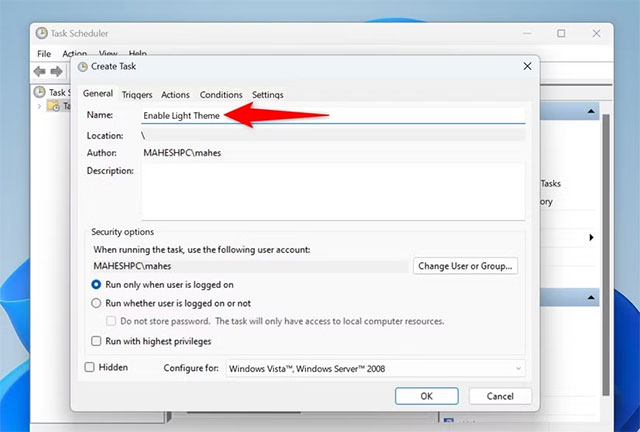
On the right, choose Create Task .
Select the Name field and enter a name for the light theme enable action (for instance, Enable Light Theme ).
2. Set up Trigger :
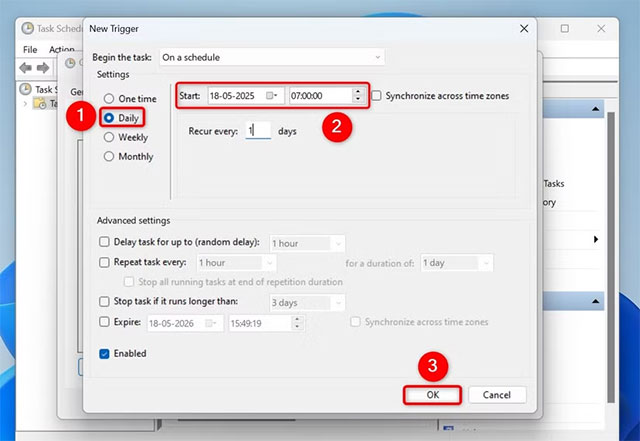
From the tab list above, select the Triggers tab > choose Add to add a new trigger.
Select Daily to have the task run every day.
Select the time you want the system to start using the light theme > choose OK .
3. Set up actions :
open the Actions tab > choose Add to add a new action.
In the Program/Script field, type reg.
In the Add Arguments (Optional) field, enter these command > choose OK :
add "HKCUSoftwareMicrosoftWindowsCurrentVersionThemesPersonalize" /v SystemUsesLightTheme /t REG_DWORD /d 1 /f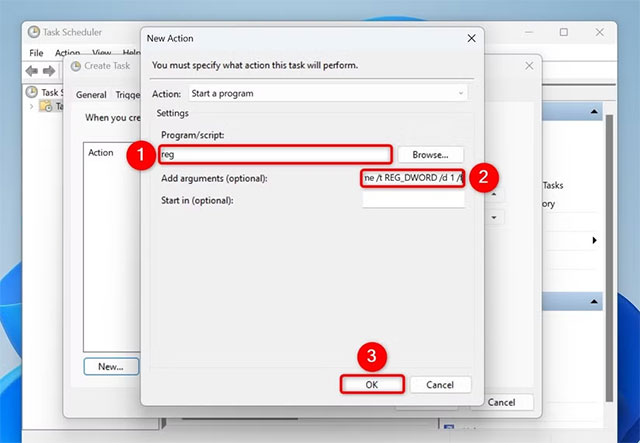
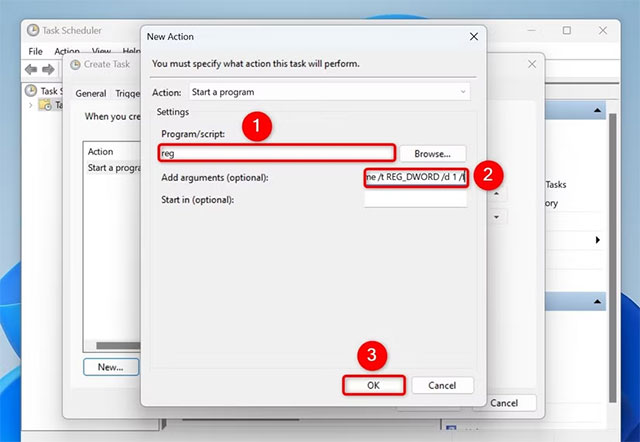
Add second action:
- In the Program/Script field, re-enter reg.
add "HKCUSoftwareMicrosoftWindowsCurrentVersionThemesPersonalize" /v AppsUseLightTheme /t REG_DWORD /d 1 /f- Back in the Create Task window, choose OK to complete the task creation.
4. Create a task for dark theme :
Repeat the steps above, giving it a name (e.g. Enable Dark Theme ).
Set a trigger with the time to activate the dark theme.
In the Actions section, use these commands:
- Action 1 :
add "HKCUSoftwareMicrosoftWindowsCurrentVersionThemesPersonalize" /v SystemUsesLightTheme /t REG_DWORD /d 0 /f- Action 2 :
add "HKCUSoftwareMicrosoftWindowsCurrentVersionThemesPersonalize" /v AppsUseLightTheme /t REG_DWORD /d 0 /fSave task.
Your system will now enable light/dark theme based on the set time. To disable this feature, right-choose the task in Task Scheduler and select Delete .
Use the Auto Dark Mode App to Automatically Switch Themes
If you do not want to configure it yourself in Task Scheduler, use the free Auto Dark Mode app from the Microsoft Store.
- Basic installation and setup :
- Download and install the app > launch.
- Turn on the Enable Automatic Theme Switching switch .
- Turn on Custom Hours > select the time to activate the light ( Light ) and dark ( Dark ) themes.
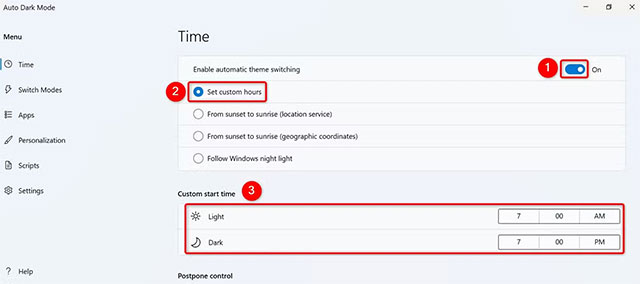
- Change wallpaper automatically :
- On the left sidebar, choose Personalization > select Pick a Wallpaper .
- Turn on Enable Wallpaper Switch .
- Select Mode (Light/Dark) from the drop-down menu.
- Scroll down to Wallpaper > choose Pick File to select a wallpaper.
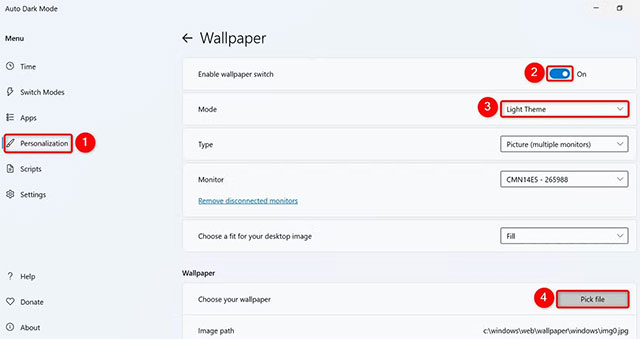
- Advanced customization :
- Hotkeys : In Switch Modes , assign hotkeys to quickly switch themes.
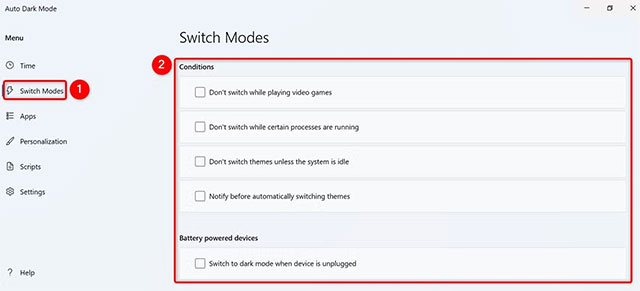
- Other Options : open Switch Modes to adjust the switching time.
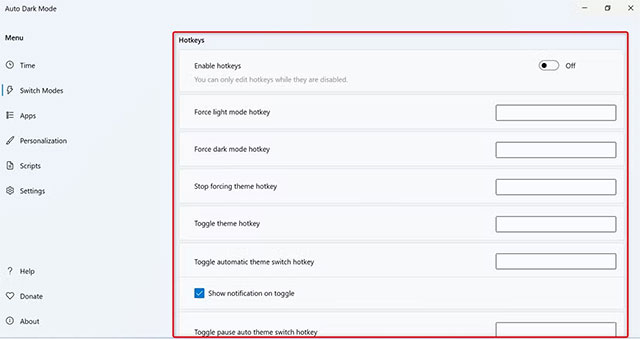
- Hotkeys : In Switch Modes , assign hotkeys to quickly switch themes.
To remove the automatic feature, simply uninstall the app on Windows 11.
Good luck!
FAQ
What should I prepare before I schedule windows 11 theme changes by time of day?
Review the requirements and options in the guide first. Having the correct device, app version, account access, or materials ready helps prevent avoidable errors.
How long does it take to schedule windows 11 theme changes by time of day?
The time depends on the task and your setup. Most basic steps can be completed quickly, while downloads, updates, scans, or troubleshooting may take longer.
What should I do if the steps do not work?
Repeat the instructions in order, confirm that your software or device is supported, and check permissions, connectivity, and available updates before trying again.
Related Articles
 Change Theme 10: How to Use the Theme on Windows 1013 minutes read
 How to Download Windows 10 Theme for Windows 73 minutes read
 How to Restore the Default Theme in Windows 104 minutes read
 Theme Win 10 - How to Install and Use the Theme on Windows 102 minutes read
 How to Enable and Apply the Aero Lite (Windows Basic) Theme in3 minutes read
 How to Change the Theme on Windows 114 minutes read
Reader Comments 0
Sign in with email or Google to join the discussion.