Table of Contents
Explore powerpoint 2019 (part 21): tables, including the key concepts, practical examples, important considerations, and useful guidance.
How to insert a table
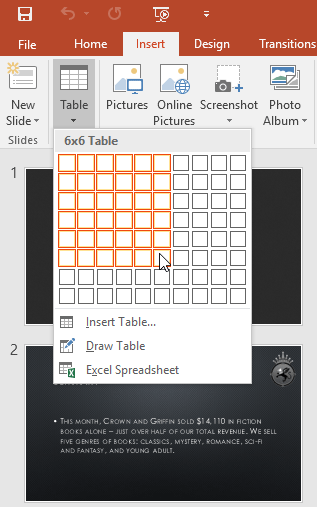
1. From the Insert tab, click the Table command.
2. Hover your mouse over the grid to select the desired number of columns and rows in the table. For example, this will insert a table with 6 rows and 6 columns (6x6).
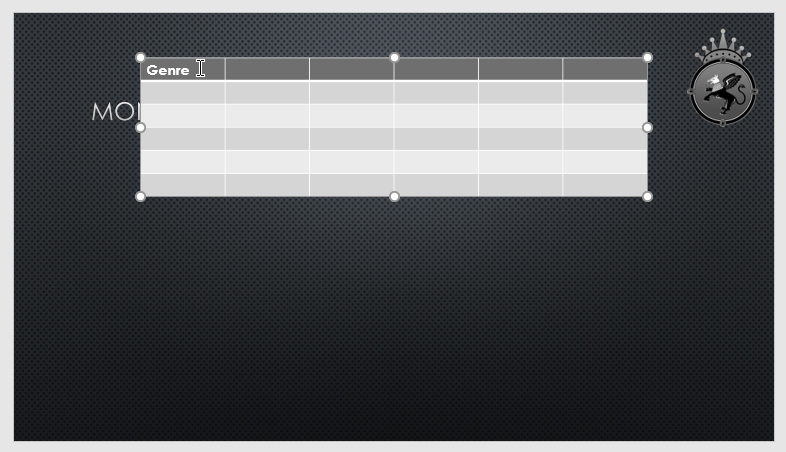
3. The table will appear on the currently selected slide. In this example, that's slide 3.
4. Click anywhere in the table and start typing to add text. You can also use the Tab key or the arrow keys on your keyboard to navigate through the table.
You can also insert a table by clicking the Insert Table command in the placeholder.

Edit table
PowerPoint includes several options for customizing tables, including moving and resizing them, as well as adding rows and columns.
How to move a table
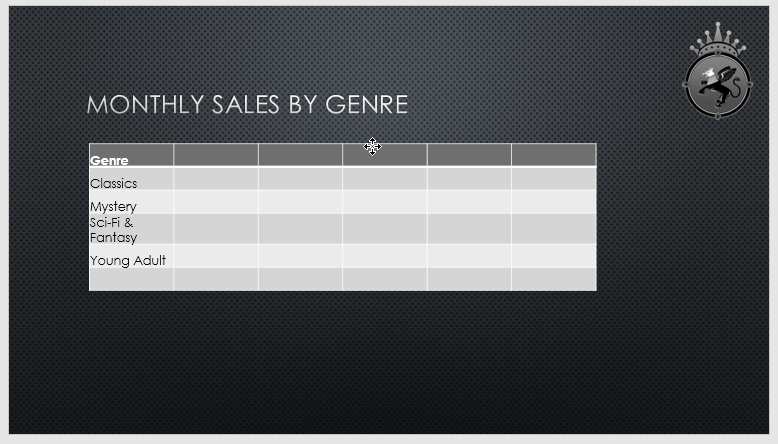
Click and drag the edge of the table to move it to a new position on the slide.
How to resize a table
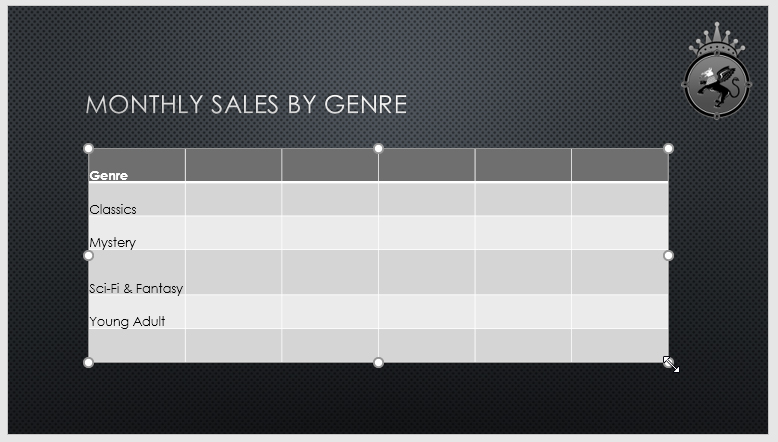
Click and drag the resizing handles until the board is the desired size.
How to add a row or column
1. Click on the cell next to where you want to add a row or column. For example, we would select the cell containing the word "Mystery".

2. Click on the Layout tab on the right side of the Ribbon.
3. Locate the Rows & Columns group. If you want to insert a new row, select Insert Above or Insert Below. If you want to insert a new column, select Insert Left or Insert Right.

4. A new row or column will appear.

How to delete a row or column
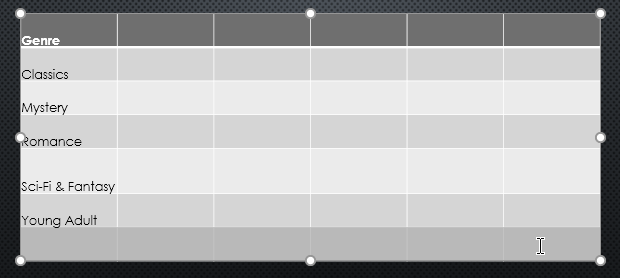
1. Select the desired row or column. For example, this will select the empty row at the end of the table.
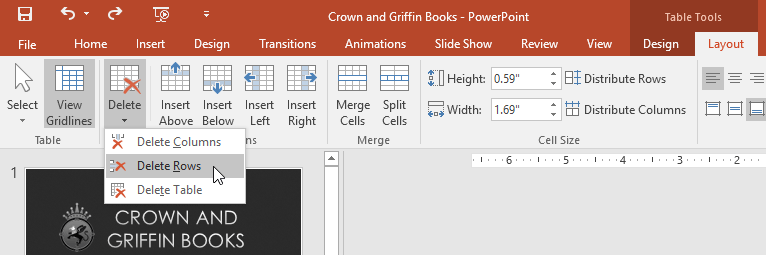
2. From the Layout tab in the Rows & Columns group, click the Delete command, then select Delete Rows or Delete Columns from the menu.
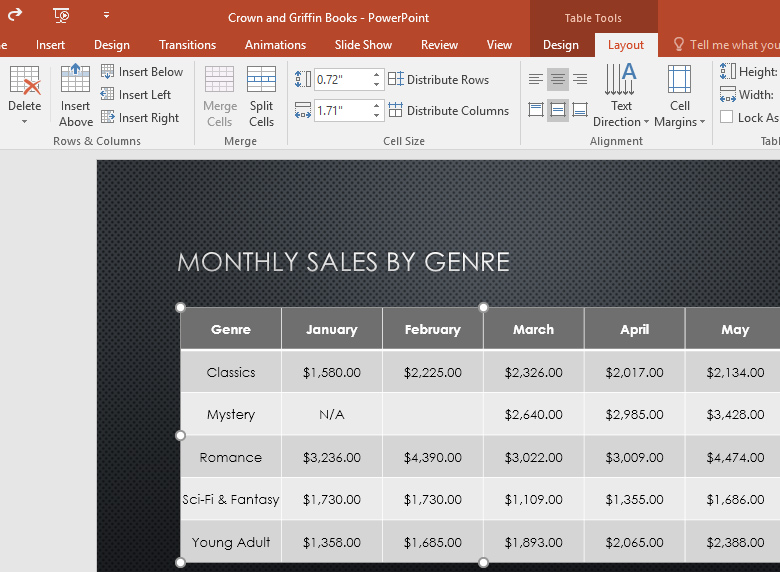
3. The selected row or column will be deleted.

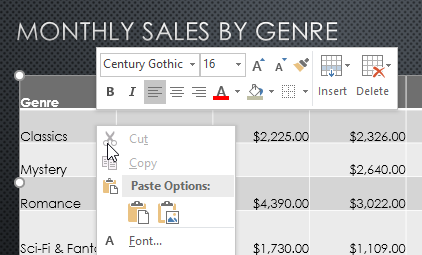
You can also access the Insert and Delete commands by right-clicking on the table.
How to delete a table
Click on the edge of the table you want to delete, then press the Backspace or Delete key on your keyboard.
Modify the table using the Layout tab
When you select a table, the Design and Layout tabs will appear on the right side of the Ribbon. You can make many changes to the table using the commands on the Layout tab.
Customize the table
PowerPoint makes it easy to change the appearance of your tables. For example, you can quickly apply different table styles and customize table borders.
How to apply a table style
1. Select any cell in the table, then click the Design tab on the right side of the Ribbon.
2. Find the Table Styles group, then click the More drop-down arrow to see the available table styles.
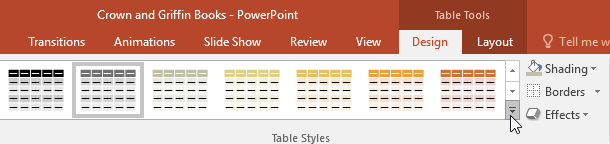
3. Select your desired style.
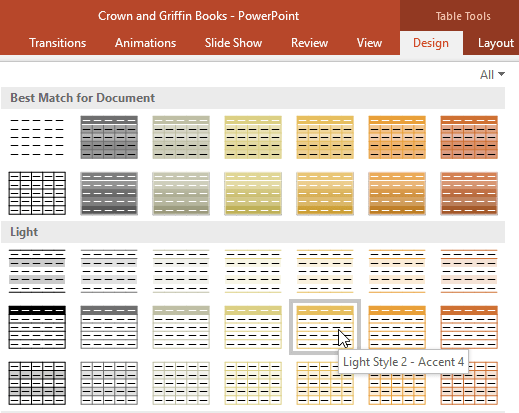
4. The selected table type will be applied.
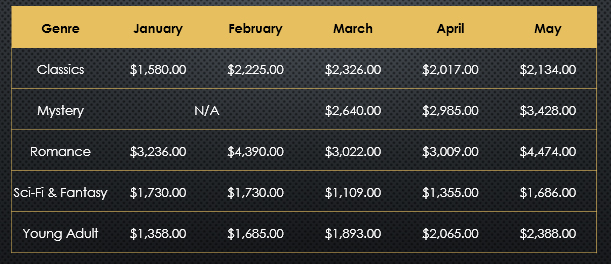
How to change table style options
You can disable or enable various options to change the appearance of the table. There are several options: Header Row, Total Row, Banded Rows, First Column, Last Column , and Banded Columns .
1. Select any cell in the table.
2. From the Design tab, select or deselect the desired options in the Table Style Options group.

These options can affect your table style in various ways, depending on the type of content in your table. You may need to experiment with several options to find the exact style you want.
How to add borders to a table
You can add borders to help define different sections of the board. Certain board styles may automatically include borders, but you can easily add them manually or customize them. You can control the thickness, color, and style of the borders for some or all of the board.
1. Select the cells you want to add borders to. For example, this will select all cells in the table.
2. From the Design tab, select your desired Line Style, Line Weight , and Pen Color.
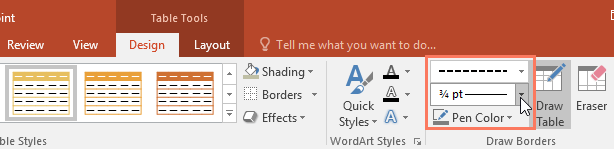
3. Click the Borders drop-down arrow, then select your desired border style.
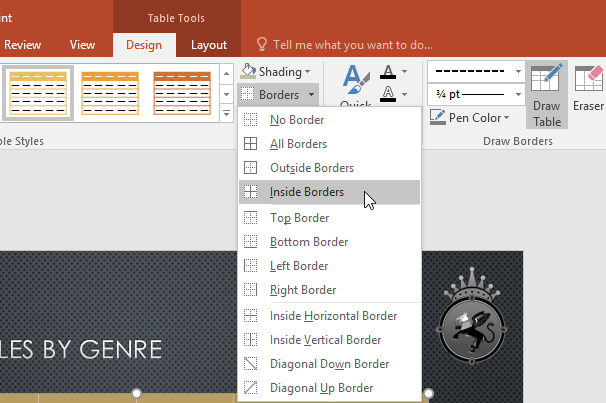
4. A border will be added to the selected cells.
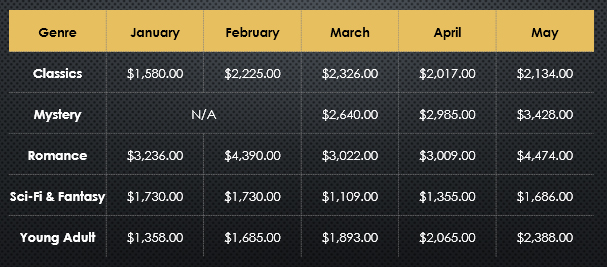
5. To remove the border, select the desired cells, click the Borders command, and choose No Border.
Final Thoughts
Understanding powerpoint 2019 (part 21) makes it easier to evaluate the information and apply the most relevant recommendations. Focus on the key points above and verify details that may change over time.
FAQ
What is powerpoint 2019 (part 21)?
Explore powerpoint 2019 (part 21): tables, including the key concepts, practical examples, important considerations, and useful guidance.
What key points does this article cover?
The article focuses on How to insert a table, Edit table, How to move a table, with practical explanations and examples.
How can you use this information in practice?
Use the explanations to compare options, verify important details, and make a more informed decision. Apply the recommendations that best match your goals and situation.
Related Articles
 MS PowerPoint 2007 - Lesson 8: Insert Tables in PowerPoint7 minutes read
 PowerPoint 2019 (Part 1): Getting Started with PowerPoint: Explained7 minutes read
 Use Effects for Tables and Charts in PowerPoint3 minutes read
 How to Transfer Tables from Word to PowerPoint4 minutes read
 PowerPoint 2019 (Part 11): Presenting Slideshows: Explained9 minutes read
 PowerPoint 2019 (Part 6): Applying Themes: Explained5 minutes read
Reader Comments 0
Sign in with email or Google to join the discussion.