Table of Contents
The Windows 11 touch keyboard can play a click whenever you tap a key. To mute it, turn off Play key sounds as I type in the touch-keyboard settings. This affects the on-screen touch keyboard, not the sounds from a physical keyboard or touchpad.
Turn off touch keyboard sounds in Settings
- Open Settings with Win + I.
- Select Time & language.
- Open Typing.
- Expand Touch keyboard.
- Clear Play key sounds as I type.
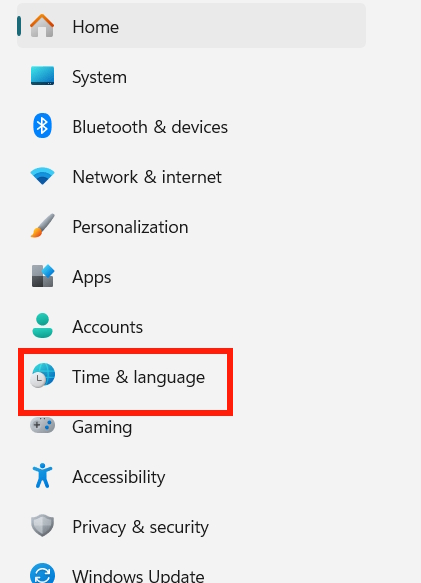
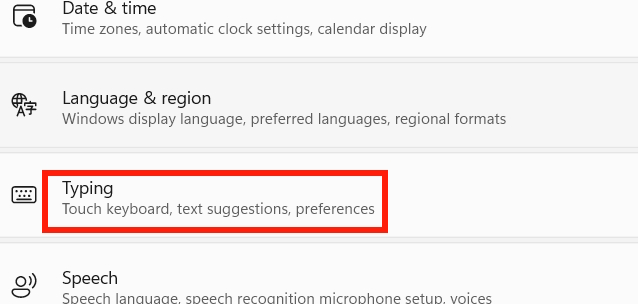
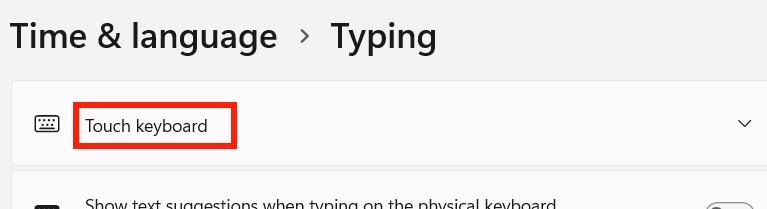
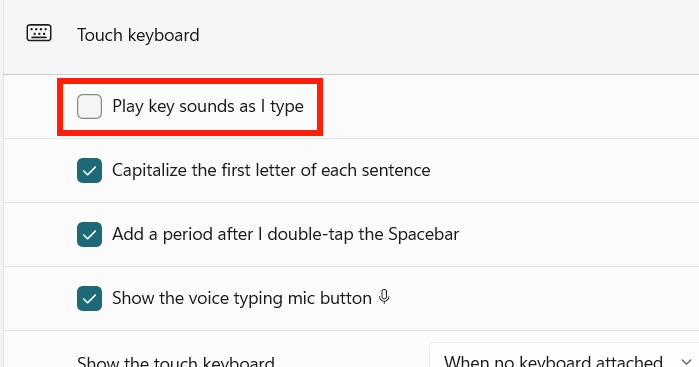
The change should apply immediately. If the touch keyboard is already open, close and reopen it. Windows updates can move or rename settings, so use the Settings search box for touch keyboard if the path differs.
Registry fallback
Use this only if the Settings control is missing or does not persist. The original commands often shown online omit required backslashes; the corrected path is HKEY_CURRENT_USERSoftwareMicrosoftTabletTip1.7.
Open Windows Terminal or Command Prompt under the user account whose setting you want to change. Administrator rights are normally unnecessary because the value belongs to the current user.
Mute the key sound
reg add "HKCUSoftwareMicrosoftTabletTip1.7" /v EnableKeyAudioFeedback /t REG_DWORD /d 0 /fTurn the key sound back on
reg add "HKCUSoftwareMicrosoftTabletTip1.7" /v EnableKeyAudioFeedback /t REG_DWORD /d 1 /fClose and reopen the touch keyboard after changing the value. If it still does not update, sign out and sign back in.
Use Registry Editor instead
- Press Win + R, enter regedit, and select OK.
- Go to HKEY_CURRENT_USERSoftwareMicrosoftTabletTip1.7.
- Open the EnableKeyAudioFeedback DWORD value.
- Set its value data to 0 to mute sounds or 1 to enable them.
If the value does not exist, create a new DWORD (32-bit) Value with that exact name. Do not change unrelated Registry entries.
If you still hear typing sounds
- Confirm the sound comes from the Windows touch keyboard rather than an accessibility feature, third-party keyboard, or app.
- Check whether the touch keyboard setting was changed under a different Windows user account.
- Close the keyboard process by signing out, then sign in again.
- If all system sounds are unwanted, lower the system volume instead—but note that this also mutes notifications and other audio.
Related Articles
 How to Turn on, Turn Off the Keyboard Sound on Android5 minutes read
 How to Turn Off the Keyboard Sound on iPhone, iPad4 minutes read
 How to Mute Any Application on Windows 104 minutes read
 How to Turn Off All Sounds on Android Phones with One Touch6 minutes read
 Instructions on How to Mute Chat on Facebook: Facebook Chat Mute4 minutes read
 How to Resize Virtual Keyboard/touch Keyboard on Windows 113 minutes read
Reader Comments 0
Sign in with email or Google to join the discussion.