Table of Contents
Learn how to insert and create tables in word 2016 with clear steps, practical tips, and troubleshooting guidance for a reliable result.
Insert a blank table in Word 2016
Step 1: Place your mouse cursor in Word where you want to insert the table.
Step 2: Navigate to the Insert tab, then click Table.
Step 3: This will open a menu. Here, you can select the number of columns and rows you want to create.
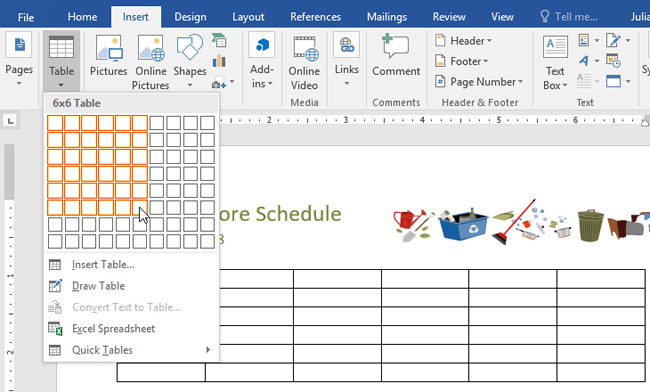
Step 4: Return to the Word interface. To enter text, place the insertion point in any cell, then begin typing.
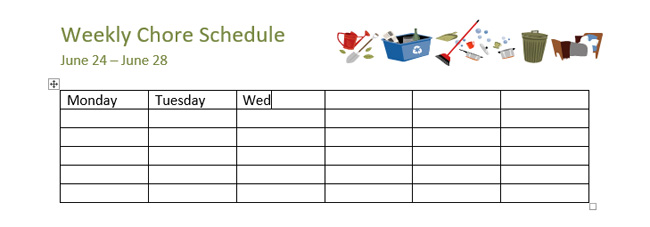
To move between cells, you can use the Tab key or the arrow keys on your keyboard.
Convert text into a table
In the example below, each line of text contains a portion of a to-do list, including the task and the days of the week. Each item is separated by tabs. Word can convert this information into a table, using tabs to separate the data into columns.
Step 1: Select the text you want to convert to a table.
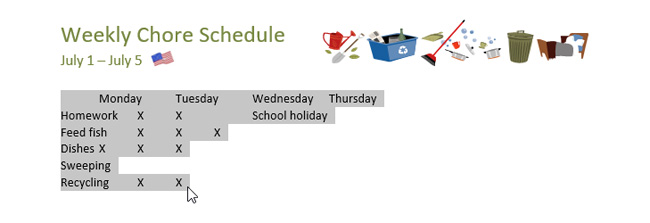
Step 2: Access the Insert tab, then click Table.
Step 3: Click on Convert Text to Table from the dropdown menu.
Step 4: A dialog box will appear. Select one of the options under "Separate text at." This is how Word determines which content is included in each column.
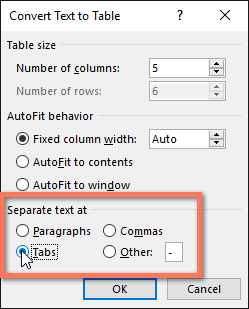
Step 5: Click OK. The resulting text will appear in the table as shown below.
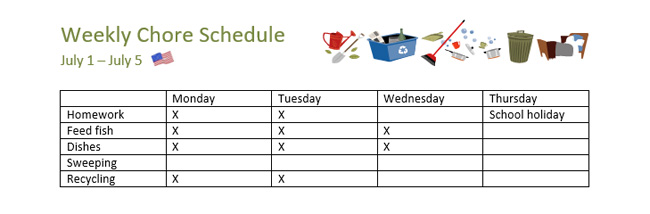
Editing a Word 2016 table
Add rows or columns
Step 1: Hover your mouse outside the table where you want to add a row or column. Click the " +" sign that appears.
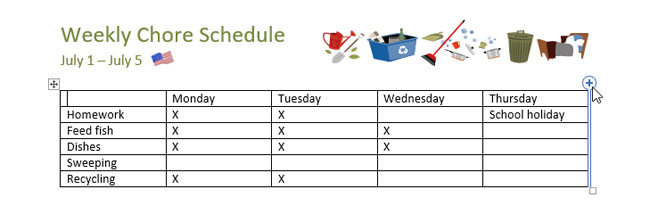
Step 2: A new row or column will be added to the table.
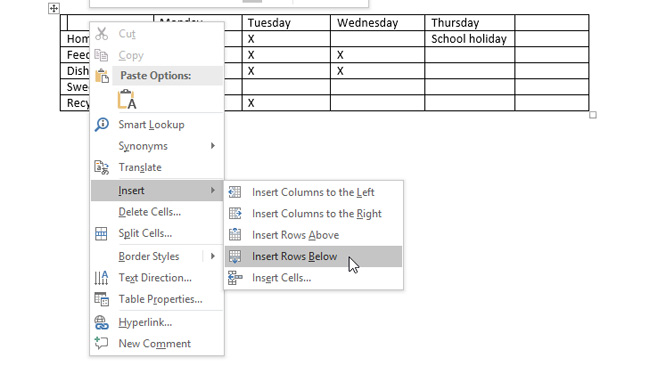
Alternatively, you can right-click on the table, then click Insert to see the column and row options.
Delete a row or column in a table
Step 1: Place the insertion point in the row or column you want to delete, then right-click. Select Delete Cells from the menu that appears.
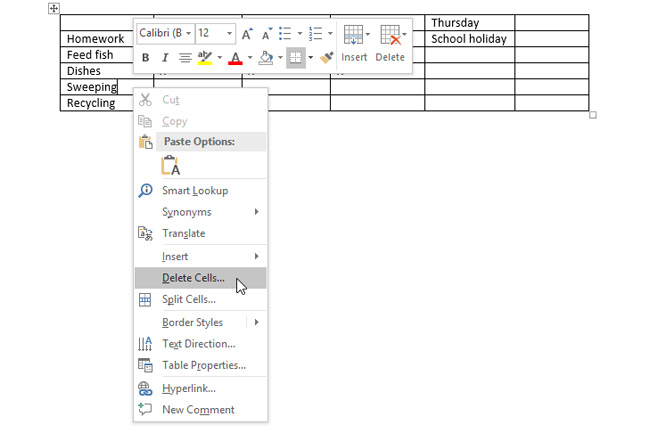
Step 2: Click on "Delete entire row" or "Delete entire column" in the dialog box that appears. Then click OK.
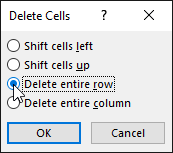
As a result, the selected row or column will be deleted.
Creating table styles in Word 2016
Table styles allow you to change the appearance of the created table, including several design elements such as color, borders, and fonts.
Step 1: Click anywhere in the table, then click the Design tab on the ribbon.
Step 2: Find the Table Styles group, then click the More down arrow to see the full list of table styles.
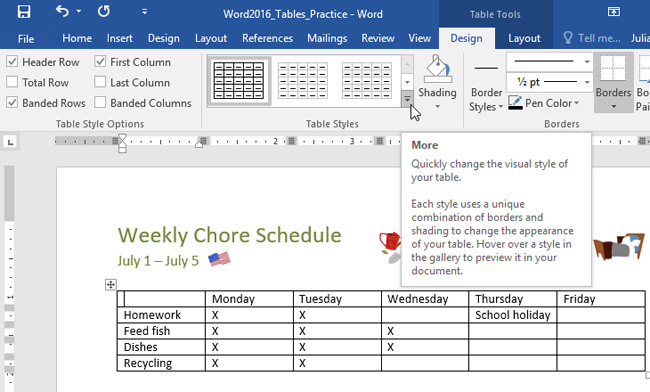
Step 3: Click to select the table style you want.
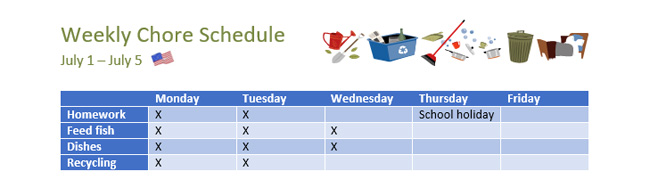
Step 4: For example, the selected table type will appear as shown below.
Edit table style options
Once you've selected the table style, you can enable or disable various options to change its appearance. There are six options: Header Row, Total Row, Banded Rows, First Column, Last Column, and Banded Columns.
Step 1: Click anywhere in the table, then navigate to the Design tab.
Step 2: Find the Table Style Options section, then select or deselect the boxes you want.
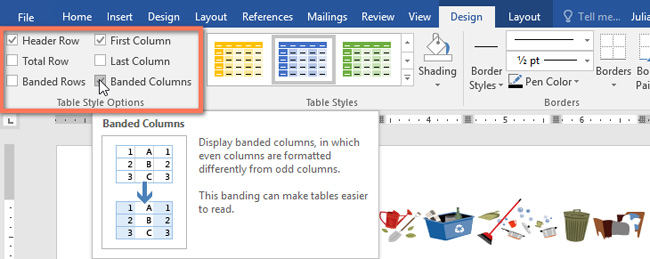
The result after editing.
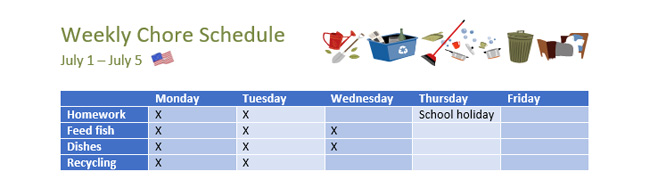
Add borders to the table
Step 1: Select the cells to which you want to apply the same border style.
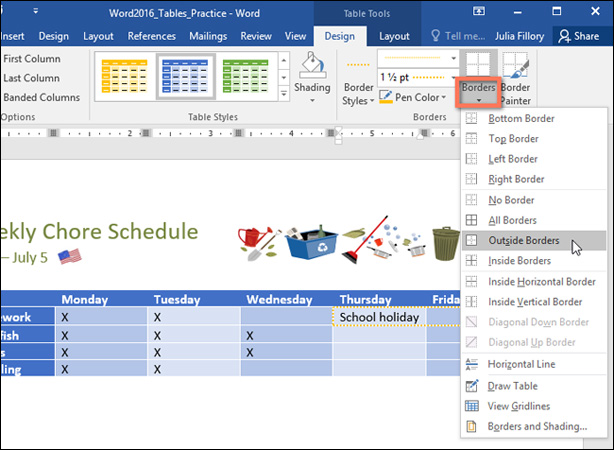
Step 2: Use the commands in the Design tab to select Line Style, Line Weight, and Pen Color.
Step 3: Click the dropdown arrow in the Borders section.
Step 4: Select the border style from the dropdown menu.
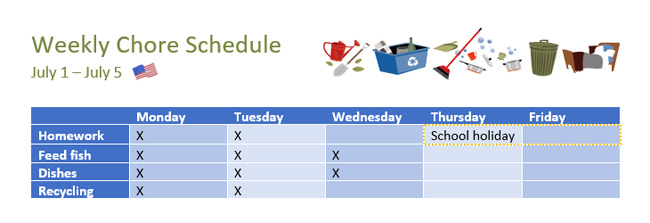
The result after adding the border.
Good luck!
You can find more information here:
- Instructions for installing and using Office 2016
- Word 2016 Complete Guide (Part 20): Aligning, Arranging, and Grouping Objects
Final Thoughts
Use this guide as a practical checklist for how to insert and create tables in word 2016. Work through the steps in order, verify each result, and adjust the options to match your needs.
FAQ
What do you need before following this How to Insert and Create Tables in Word 2016 guide?
Review the required tools, accounts, settings, or materials mentioned in the article. Learn how to insert and create tables in word 2016 with clear steps, practical tips, and troubleshooting guidance for a reliable result.
What are the main steps for how to insert and create tables in word 2016?
Follow the sections in order, especially Insert a blank table in Word 2016, Convert text into a table, Editing a Word 2016 table. Complete each step before continuing and verify the result as you go.
What should you do if the process does not work as expected?
Recheck the prerequisites, update the relevant app or service, review the settings, and repeat the step that caused the issue. Use any troubleshooting notes included in the guide.
Related Articles
 MS Word - Lesson 8: Creating a Table: Microsoft Word 20073 minutes read
 Manipulating Tables in Word3 minutes read
 How to Create Tables and Tables in Word - Instructions on How to Create7 minutes read
 How to Create a Table in Word 20077 minutes read
 How to Create Tables, Draw Tables in Word: Step-by-Step5 minutes read
 How to Insert a Table, Create a Table in Word 20165 minutes read
Reader Comments 0
Sign in with email or Google to join the discussion.