Table of Contents
This guide provides a clear, practical overview of "Microsoft: Windows 10 ESU Works Even If Windows 11 Is Not Supported". It organizes the most useful details, explains important considerations, and highlights the steps or choices that matter most.
Windows 10 and Windows 11 ESU Update
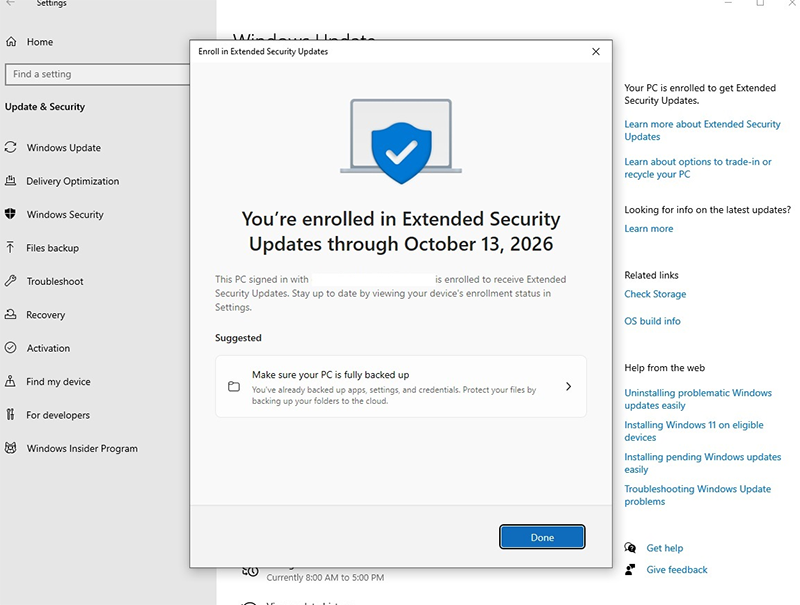
Once you've used up a year of Windows 10 extended updates, you'll need to buy a new PC or upgrade to Windows 11 via one of the various tricks, which will continue to work unless Microsoft blocks methods that bypass Windows 11's requirements.
Currently, individual users have three options:
- Link your PC to your Microsoft account and sync local settings to the cloud. Use Microsoft Rewards points to redeem one year of support.
- Pay $30 to continue using Windows locally. (This third option doesn't work for me yet, but I assume it will be rolled out soon.)
- Sign up for Windows 10 Extended Security Updates
Businesses, on the other hand, don't have the first two options. Instead, they need to sign up for a paid Windows 10 ESU plan and activate the operating system with a new ESU key.
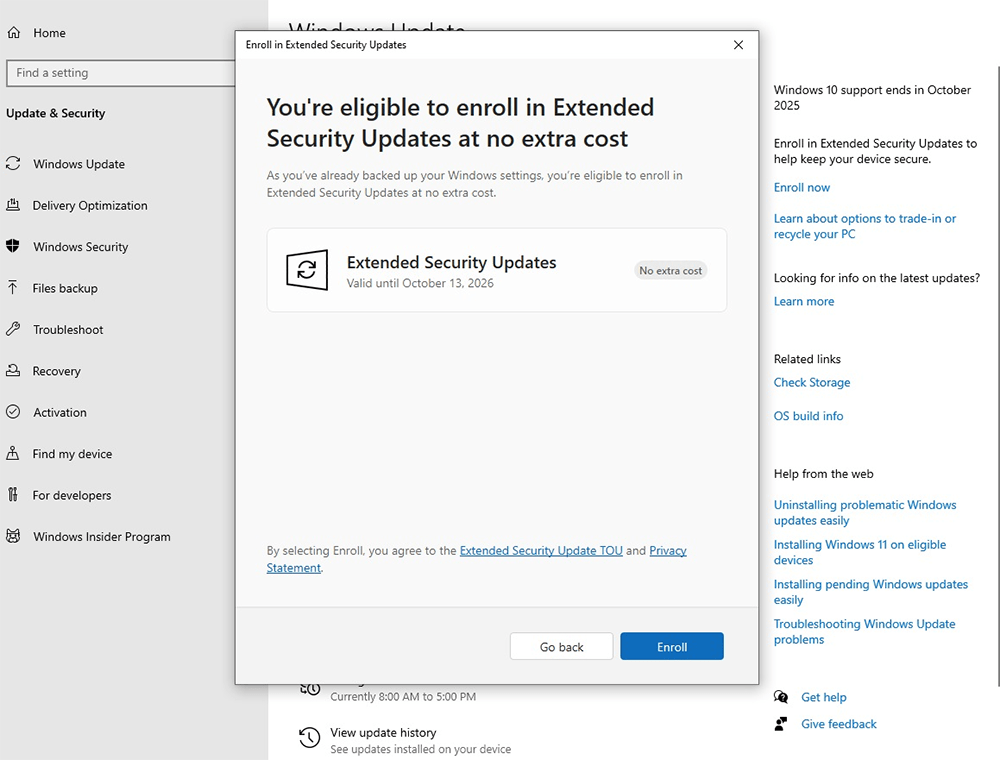
First, you need to install Windows 10 version 22H2 with cumulative update KB5046613. This is mandatory for everyone. After installing this update, consumers can purchase ESU for $30, while business customers can pay up to $61.
For businesses, this is mandatory, but individual users must also pay $30 if they don't want to link a Microsoft account or don't have enough Rewards points.
These features aren't rolling out to everyone yet as Microsoft is still testing the integration.
How to check if Windows 10 ESU is installed?
You can verify both your Windows license and your ESU key in two simple steps. Open PowerShell or Command Prompt with administrative privileges and run the command:
slmgr.vbs /dlv
-
If you see License Status: Licensed , your Windows 10 installation is properly activated.
-
Select the Activation ID that corresponds to your ESU year:
- Year 1: f520e45e-7413-4a34-a497-d2765967d094
- Year 2: 1043add5-23b1-4afb-9a0f-64343c8f3f8d
- Year 3: 83d49986-add3-41d7-ba33-87c7bfb5c0fb
Then run the command:
slmgr.vbs /dlv
If that license also shows a Licensed status, your ESU key is installed and activated. This process does not involve Windows 11 hardware checks, and you can also do this on your personal PC when the ESU is applied.
FAQ
What should you know about windows 10 and Windows 11 ESU Update?
Once you've used up a year of Windows 10 extended updates, you'll need to buy a new PC or upgrade to Windows 11 via one of the various tricks, which will continue to work unless Microsoft blocks methods that bypass Windows 11's requirements.
How to check if Windows 10 ESU is installed?
You can verify both your Windows license and your ESU key in two simple steps. Open PowerShell or Command Prompt with administrative privileges and run the command:
What does this guide cover?
This guide explains Microsoft: Windows 10 esu works even if Windows 11 is not supported, including the main steps, important details, and practical considerations.
Related Articles
 How to Install Microsoft Works on Windows 10/11: Practical Guide6 minutes read
 Microsoft: Complete Guide: Microsoft Adds New Series of AMD Ryzen Cpus3 minutes read
 Instructions for Opening and Converting Microsoft Works File Formats5 minutes read
 Windows 10 ARM Will Not Be Supported on Current Smartphones4 minutes read
 Microsoft Reveals Why Computers Are Blocked from Upgrading from3 minutes read
 Devices Running Windows 10 Mobile Anniversary Update Continue to Be Supported by Microsoft3 minutes read
Reader Comments 0
Sign in with email or Google to join the discussion.