Table of Contents
Explore memorize these 5 commands so you won't be afraid of Linux terminal anymore.
But to get the most out of the terminal, you need to master certain commands (apart from the usual ones like sudo and cd). These commands will help you work faster, be more efficient, and ultimately become a true Linux powerhouse.
find
Don't get lost, start exploring
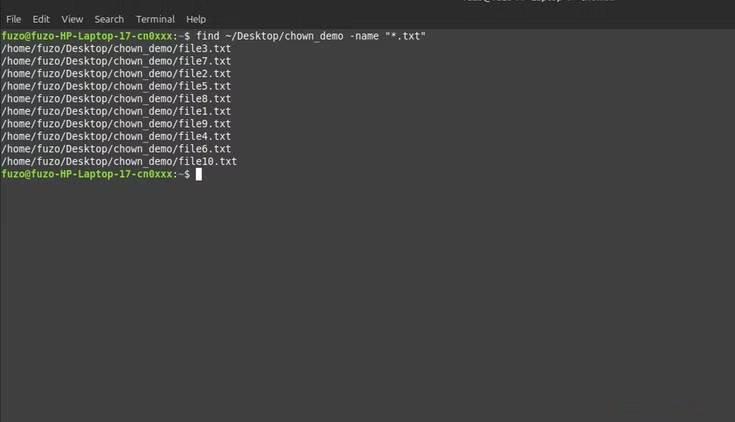
When you're new to Linux, you may notice files seem to disappear, usually because you're reloading something that already exists. The "find" command is the solution; it's like a road map to everything on your computer.
You can run commands like find ~/Documents -name "*.pdf" to find every PDF file you've ever created. No need to manually open folders or guess where you saved the file. Run find ~/Downloads -size +100M to find files in your Downloads folder that are larger than 100MB, and find ~/Documents -mtime -7 to find files in your Documents folder that were modified less than 7 days ago.
Mastering the "find" command makes Linux very transparent. Nothing is hidden - you just need the right command to find it. The "find" command makes your file system less intimidating.
nano
Make a change, don't just stand there and watch!
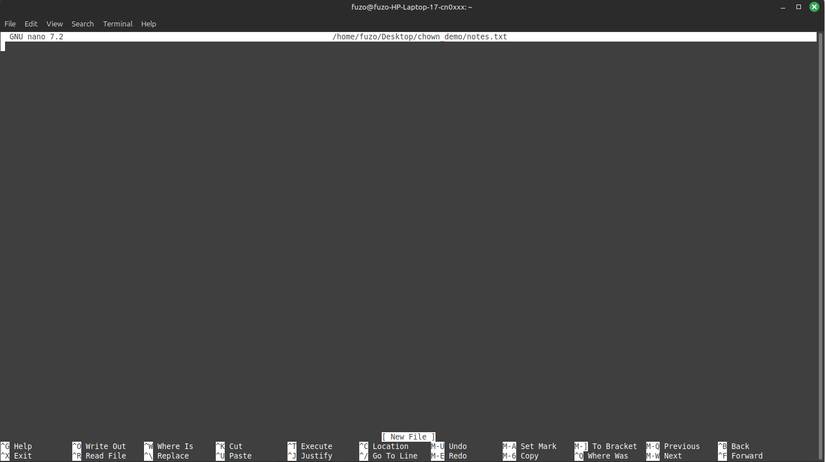
The 'nano' command is used to open, view, and edit text files directly in the terminal interface. Before mastering 'nano,' many people considered configuration files to be something dangerous, because they could break something with just one wrong keystroke. However, 'nano' makes editing easy, quiet, and simple.
The nano ~/.bashrc command opens your personal Bash shell configuration file for editing. After editing, press Ctrl+O to save and Ctrl+X to exit.
This command is very simple and always displays the commands you can use at the bottom of the screen to eliminate guesswork. You can even make small changes, like tweaking environment variables or adding aliases ( alias ll='ls -la' ).
less
Calm in the chaos! Learn to listen to the diary!
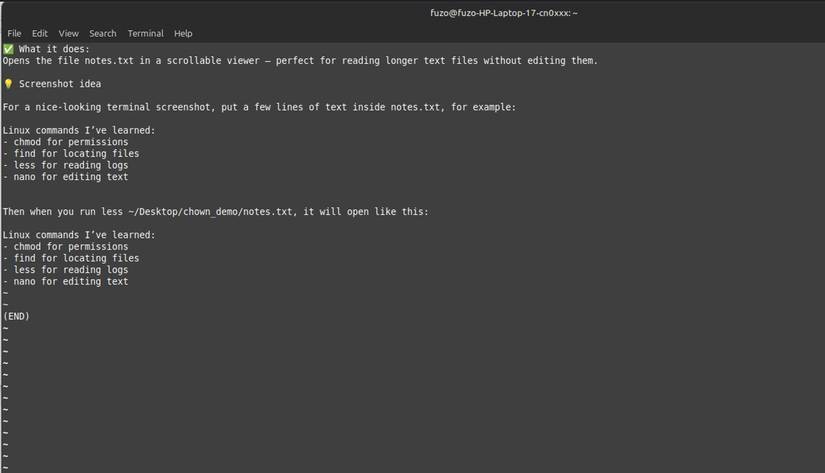
It can be easy to get overwhelmed by errors, logs, and lengthy command output on Linux. This is where the 'less' command becomes indispensable. It allows you to scroll through the output at your own pace or search for keywords.
For example, running the command less /var/log/syslog will open the system log in controlled view. You can then page through it using PgUp / PgDn or press / and type error to search for specific terms. Use q to exit at any time.
You can even put commands in there. For example, the command dmesg | less or journalctl -u NetworkManager | less helps check system messages without filling the screen.
The "less" command saves you from guessing what's wrong. It makes reading the system more like reading a log. And once you understand the log, it will make you more confident using Linux.
&& and ||
Stop typing commands and start talking logic!
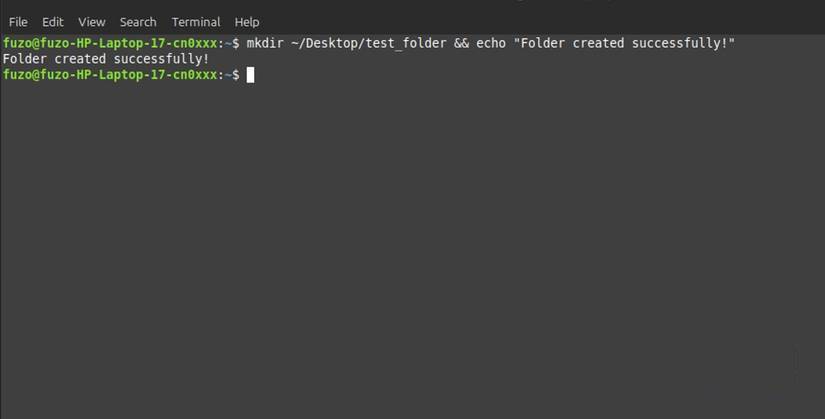
In the early days of running commands on Linux, many people always ran commands one at a time: sudo apt update , followed by sudo apt install package . This worked, but was quite cumbersome. A better approach is to chain commands using && and || .
So sudo apt update && sudo apt install package will run the first command and continue to the second command if the first command succeeds. Use || to handle errors. The make || echo "Build failed" command will output a message if the build fails. This way the terminal responds to logic, not just input.
You can even combine multiple steps. The command mkdir project && cd project && git init creates a directory, navigates to that directory, and initializes the repository in one line. Chaining commands together makes Linux feel more like a conversation than a chore.
ps /kill
Take back control and start troubleshooting
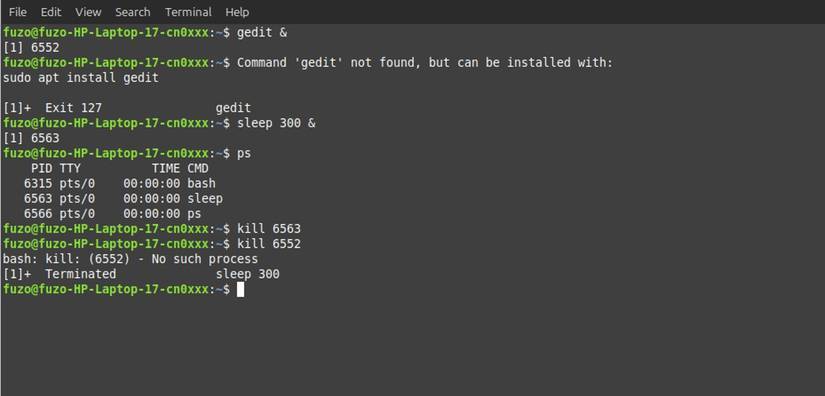
Remember how you panicked the first time an application crashed in Linux? You probably didn't want to reboot because you risked losing your work. But once you learn about "ps" and "kill," you'll never panic again.
The ps aux | grep processname command displays all running processes, the memory they use, who started them, and their PID. Running the kill PID command will immediately kill a hung process without having to restart your computer.
In some cases, you may need to use the kill -9 PID command to force the process to stop.
These commands will help you stay calm, allowing you to investigate and resolve problems quickly. You can even combine these commands with top and htop to monitor resource usage and potentially stop a process before it crashes. Understanding these commands will make Linux less error-prone and will also help you worry less about the occasional crash.
Final Thoughts
Understanding memorize these 5 commands so you won't be afraid of linux terminal anymore makes it easier to evaluate the information and apply the most relevant recommendations. Focus on the key points above and verify details that may change over time.
FAQ
What is memorize these 5 commands so you won't be afraid of linux terminal anymore?
Explore memorize these 5 commands so you won't be afraid of Linux terminal anymore.
What key points does this article cover?
The article focuses on find, Don't get lost, start exploring, nano, with practical explanations and examples.
How can you use this information in practice?
Use the explanations to compare options, verify important details, and make a more informed decision. Apply the recommendations that best match your goals and situation.
Related Articles
 6 Linux Permission Commands Every Admin Needs to Know: Practical Guide6 minutes read
 How to Run 2 or More Terminal Commands at the Same Time on Linux6 minutes read
 Guide to Network Operation for Linux Users: 11 Commands to Know8 minutes read
 Funny Command: 14 Interesting Linux Commands in Terminal8 minutes read
 18 Interesting Linux Commands in Terminal11 minutes read
 6 Interesting Terminal Commands on Mac5 minutes read
Reader Comments 0
Sign in with email or Google to join the discussion.