Table of Contents
18 Interesting Linux Commands in Terminal brings together practical options worth considering. Below, you'll find clear explanations, useful context, and tips for deciding which choices best match your needs.
Key Takeaways
- Review cal.
- Explore sl.
- Understand yes.
1. Cal
It's a fact that not many people know about this command, but any Unix system has a built-in calendar.
We use the following: This helps you query this command.
cal
Cal will display the calendar for the current month. Pass this data to the parameter of cal to get the output you need if you want to select a specific month and year.
Use the -m command along with the month you want to display. This helps you display the month of the year.
cal -m1The above command returns the current year's January.
Similarly, the complete 12-month calendar can be displayed using the -y command.
cal -y [year]2. Sl
Sl stands for Steam Locomotive and is often confused with ls. Run this command and you will see a steam locomotive running across the screen.
Sl was not created to bring any specific benefits to users, but only to entertain and remind you when you make a 'mistake' of confusing the ls command with sl. It can be considered a very 'cool' program to remind you to fix errors.
Type into your Terminal: This helps you install this command.
sudo apt install slThen 'mistyped' ls as sl like this:
sl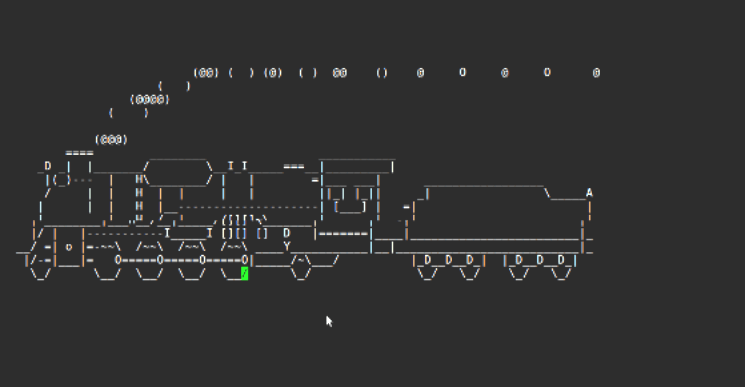
3. Yes
The yes command is very special, it has only one effect, which is to repeat the chain continuously, generating an infinite chain that continues, of course, until it is commanded to stop.
Yes it's simple, just type this:
yes
For instance:
yes i did it
You use Ctrl + C to stop the string, otherwise it will go on forever without stopping.
It's handy when you're running a script that displays a reminder and you want to automatically respond while yes doesn't do anything in general. For instance:
yes /path/to/script
This command will output the y character from the yes command to automatically answer "yes" to each y/n question.
4. Rev
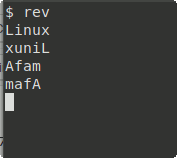
The rev command is used to reverse all input characters. This means, if the input you pass is 'Linux', through the rev command it will become 'xuniL'. Quite strange!
rev
Use the shortcut Ctrl + C. This helps you exit the command.
Additionally, rev is also used to reverse an entire file.
rev [file path]
5. Aafire
Aafire gives you the fun of 'creating fire' on the black interface of Terminal.
First you install aafire with the following code on your Terminal:
sudo apt install libaa-bin
Then run the command:
aafire
6. ESpeak
You work with your computer every day but never hear it speak? This is no longer impossible with the espeak command. Turn on your speakers or put on your headphones, run the espeak command and listen to your 'friend' speak.
Install this command into Terminal:
sudo apt install espeak
Then run espeak:
espeak "Write here what you want the computer to say"
Whatever you write in quotes will be what the computer 'talks' to you.
7. Figlets
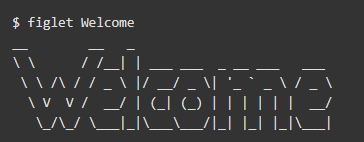
Figlet is a simple command line to generate ASCII text banners. Figlet comes with default fonts stored as.flf or.tlf in /usr/share/figlet/fonts/. Use -f to change the fonts.
figlet [-f font change path] [string]
Example of figlet:
Figlet Welcome
8. Banner
Banners are similar to figlets that display text in a large banner format. Install banners using the following command:
sudo apt install banner
Then use the syntax:
banner text
9. Cowsay
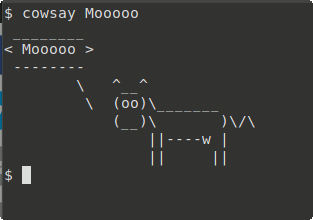
This command displays a cow in ASCII characters and will say whatever you want.
First you install cowsay with this script:
sudo apt install cowsay
Next you enter in Terminal:
cowsay text
Enter in 'text' what you want to display via the ASCII cow speech image.
Install ponysay and run the same command as cowsay if you want to display a colorful Pony instead of a cow.
Pony Say Text
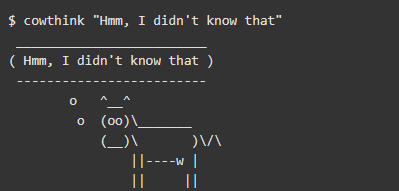
10. Cowthink
This command is similar to cowsay, the only difference is that the screen will display the text you enter as the cow's ASCII thoughts instead of speech like the above command.
Cowthink text
11. Fortune
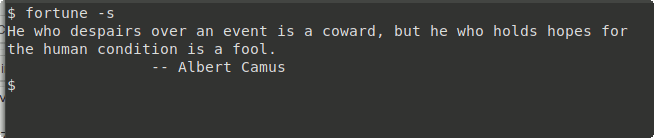
Fortune is a command to automatically display random 'cool' quotes.
sudo apt install fortune
fortune
You can use -s to have Terminal 'give' you shorter quotes.
fortune [-s]
12. Oneko
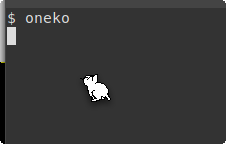
Oneko is quite 'cute'. This command adds a cat running on your screen, it will chase the mouse cursor when moving.
Install oneko by running this script:
sudo apt install oneko
oneko
13. Matrix
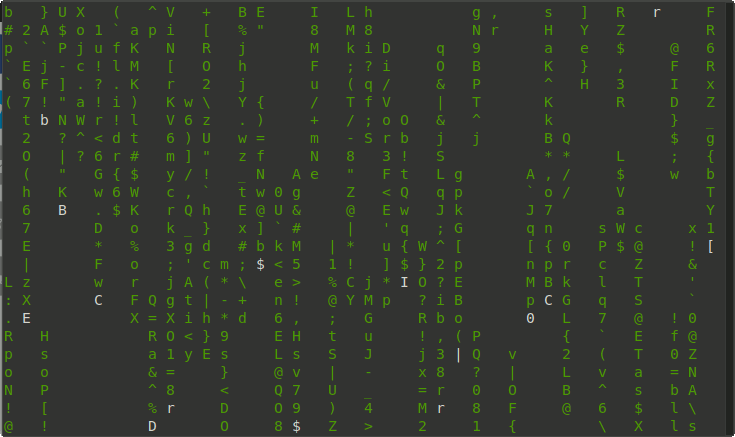
You will easily remember this command if you have watched the Hollywood movie Matrix. Install cmatrix using script:
sudo apt install cmatrix
Run the command by typing cmatrix in your Terminal.
14. Factor
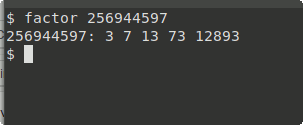
This command is related to mathematics. Factor will divide a given number into prime factors.
factor [number to be divided into large integers]
15. Xeyes
Urging you on all the time until you get down to business, xeyes is the Linux tool for you. Xeyes literally displays a pair of eyes on your screen and what's even more impressive is that those eyes will move according to the position of your mouse cursor if you are the type of person who wants a pair of eyes watching over you.
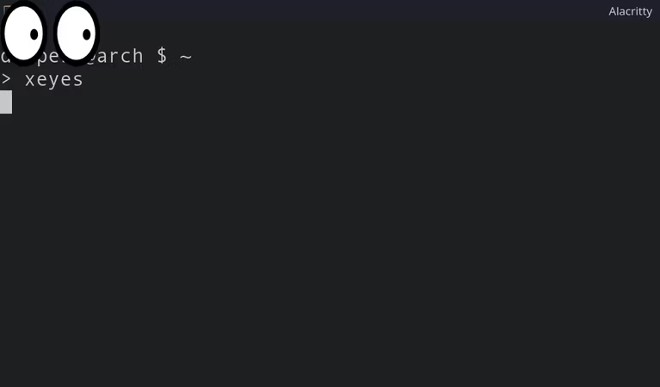
Running this tool is pretty simple, just type xeyes into Terminal and press Enter. By default, the eyes will be in the top left corner of the screen but you can easily change it using the -geometry flag.
On Ubuntu and Debian distros, you can install xeyes with APT:
sudo apt install x11-appsOn Arch distro, you install xeyes with the following command:
sudo pacman -S xorg-xeyes On Fedora, CentOS and RHEL:
sudo dnf install xeyes16. Asciiquarium
Ever dreamed of having an aquarium in your home? Try Linux's Terminal Aquarium first if you can't afford one. As the name suggests, asciiquarium creates a virtual aquarium in your Terminal using ASCII characters.
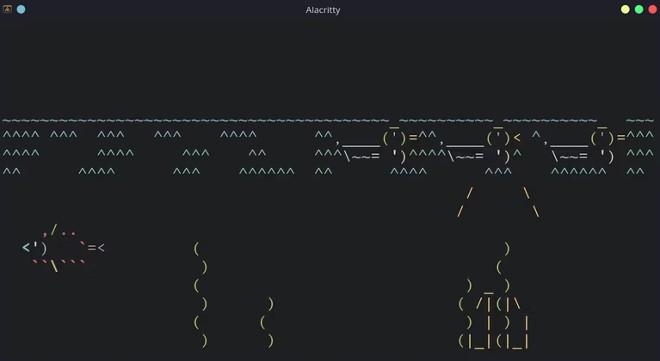
Aquatic plants, fish. Will be colored to look more realistic. Sometimes you will even see a duck swimming on the water.
How to install asciiquarium on Ubuntu and Debian:
sudo add-apt-repository ppa:ytvwld/asciiquarium sudo apt install asciiquariumHow to install asciiquarium on Arch distro:
sudo pacman -S asciiquariumHow to install asciiquarium on RHEL distro.
sudo dnf install asciiquarium17. Rig
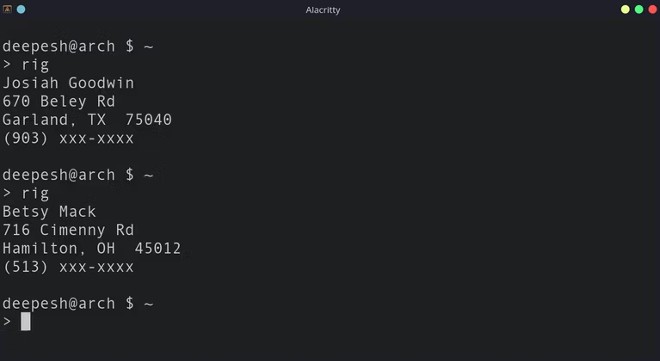
Need a fake identity for some purpose? Don't worry, rig makes it easier to solve this problem quickly. Rig will return the result in a form that is easy for both humans and computers to read. You can implement the functionality of rig in scripts to test functions that require many user information.
How to install the rig on Ubuntu and Debian:
sudo apt install rigHow to install rig on Arch distro:
yay -S rigHow to install rig on RHEL distros like Fedora and CentOS:
sudo dnf install rig18. Telnet
Telnet is a network protocol that allows you to establish a text-based communication channel between two computers. But beyond just accessing a computer remotely, you can do many cool things with Telnet on the Linux Terminal.
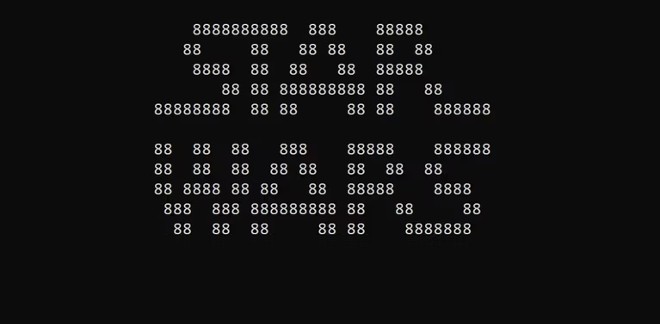
Want to play chess inside Terminal? Enter the following command:
telnet freechess.orgYou enter the command: if you are a die-hard Star Wars fan and want to experience it on Linux.
telnet towel.blinkenlights.nl 23You can use the following command instead: if the above command doesn't work.
telnet telehack.com starwarsYou can even view the entire world map on Linux using Telnet with the command:
telnet mapscii.meThese are some interesting commands in Linux. We know that working with Terminal and command lines, the tasks are quite complicated, so it would be great if we occasionally take a break and relax with some interesting and light things like this, right?
See also:
- Some basic Terminal commands in Linux Mint 11.
- 4 Quick Ways to Access a Terminal in Linux.
- How to Run 2 or More Terminal Commands at Once on Linux.
- How to delete user and hostname in Terminal Prompt.
Final Thoughts
The most reliable way to handle interesting linux commands in terminal is to follow the process in order, verify each important setting, and test the result before moving on. Use the guidance above as a practical reference, then adjust the details for your device, software version, or specific goal.
FAQ
What should I know first about Interesting Linux Commands in Terminal?
Terminal is a software program pre-installed on Linux operating systems that lets you communicate with computers by running commands.
How do I get the best results with Interesting Linux Commands in Terminal?
Use current software or equipment, follow the steps in order, review the recommended settings, and test one change at a time so you can identify what improves the result.
What should I do if Interesting Linux Commands in Terminal doesn't work as expected?
Check compatibility, permissions, connectivity, and version-specific settings. Restart the relevant device or app, then repeat the process carefully before trying a more advanced fix.
Related Articles
 Funny Command: 14 Interesting Linux Commands in Terminal8 minutes read
 6 Interesting Terminal Commands on Mac5 minutes read
 Memorize These 5 Commands So You Won't Be Afraid of Linux Terminal Anymore8 minutes read
 How to Run 2 or More Terminal Commands at the Same Time on Linux6 minutes read
 Guide to Network Operation for Linux Users: 11 Commands to Know8 minutes read
 6 Linux Permission Commands Every Admin Needs to Know: Practical Guide6 minutes read
Reader Comments 0
Sign in with email or Google to join the discussion.