Table of Contents
7 Ways to Restart Linux from Terminal brings together practical options worth considering. Below, you'll find clear explanations, useful context, and tips for deciding which choices best match your needs.
Key Takeaways
- Learn how to use the reboot command.
- Learn how to use the shutdown command.
- Learn how to use the systemctl command.
1. Use the Reboot Command
The reboot command safely terminates any running processes. This helps prevent data loss and maintains system stability. It ensures that ongoing tasks are properly closed before rebooting the system. Run the reboot command: This helps you reboot your Linux system immediately.
sudo rebootProvide the appropriate password and press Enter to reboot Linux:

Run the reboot command with the -f option: This helps you force an immediate reboot.
sudo reboot -fThis will reboot your system immediately, regardless of any scheduled shutdown commands or running processes.
2. Use the Shutdown Command
You can use the shutdown command to restart your system immediately or schedule it for a specific time. For instance, running the shutdown command with the -r option will restart your Linux system immediately:
sudo shutdown -r nowWith the shutdown command, we can schedule a reboot after a specific time by specifying a number of minutes. For instance, to reboot a Linux system after 2 hours, run:
sudo shutdown -r +120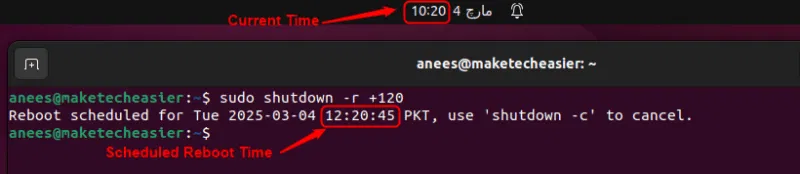
You can easily cancel it with the -c option: if you scheduled a reboot but changed your mind.
sudo shutdown -c
3. Use the Systemctl Command
In modern Linux distributions using systemd, the recommended way to reboot the system is to use the following command:
sudo systemctl rebootThis command will terminate all running processes and safely reboot the system.
4. Using the Init Command
In older Linux distributions using SysVinit, the system can be rebooted with the following command:
sudo init 6The system switches to run level 6, which means the system is ready to reboot when you run init 6. It stops all running processes, unmounts the file systems, and then reboots the system. You should use the systemctl reboot command for newer Linux versions using systemd while this command still works on some systems.
5. Use the Telinit Command
The telinit 6 command reboots Linux by instructing init (or systemd on modern systems) to switch to runlevel 6, which triggers a reboot:
sudo telinit 6This command ensures that the system reboots in a controlled manner by following the proper shutdown procedure.
6. Using REISUB (Magic SysRq Key)
You can safely reboot it using the R, E, I, S, U, B (BUSIER backwards) key sequence, which prevents data corruption if your Linux system becomes unresponsive. This method sends specific commands to the kernel using the SysRq (System Request) key. Hold down the Alt + SysRq (Print Screen) keys on your keyboard and press each of the following keys in order: This helps you reboot your Linux system using this method.
- R: Puts the keyboard in raw mode, taking control away from applications.
- E: Send termination signal to all processes.
- I: Send shutdown signal to all processes.
- S: Force disk sync, ensuring all data is written to the drive.
- U: Remount all file systems in read-only mode, preventing corruption.
- B: Restart the system immediately.
This method is useful when the system is unresponsive but still accepts keyboard input.
7. Reboot Linux via SSH
First connect to the server using SSH: if you are managing a Linux server remotely and need to reboot.
ssh user@your-server-ip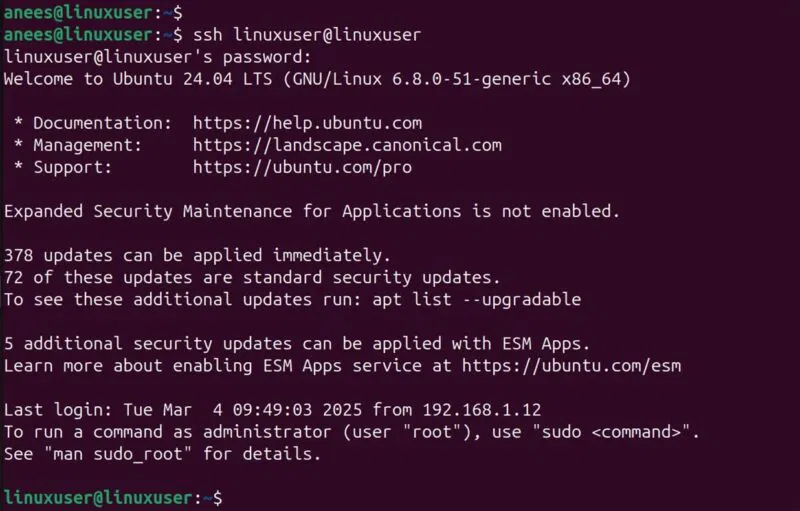
Once connected, you can reboot the system immediately with:
sudo rebootSimilarly, if you need to schedule a reboot, you can use the command:
sudo shutdown -r +10 # Reboots after 10 minutes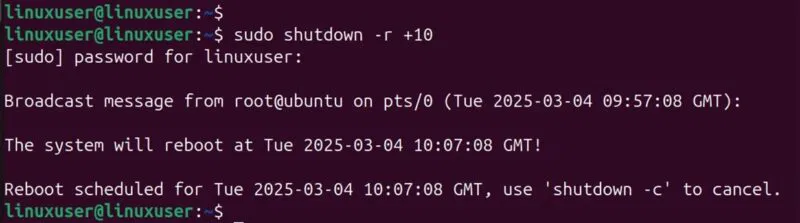
You can cancel a scheduled restart at any time by:
sudo shutdown -c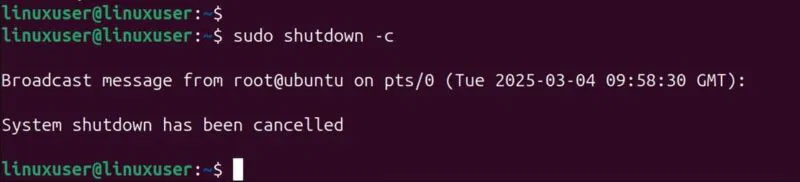
Just make sure you have the necessary permissions to run these commands!
Rebooting Linux from the Terminal is simple once you know the right commands. Whether you need an immediate reboot, a scheduled reboot, or a way to deal with a frozen system, Linux offers a variety of options to suit different situations. Older systems still support init and telinit while systemctl reboot is the standard for modern distributions. For remote management, SSH makes rebooting a server easy. With these methods, you can effectively reboot your system right from the Terminal whenever you need to.
Final Thoughts
The most reliable way to handle ways to restart linux from terminal is to follow the process in order, verify each important setting, and test the result before moving on. Use the guidance above as a practical reference, then adjust the details for your device, software version, or specific goal.
FAQ
What should I know first about Ways to Restart Linux from Terminal?
Rebooting Linux from the terminal may seem daunting, but don't worry, it's quite simple once you know the right commands.
How do I get the best results with Ways to Restart Linux from Terminal?
Use current software or equipment, follow the steps in order, review the recommended settings, and test one change at a time so you can identify what improves the result.
What should I do if Ways to Restart Linux from Terminal doesn't work as expected?
Check compatibility, permissions, connectivity, and version-specific settings. Restart the relevant device or app, then repeat the process carefully before trying a more advanced fix.
Related Articles
 Top 7 Best Linux Terminal Emulators6 minutes read
 How to Use Guake Terminal in Linux5 minutes read
 How to Install Dictionaries in Linux Terminal5 minutes read
 Memorize These 5 Commands So You Won't Be Afraid of Linux Terminal Anymore8 minutes read
 How to Back up and Restore Linux Terminal History6 minutes read
 How to Play Game Boy Games on Linux Terminal: Step-by-Step Guide7 minutes read
Reader Comments 0
Sign in with email or Google to join the discussion.