Table of Contents
Explore memorize these 7 commands to stop messing around with docker containers.
But using Docker effectively isn't just about installing and running containers. You'll get the most out of Docker when you know the commands that give you visibility, control, and efficiency.
Docker Compose
Run multi-service environments with confidence
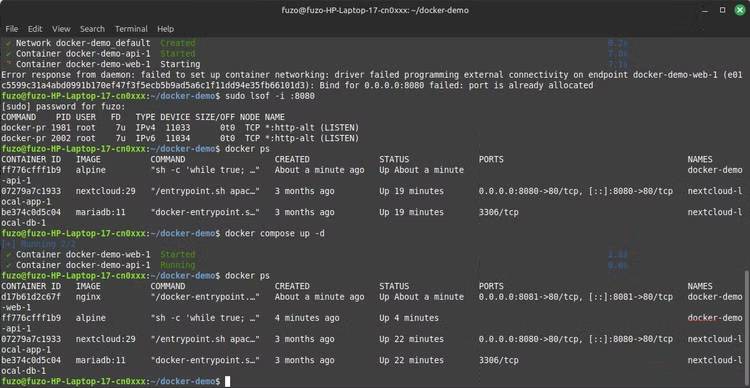
Before using the Compose command, people typically ran each container individually and could only hope they connected correctly. This approach was manual and often led to a buggy workflow. However, using the Compose command transformed Docker into an automated workflow, with just a single command, where services, images, ports, environment variables, and volumes are defined in the docker-compose.yml file.
The following command allows you to start the entire stack in the background:
docker compose up -dAfter testing, you can turn everything off using the command:
docker compose downWith these two simple commands, you'll have better control over Docker.
Docker exec -it bash
Troubleshooting containers from the inside
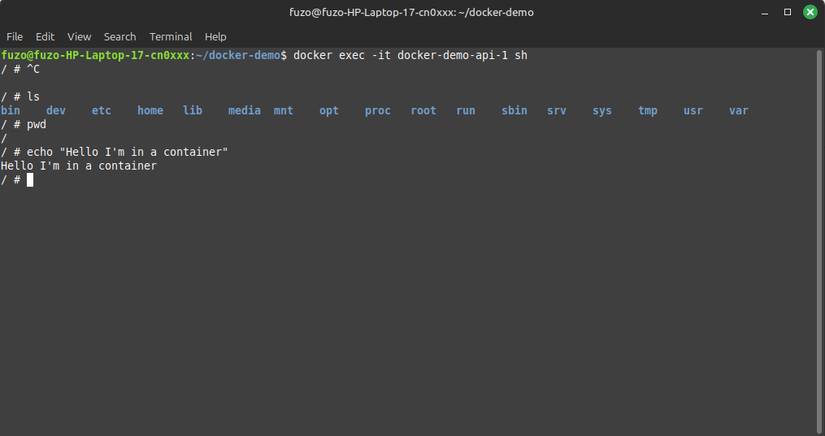
It's essential to know how to troubleshoot Docker containers, and here's a commonly used command. Use it when you need to check file paths, verify configurations, run quick tests, or debug problems right where they occur:
docker exec -it myapp bashIf bash is not available, you can switch to this command:
docker exec -it myapp shUsing either of these commands will open an interactive shell, allowing you to explore the container's actual environment.
Docker logs -f
Read the journal directly and stop guessing
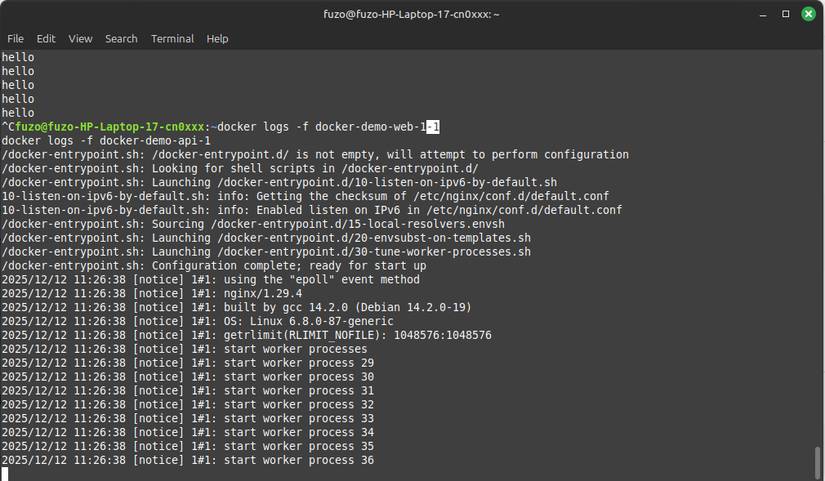
Logging provides a useful way to detect potential problems, and this Docker command is very handy:
docker logs -f myappWith this command, you can access logs when a container fails to start. Add the -f flag to keep the logs streamed live. This allows you to track the container's startup sequence. This makes it easier to spot missing database login credentials, misspelled environment variables, or poorly configured ports.
Sometimes, logs can be long, making it difficult to find specific elements or troubleshoot problems. Therefore, limit the log results you see to the last 50 lines using the command below:
docker logs --tail 50 myappDocker build
Build predictable images with proper tagging
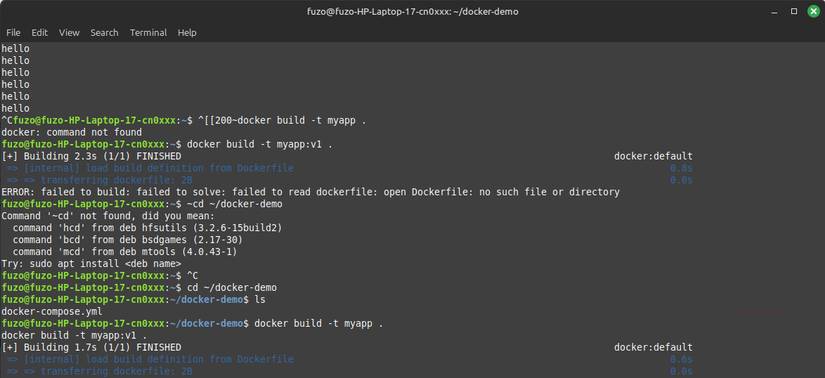
The `build` command instructs the Docker daemon to begin the image creation process. When first starting with Docker, builds are often messy. People often don't tag anything, and quickly end up with many unlabeled images. The command below will fix your messy, untagged builds:
docker build -t myapp .Adding the -t flag will tag the resulting image, making it easier to reuse and deploy. Taking it a step further, you can add more versions using the command below:
docker build -t myapp:v1 .With this, I can test features without losing track of stable builds. Another benefit of tagging is preventing clutter, eliminating "floating" images that waste space.
Docker ps -a
Stop losing track of containers
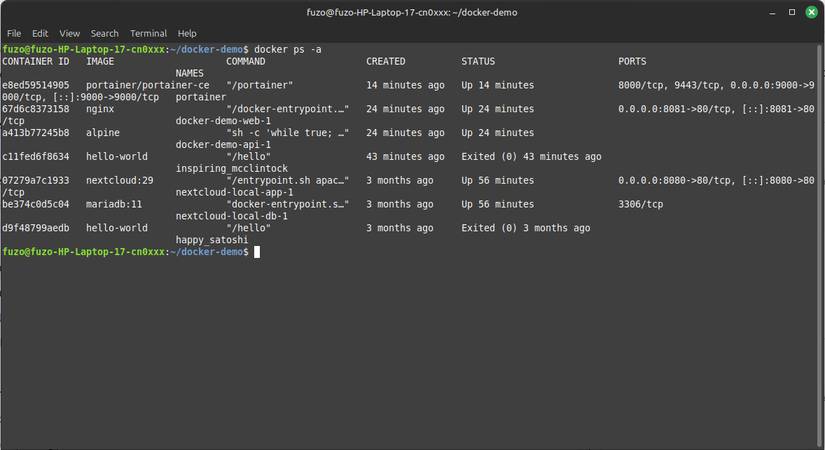
After using Docker for a while, you often lose track of your containers, making the tool unpredictable. Some ports stop working, and Docker sometimes refuses to create containers because some containers you thought you deleted are still there. To get out of this situation, use the Docker command below, which immediately displays the containers that have exited, crashed, or stopped:
docker ps -aThe following command can be used for quick scripting or cleanup, as it only returns the container ID:
docker ps -qTo delete a forgotten container, use the command:
docker rmOne of the most underrated Docker skills is knowing what exists and what might be silently failing.
Docker hit
See everything about containers in detail
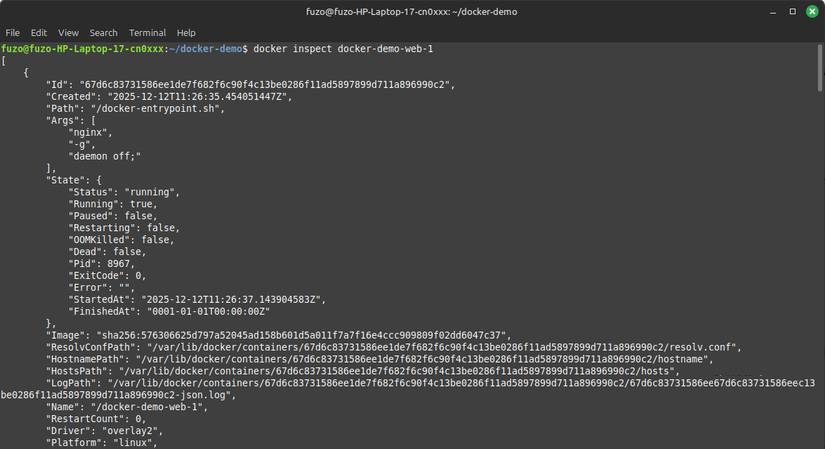
The `docker inspect` command provides clarity when Docker starts displaying connection issues or unexpected behavior. Below is the basic form of the command:
docker inspect myappThis command displays all the details that Docker sees, including environment variables, network settings, volume, and entry point. You can use the command below to extract a container's IP address when you're curious about a specific component.
docker inspect --format='{{.NetworkSettings.IPAddress}}' myappBy running these centralized commands, you can avoid having to sift through countless JSON pages to debug misconfigurations.
Docker system prune
Safely clean up unused Docker resources
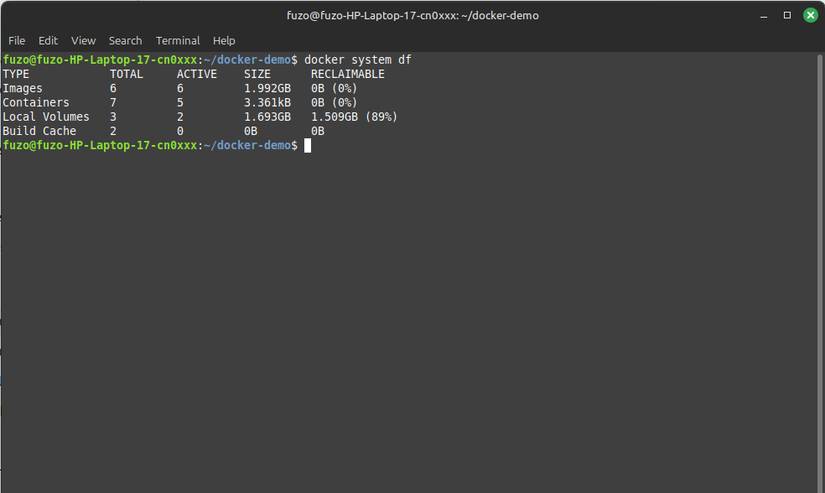
When you start using Docker, it silently accumulates unnecessary resources, such as old images, unused network resources, and stopped containers. Over time, this will slow things down if not cleaned up. Start your cleanup process with a safe version:
docker system pruneThis command retains your images but removes unused containers and networks. You can perform a deeper cleanup and remove images as well by running the following command:
docker system prune -aFinally, you can run the following command if you need to delete unused volumes that may contain gigabytes of forgotten data:
docker system prune -a --volumesRunning the command above will delete unused volumes, but some may be owned by root or other users. Understanding ownership and access permissions in Linux can help make this process safer.
Final Thoughts
Understanding memorize these 7 commands to stop messing around with docker containers makes it easier to evaluate the information and apply the most relevant recommendations. Focus on the key points above and verify details that may change over time.
FAQ
What is memorize these 7 commands to stop messing around with docker containers?
Explore memorize these 7 commands to stop messing around with docker containers.
What key points does this article cover?
The article focuses on Docker Compose, Run multi-service environments with confidence, Docker exec -it bash, with practical explanations and examples.
How can you use this information in practice?
Use the explanations to compare options, verify important details, and make a more informed decision. Apply the recommendations that best match your goals and situation.
Related Articles
 Common Commands in Docker: What You Need to Know5 minutes read
 5 Docker Containers to Help Small Businesses Build Data Infrastructure6 minutes read
 How to Use Docker Container7 minutes read
 What Is Docker Compose? Summary of Knowledge About Docker Compose10 minutes read
 Docker Hub Is Used by Hackers to Spread Cryptojacking Malware4 minutes read
 10 Best Docker Alternatives 20229 minutes read
Reader Comments 0
Sign in with email or Google to join the discussion.