Table of Contents
Learn how to learn about number formats with clear steps, practical tips, and troubleshooting guidance for a reliable result.
Why use number formats?
Number formatting not only makes your spreadsheets easier to read, but it also makes them easier to use. When you apply a number format, you're telling your spreadsheet exactly what type of value is stored in a cell. For example, date formatting tells the spreadsheet that you're entering specific calendar dates. This allows the spreadsheet to better understand your data, which can help ensure that your data remains consistent and your formulas are calculated correctly.
Unless you need to use a specific number format, spreadsheets will usually apply automatic formatting by default. However, automatic formatting may apply some minor formatting changes to your data.
Apply number formats
Just like other formatting styles, such as changing font color, you apply number formatting by selecting the cells and choosing your desired formatting option. There are two main ways to select number formatting:
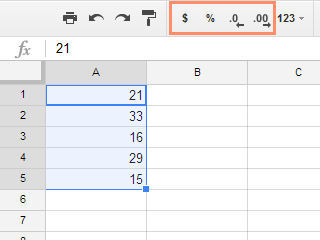
Click on one of the quick number formatting commands in the toolbar.
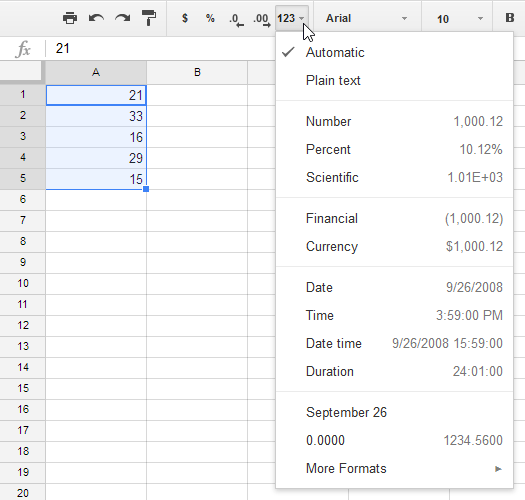
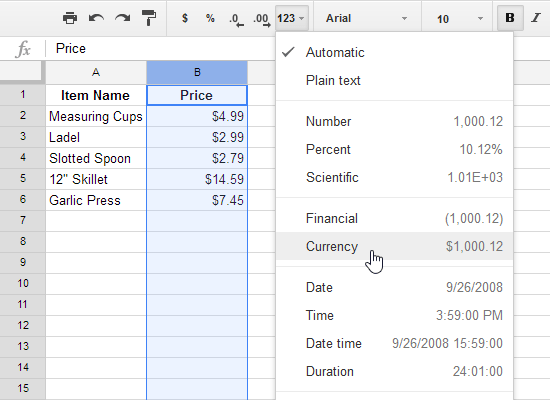
You can choose from more options in the adjacent More Formats drop-down menu.
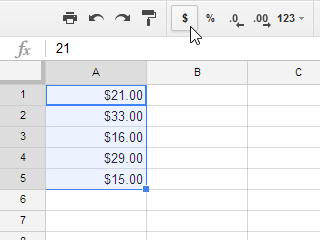
This example has applied currency formatting, added currency symbols ($), and displayed two decimal places for any numerical value.
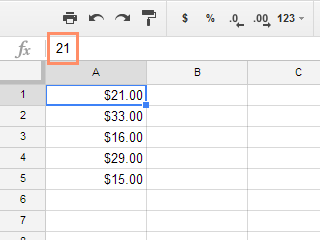
If you select any cell that is formatted as a number, you can see the actual value of that cell in the formula bar. The spreadsheet will use this value for formulas and other calculations.
Use number formats correctly
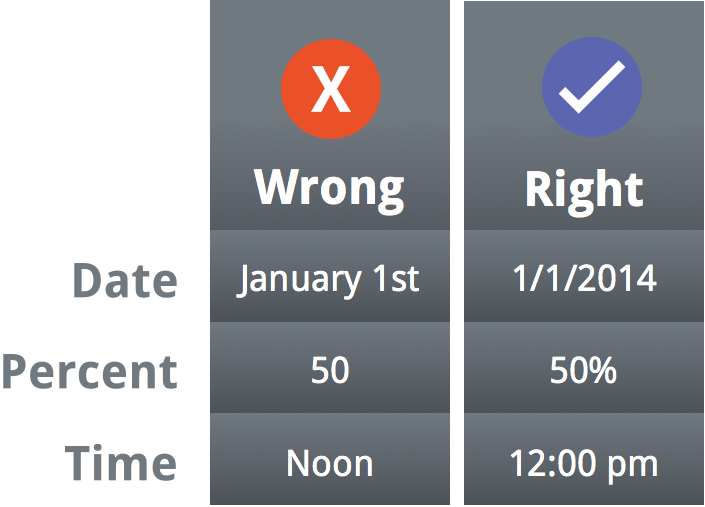
Number formatting involves more than just selecting cells and applying formatting. Spreadsheets can actually apply various number formats automatically based on how you enter the data. This means you'll need to enter the data in a way the program can understand, and then ensure that those cells are using the appropriate number format. For example, the image below shows how to correctly use number formats for dates, percentages, and times:
Now that you know more about how number formats work, let's look at some of the number formats currently in use.
Percentage format
One of the most useful number formats is the percentage (%). It displays values as percentages, such as 20% or 55%. This is especially helpful when calculating things like sales tax or tips. When you enter a percentage sign (%) after a number, the percentage format is automatically applied to that cell.
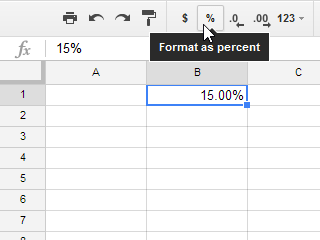
As you may recall from your math class, a percentage can also be written as a decimal. So, 15% is the same as 0.15, 7.5% is equivalent to 0.075, 20% is 0.20, 55% is 0.55, and so on.
There are many times when percentage formatting is useful. For example, in the images below, notice how the sales tax is formatted differently for each spreadsheet (5%, 5%, and 0.05):
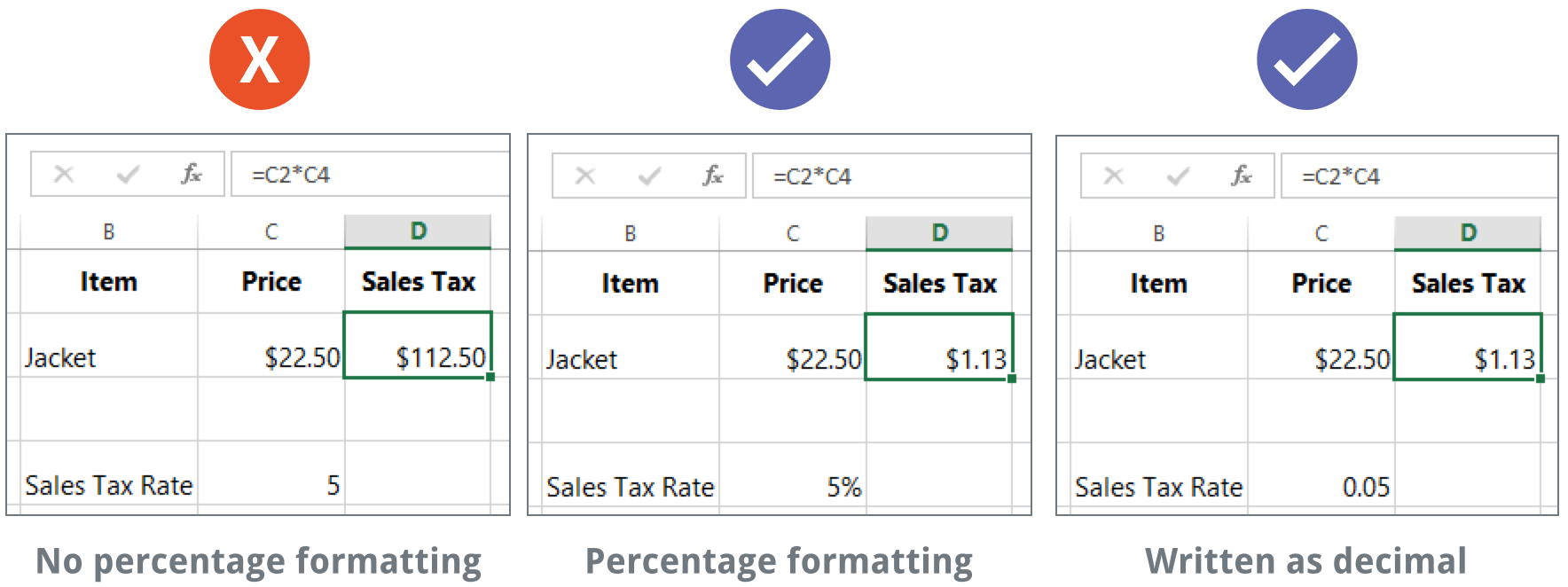
As you can see, the calculation in the spreadsheet on the left doesn't work correctly. Without percentage formatting, the spreadsheet assumes you want to multiply $22.50 by 5, not 5%. And while the spreadsheet on the right still works without percentage formatting, the one in the middle is easier to read.
Date formatting
Whenever working with dates, you'll want to use date formats to tell the spreadsheet that you're referring to specific calendar dates, such as July 15, 2016. Date formats also allow you to work with a set of date functions that use date and time information to calculate answers.
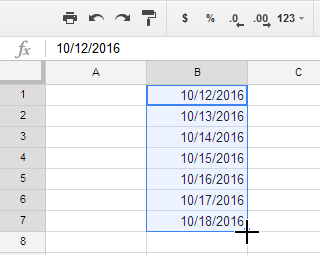
Spreadsheets don't understand information like humans do. For example, if you type October into a cell, the spreadsheet won't know you're typing a date, so it'll treat it like any other text. Instead, when typing a date, you need to use a specific format that your spreadsheet understands, such as month/day/year (or day/month/year depending on your country). The example below will input 10/12/2016 for October 12, 2016. The spreadsheet will then automatically apply the date format to the cell.
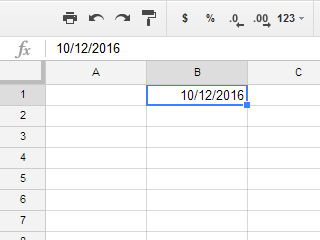
Now that the example has correctly formatted the dates, you can do various things with this data. For example, you can use a fill handle to continue the dates by column, so a different date will appear in each cell:
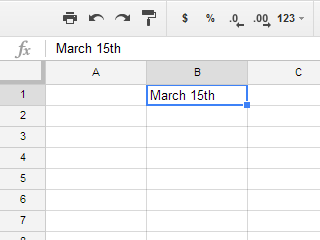
If the date formatting isn't applied automatically, it means the spreadsheet doesn't understand the data you've entered. The example below entered March 15th. The spreadsheet doesn't understand that we're referring to a date, so the automatic formatting is treating this cell as text.
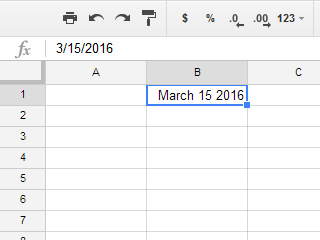
On the other hand, if you enter March 15 (without the "th"), the spreadsheet will recognize it as a date. Because the year is not included, the spreadsheet will automatically add the current year so the date has all the necessary information. It's also possible to enter the date in several other ways, such as 15/3/2016, 15/3/2016, or 15/3/2016, and the spreadsheet will still recognize it as a date.
To check if Google Sheets recognizes your entry as a date, look in the formula bar. The value in the formula bar will be converted to a number format like 15/03/2016, but will display in the spreadsheet in the format you originally entered.
Other date formatting options
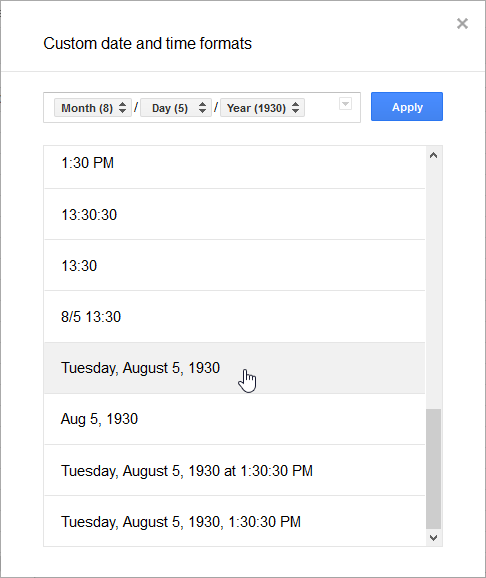
To access other date and time formatting options, select the More formats drop-down menu on the toolbar and choose More Formats at the bottom, then select More date and time formats .
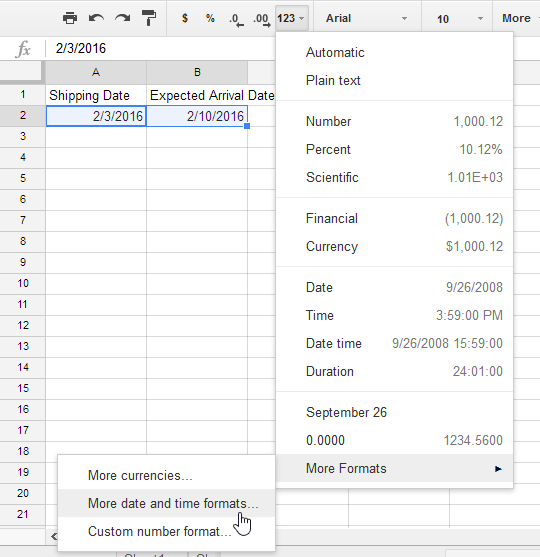
The Custom date and time formats dialog box will appear. From here, you can select your desired date format options. These are options for displaying dates differently, such as including the day of the week or omitting the year.
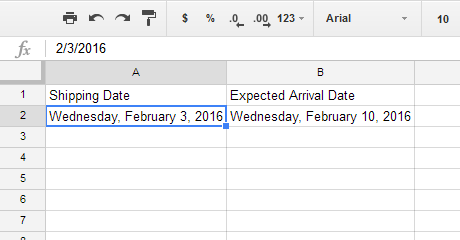
As you can see in the formula bar, the custom date format doesn't change the actual date in the cell—it only changes how it's displayed.
Number formatting tips
Here are some tips for getting the best results with number formatting.
- Applying number formatting to an entire column : If you intend to use a column for a specific type of data, such as dates or percentages, you may find it easiest to select the entire column by clicking on the column character and applying the desired number formatting. This way, any data you add to this column in the future will have the correct number formatting. Note that the header row is usually unaffected by number formatting.
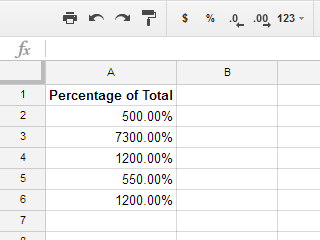
- Carefully check your values after applying number formatting : Applying number formatting to existing data can lead to unexpected results. For example, applying percentage (%) formatting to a cell with a value of 5 might give you 500%, not 5%. In this case, you need to re-enter the values correctly in each cell.
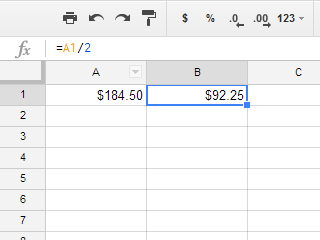
- If you reference a cell with number formatting in a formula, the spreadsheet may automatically apply the same number formatting to the new cell. For example, if you use a value with currency formatting in a formula, the calculated value will also use the currency number formatting.
- If you want your data to appear exactly as you entered it, you need to use plain text formatting . This is especially good for numbers you don't want to perform calculations on, such as phone numbers, zip codes, or numbers that start with 0, like 02415. For best results, you may want to apply plain text formatting before entering data into these cells.
Increasing and decreasing decimal numbers
The Increase decimal places and Decrease decimal places commands allow you to control the number of decimal places displayed in a cell. These commands do not change the value of the cell; instead, they display the value to a set number of decimal places.
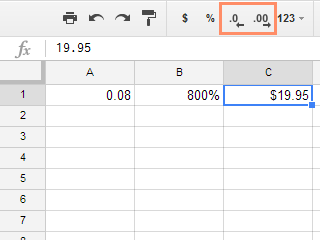 Decreasing the number of decimal places will display the value rounded to that decimal place, but the actual value in the cell will still be displayed in the formula bar.
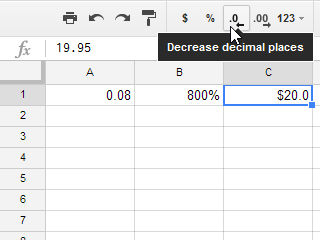
The Increase/Decrease decimal places commands do not work with some number formats, such as Date and Fraction.
Final Thoughts
Use this guide as a practical checklist for how to learn about number formats. Work through the steps in order, verify each result, and adjust the options to match your needs.
FAQ
What do you need before following this How to Learn About Number Formats guide?
Review the required tools, accounts, settings, or materials mentioned in the article. Learn how to learn about number formats with clear steps, practical tips, and troubleshooting guidance for a reliable result.
What are the main steps for how to learn about number formats?
Follow the sections in order, especially Why use number formats?, Apply number formats, Use number formats correctly. Complete each step before continuing and verify the result as you go.
What should you do if the process does not work as expected?
Recheck the prerequisites, update the relevant app or service, review the settings, and repeat the step that caused the issue. Use any troubleshooting notes included in the guide.
Related Articles
 Guide to Full Excel 2016 (Part 8): Learn About Number Formats11 minutes read
 Handle Excel That Does Not Recognize Fast - Standard Number Formats Explained7 minutes read
 Excel 2019 (Part 7): Understanding Number Formats11 minutes read
 What Is the Difference Between JPG, JPEG, GIF, PNG and SVG Image9 minutes read
 How to Change Number Format in Windows 113 minutes read
 Multimedia HTML: Multimedia - Multimedia Formats in HTML56 minutes read
Reader Comments 0
Sign in with email or Google to join the discussion.