Table of Contents
When you apply Microsoft Excel's percentage number format to a cell that already contains a number, it multiplies that value by 100.
When you apply Microsoft Excel's percentage number format to a cell that already contains a number, it multiplies that value by 100. This can be a problem for data processors, especially if you want to convert all the values in a column to percentage format. Here's how to format standard percentages in Excel without errors.
How to format percentages in Excel
If you select all the cells containing these values and click the "%" symbol, all the numbers will be multiplied by 100, resulting in a larger percentage value than intended. This is because Excel defaults to expressing percentages as fractions of 100, with 1 equaling 100%, 0.5 equaling 50%, and so on.
Step 1:
First you need To enter 1% in any cell As shown below and press Enter.
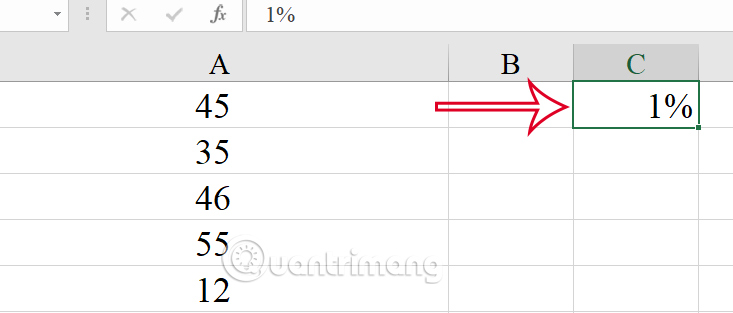
Then Copy the 1% cell And Select the entire data range That you want to format as a percentage. If your data is formatted as an Excel table, hover over the column header until you see a small black down arrow, then click to select the entire column.
If your data is in regular cells, navigate to the topmost data cell in the column and press Ctrl+Shift+Down.
Step 2:
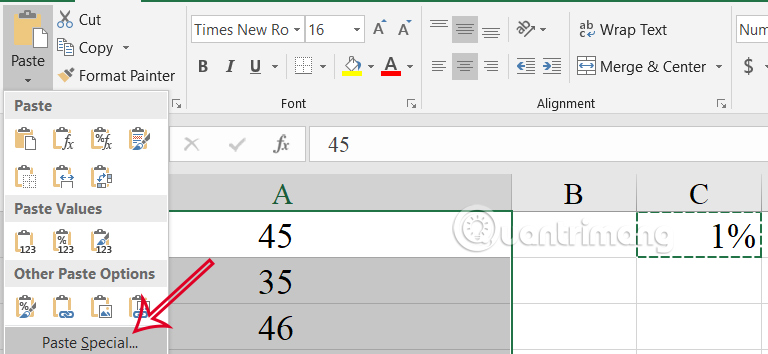
Press Ctrl+Alt+V To open Paste Special , or click Paste and select Paste Special at the bottom of the list.
Step 3:
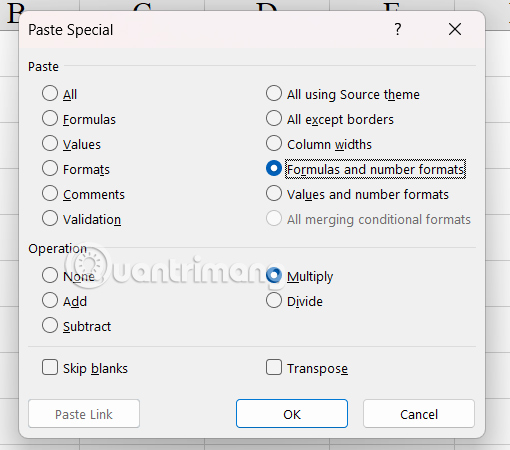
Displays the special paste options interface. Check The Multiply box Or press the M key. Alternatively, if you want To keep the direct formatting of the selected cells While applying percentage formatting from the copied cells, check Formulas And Number Formats . Then click OK.
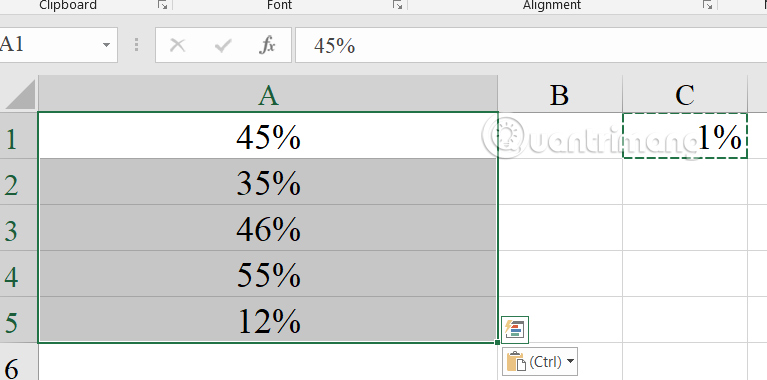
As a result all values are converted to percentages and their original formatting remains intact.
Step 4:
Click on the 1% cell , then select The Clear icon and select Clear All To delete this cell. The percentage data column will not be affected.
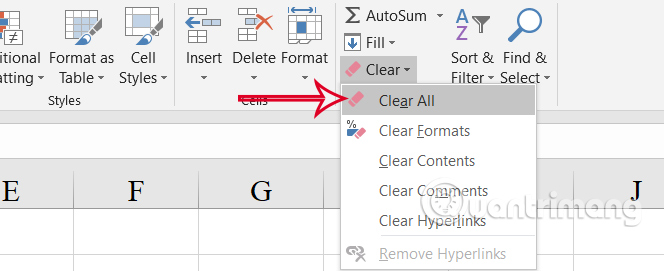
Step 5:
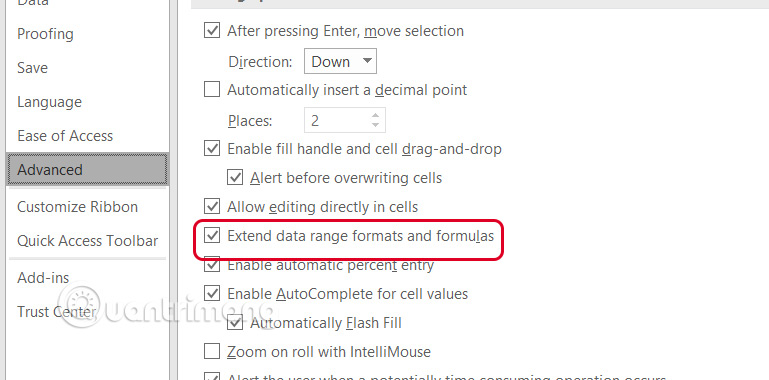
When you add data to the next blank row at the end or rows inserted in between, the new cells automatically apply percentage number formatting. This also applies to data in regular ranges, but You should set it up manually.
Press the 3 keys Alt > F > T in turn to open the Options interface. Then click on Advanced and select Extend Data Range Formats And Formulas.
FAQ
How do you format % in Excel?
In practical terms, when you apply Microsoft Excel's percentage number format to a cell that already contains a number, it multiplies that value by 100.
What should you check before getting started?
Review the requirements, compatible device or software version, and any warnings described in the guide before making changes.
What should you do if the steps do not work?
Repeat the steps in order, confirm that your app or system is up to date, and review the troubleshooting details provided above.
Related Articles
 How to Remove Table Formatting in Excel7 minutes read
 Stop Excel from Automatically Formatting as a Date: How-To Guide4 minutes read
 How to Use Conditional Formatting to Conditional Formatting in Excel7 minutes read
 Excel 2019 (Part 6): Formatting Cells9 minutes read
 Ms Excel - Lesson 13: Use Conditional Formatting in Excel2 minutes read
 MS Excel 2003 - Lesson 13: Using Conditional Formatting in Excel2 minutes read
Reader Comments 0
Sign in with email or Google to join the discussion.