Table of Contents
Explore instructions on selecting multiple emails in outlook, including the key concepts, practical examples, important considerations, and useful guidance.
How to select multiple Outlook emails on a computer
Step 1
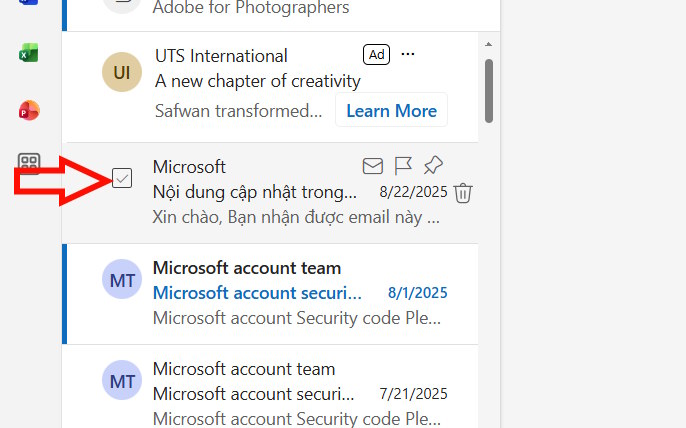
Hover your mouse over any message and you'll see a small square appear to the left of the sender's name. Click on the square and then select the first email.
Step 2
Additional boxes will appear next to all other messages in your inbox. Click on each box to select the emails you need as you wish.
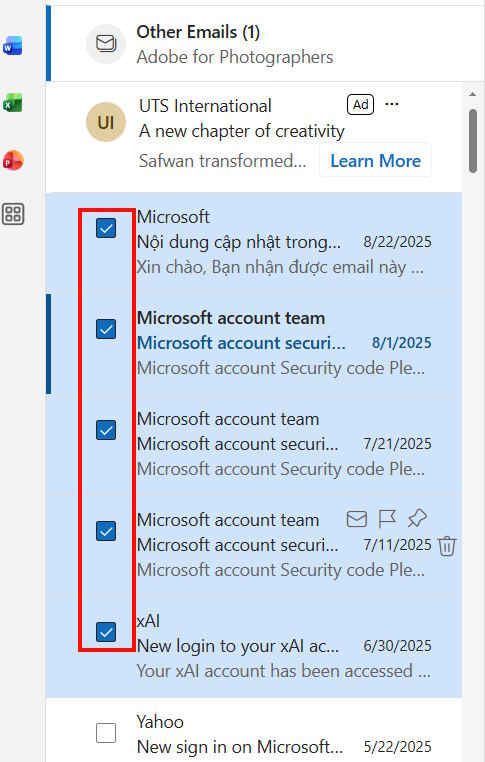
In the case of Outlook on a computer, you select a message, then hold down the Ctrl key (Windows) or Command key (Mac) while clicking on other messages to select multiple messages at once.
Instructions on selecting multiple Outlook emails on your phone
Step 1
Press and hold any message you want to select in Outlook.

Step 2
Hold your finger on the screen and drag down to select other messages in the same row. Or release your finger and tap on each message you want to select.

Error: Unable to select multiple emails in Outlook
If the above methods don't work, you can try some of the following troubleshooting steps:
- Refresh or restart Outlook, as an Outlook error may be preventing you from selecting multiple emails at once.
- Uninstall and then reinstall the latest version of Outlook to fix the error.
- Switch to a different version of Outlook. For example, if you're having trouble with the desktop application, you can switch to the Outlook web application.
Final Thoughts
Understanding instructions on selecting multiple emails in outlook makes it easier to evaluate the information and apply the most relevant recommendations. Focus on the key points above and verify details that may change over time.
FAQ
What is instructions on selecting multiple emails in outlook?
Explore instructions on selecting multiple emails in outlook, including the key concepts, practical examples, important considerations, and useful guidance.
What key points does this article cover?
The article focuses on How to select multiple Outlook emails on a computer, Step 1, Step 2, with practical explanations and examples.
How can you use this information in practice?
Use the explanations to compare options, verify important details, and make a more informed decision. Apply the recommendations that best match your goals and situation.
Related Articles
 How to Scheduling Sending Emails and Delaying Sending Emails in7 minutes read
 Instructions for Pinning Emails in Outlook: What to Know5 minutes read
 Microsoft Outlook Acceleration Tips5 minutes read
 minutes read
 Create a Rule to Move and Store Email to Another Folder in Outlook7 minutes read
 Instructions on How to Use Outlook from AZ for Beginners4 minutes read
Reader Comments 0
Sign in with email or Google to join the discussion.