Table of Contents
Learn how to fix outlook freezing when attaching files with clear steps, practical tips, and troubleshooting guidance for a reliable result.
Enable Safe Mode in Outlook
Close the Outlook application, then open the Run dialog box and enter the path outlook.exe /safe to access it.
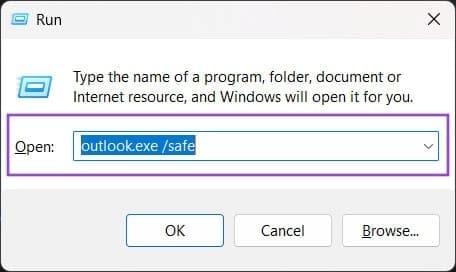
Outlook will open in safe mode, with add-ons disabled by default. Then try attaching the file again to see if the problem is resolved.
Disable extensions in Outlook
Step 1
You click on the File menu in Outlook , then select Options below it.
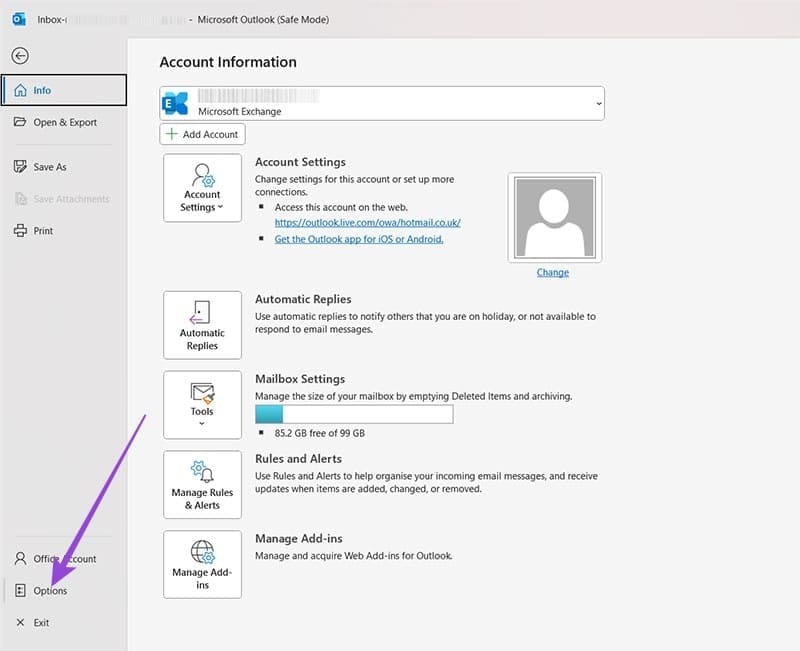
Step 2
To enter the new interface, select the Add-ins option in the left-hand menu. On the right, under Manage COM Add-ins, click Go .
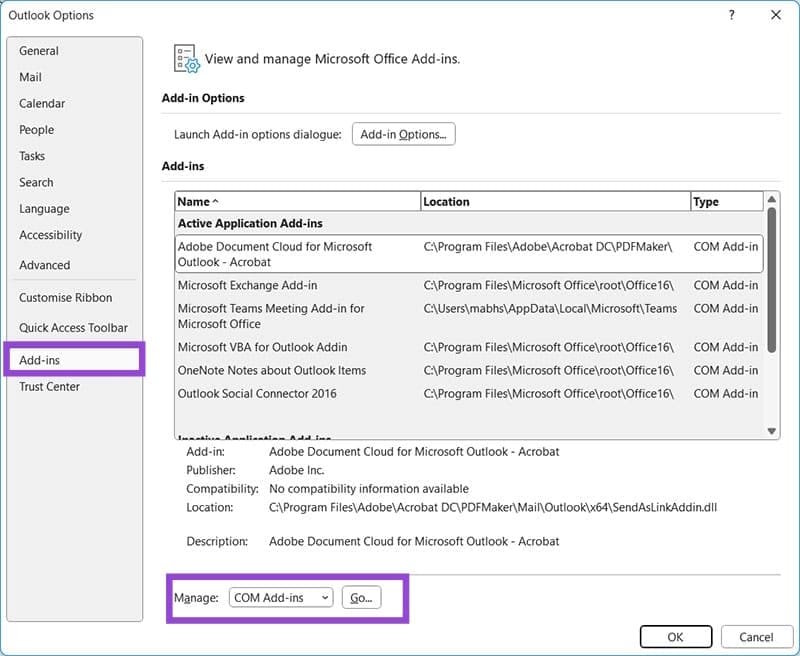
Step 3
Now, turn off the extension in Outlook , then restart Outlook and reattach the file.
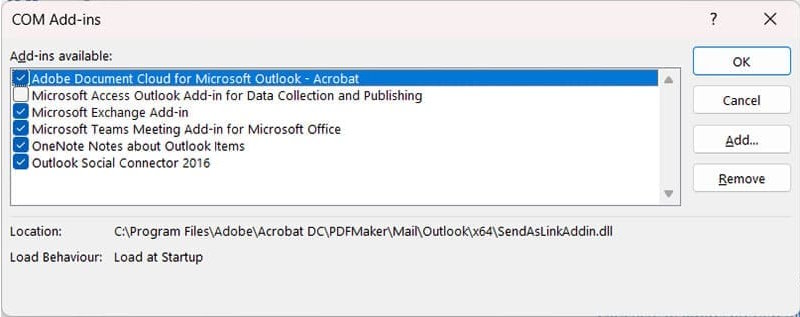
Uninstall and reinstall Outlook
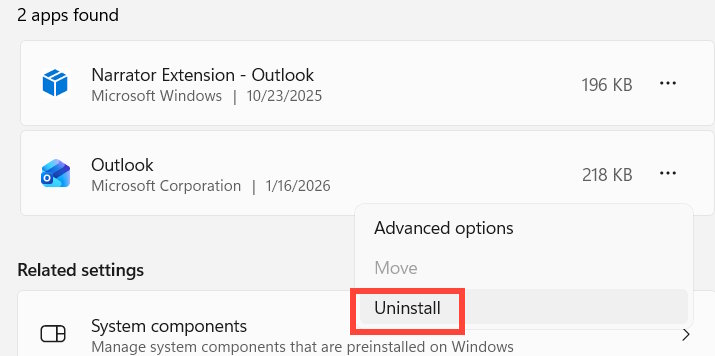
Access Windows Settings, then go to the application management section. Select the Outlook application, then click the three-dot icon and choose Uninstall to remove the application.
Open the Microsoft Store and search for the Outlook app to proceed with the reinstallation.
Final Thoughts
Use this guide as a practical checklist for how to fix outlook freezing when attaching files. Work through the steps in order, verify each result, and adjust the options to match your needs.
FAQ
What do you need before following this How to Fix Outlook Freezing When Attaching Files guide?
Review the required tools, accounts, settings, or materials mentioned in the article. Learn how to fix outlook freezing when attaching files with clear steps, practical tips, and troubleshooting guidance for a reliable result.
What are the main steps for how to fix outlook freezing when attaching files?
Follow the sections in order, especially Enable Safe Mode in Outlook, Disable extensions in Outlook, Step 1. Complete each step before continuing and verify the result as you go.
What should you do if the process does not work as expected?
Recheck the prerequisites, update the relevant app or service, review the settings, and repeat the step that caused the issue. Use any troubleshooting notes included in the guide.
Related Articles
 Instructions for Attaching Files in Word: Word Tips4 minutes read
 5 Methods of Merging PST Files of Microsoft Outlook7 minutes read
 How to Reduce the Size of Outlook Data Files (. PST and. OST)5 minutes read
 Fix Access Errors for Denied PST Files After Upgrading Windows 103 minutes read
 Install Add-In in Outlook: How to Install and Remove Add-Ins3 minutes read
 Instructions on How to Use Outlook from AZ for Beginners4 minutes read
Reader Comments 0
Sign in with email or Google to join the discussion.