Table of Contents
When you don't like the default Outlook new email notification sound, you can change it to your favorite sound. Outlook has settings to change the sound that notifies you of new emails.
If you do not like the default Outlook new email notification sound, you can completely change it to the sound you like. Outlook application has settings to change the notification sound of new incoming emails, so You can choose the sound they want to use instead of the fixed notification sound. Below are instructions to change the new email notification sound on Outlook.
Instructions to change the new email notification sound in Outlook
Step 1:
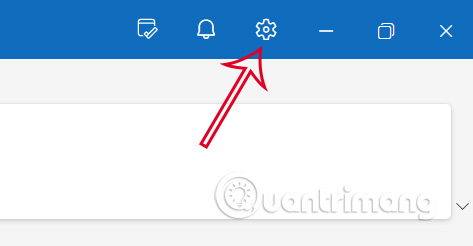
At the Outlook interface, click on The gear icon In the top right corner of the interface.
Step 2:
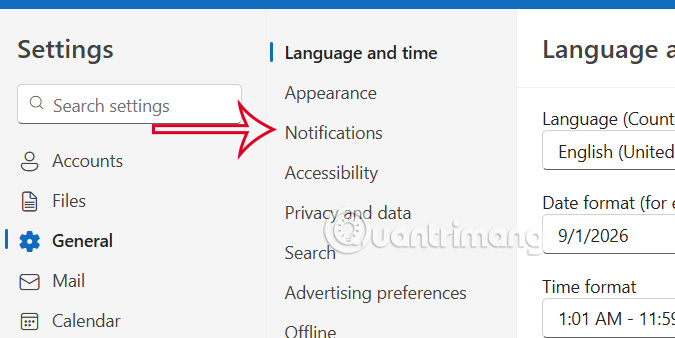
Display the interface, click on General and then select Notifications To adjust notifications on Outlook.
Step 3:
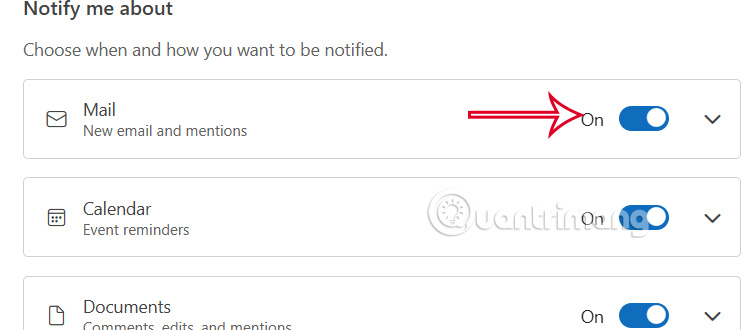
Looking to the side, we click on The Mail item To expand the notification for this item on the Outlook application.
Step 4:
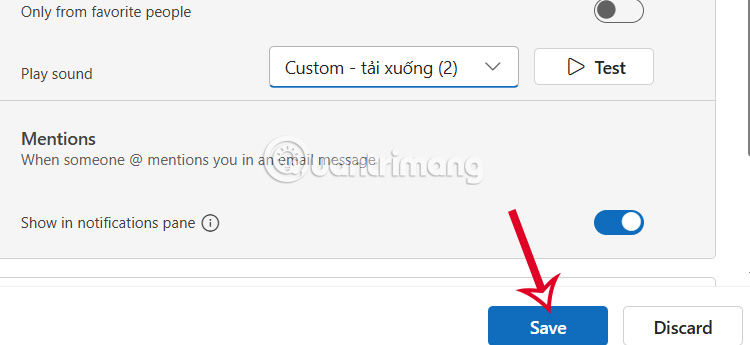
In the Play sound section, we Click on Custom To adjust the notification sound for calendar events on Outlook.
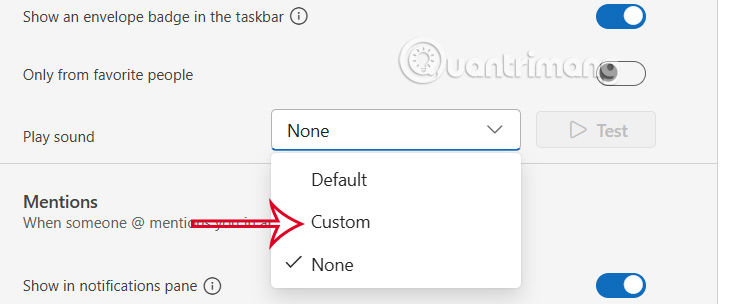
Displays the folder on your computer for you to choose the event alert sound on Outlook to apply. You click test to listen to the sound first. If you like it, click Save to save it.
FAQ
How do you adjust new email notification sound in outlook: step-by-step guide?
In practical terms, if you don't like the default Outlook new email notification sound, you can change it to your favorite sound. Outlook has settings to change the sound that notifies you of new emails.
What should you check before getting started?
Review the requirements, compatible device or software version, and any warnings described in the guide before making changes.
What should you do if the steps do not work?
Repeat the steps in order, confirm that your app or system is up to date, and review the troubleshooting details provided above.
Related Articles
 How to Adjust Windows 11 Notification Sound3 minutes read
 How to Turn Off or Set up Notifications in Outlook5 minutes read
 How to Change iPhone Message Notification Sound3 minutes read
 Turn Off Email Sending Notification Sound on Apple Mail: How-To Guide3 minutes read
 How to Set Up Email in Outlook Latest 20225 minutes read
 How to Print Email in Outlook3 minutes read
Reader Comments 0
Sign in with email or Google to join the discussion.