Table of Contents
Classic Outlook may block a large attachment before you can send it. You can raise its local attachment limit for a POP or IMAP account through the Windows registry, but the mail provider and recipient can still reject an oversized message. If either side has a lower limit, send a OneDrive link instead.
Before changing the limit
Check the size of all attachments together, not just the largest file. The steps below apply to classic Outlook for Windows. They do not raise limits in new Outlook, Outlook.com, or an Exchange or Microsoft 365 mail server. If you use a work or school account, ask your administrator about the server limit before changing your PC.
Increase the classic Outlook limit for a POP or IMAP account
- Close Outlook. Back up the registry before making changes: open Registry Editor (
regedit), select the relevant key, and use File > Export. - In Registry Editor, go to
HKEY_CURRENT_USER\Software\Microsoft\Office\16.0\Outlook\Preferences. Use15.0in place of16.0for Outlook 2013;16.0covers classic Outlook 2016, 2019, 2021 and Microsoft 365. - Right-click an empty area in the right pane and choose New > DWORD (32-bit) Value. Name it
MaximumAttachmentSize. If it already exists, open it. - Select Decimal, then enter a size in kilobytes. For example,
30720sets a 30 MB client limit. Select OK and restart Outlook.
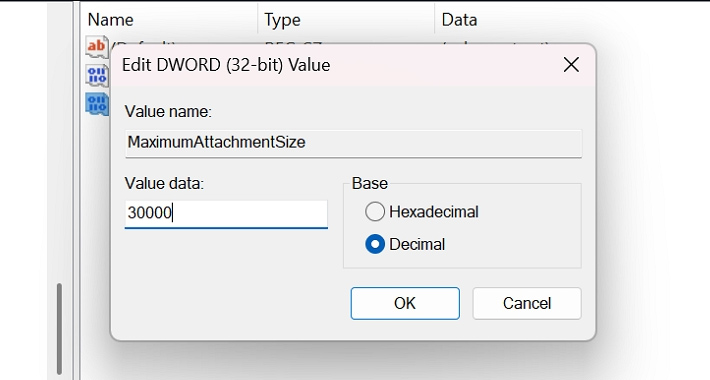
This setting changes Outlook's local check only. It cannot override your email provider's limit, an Exchange policy, or the recipient's limit. A message can also grow in transit because of attachment encoding, so leave room below the service's stated maximum. If sending still fails, use a smaller file or a share link. Microsoft's Outlook attachment limit guidance documents the registry setting.
Send a larger file with a link
In an Outlook message, attach the file and, if Outlook offers it, choose the option to upload and share it through OneDrive instead of sending a copy. You can also upload it to OneDrive first, select Share, review who can open the link and whether they can edit, then paste the link into your email. See how to protect OneDrive sharing links when access should be limited.
For a file that may shrink enough, create a ZIP archive and check its size before attaching it; already compressed photos and video often shrink little. Follow the Windows 11 ZIP instructions if you need that option.
Related Articles
 Increase the Size of Attachments in Outlook 2010: Guide2 minutes read
 How to Increase the File Size Limit of Outlook Attachments6 minutes read
 Outlook Error 0x8004060c During Sending / Receiving Mail, This Is5 minutes read
 Quickly See the Attachment in Outlook4 minutes read
 No Longer Worry About Limit Attachments on Yahoo! Mail4 minutes read
 How to Print Emails on Outlook3 minutes read
Reader Comments 0
Sign in with email or Google to join the discussion.