Table of Contents
This updated guide explains how to create Windows update shortcuts with clear steps, practical tips, and useful context. Windows will automatically run the update service and notify you whenever there are updates available to download. Still, you can manually check for updates on your computer.
How to Create Windows Update Shortcut on Computer
Step 1:
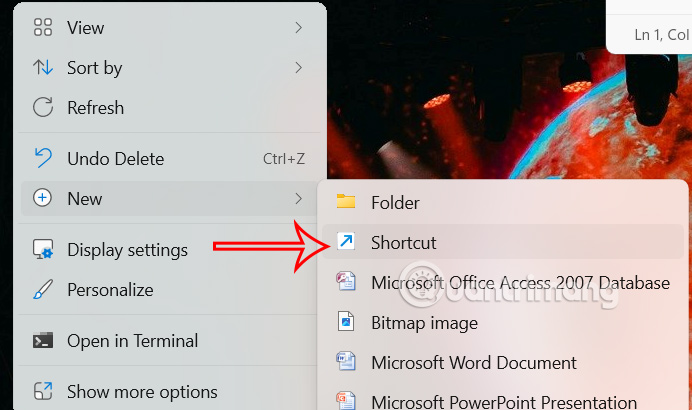
Right- select the computer screen, select New, then choose Shortcut .
Step 2:
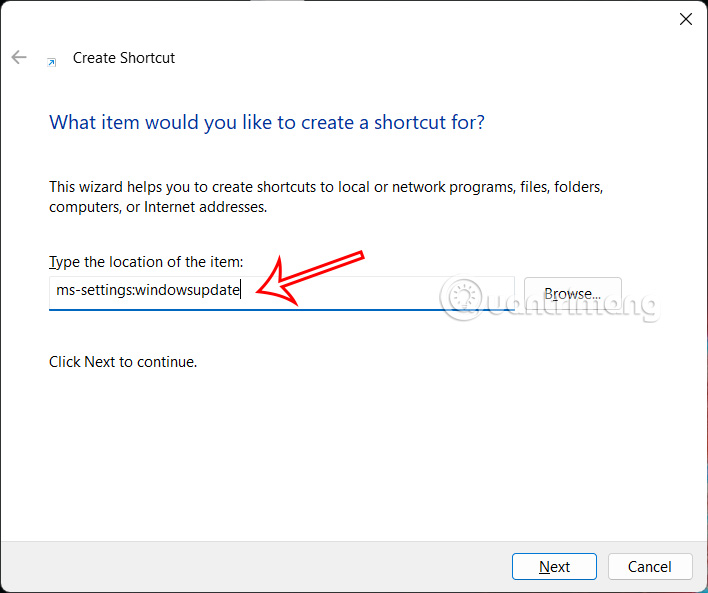
Display the new user interface, enter the command ms-settings:windowsupdate into the text box. This command will ask Windows to directly open the update interface panel on the system and then choose Next below.
Step 3:
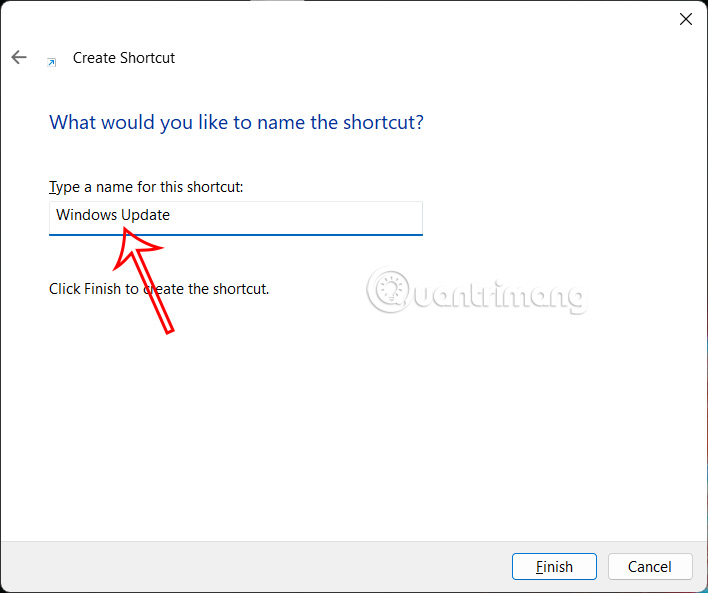
Now you will name the Windows Update shortcut as shown and then choose Finish below.
As a result, we get the Windows Update shortcut on the screen as below.
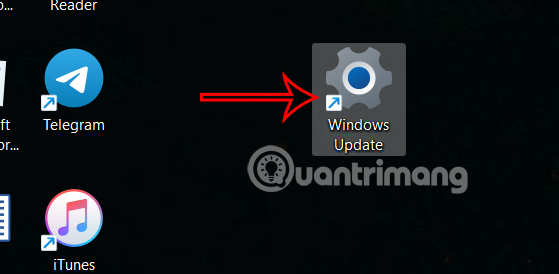
Double-choose it and you'll be taken to the Windows Update section of the Settings interface on Windows 11.
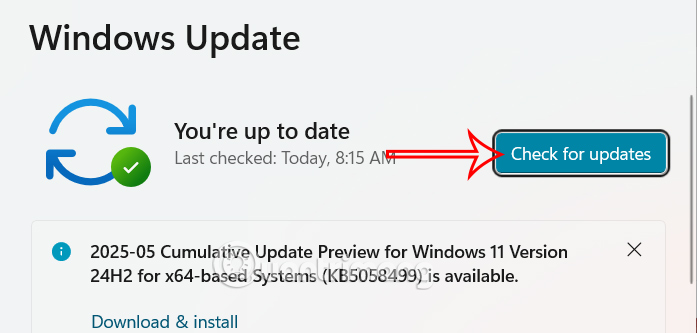
If you also want to check for new updates on your computer, you can create a new shortcut with the command ms-settings:windowsupdate-action to create a new shortcut. The operation is similar to the above.
FAQ
What should I prepare before I create windows update shortcuts?
Review the requirements and options in the guide first. Having the correct device, app version, account access, or materials ready helps prevent avoidable errors.
How long does it take to create windows update shortcuts?
The time depends on the task and your setup. Most basic steps can be completed quickly, while downloads, updates, scans, or troubleshooting may take longer.
What should I do if the steps do not work?
Repeat the instructions in order, confirm that your software or device is supported, and check permissions, connectivity, and available updates before trying again.
Related Articles
 How to Create a Hot Key for Windows to Sleep and Shutdown4 minutes read
 Instructions for Creating Windows Shortcuts Update on Windows 104 minutes read
 Create and Customize Application Shortcuts on Win 106 minutes read
 How to Create a Windows Security Shortcut on Windows: Step-by-Step Guide4 minutes read
 How to Creating Shortcuts in Word: Step-by-Step Guide2 minutes read
 Instructions: 20 Useful Shortcuts When Using Windows4 minutes read
Reader Comments 0
Sign in with email or Google to join the discussion.