Table of Contents
After countless hours of frustration and testing several plugins, many people have settled on Pane Relief. This plugin not only solves the double pane problem, but completely changes the way users work with multiple notes.
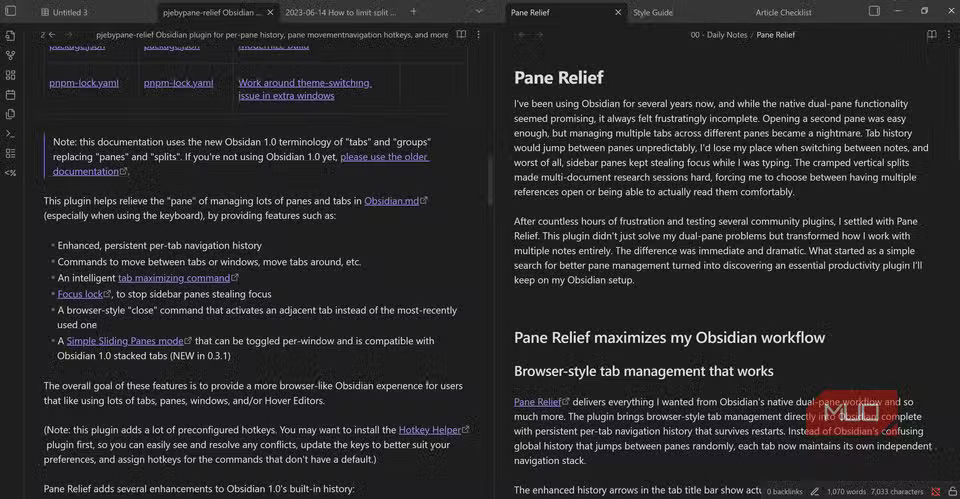
I've been using Obsidian for a few years now, and while the default dual pane functionality seems promising, it's always felt clunky and unfinished. Opening a dual pane is easy enough, but managing multiple tabs across different panes has become a nightmare. Tab histories keep jumping between panes, making it easy to lose track when switching between notes, and worst of all, side panes constantly steal focus while typing. The cramped vertical panes make it difficult to research multiple documents, forcing users to choose between having multiple reference documents open or being able to read them comfortably.
After countless hours of frustration and testing several plugins, many people have decided to go with Pane Relief. This plugin not only solves the double pane problem, but completely changes the way users work with multiple notes. The difference is immediate and noticeable.
How to use Pane Relief
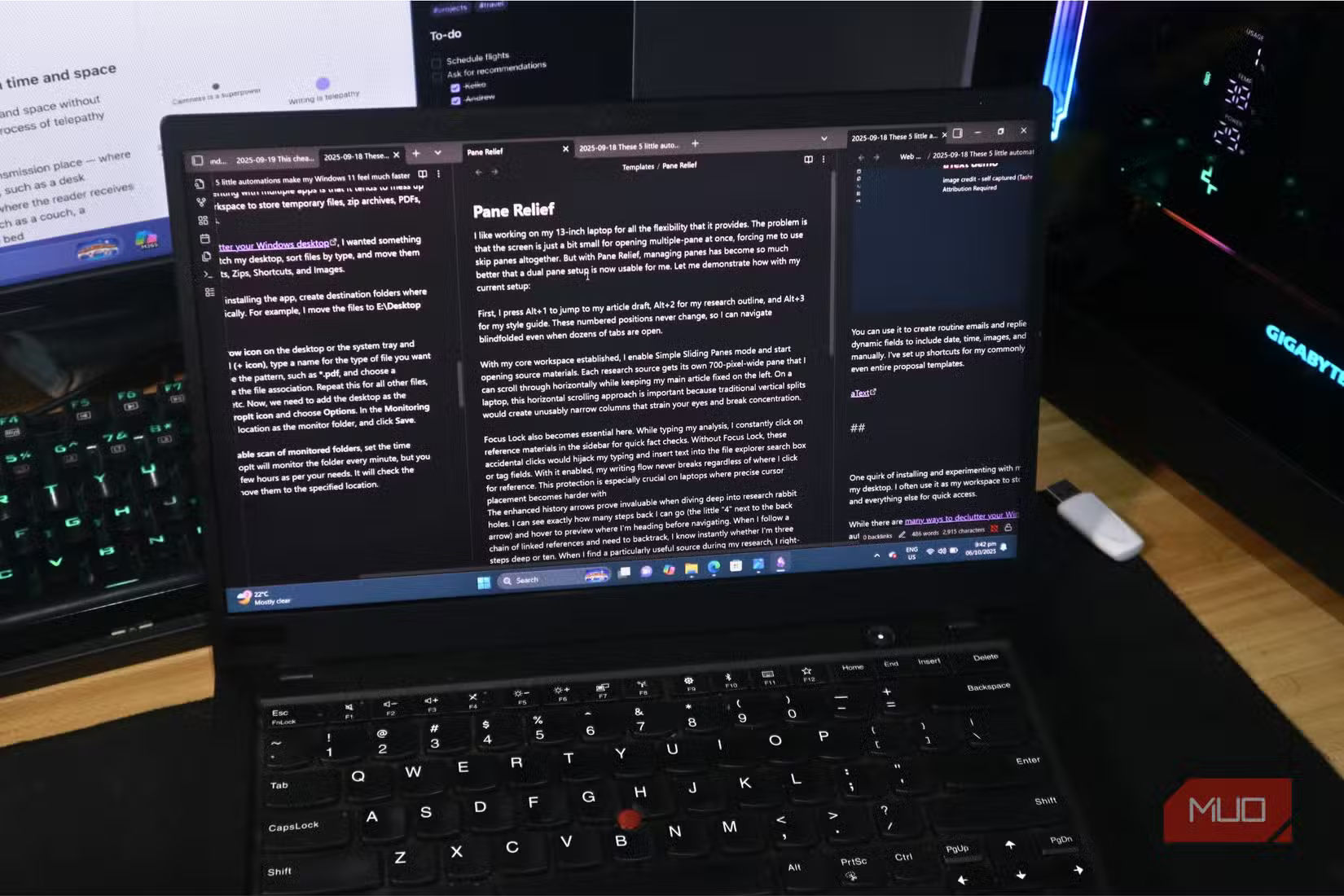
Many people like to work on their 13-inch laptops because of all the flexibility it offers. The problem is that the screen is a little small for a dual-pane setup, forcing them to skip using panes. However, with Pane Relief, pane management has gotten significantly better, allowing them to use a multi-pane setup. Here's an illustration of how it works with my current setup:
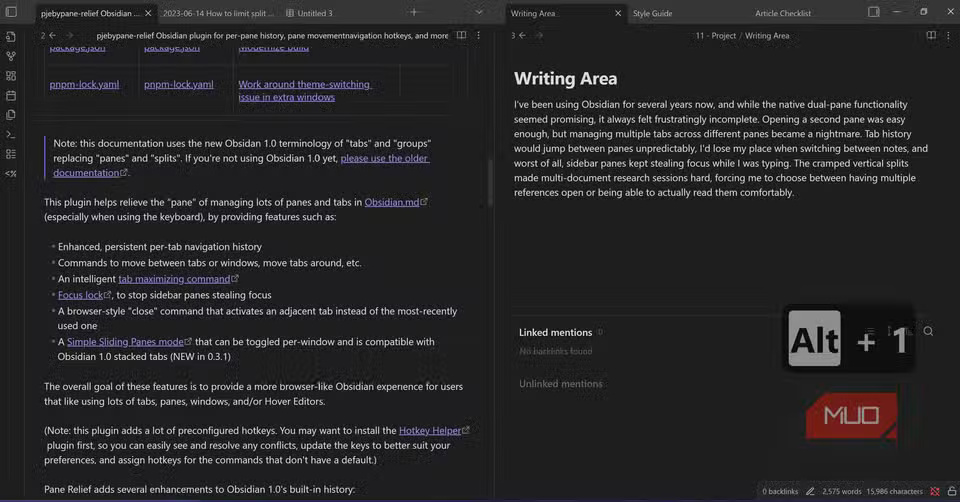
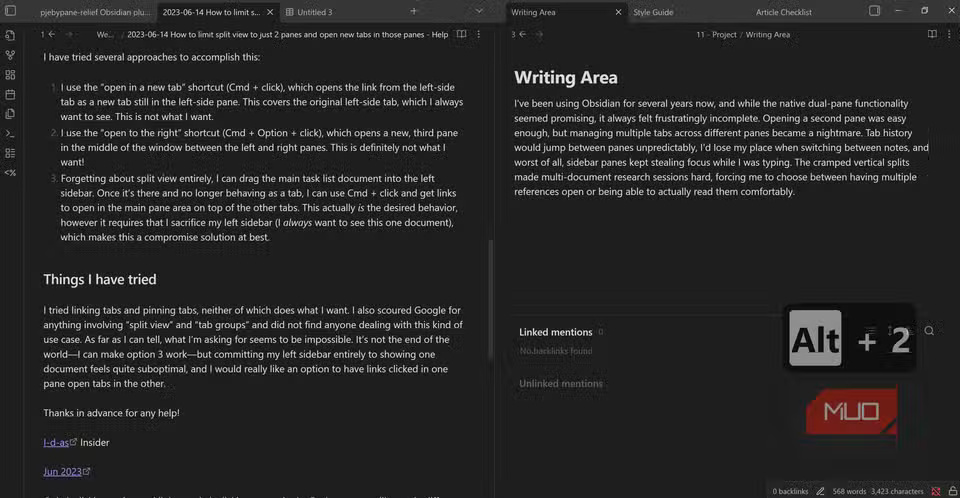
Start by setting up a core workspace with two separate panes. The right pane acts as the writing hub with two other tabs for style guides and checklists to follow. The left pane becomes a dedicated source area, where all research material extracted from the web using Obsidian Web Clipper is organized. The author can easily switch between source tabs using Alt + 1, Alt + 2, Alt + 3 , etc. This simple layout allows for quick changes to source material while still maintaining writing space on the right side of the screen.
While dual pane setups are common, there are times when people need to use a three pane setup. For this task, enable Simple Sliding Panes Mode by holding Ctrl + P And searching for the command. Placing your main writing pane in the middle lets you slide between source documents on either side. Each source pane has its own 700 pixel wide pane that can be navigated by holding Shift And using two-finger up or down gestures on the trackpad. On laptops, this horizontal scrolling is important because the usual vertical splits create unusable narrow columns that are tiring on the eyes and distracting.
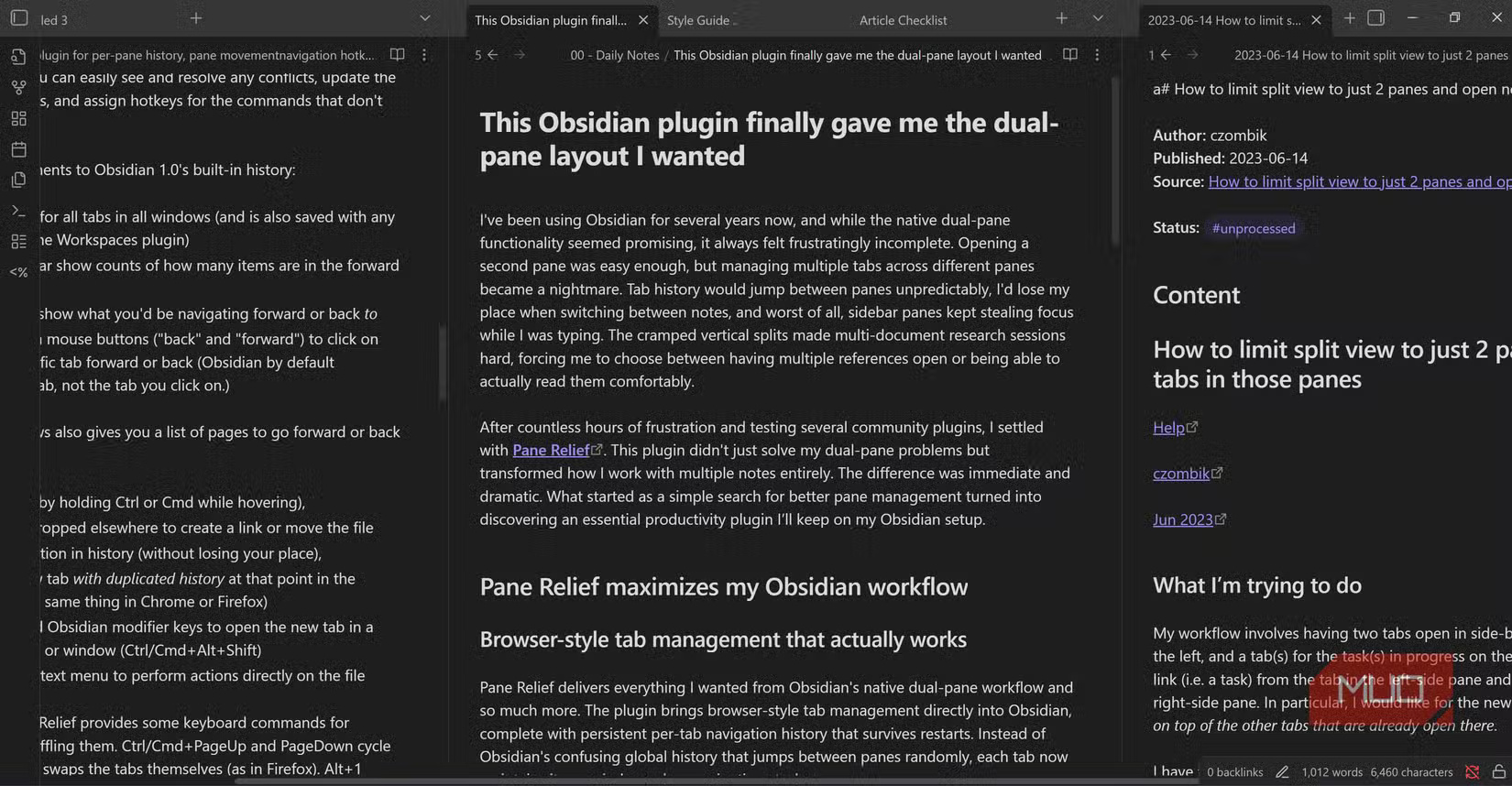
When You should rearrange your research paper for better logical flow, Ctrl + PageUp And PageDown Move through frames with ease while Ctrl + Shift + PageDown Swaps their positions without touching the trackpad.
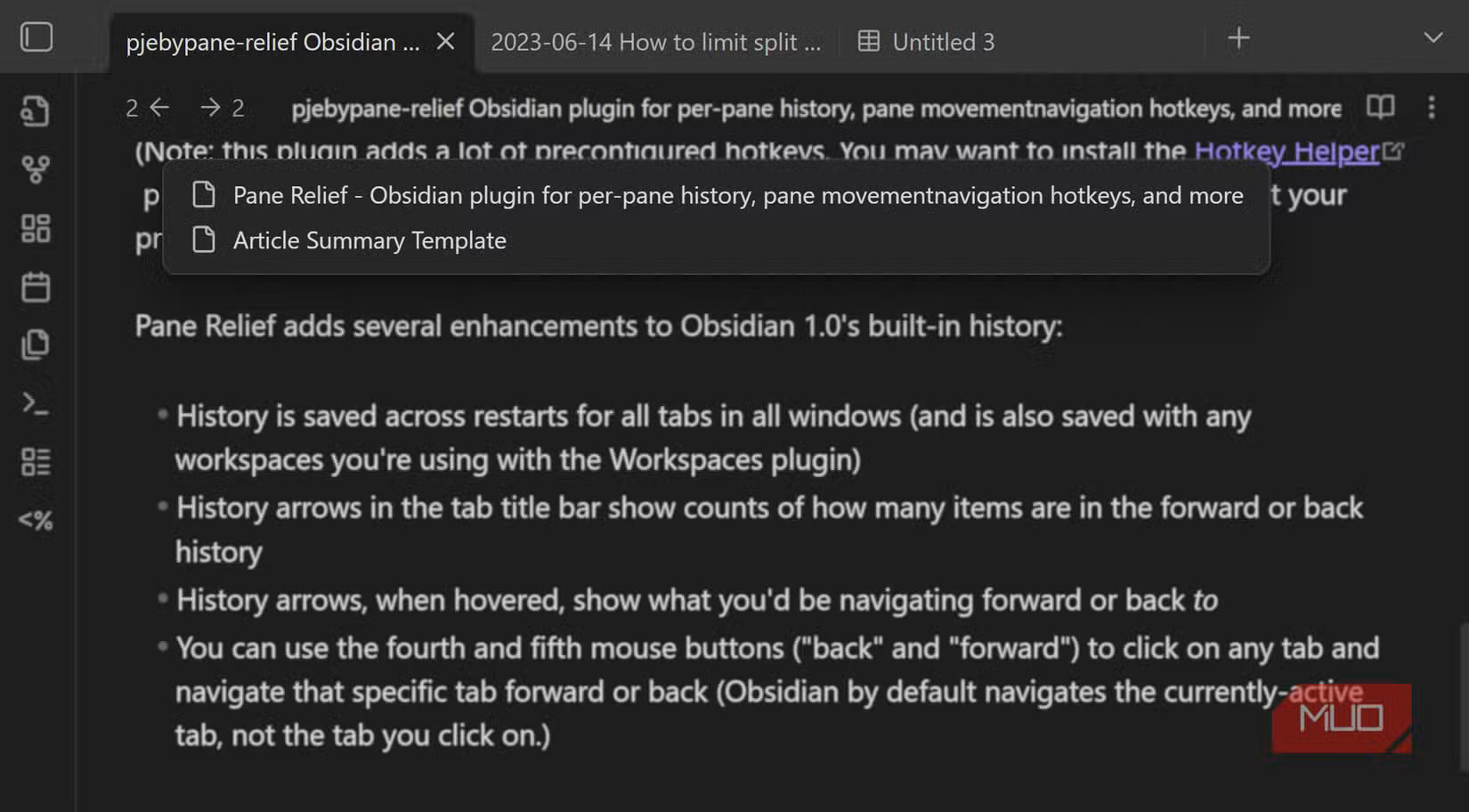
The improved history arrows are incredibly helpful when digging into in-depth research. You can see exactly how many steps you can go back (the little "2" next to the back arrow) and hover to preview your path before navigating. When you're following a chain of linked references and need to go back, you'll know at a glance whether you're 3 steps or 10 steps deep. When you find a particularly useful source during your research, right-click the history arrow and drag that note directly into the article to create an instant citation link.
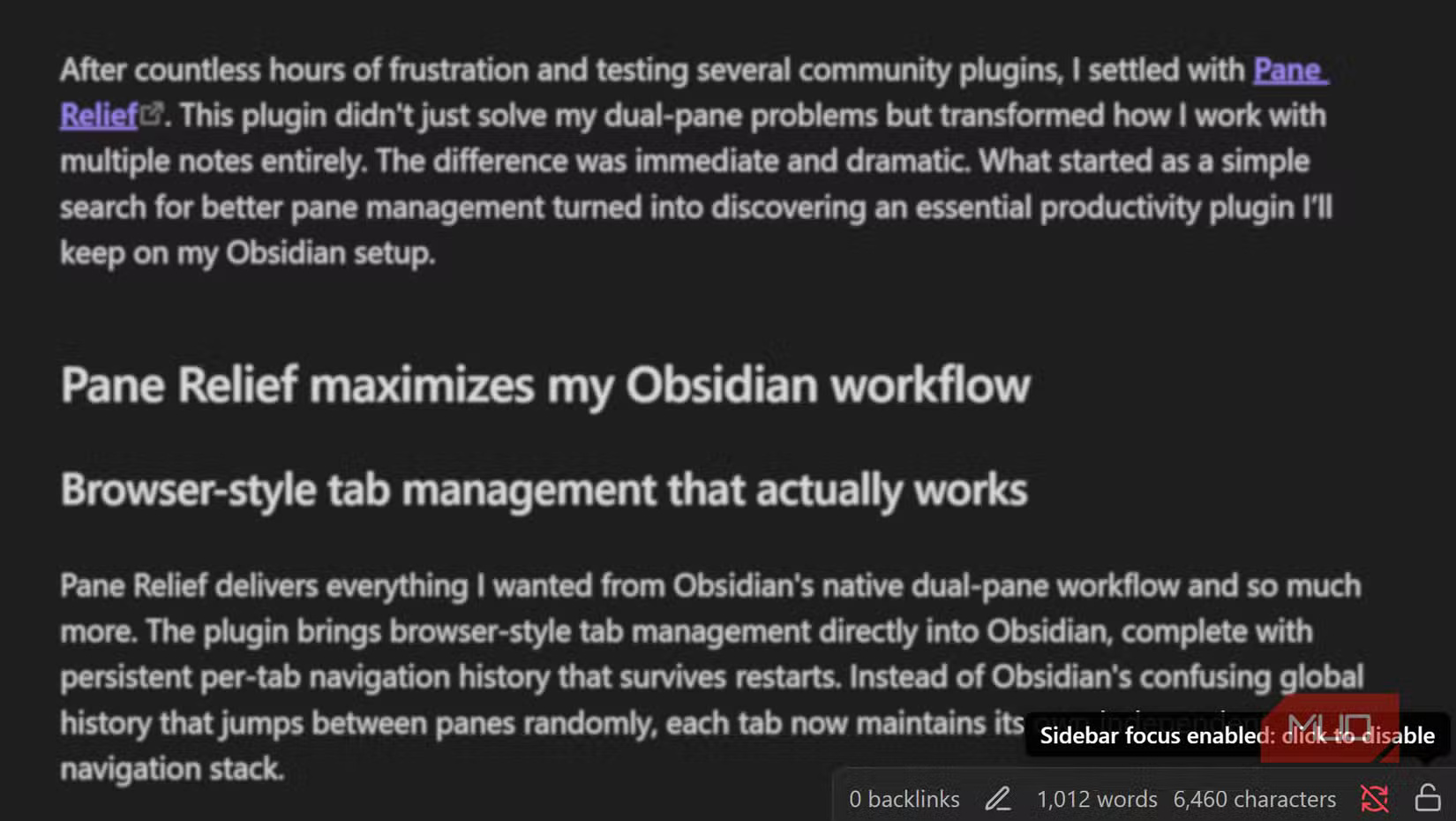
Pane Relief also has a Focus Lock Feature, which prevents sidebar elements from stealing keyboard focus while you're typing, and ensures that accidental clicks in the search box or tag field don't interrupt your flow by hijacking your cursor. I haven't been able to use Focus Lock reliably on Obsidian 1.9, probably due to experimenting with the settings too much. But if it works for you, it's a great addition that could significantly reduce keystroke interruptions during intensive writing sessions.
Once you're done writing, simply shut down your laptop to save battery life and move on to other tasks. When you reopen Obsidian later, everything loads exactly as you left it. The workspace, with its carefully arranged panes and tabs, is completely intact. While installing too many plugins is one of the Obsidian mistakes that everyone should avoid, Pane Relief is definitely one you should try sooner rather than later because of its wide applicability, ease of use, and the significant improvement it brings to your overall workflow.
FAQ
How do you use the pane relief plugin to get a dual pane layout in obsidian: how-to guide?
In practical terms, after countless hours of frustration and testing several plugins, many people have settled on Pane Relief. This plugin not only solves the double pane problem, but completely changes the way users work with multiple notes.
What should you check before getting started?
Review the requirements, compatible device or software version, and any warnings described in the guide before making changes.
What should you do if the steps do not work?
Repeat the steps in order, confirm that your app or system is up to date, and review the troubleshooting details provided above.
Related Articles
 7 Best Obsidian Plugins for Mobile: Complete Guide6 minutes read
 Why Ditch Your Planner for the Obsidian Plugin with Integrated: Key Facts6 minutes read
 How to Use Local LLM to Sort Chaotic Obsidian Inventory: Step-by-Step Guide7 minutes read
 What Is Obsidian Note-Taking? Obsidian User Manual6 minutes read
 How to Use Obsidian with Local AI to Visualize Things9 minutes read
 How to Combine Claude Code with Obsidian CLI8 minutes read
Reader Comments 0
Sign in with email or Google to join the discussion.