Table of Contents
Explore if you see these icons on your Windows taskbar, including the key concepts, practical examples, important considerations, and useful guidance.
But hidden in that quiet corner of the screen are a few icons that deserve more attention. These icons appear when apps are using sensitive features like your microphone or location. And if you ignore them for too long, you may be giving away more privacy than you think.
Most people ignore these icons on the Taskbar, but they are very important
These symbols are trying to tell you something
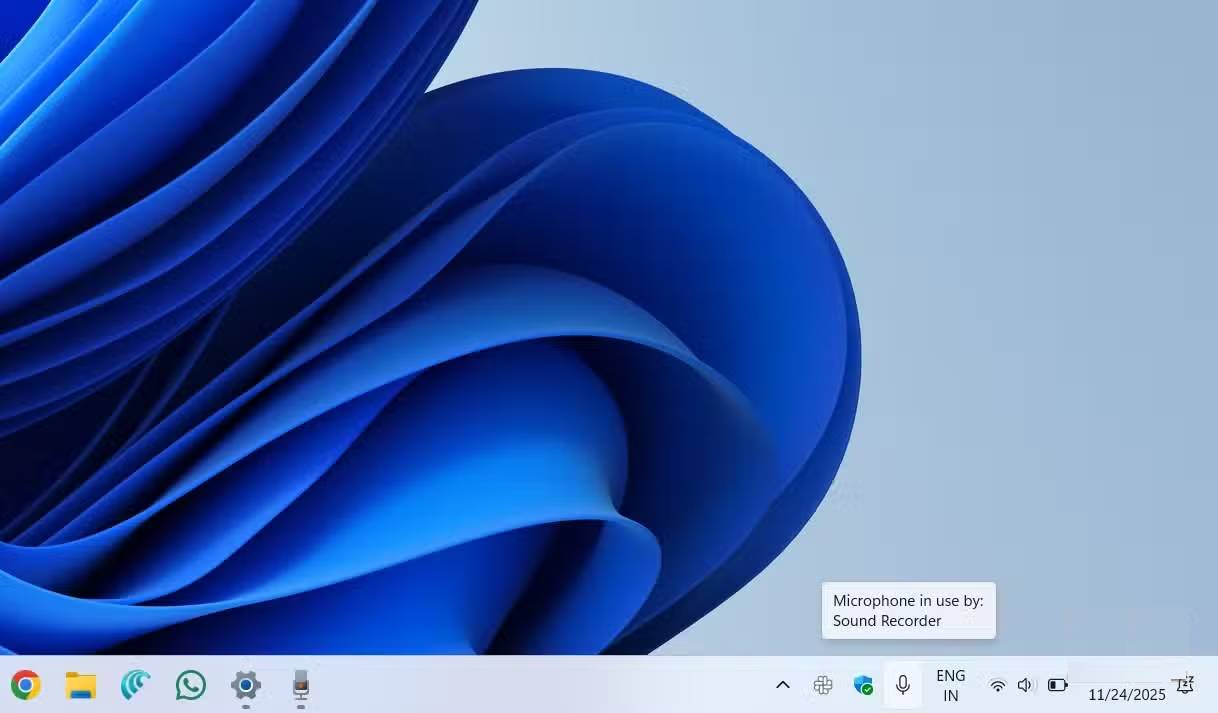
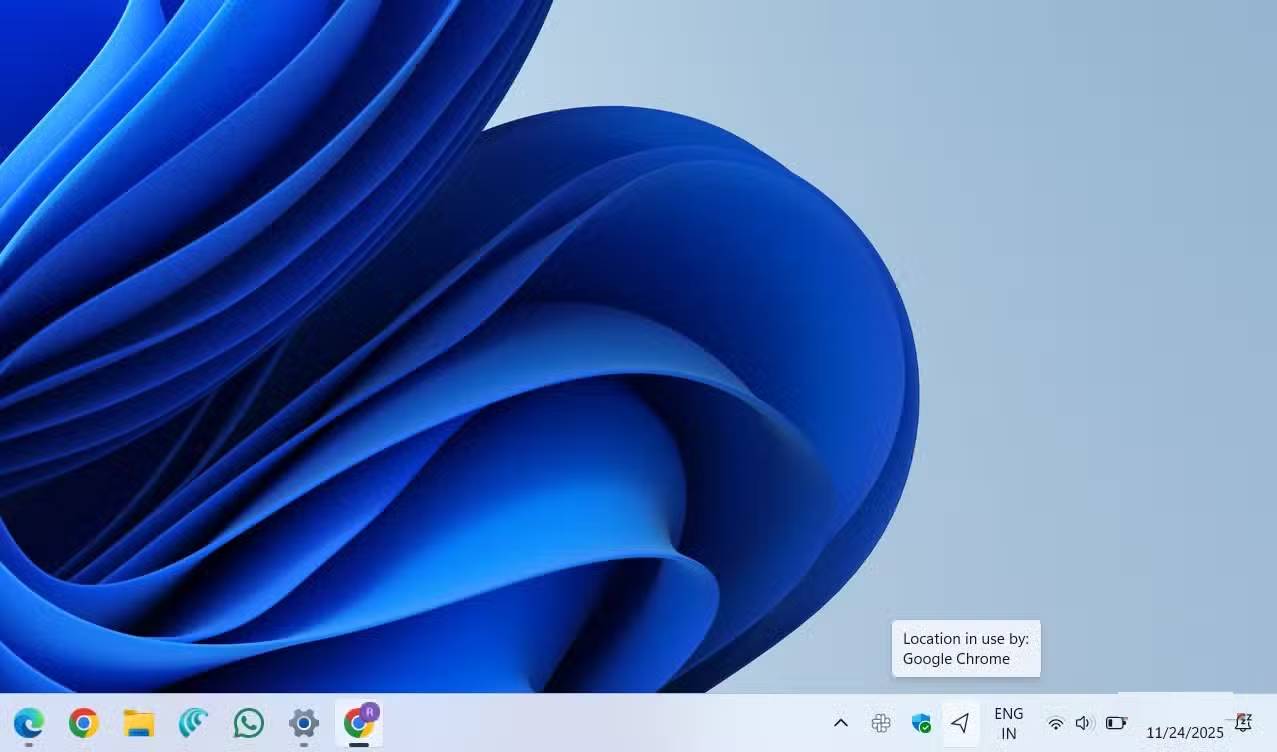
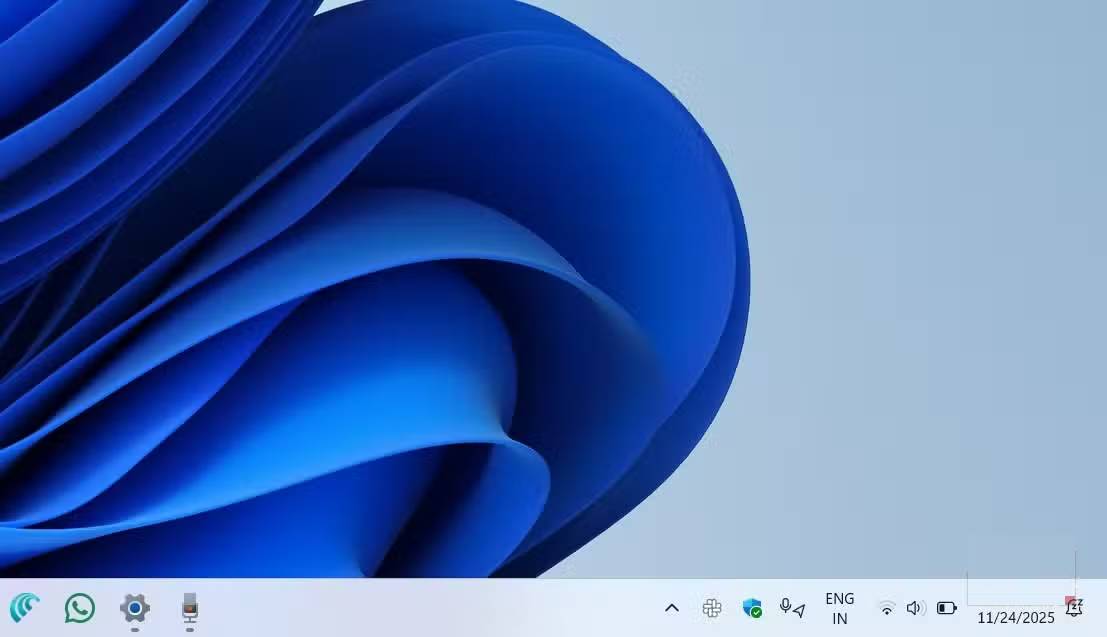
Whenever an application is using your microphone, you'll see a small microphone icon next to your system tray. If you hover over the icon, Windows will show you the name of the application that's using it. If multiple applications are listening or recording at the same time, Windows will list them all.
The same goes for location access. When an app is accessing your location, you'll see a little arrow. And if both your microphone and location are being accessed at the same time, you'll see both icons stacked on top of each other.
The problem is that most people never notice these indicators, or they see them but don't bother to check what they mean. Furthermore, these icons disappear as soon as the application stops using the microphone or location, so they're easy to miss. It's not like the webcam LED is right in front of you. They're small, quiet icons in a corner that you rarely notice, but they're just as important.
Viewing the privacy menu may reveal more information
Activity logs that most people never open
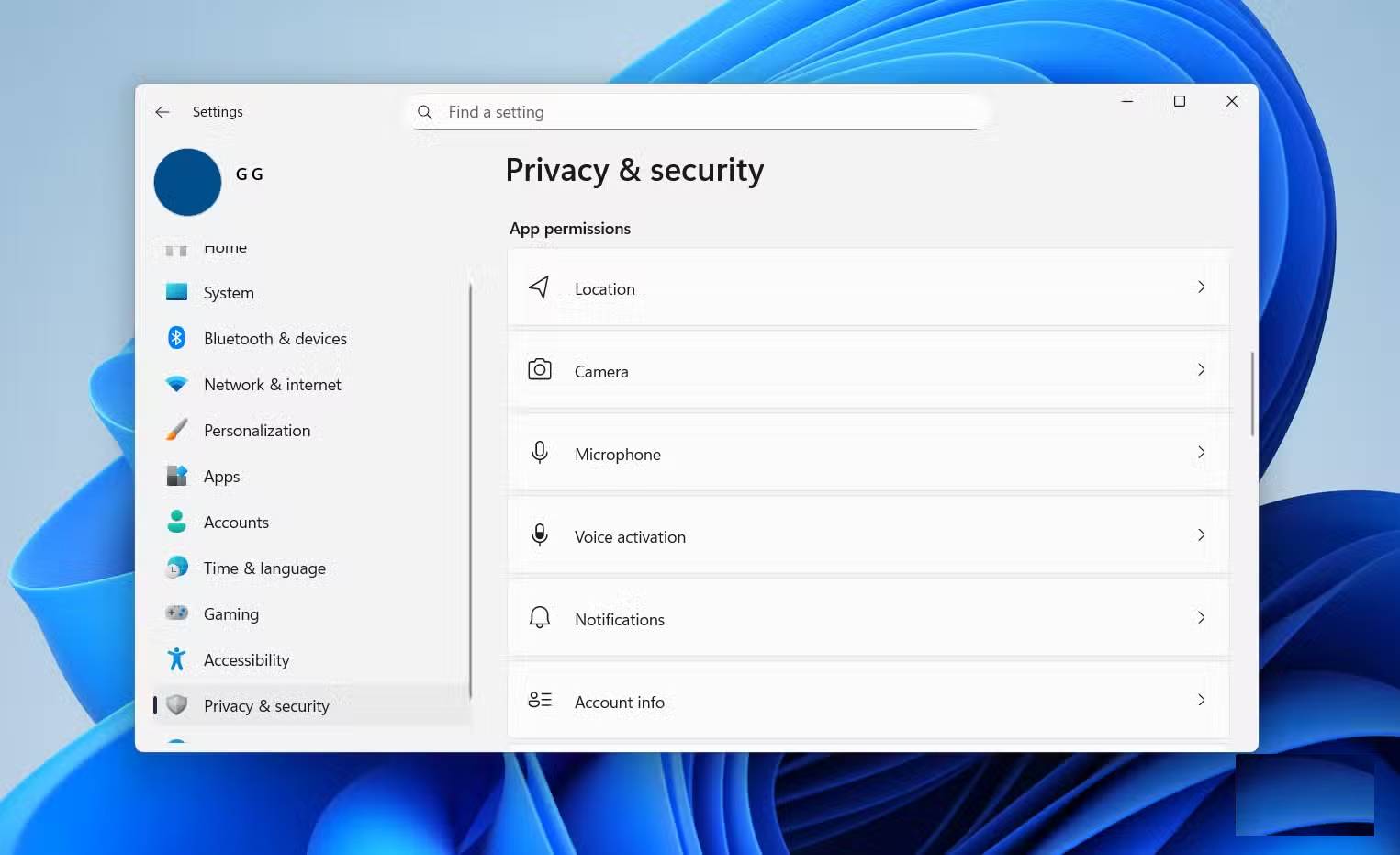
Even if you miss the microphone icon and its location on the Taskbar, you can still check which apps are using sensitive features on your PC. To do that, you need to learn more about Windows privacy settings.
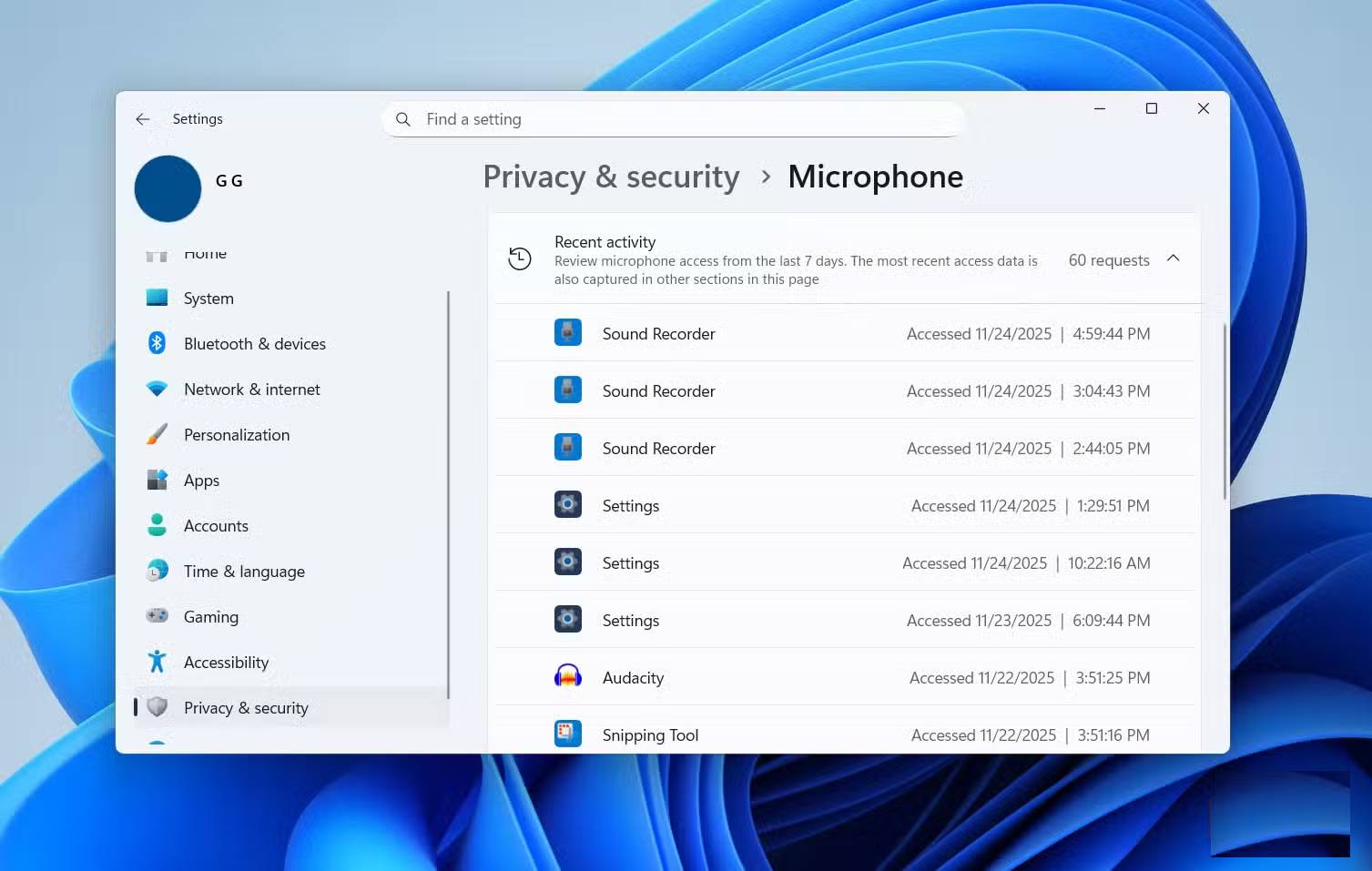
Go to Settings > Privacy & security > App permissions and tap Microphone . Expand Recent activity and you'll see a list of apps that have accessed your microphone in the last 7 days. This list also shows the exact date and time each app used your microphone. This makes it easy to determine whether this activity matches something you actually did, like joining a video call, or whether an app accessed your microphone when you didn't expect it.
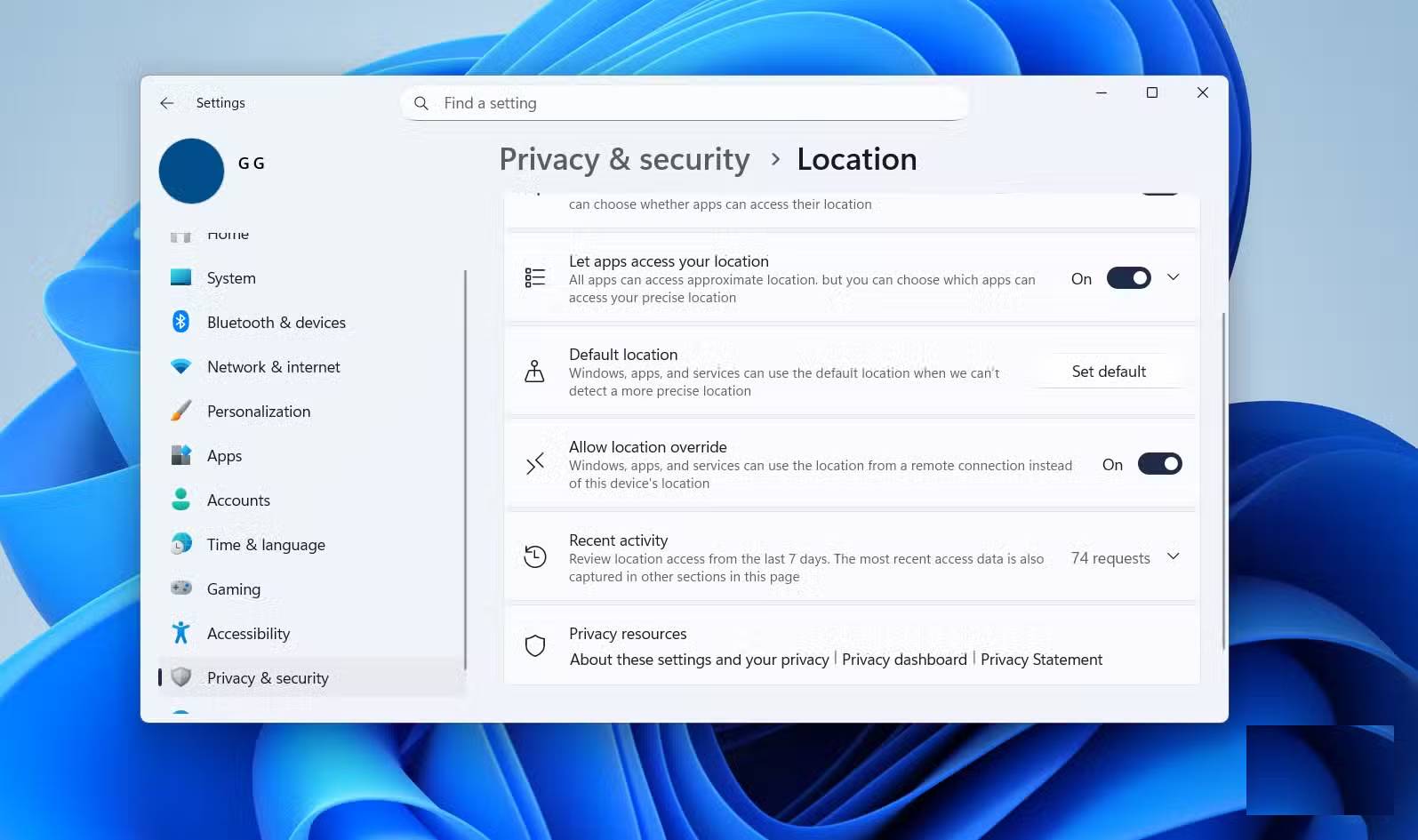
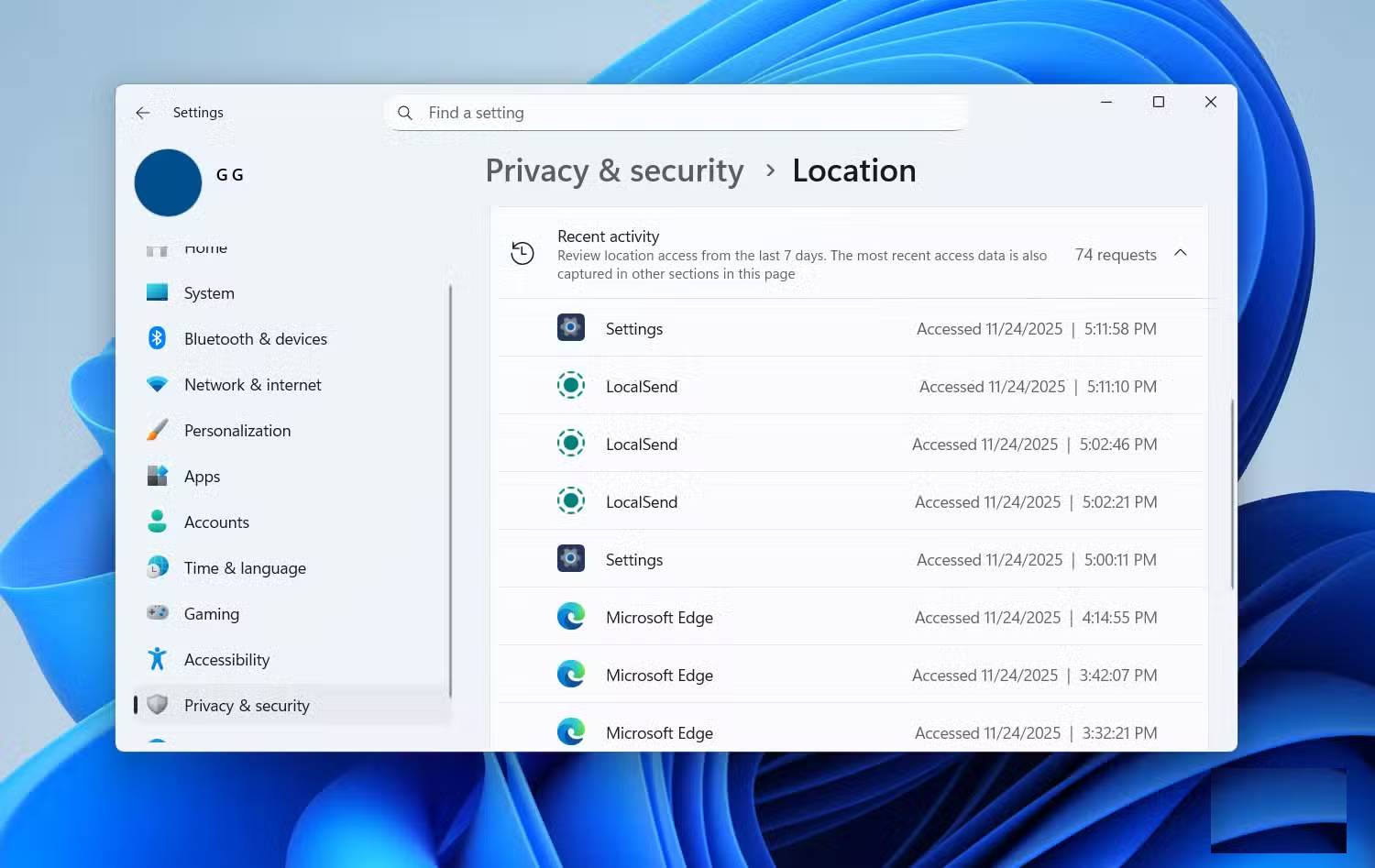
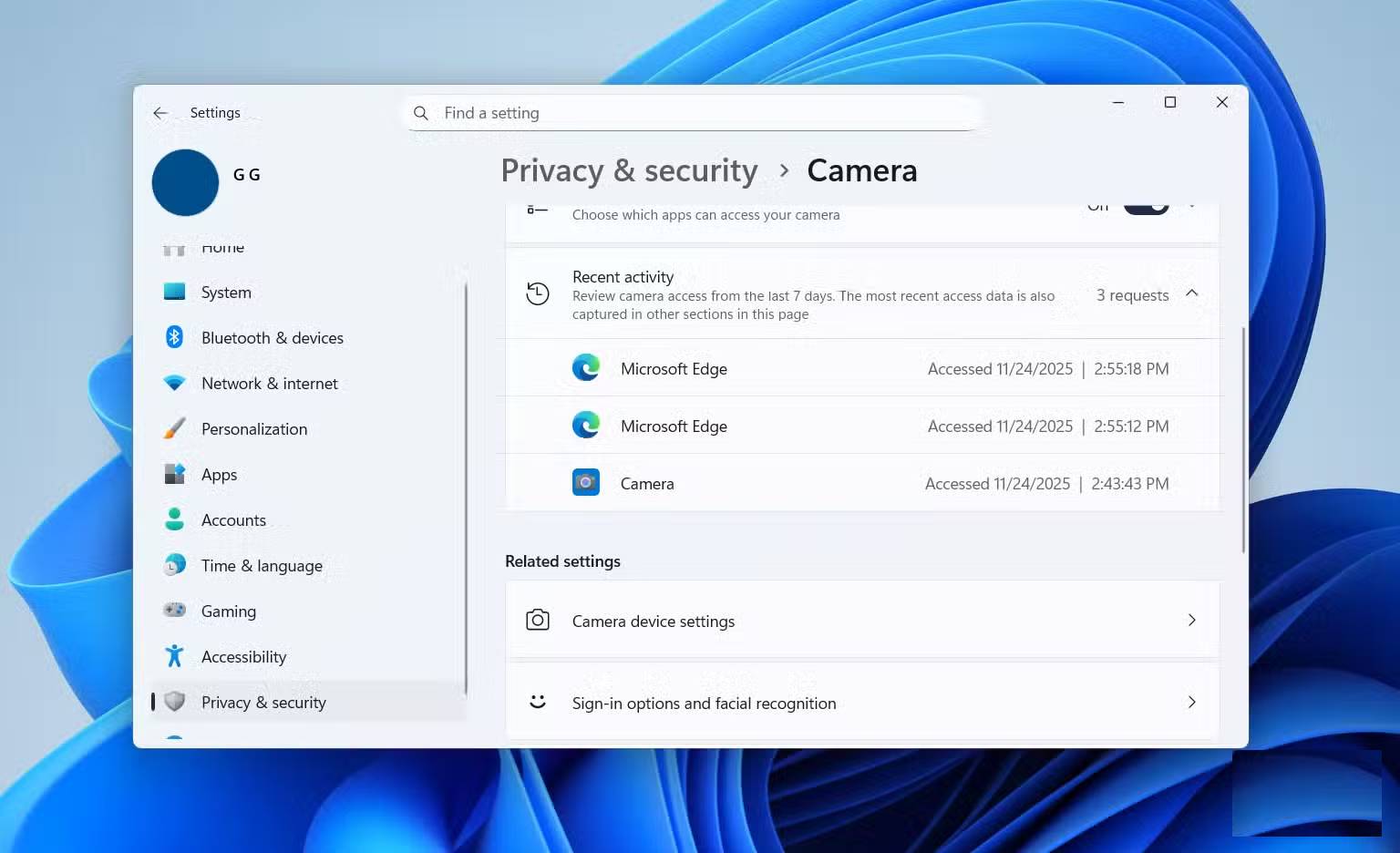
This also applies to location tracking. Go back to App permissions and click Location . You'll see which apps have used your location and when. While Windows won't show a camera icon when an app is using your webcam, you can find details about camera activity in the privacy menu.
This menu is essentially a detailed history of which apps have hidden themselves. Taskbar icons show what was going on at the time, and privacy settings show what happened over time.
Stop these apps from invading your privacy before it's too late
Prevent unnecessary access
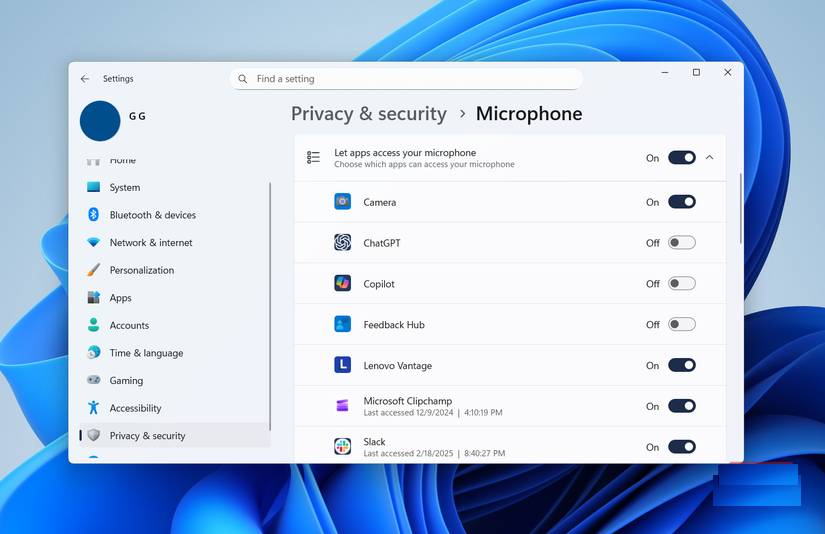
Knowing which apps are accessing your microphone, camera, or location is only half the battle. If something looks suspicious, you also need to know how to stop it. Of course, the easiest way is to uninstall the app or program, but that's not always an option, or even necessary. In some cases, you may really need the app, but it doesn't always have ongoing access to your personal data.
To fix this, you can revoke camera, location, or microphone access for those apps. Go to Settings > Privacy & security > App permissions and select the permissions you want to manage. Then, expand Let apps access your camera/microphone/location and use the toggles to revoke access for apps that don't need it.
One problem is that when a website uses your microphone or location, the Taskbar icon or Windows privacy menu will only show the browser name. This means you won't be able to tell which website is actually accessing it from the Taskbar.
If you don't want to completely revoke your browser's access to your camera or microphone, most browsers also show you which sites have accessed sensitive features on your computer like your camera, microphone, or location. For example, in Edge, you can go to Settings > Privacy, search, and services > Site permissions > Recent activity to see if any sites have accessed your camera, microphone, or location. You can then click on the site that looks suspicious and block its access from there.
Most of us don't pay much attention when setting up an app for the first time. In our rush to try something new, we often grant the app all the permissions it needs without thinking twice. The good thing is that Windows has your back and can notify you when an app is using sensitive information. But you still have to look out for these signs and take action before they become bigger problems.
Final Thoughts
Understanding if you see these icons on your windows taskbar, open the privacy panel immediately makes it easier to evaluate the information and apply the most relevant recommendations. Focus on the key points above and verify details that may change over time.
FAQ
What is if you see these icons on your windows taskbar, open the privacy panel immediately?
Explore if you see these icons on your Windows taskbar, including the key concepts, practical examples, important considerations, and useful guidance.
What key points does this article cover?
The article focuses on Most people ignore these icons on the Taskbar, but they are very important, These symbols are trying to tell you something, Viewing the privacy menu may reveal more information, with practical explanations and examples.
How can you use this information in practice?
Use the explanations to compare options, verify important details, and make a more informed decision. Apply the recommendations that best match your goals and situation.
Related Articles
 Click: How to Customize the Size of the Windows 7 Taskbar Icons7 minutes read
 Change the Default Control Panel View to a Windows Computer6 minutes read
 Instructions to Display Emoji on Windows 11 Taskbar3 minutes read
 How to Center the Taskbar Icons in Windows 106 minutes read
 How to Open Control Panel on Windows 10, 8.1, 712 minutes read
 How to Fix Icon Loss, Icon Error on Taskbar Windows 76 minutes read
Reader Comments 0
Sign in with email or Google to join the discussion.