Table of Contents
When you sign in to a Google app, the browser automatically signs you in. While this may seem convenient, it also somewhat affects your privacy and account security when using Google.
When you sign in to a Google app like Gmail or Drive, your browser will automatically sign you in. While this may seem convenient, it can also be a privacy and security risk if Google automatically accesses your personal information. In this case, you can disable automatic sign-in on your Chrome browser.
Instructions to turn off automatic login on Chrome
Step 1:
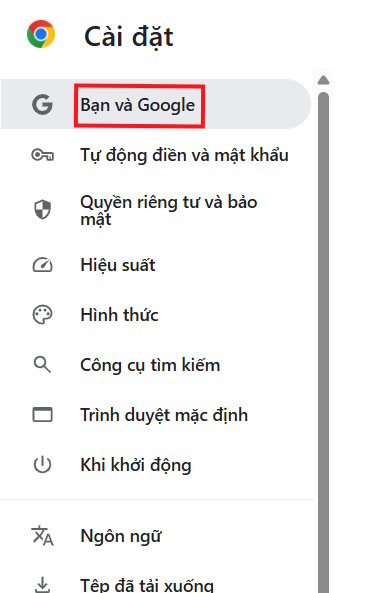
Users click on The 3-dot icon on Chrome , then select Settings. Next, we click on You and Google On the left side of the interface.
Step 2:
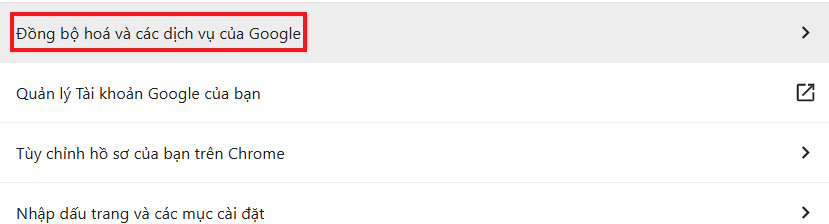
Now look to the side and Click on Sync and Google services .
Step 3:
Switch to the new interface, now you will see The setting Allow sign in to Chrome Is enabled by default. Now users need to Turn this setting off .
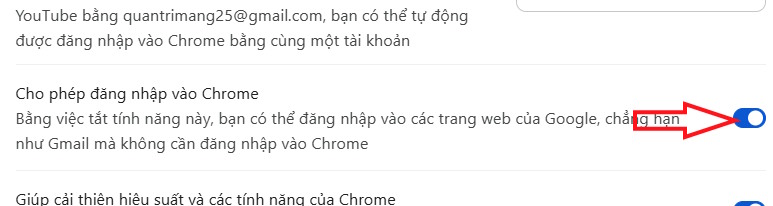
The user then needs to restart the computer for the changes to the browser to take effect.
Turning off Chrome's automatic sign-in feature won't remove your Google account or access to your apps, it'll simply remove the browser from your account. By turning off the option to allow Chrome to sign in automatically in your sync settings, you'll regain control over when Chrome connects to your Google account.
FAQ
How do you turn off automatic login on Chrome: log in to your a Google account?
In practical terms, when you sign in to a Google app, the browser automatically signs you in. While this may seem convenient, it also somewhat affects your privacy and account security when using Google.
What should you check before getting started?
Review the requirements, compatible device or software version, and any warnings described in the guide before making changes.
What should you do if the steps do not work?
Repeat the steps in order, confirm that your app or system is up to date, and review the troubleshooting details provided above.
Related Articles
 How to Turn Off Automatic Google Login on Chrome4 minutes read
 How to Turn Off Automatic Language Translation in Google Chrome5 minutes read
 Google Postpones Automatic Updates to Turn Off Chrome Sound Due to Many Web Games3 minutes read
 How to Block Chrome Automatically Updating on Windows 104 minutes read
 How to Turn Off Automatic Google Photos Photo Sync3 minutes read
 Why Shouldn't Auto-update Automatically Be Updated in6 minutes read
Reader Comments 0
Sign in with email or Google to join the discussion.