Table of Contents
Learn how to turn off efficiency mode on chrome with clear steps, practical tips, and troubleshooting guidance for a reliable result.
Why does Windows 11 Efficiency Mode slow down Chrome?
Starting with version 22H2, Windows 11 automatically activates Efficiency Mode in many browsers to save battery power. This mode reduces the priority of background browser processes.
When power mode is enabled, the computer's battery usage is reduced, and heat is lowered. This works well for light web browsing, but it's counterproductive for users who frequently open many tabs on Chrome.
How to turn off Efficiency Mode on Chrome
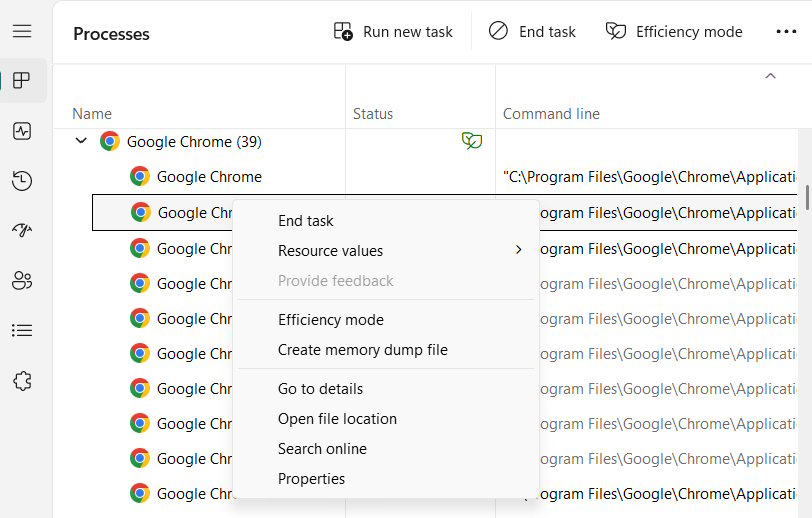
A common way to disable Efficiency Mode in Chrome is to open Task Manager. Then, in the Chrome process, you can turn off Efficiency Mode in the right-click menu. However, this mode will immediately re-enable itself, as Google Chrome defaults to efficiency mode.
Step 1
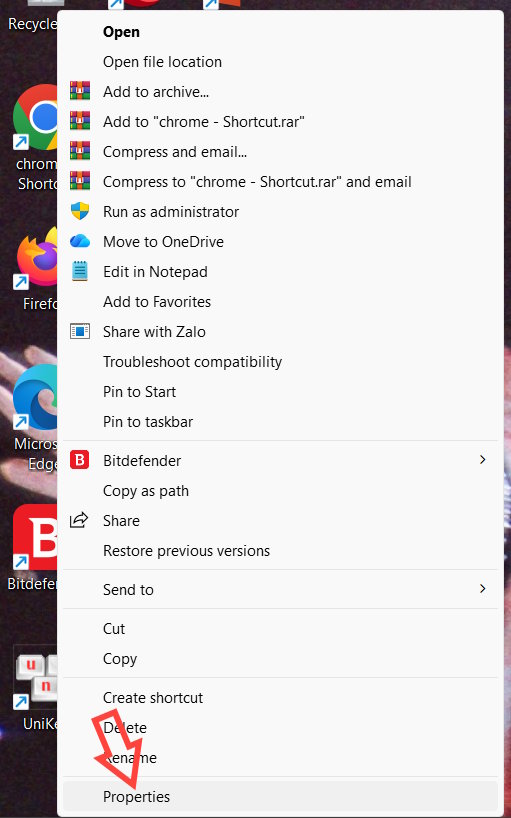
Click the Chrome icon on your screen and then select Properties from the right-click menu.
Step 2
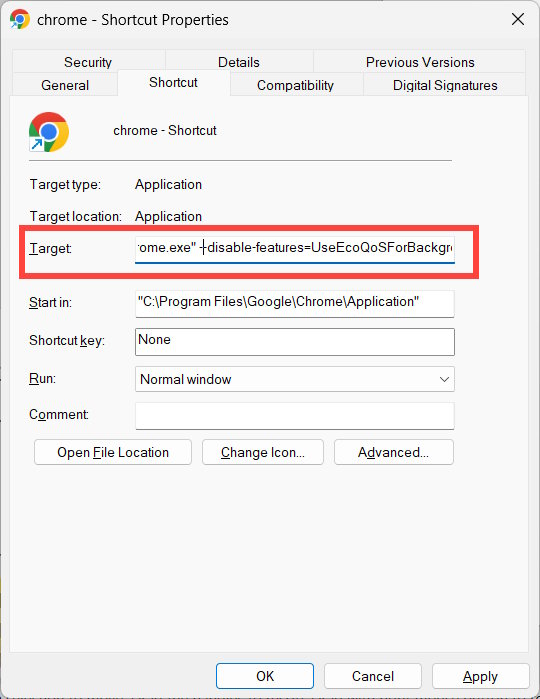
To display the new interface, click on the Shortcut tab , then under Target , scroll to the bottom , press the space key , and enter the following command .
--disable-features=UseEcoQoSForBackgroundProcessFinally, click Apply and then OK to save the changes.
Final Thoughts
Use this guide as a practical checklist for how to turn off efficiency mode on chrome. Work through the steps in order, verify each result, and adjust the options to match your needs.
FAQ
What do you need before following this How to Turn Off Efficiency Mode on Chrome guide?
Review the required tools, accounts, settings, or materials mentioned in the article. Learn how to turn off efficiency mode on chrome with clear steps, practical tips, and troubleshooting guidance for a reliable result.
What are the main steps for how to turn off efficiency mode on chrome?
Follow the sections in order, especially Why does Windows 11 Efficiency Mode slow down Chrome?, How to turn off Efficiency Mode on Chrome, Step 1. Complete each step before continuing and verify the result as you go.
What should you do if the process does not work as expected?
Recheck the prerequisites, update the relevant app or service, review the settings, and repeat the step that caused the issue. Use any troubleshooting notes included in the guide.
Related Articles
 What Is Efficiency Mode on Windows 11? How to Enable Efficiency Mode5 minutes read
 How to Turn on Dark Mode on Chrome?4 minutes read
 Focus Mode Chrome: How to Turn Focus Mode on Chrome4 minutes read
 How to Install Reading Mode on Chrome: Chrome Reading Mode5 minutes read
 How to Turn on Reading Mode on Google Chrome: Chrome Reading List5 minutes read
 How to Turn on Google Chrome's Newspaper Reading Mode on Android5 minutes read
Reader Comments 0
Sign in with email or Google to join the discussion.