Table of Contents
Chrome can download an on-device generative AI model on eligible computers. If you want to stop future downloads and remove the local model, use Chrome's On-device AI setting. This affects features that rely on the local model; it does not turn off every AI feature in Chrome.
Turn off the on-device model in Chrome
- Open Chrome on the computer where you want to change the setting.
- Choose More → Settings → AI Innovations.
- Turn On-device AI off. Chrome says it will delete the model files and prevent them from downloading again while the setting remains off.
The control is per user and per device, and it may be absent on unsupported devices. Google's on-device AI help page has the current steps. Do not delete a weights.bin file manually: Google says the setting is the supported way to manage these downloads.
The model consumes disk storage when installed; a file size alone does not tell you how much RAM Chrome is using. Some AI features work without this local model, and turning it off can disable features such as local writing, summarization, or scam warnings on supported devices. For other controls, see Chrome's AI feature settings.
For managed Chrome installations
Organization administrators can control the local foundational model through Chrome Enterprise policy. Google's policy guide lists Local foundational model settings and the Do not download model option. On a managed computer, a policy may override the personal setting; check chrome://policy and ask your administrator before changing system policy.
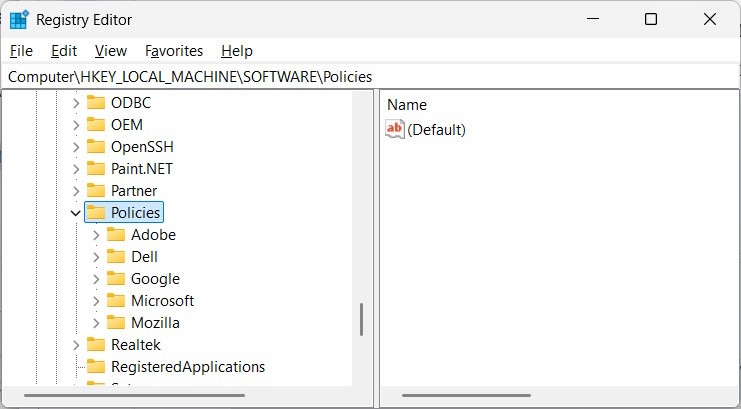
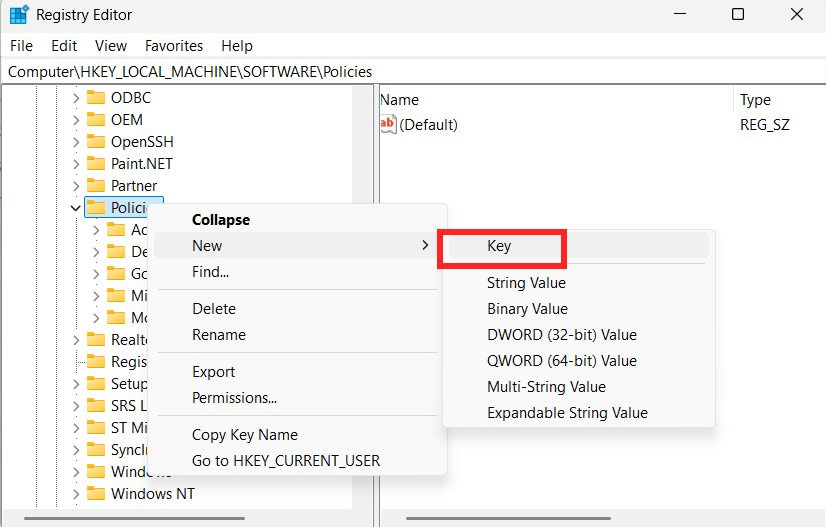
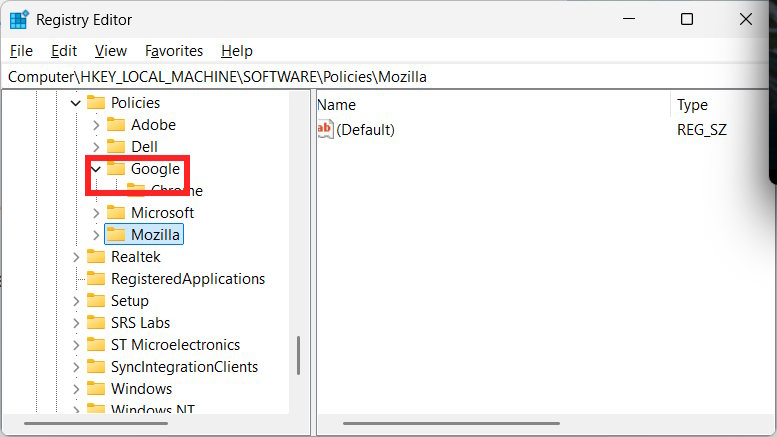
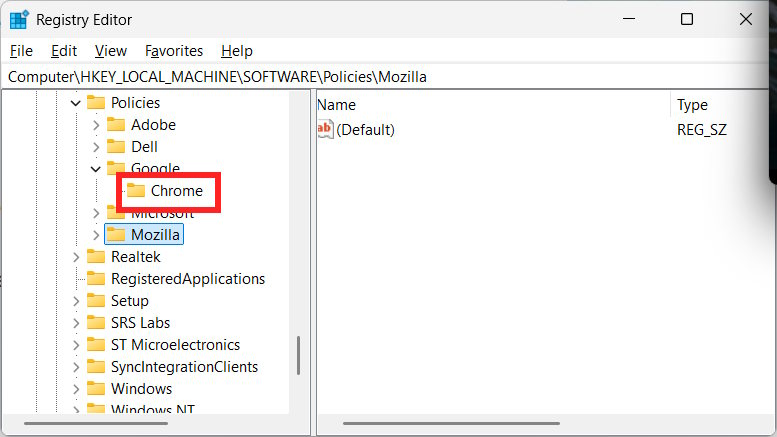
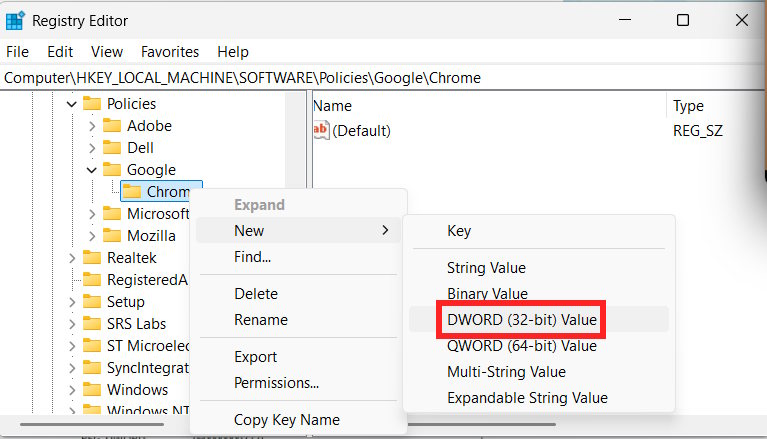
The following screenshots show a Windows Registry policy workflow. They are relevant to administrators maintaining that configuration; Chrome's current settings toggle is the direct route for an individual user.
- In Registry Editor, locate
HKEY_LOCAL_MACHINESOFTWAREPoliciesGoogleChrome. Create theGoogleandChromekeys only if your deployment uses this policy path and they are missing.
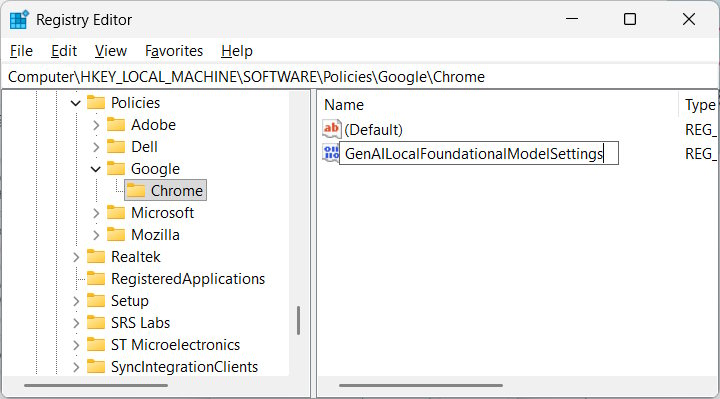
- Under the Chrome key, create a DWORD (32-bit) named
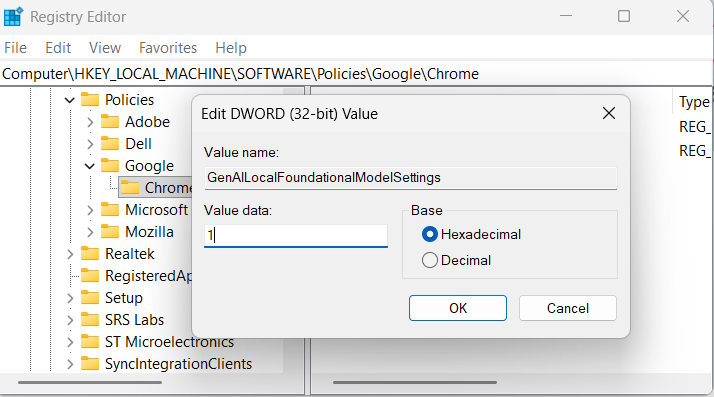
GenAILocalFoundationalModelSettingsand set its value to1for the disallowed setting. Confirm the policy value and support for your Chrome version against the current Chrome Enterprise policy list.
After policy refresh or a Chrome restart, check chrome://policy for the applied setting. Changing this policy can affect other on-device AI capabilities; do not infer that it disables cloud-based Gemini or AI Mode in Search. Those are separate controls, as explained in our guide to AI controls in Chrome's address bar.
Related Articles
 Does Chrome Download Gemini Nano? How to Check and Remove It10 minutes read
 Chrome Is Using Gemini Nano AI to Detect Phishing5 minutes read
 10 Best Photo Creation Prompts Using Google Gemini's Nano: Key Takeaways8 minutes read
 Gemini on Google Chrome Helps Users Save Time8 minutes read
 Google Launches Gemini 3 Pro Image: Next-generation Imaging Model with Higher Accuracy4 minutes read
 How to Use Nano Banana to Create Effective AI Images3 minutes read
Reader Comments 0
Sign in with email or Google to join the discussion.