Table of Contents
Explore tips to turn realtime into Android lock password, including the key concepts, practical examples, important considerations, and useful guidance.
How to use realtime as Android password
Step 1
We download the Screen Lock - Time Password application from the link below.
- Download Screen Lock - Time Password
Step 2
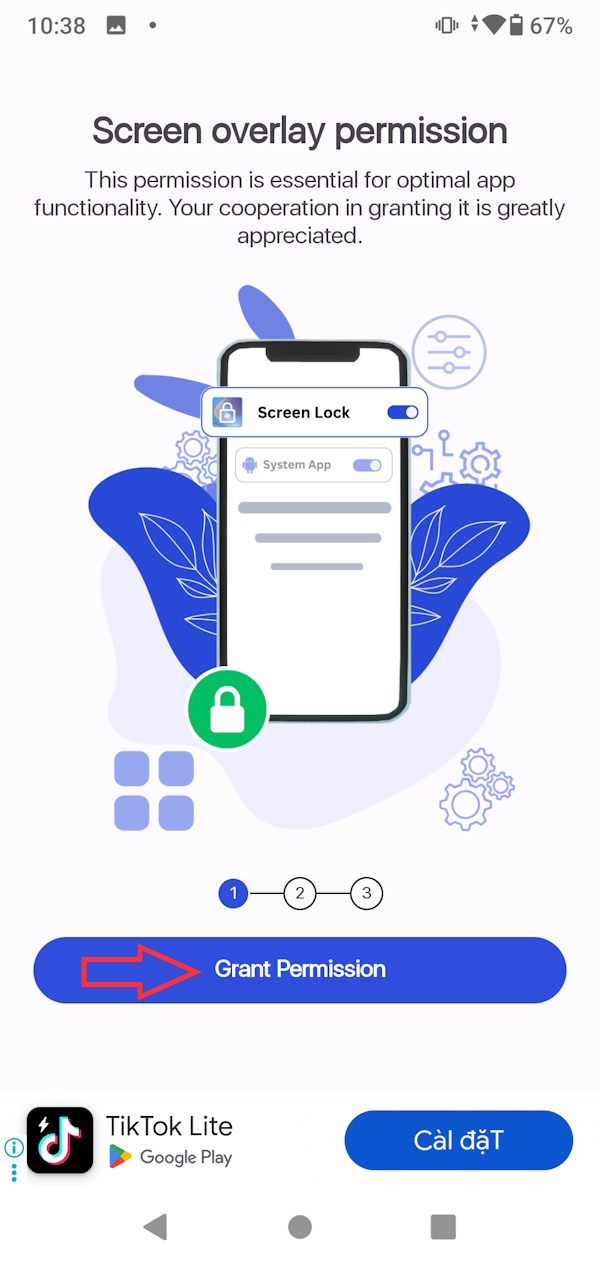
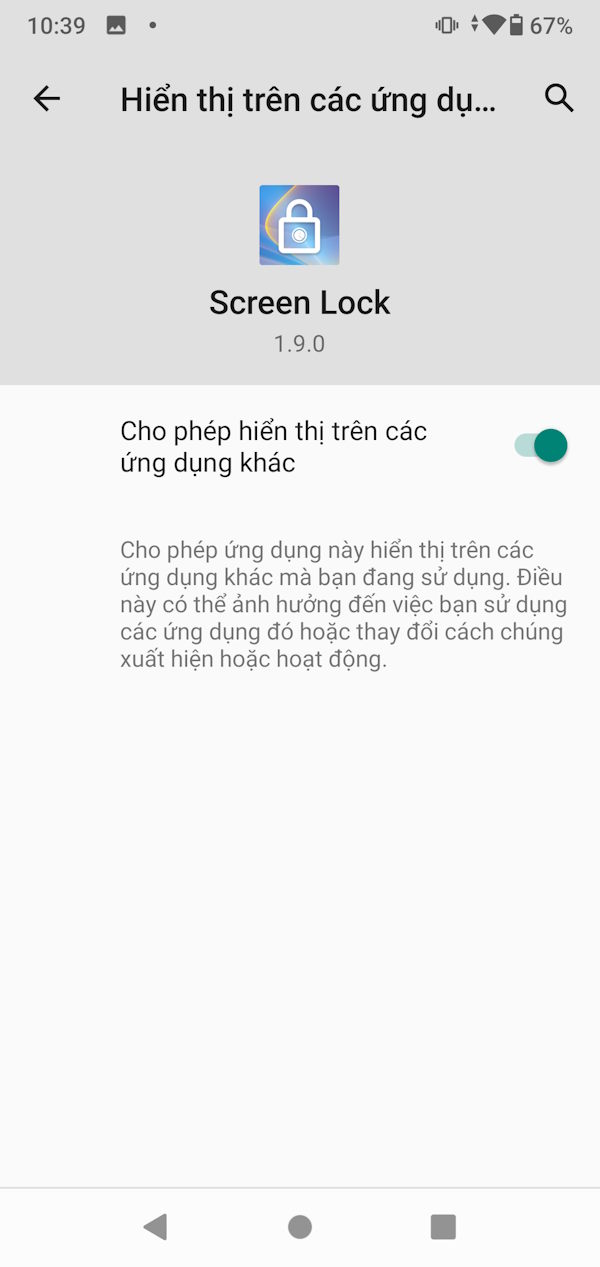
After installing the application, click Grant Permission to grant permission to use the application. You need to activate the mode so that the application appears above all other applications .
Step 3
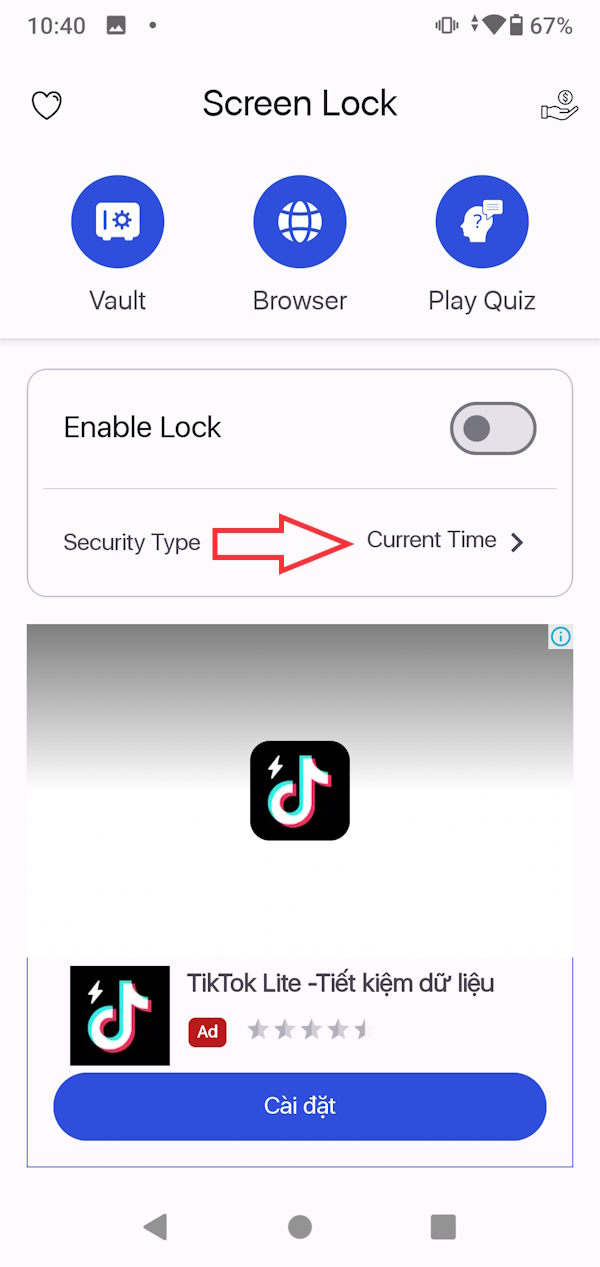
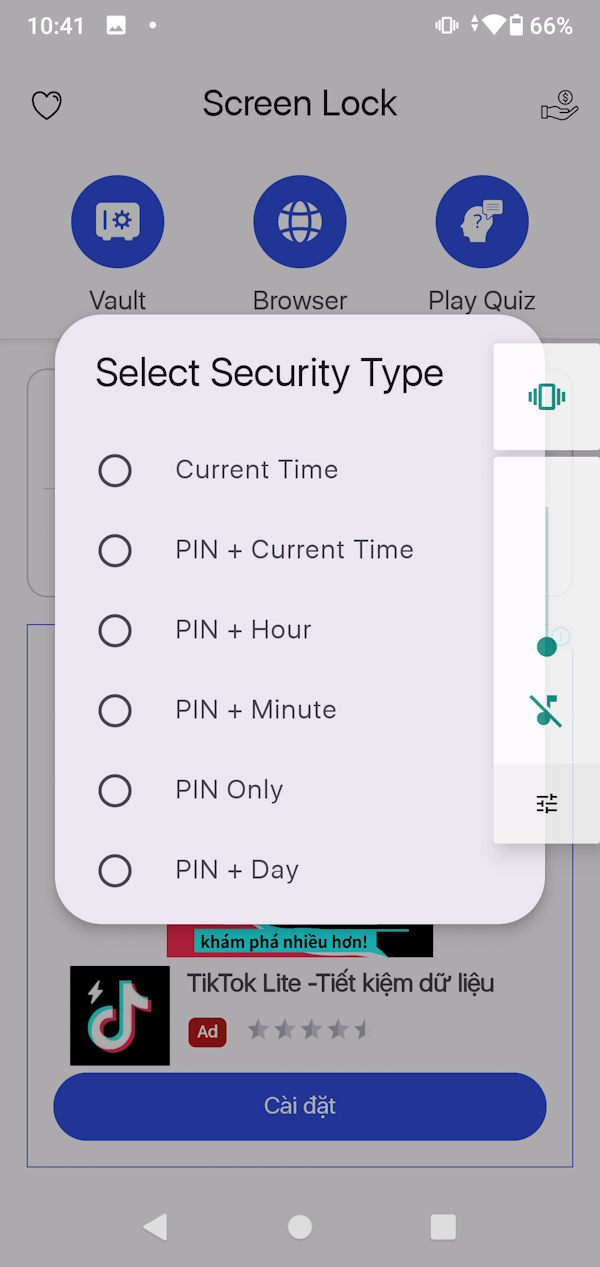
Access the main interface of the application you need to activate Enable Lock to use the password mode as clock time. We can choose the type of password you want.
Step 4
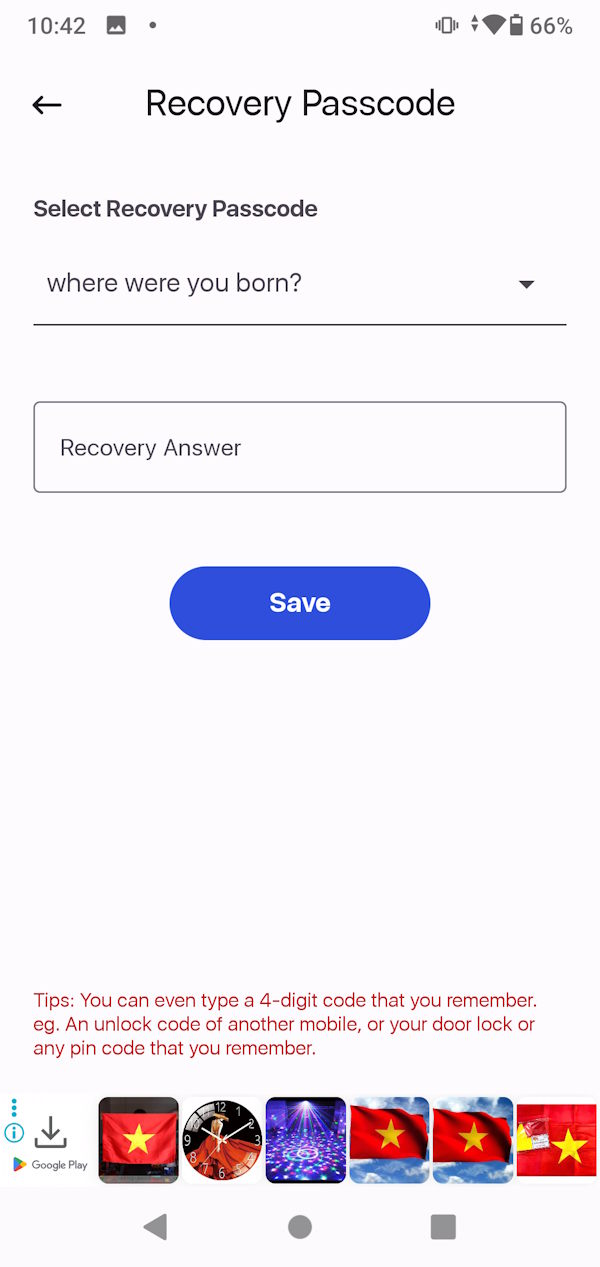
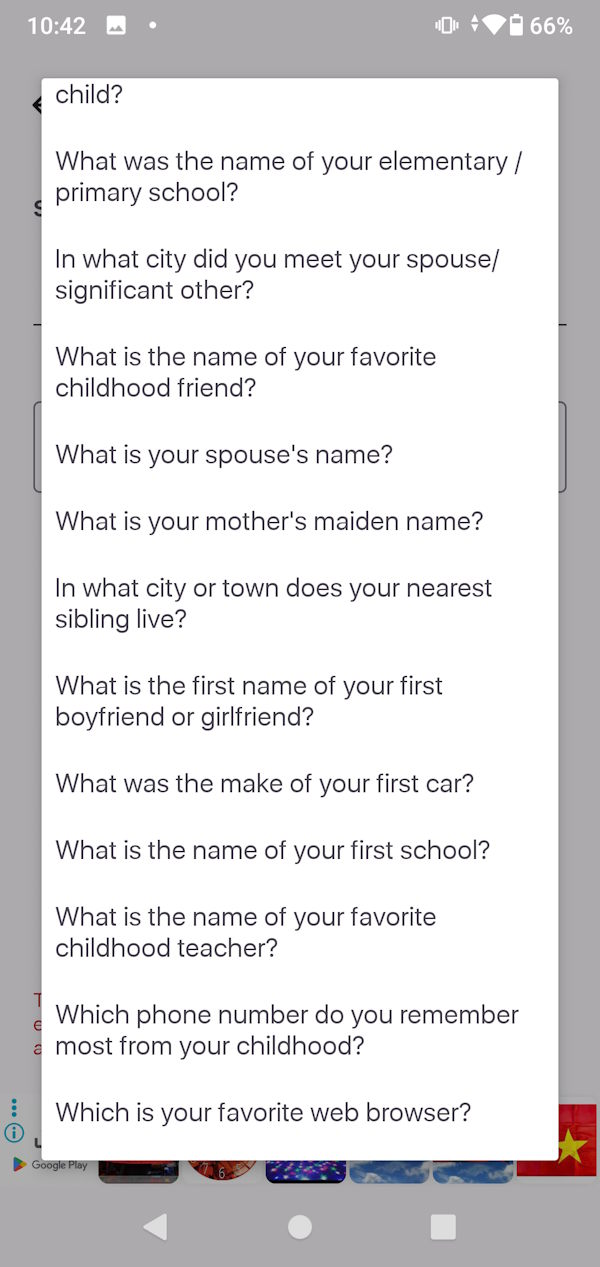
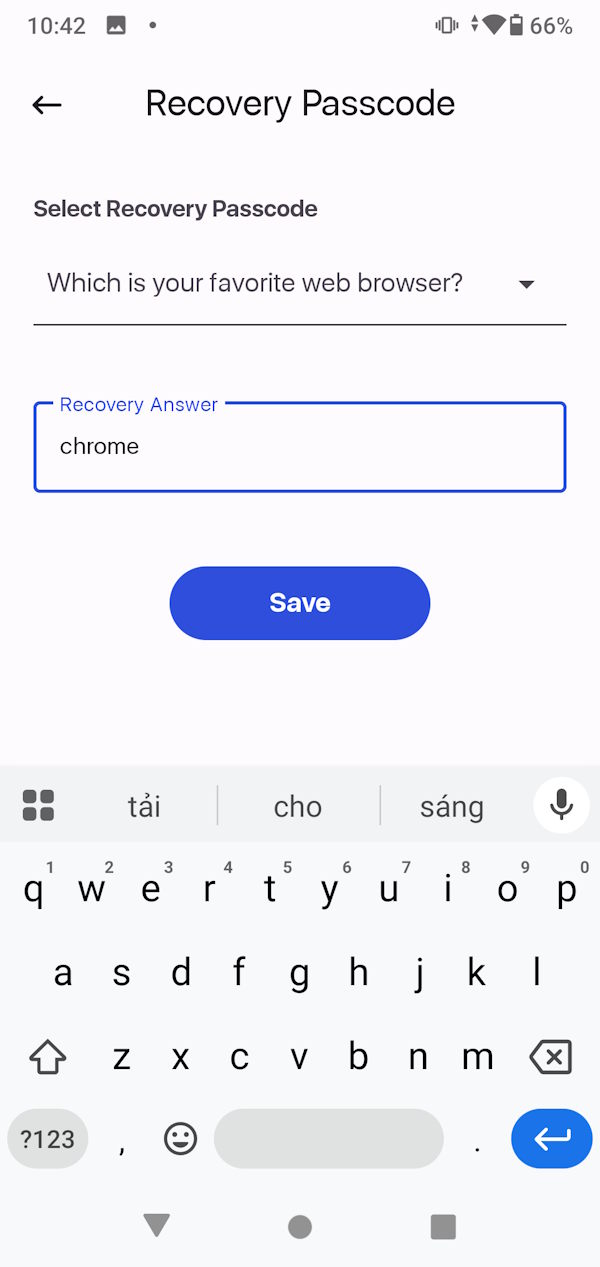
You will then be given a choice of questions and answers to use in case you forget your password. We choose the questions and answers to save.
Step 5
Scroll down to Look & Feel and you can tap Preview to preview the lock screen.
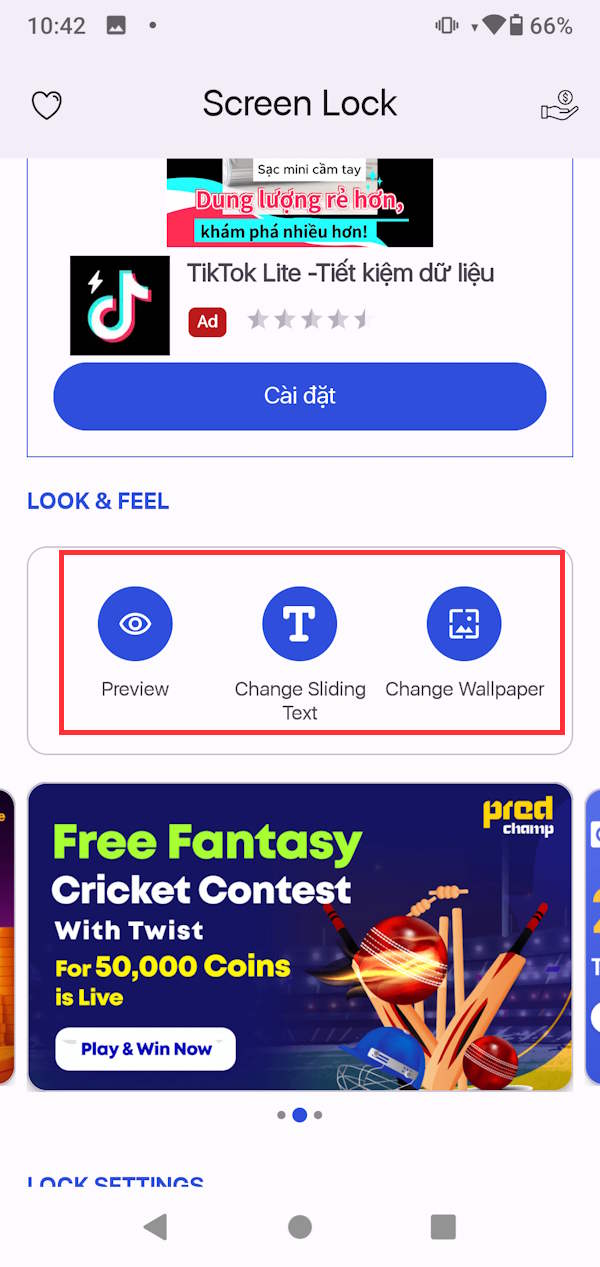
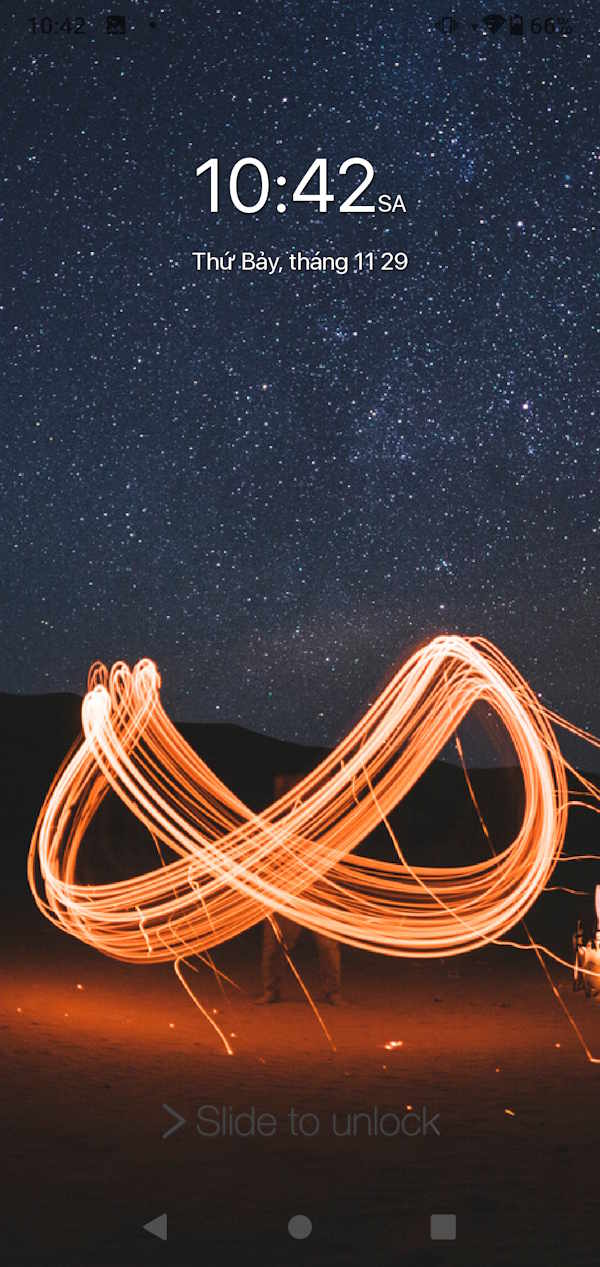
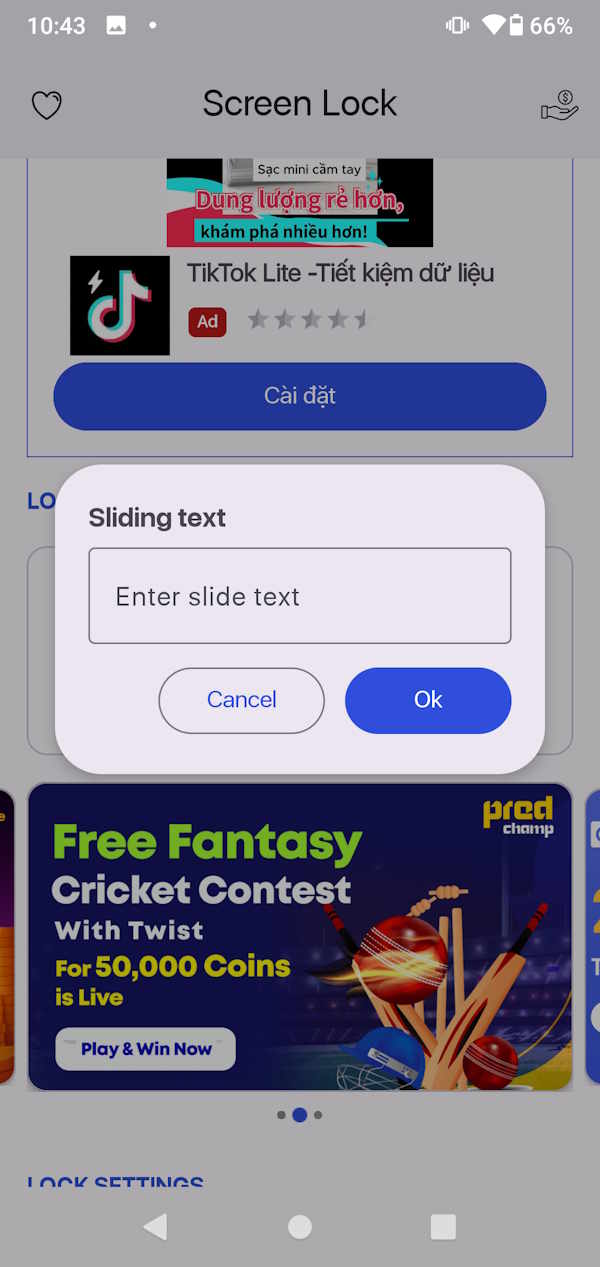
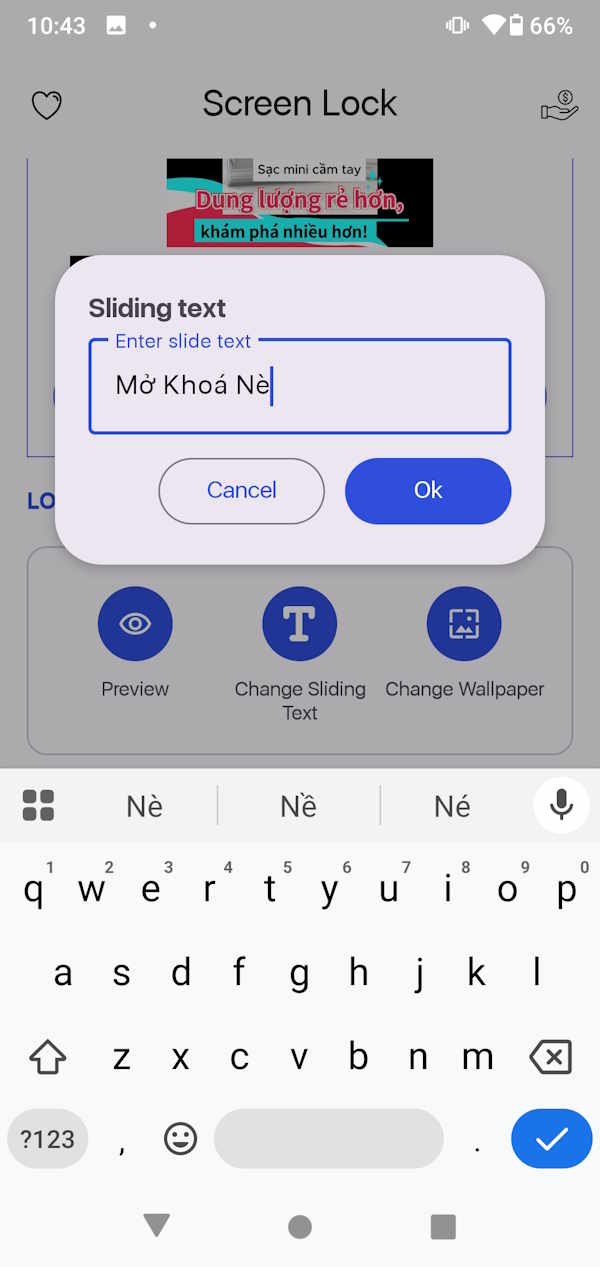
You can change the unlock line that appears at the bottom of the screen if you want.
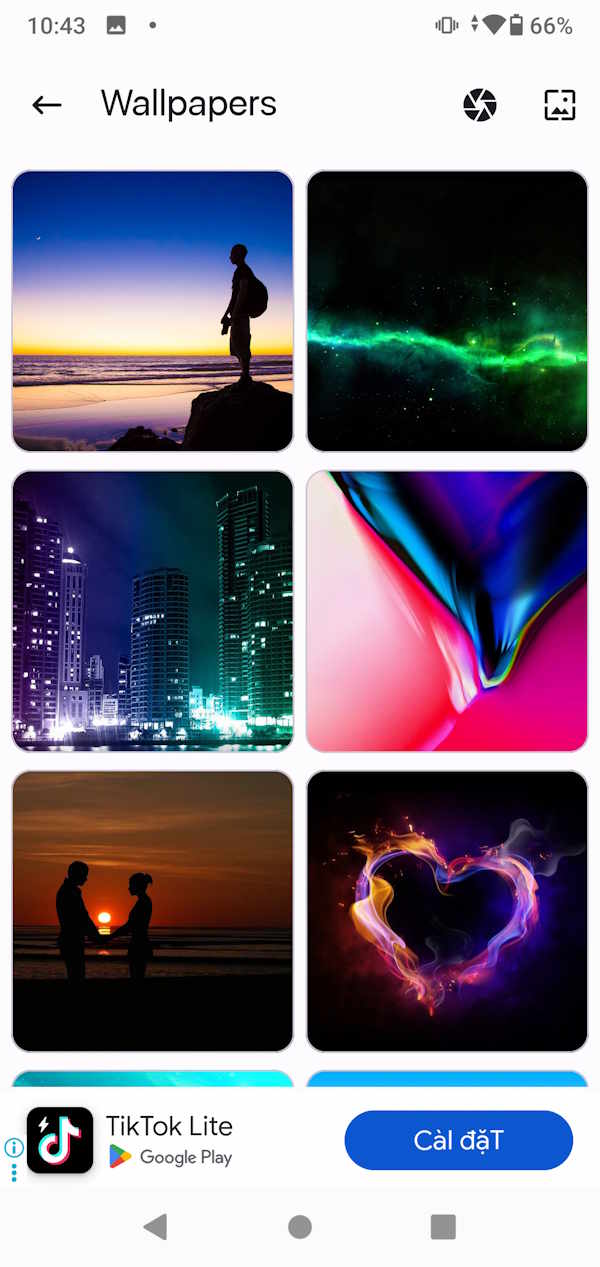
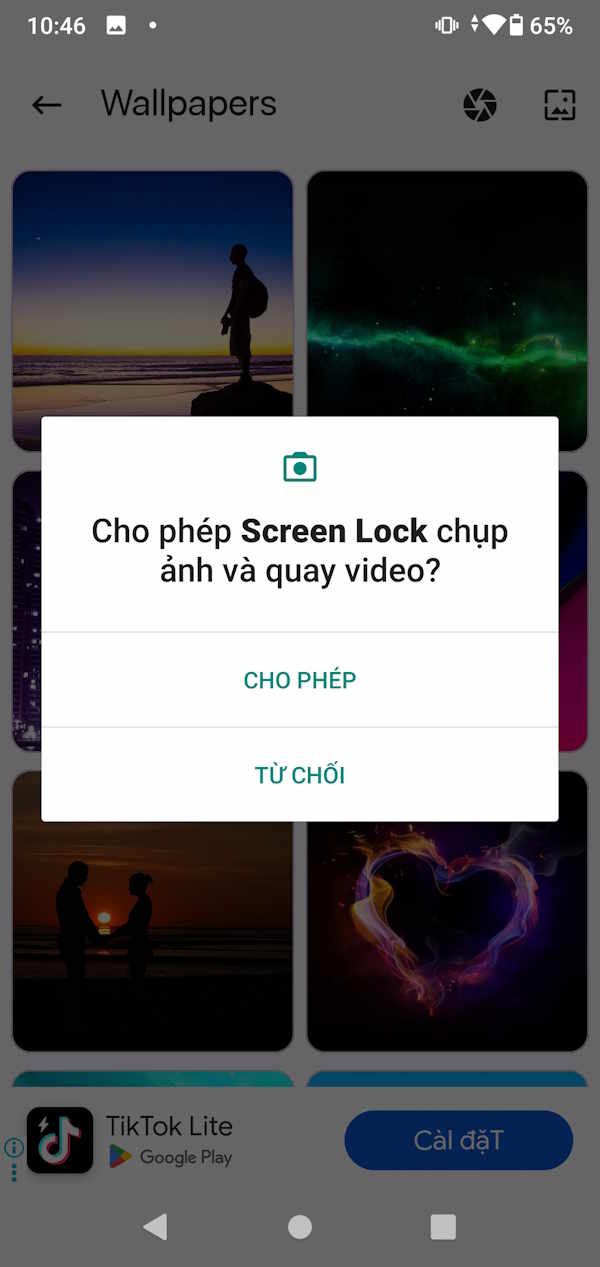
Next, choose a new wallpaper available in the app, or you agree to let Screen Lock access the album and camera.
Step 6
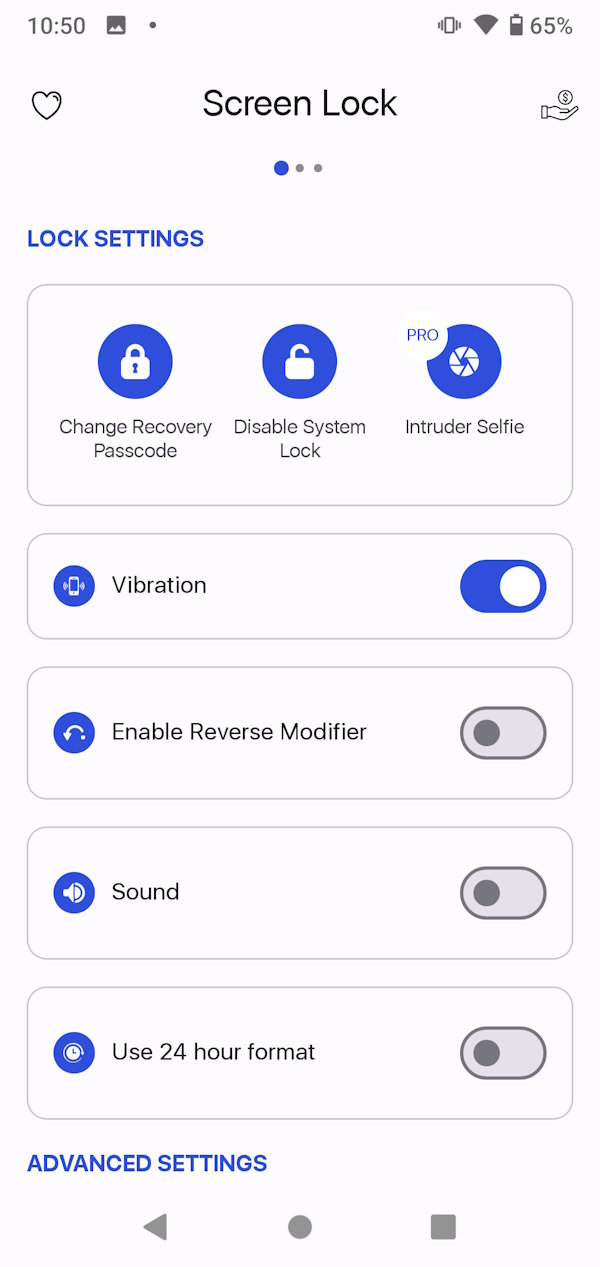
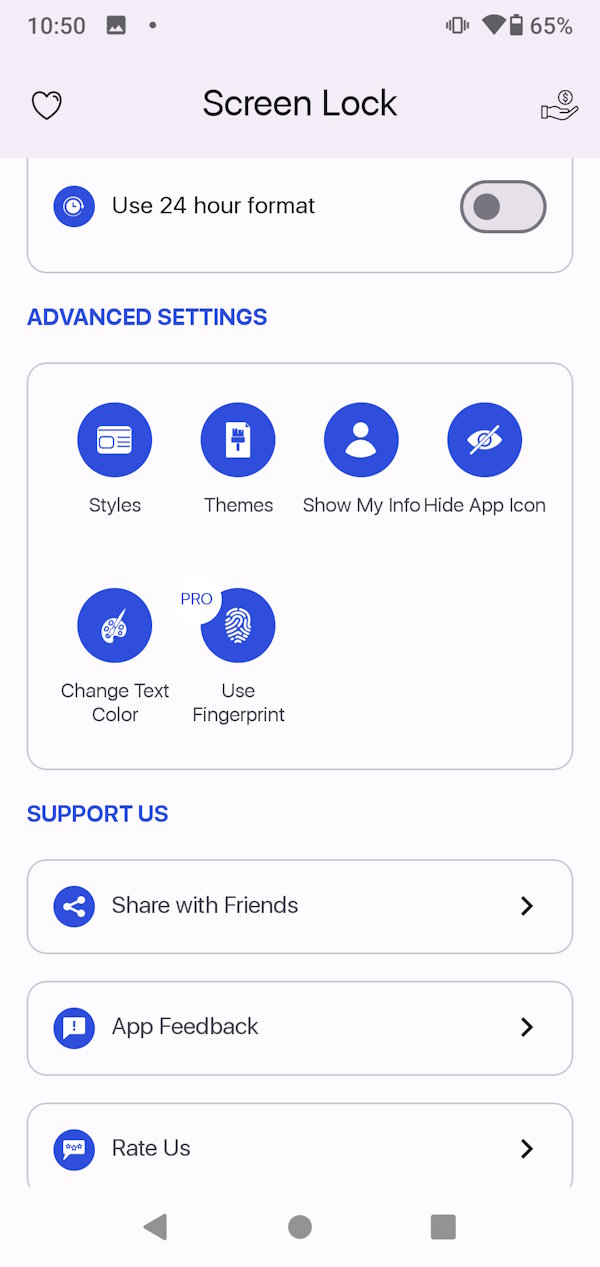
We scroll down below to change some other settings you want.
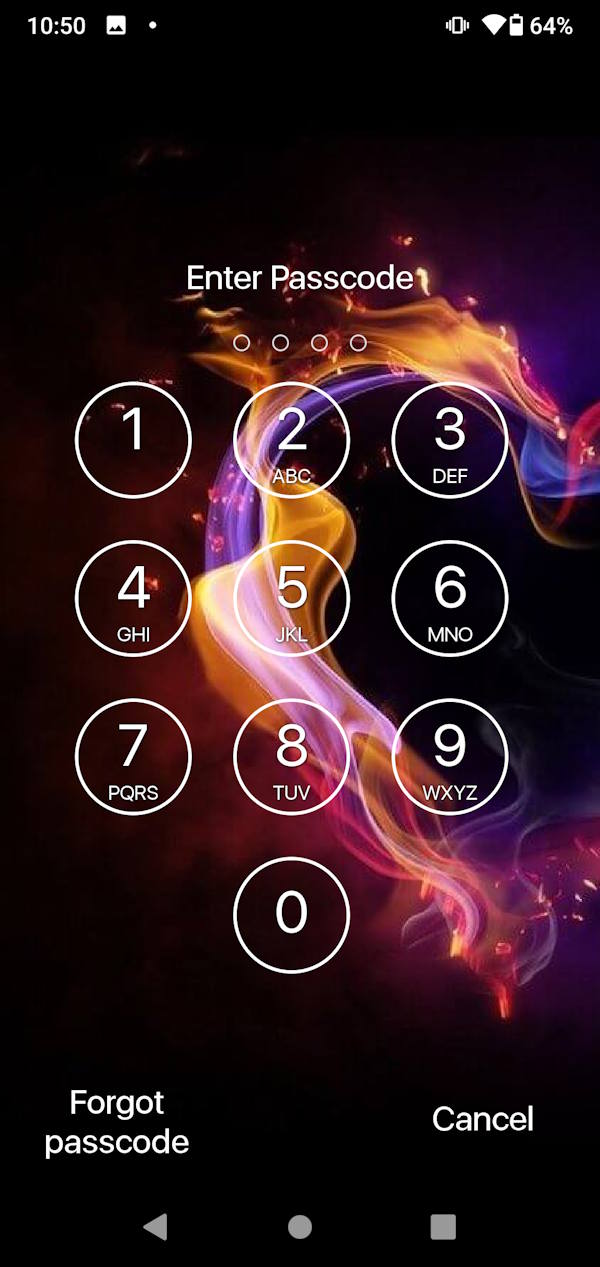
Now when you lock your device slide to unlock and enter the correct time shown on the screen to unlock your Android. The passcode changes continuously according to the real time shown.

To remove the clock password mode, just turn off Enable Lock.
Final Thoughts
Understanding tips to turn realtime into android lock password makes it easier to evaluate the information and apply the most relevant recommendations. Focus on the key points above and verify details that may change over time.
FAQ
What is tips to turn realtime into android lock password?
Explore tips to turn realtime into Android lock password, including the key concepts, practical examples, important considerations, and useful guidance.
What key points does this article cover?
The article focuses on How to use realtime as Android password, Step 1, Step 2, with practical explanations and examples.
How can you use this information in practice?
Use the explanations to compare options, verify important details, and make a more informed decision. Apply the recommendations that best match your goals and situation.
Related Articles
 How to Create an Android Phone Password Changes Every Hour5 minutes read
 How to Lock Screen by Image on Android Phone5 minutes read
 How to Enable/Disable Smart Lock on Android6 minutes read
 How to Turn Off the Touch Screen on Android Phones for Children7 minutes read
 How to Set a Password for Android Phone Messages5 minutes read
 Custom Android Lock Screen Tips You Shouldn't Overlook7 minutes read
Reader Comments 0
Sign in with email or Google to join the discussion.