Table of Contents
Explore instructions to enable password autofill on edge, including the key concepts, practical examples, important considerations, and useful guidance.
How to enable password autofill on Edge
Step 1
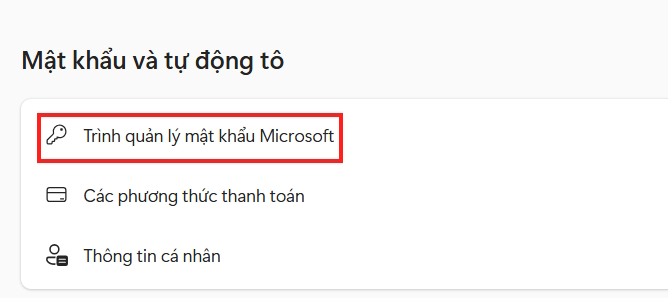
We open the Edge browser settings , then click on Passwords and auto-fill on the left side of the interface.

Then look to the side and click on Password Manager .
Step 2
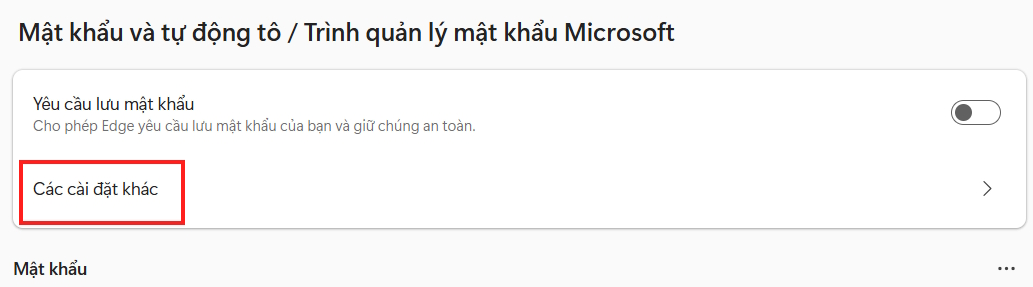
Continue tapping More settings to expand the password manager on Edge.
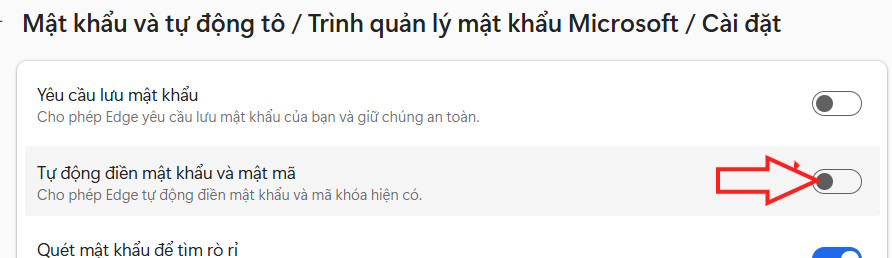
First you need to enable Autofill passwords and passcodes .
Step 3
Immediately after that, you will see below 3 more options to set up automatic password and passcode filling mode named Edge , including:
- Fill in website passwords and log in automatically or with available password hints.
- Require device login option before viewing or filling in website passwords.
- Require custom master password before viewing or filling in website passwords

Step 4
With the first setup you are asked to enter the device password to make the request.
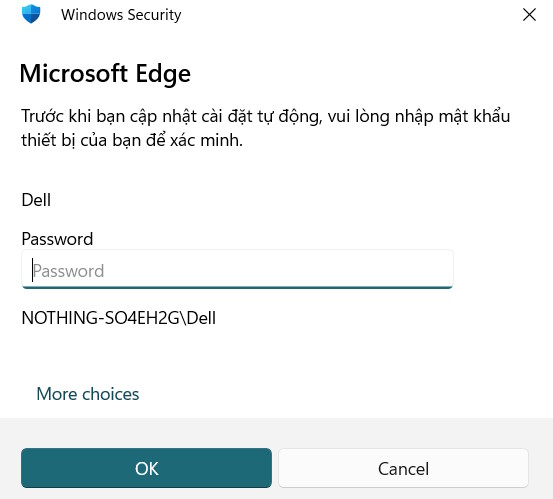
If you choose the second setting , you will also need to enter your device password. Then you will see the option to Always request or Request each time for each browsing session .
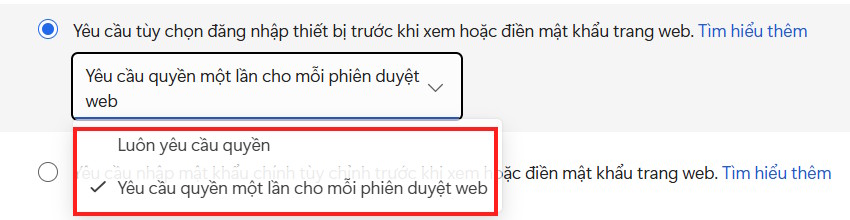
The third option is to create your own password if you want to view saved passwords and passcodes on Edge to autofill.
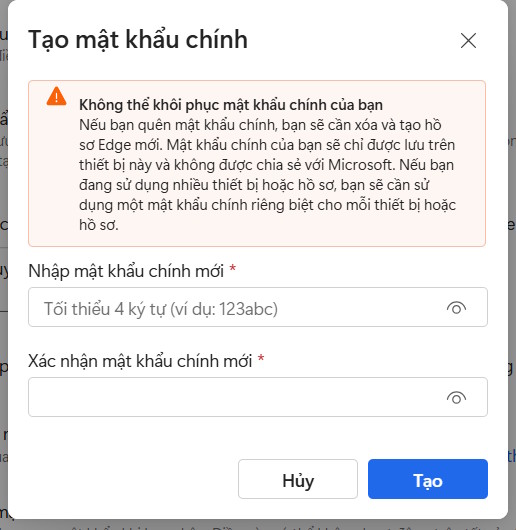
We choose the type of auto-fill password on Edge we want to use and then press OK to save.
Final Thoughts
Understanding instructions to enable password autofill on edge makes it easier to evaluate the information and apply the most relevant recommendations. Focus on the key points above and verify details that may change over time.
FAQ
What is instructions to enable password autofill on edge?
Explore instructions to enable password autofill on edge, including the key concepts, practical examples, important considerations, and useful guidance.
What key points does this article cover?
The article focuses on How to enable password autofill on Edge, Step 1, Step 2, with practical explanations and examples.
How can you use this information in practice?
Use the explanations to compare options, verify important details, and make a more informed decision. Apply the recommendations that best match your goals and situation.
Related Articles
 How to Turn Off Password Autofill on Microsoft Edge: Step-by-Step Guide2 minutes read
 How to enable or disable AI for Autofill on Microsoft Edge4 minutes read
 How to Use AutoFill on iPhone7 minutes read
 Why Should You Turn Off the Autofill Feature in the Password7 minutes read
 How to Enable Automatic HTTPS on Edge2 minutes read
 Instructions for Viewing and Managing Passwords Saved on Edge and4 minutes read
Reader Comments 0
Sign in with email or Google to join the discussion.