Table of Contents
Explore tips for importing passwords and bookmarks from safari to chrome extremely.
How to import bookmarks from Safari to Chrome
Step 1
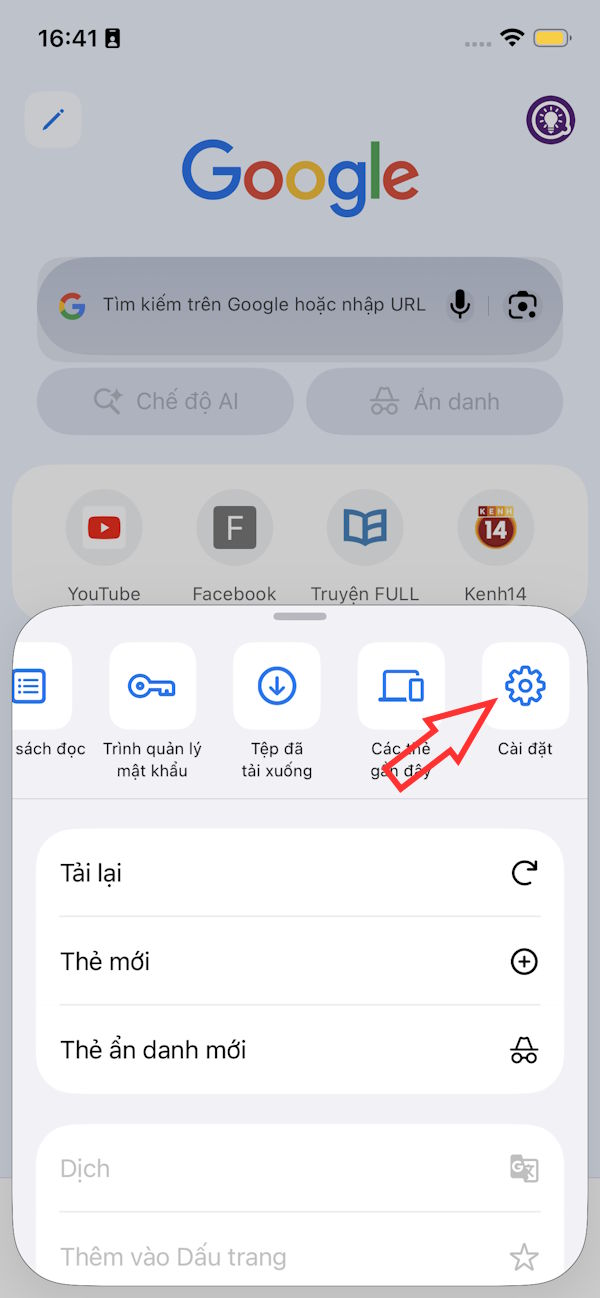
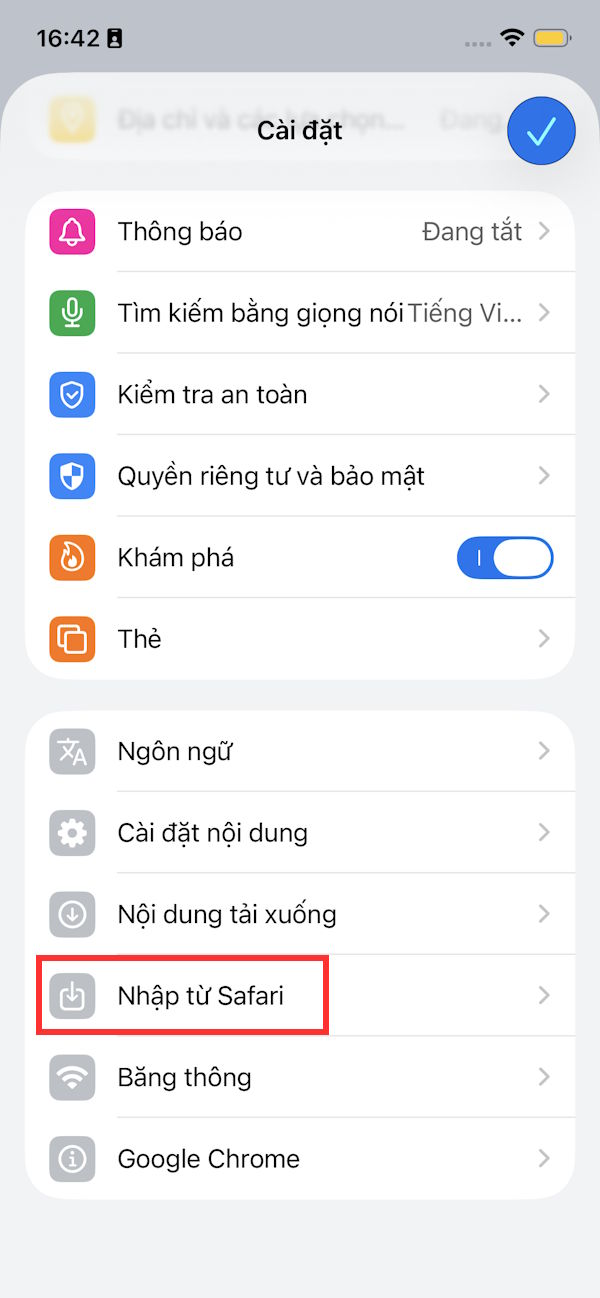
On the Chrome interface on your iPhone, tap the three-dot icon , then select Settings . Scroll down and select Import from Safari .

Step 2
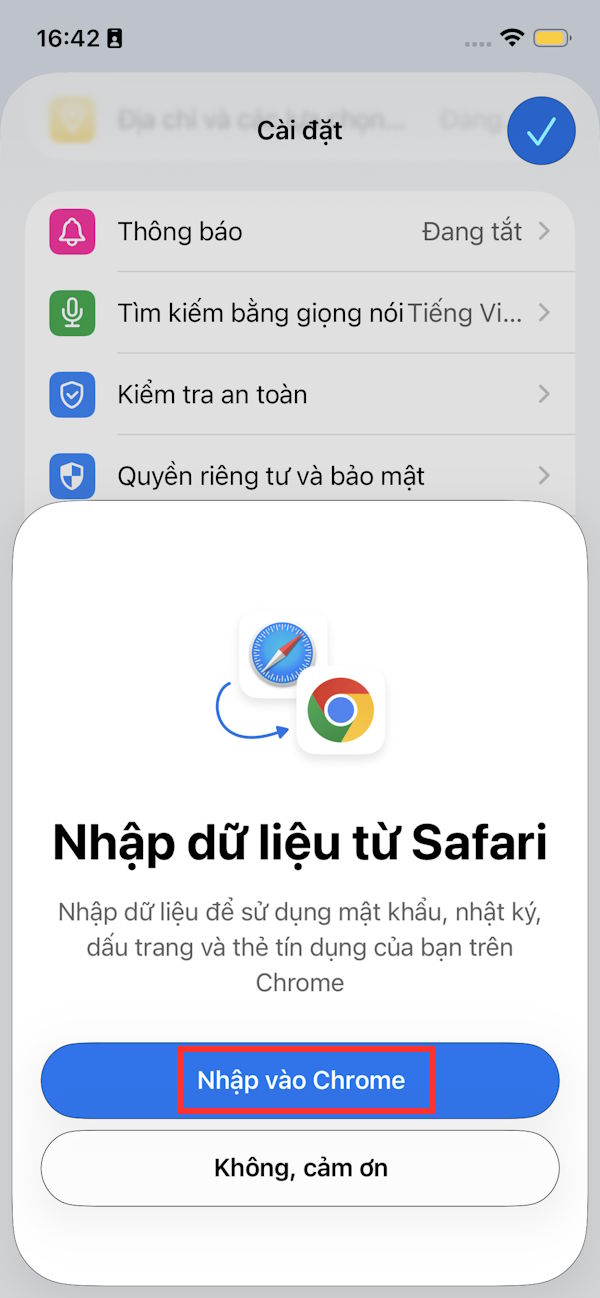
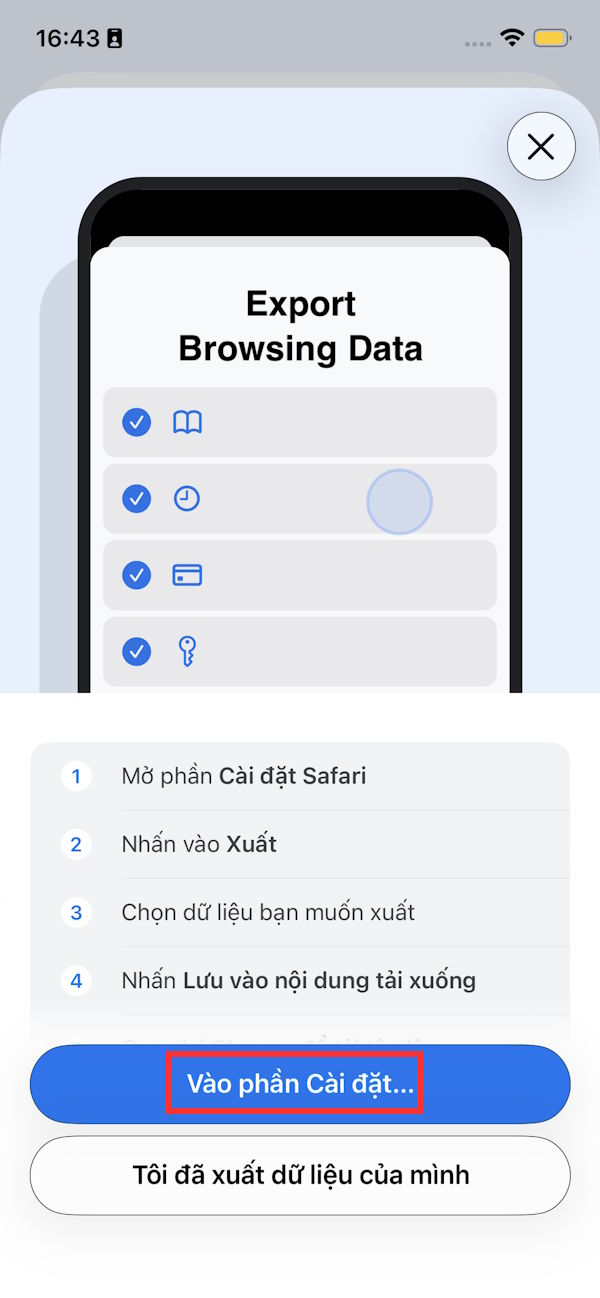
A notification will appear at the bottom of the interface; tap "Import into Chrome ." You will then see step-by-step instructions; tap "Go to Settings ." On the Safari settings interface, tap "Export ."
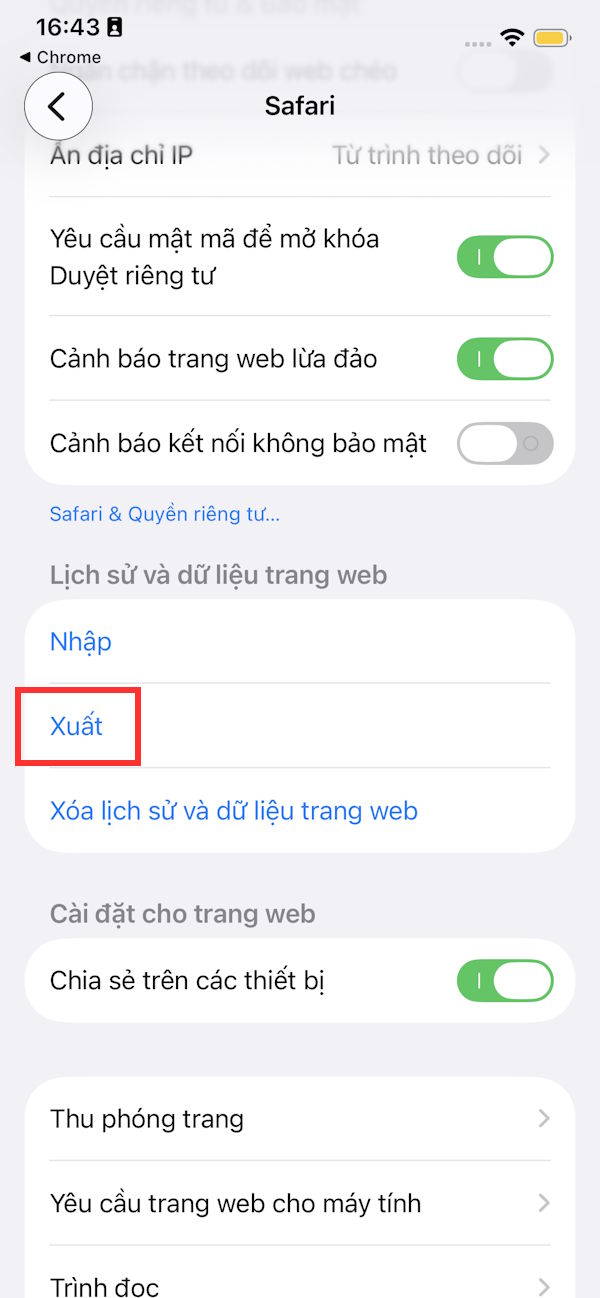
Step 3
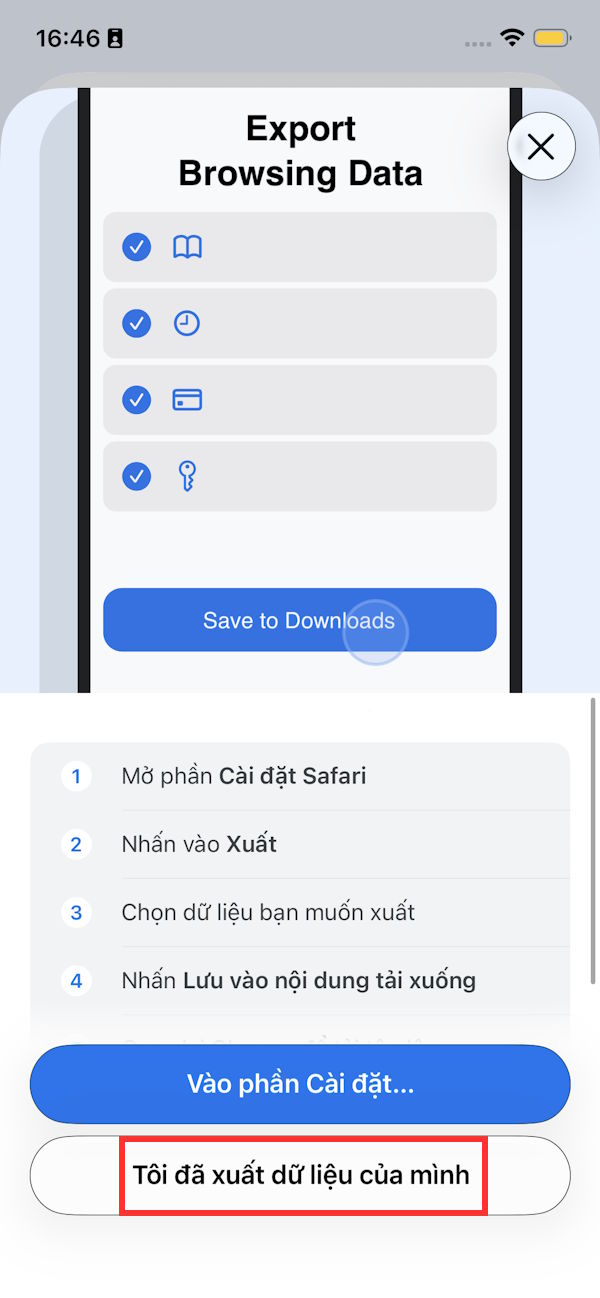
At this point, you'll see the option to export which data you want from Safari . Select it and then tap Save to Download . The selected Safari data will then be exported as a zip file and saved to the Downloads app on your iPhone.


Step 4
Return to the tutorial interface, then click on "I have exported my data ". Click " Select your file" to continue.

Step 5
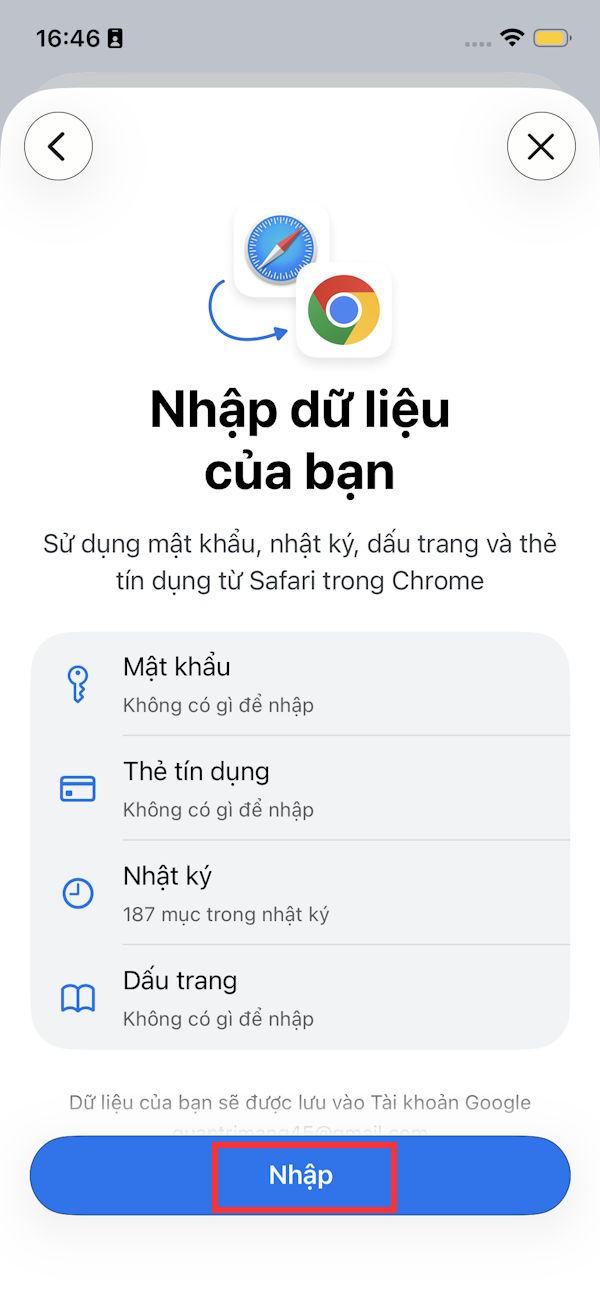
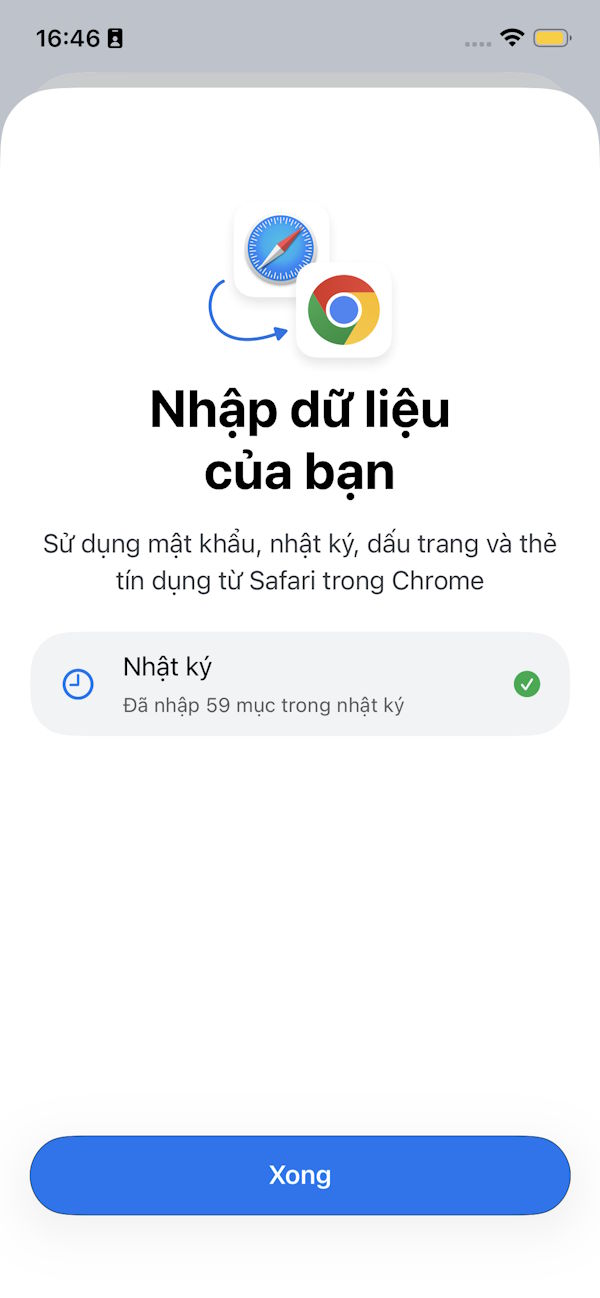
Open the Files app on your iPhone and simply tap the Safari data zip file to import it into Chrome. Finally, tap Import and wait for the process to complete.
Final Thoughts
Understanding tips for importing passwords and bookmarks from safari to chrome extremely quickly makes it easier to evaluate the information and apply the most relevant recommendations. Focus on the key points above and verify details that may change over time.
FAQ
What is tips for importing passwords and bookmarks from safari to chrome extremely quickly?
Explore tips for importing passwords and bookmarks from safari to chrome extremely.
What key points does this article cover?
The article focuses on How to import bookmarks from Safari to Chrome, Step 1, Step 2, with practical explanations and examples.
How can you use this information in practice?
Use the explanations to compare options, verify important details, and make a more informed decision. Apply the recommendations that best match your goals and situation.
Related Articles
 How to Export Safari Bookmarks from iPhone3 minutes read
 Useful Tips for Organizing Bookmarks in the Browser9 minutes read
 How to Import Google Chrome Bookmarks to Edge3 minutes read
 How to Copy Bookmarks on the Safari Browser2 minutes read
 How to Properly Switch Chrome to Safari on a Mac: Step-by-Step Guide5 minutes read
 How to Secure Bookmarks on Google Chrome Browser?5 minutes read
Reader Comments 0
Sign in with email or Google to join the discussion.