Table of Contents
After switching to Obsidian, many people discovered that their sync service would add $60 to their subscription budget. So they found a completely free way to sync notes across all their devices.
How to Sync Obsidian Notes on PC and Phone
You can use your Google Drive account to sync your Obsidian notes between your PC and your Android phone. On your computer, Google Drive creates a standard folder that any app can use. Just put your Obsidian archive in there, and Google Drive will sync it to the cloud.
On Android, you need to pair the Google Drive app with an automatic sync app like AutoSync for Google Drive to enable seamless local file syncing.
Android apps can't access Google Drive file streams directly - they need local copies to work properly. This is why we need AutoSync to create a local copy of the Google Drive storage folder on our device.
This method requires a more complicated initial setup than Obsidian Sync's one-click solution, but once configured, it has been working perfectly for 3 months now.
Note : Before moving any files, make a full backup of your existing Obsidian archive. Also, if you are currently using another sync method like Dropbox or OneDrive for the same archive, disable it first. Running multiple sync services on the same folder can cause duplicate file issues.
Set up Obsidian on Google Drive for PC
Start by installing Google Drive for your desktop if you haven't already. Then sign in with your account and it will appear in File Explorer on Windows or Finder on Mac.
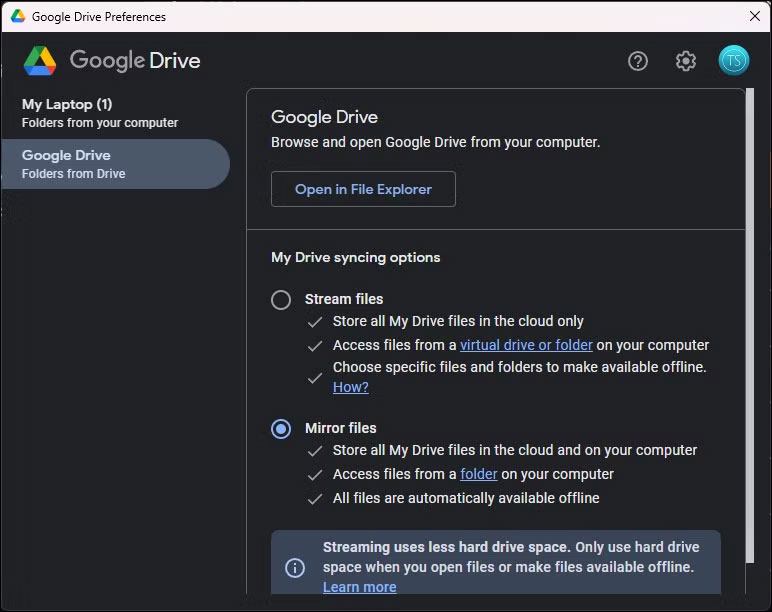
Once installed, open the Google Drive menu by clicking the icon in the system tray. Then, click the gear icon and go to Preferences .
In the Google Drive section, go to Folders from Drive and find My Drive syncing options , then select Mirror files . This setting stores a complete local copy of your files while still syncing them to the cloud. Stream mode can work, but Mirror mode helps avoid connection issues that can be annoying when Obsidian tries to save frequently.
To set up a vault, open the copied Google Drive folder on your computer — by default, this is usually located at C: Users[Your Name]My Drive on Windows or /Users/[Your Name]/My Drive on Mac.
Note : If you migrated from the older Google Backup and Sync, the folder may be C: Users[Your Name]Google Drive .
If you have an existing archive, move the entire archive folder into this Google Drive folder (you can create a subfolder like Obsidian for organization). Wait for Google Drive to finish syncing all your files; you can check the sync status in the Drive app. Most importantly, make sure the sync is complete before setting up Obsidian sync on your phone.
Set up Obsidian Vault sync on Android
On your Android phone, install Autosync for Google Drive by MetaCtrl from the Google Play Store. The free version works, although it has ads and limits you to syncing only a few folders.
Note : The free version limits uploads to 10MB per file. Consider the paid version if you have large attachments, PDFs, or images in your archive. The paid version removes ads and allows unlimited folder pairs for a small one-time fee.
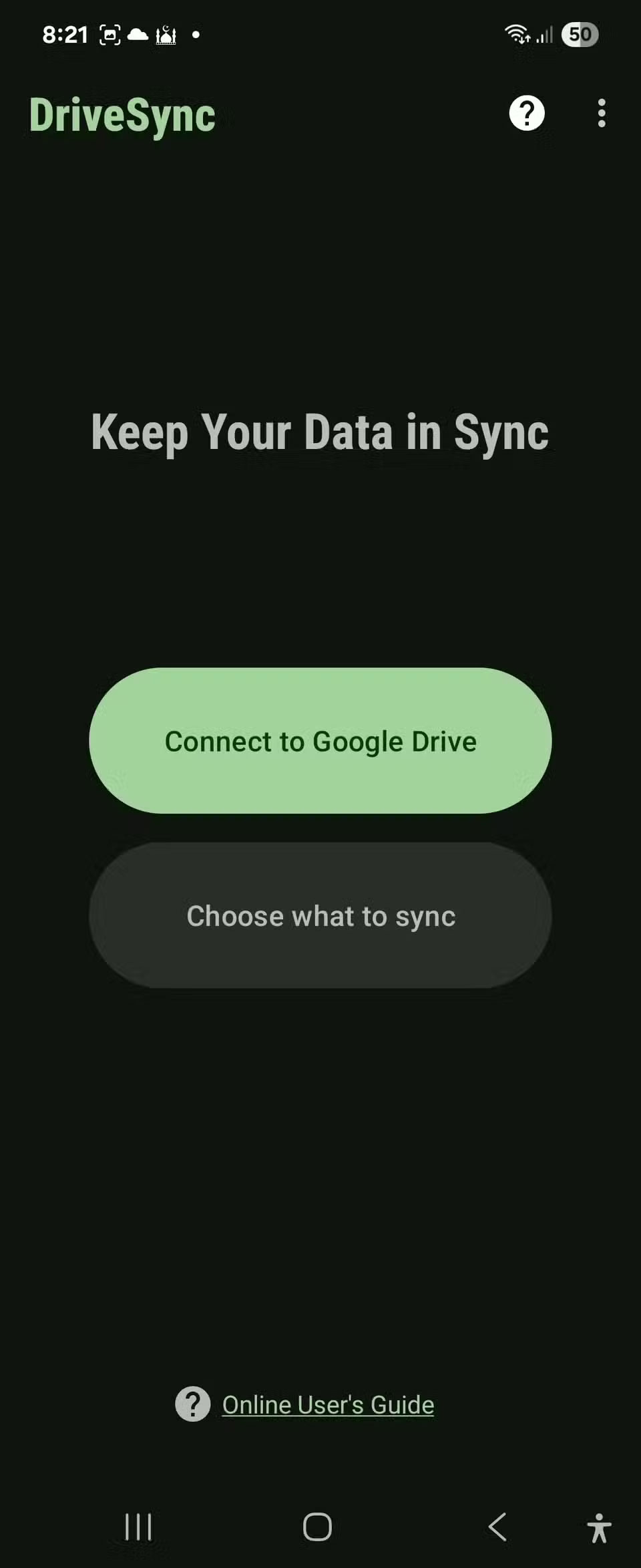
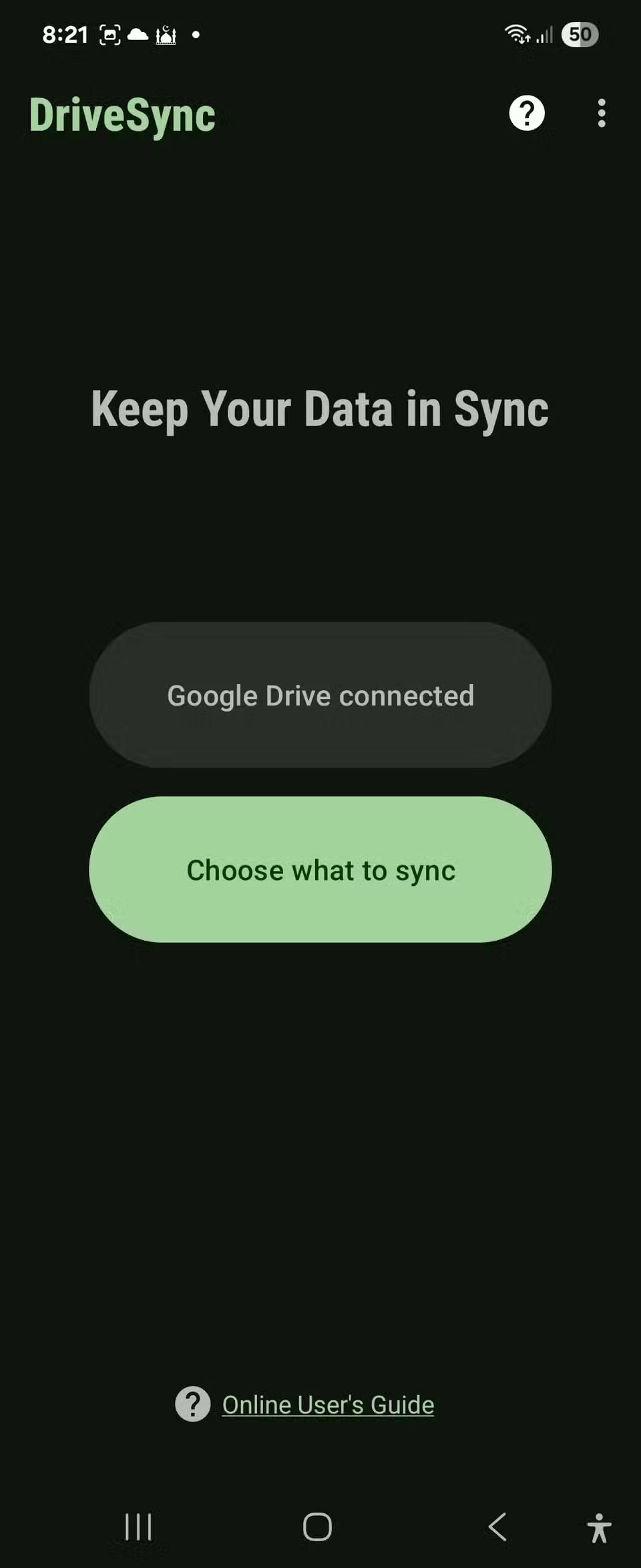
Open Autosync and connect to your Google account. Grant the necessary permissions to automatically sync your GDrive files.
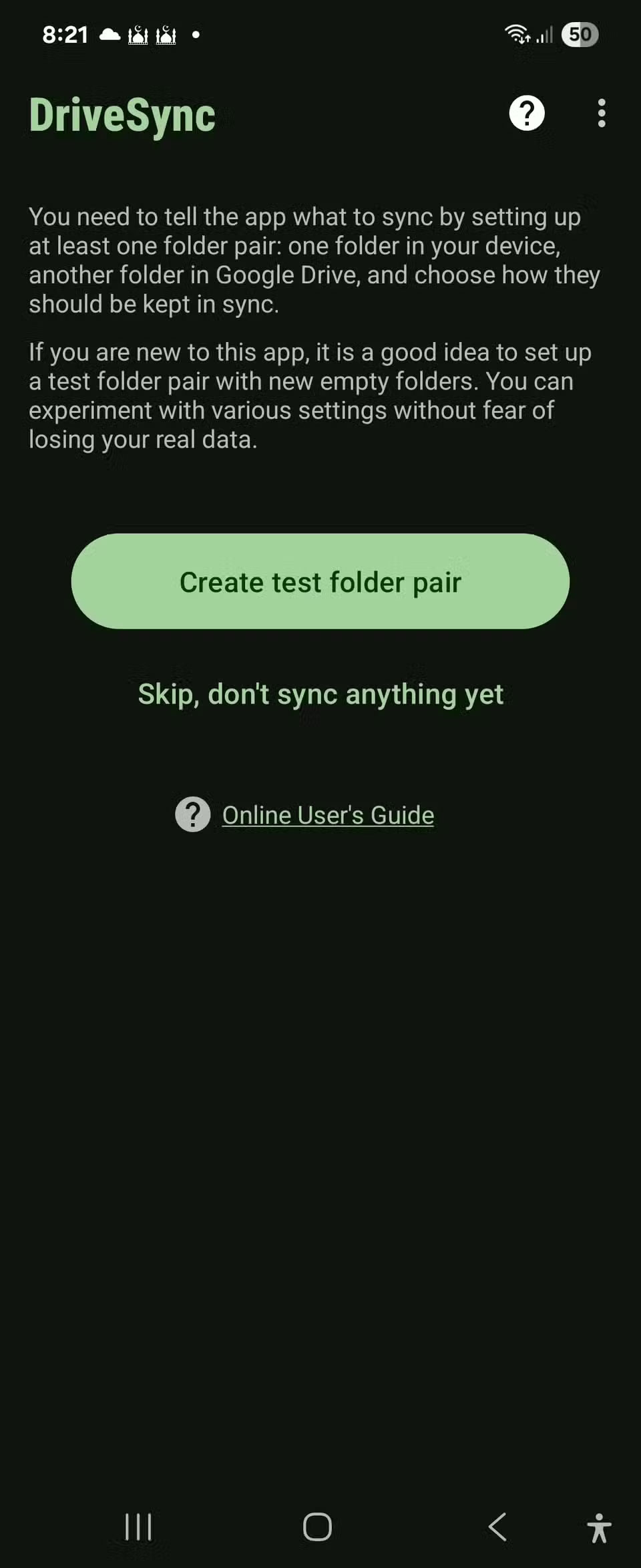
Next, click Choose what to sync , then click Create a test folder pair . This will create two folders called DriveSyncFiles , one on your Google Drive storage and another on your local storage.
Next, open the Synced folder tab and set the sync method to Two-way so that changes on one device are synced to the other. Enable Sync and turn on Autosync if you want automatic background syncing.
In the folder folder settings (not the main app settings), enable syncing of hidden files, including the.obsidian folder, which contains your settings, themes, and plugins.
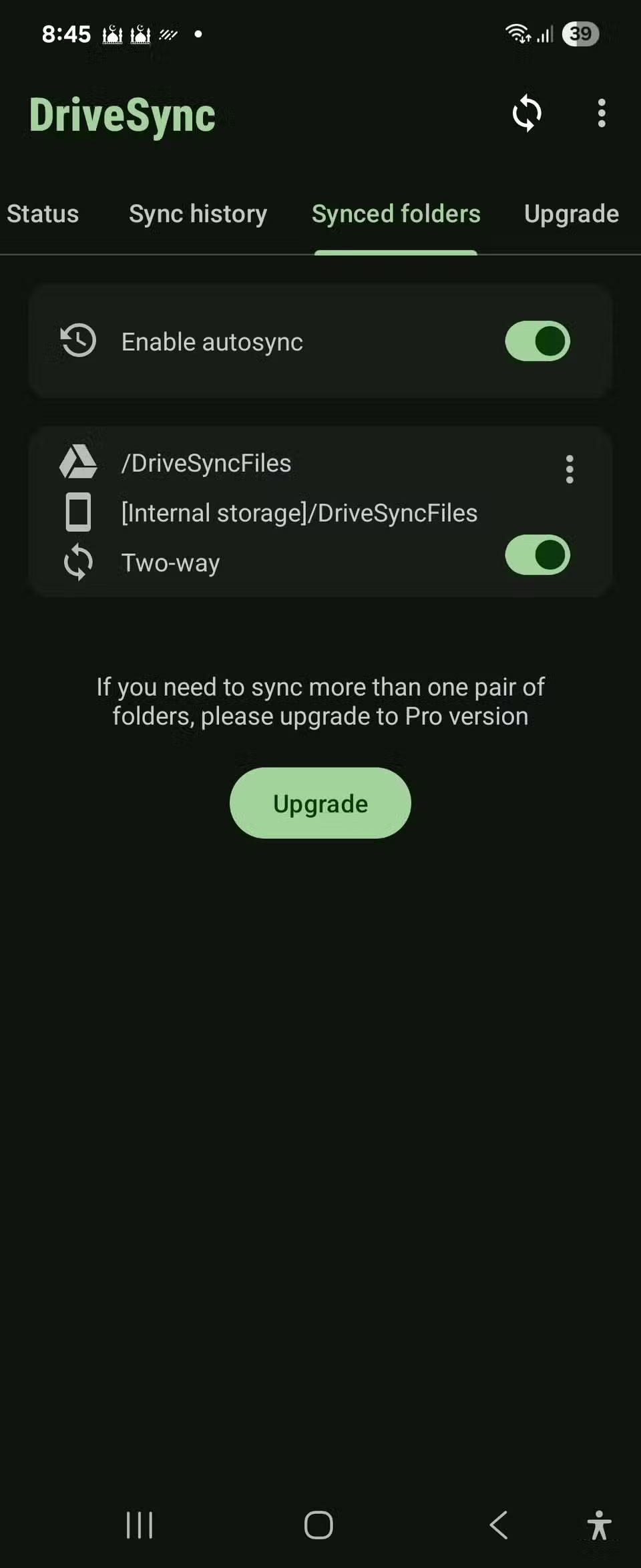
Copy Obsidian Vault to DriveSyncFiles folder
Open Google Drive and check to see if the DriveSyncFiles folder exists, which it should. If so, move or copy your existing Obsidian Vault into the DriveSyncFiles folder. You can do this from your phone or PC, but make sure to back up your vault before moving.
In the AutoSync app, tap the Sync icon (top right corner) to run a manual sync to download your vault for the first time. This initial sync may take a few minutes, depending on the size of your vault. Make sure all your notes appear in your local folder before continuing.
Open Obsidian on your phone, then tap Open folder as vault . Navigate to the DriveSyncFiles folder and tap Use this folder . Grant any permissions Obsidian asks for. Your vault will open with all your notes, settings, and plugins intact.
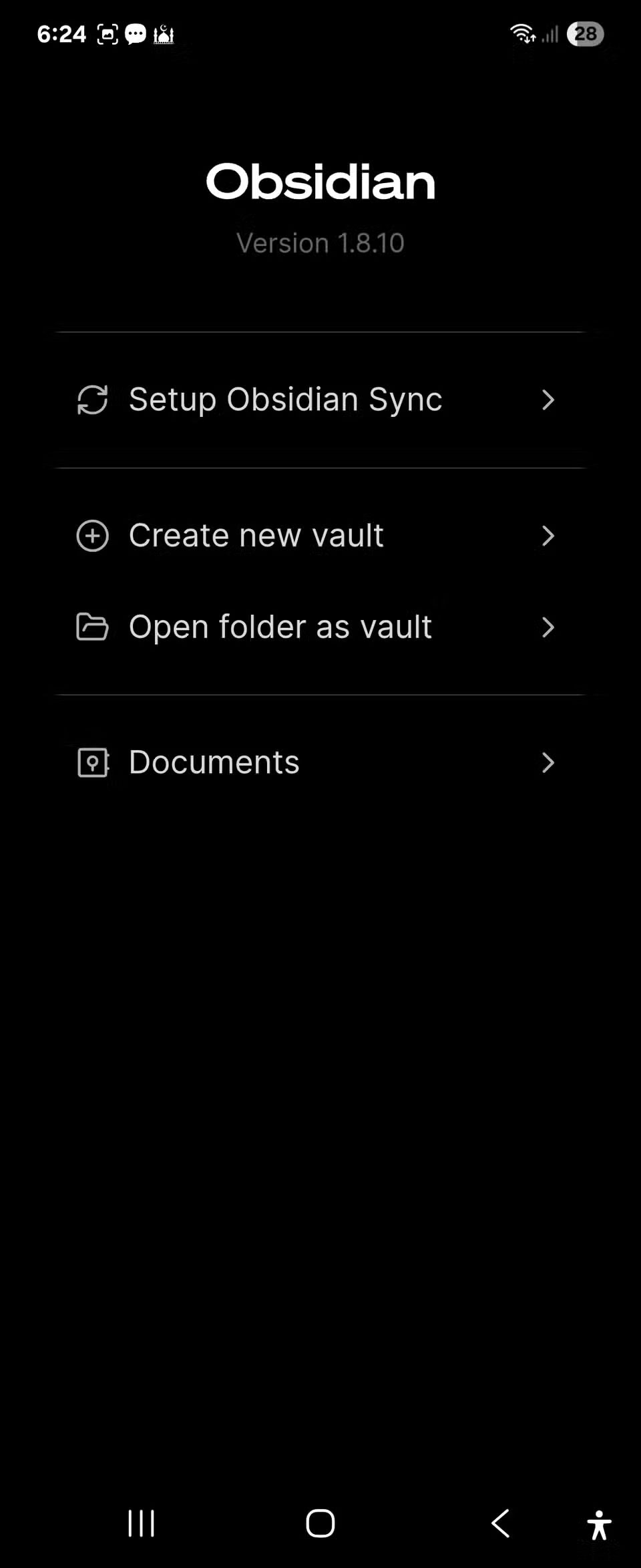
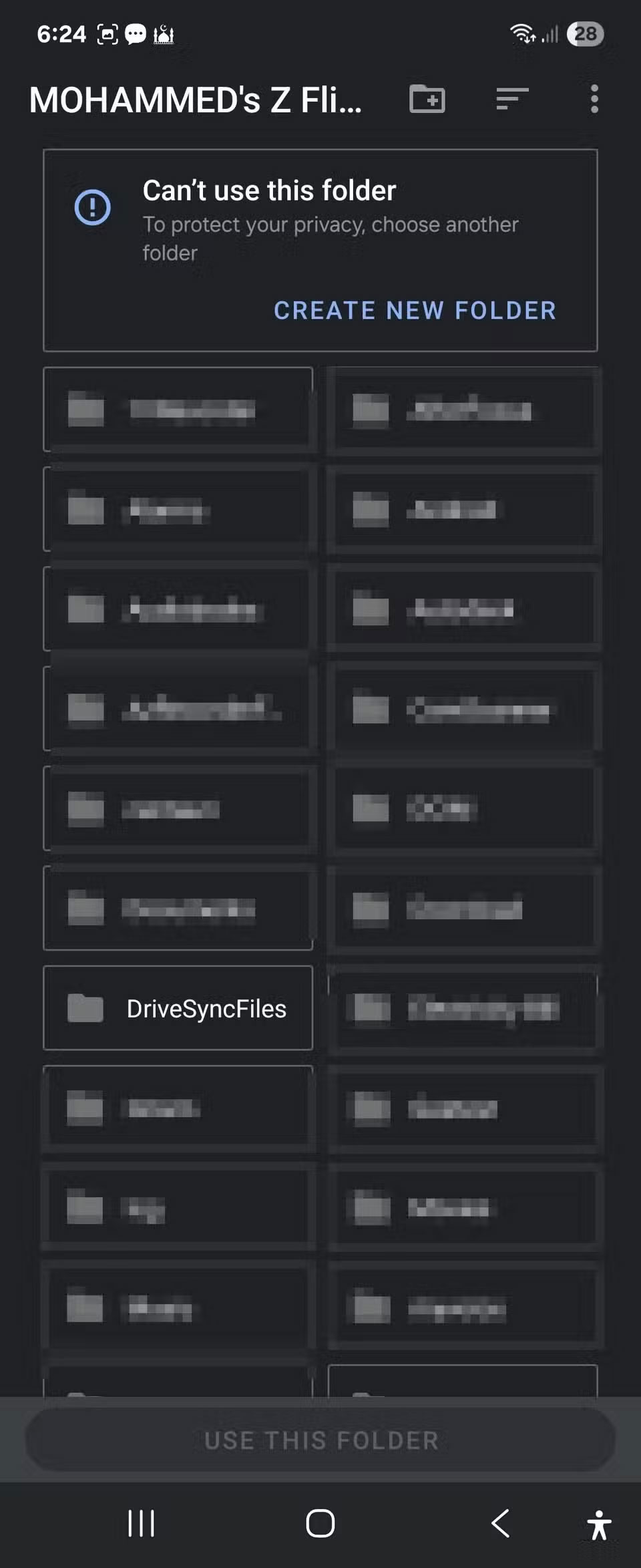
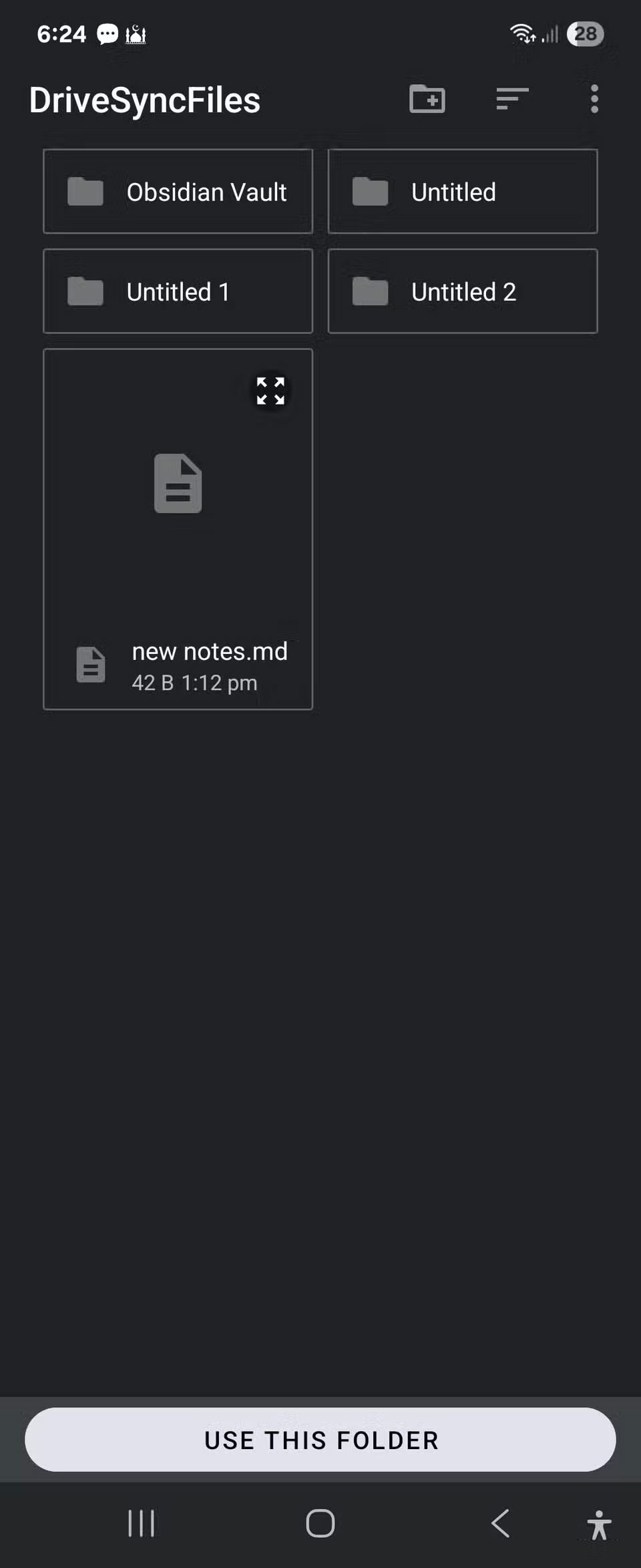
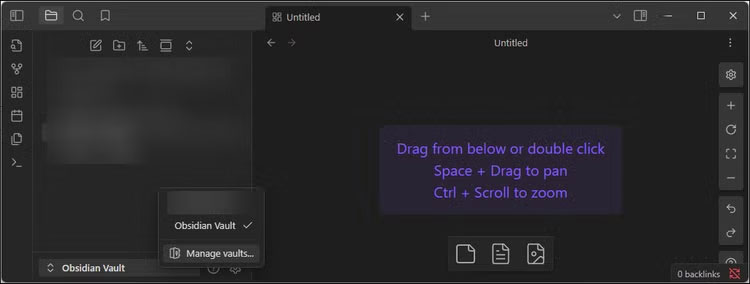
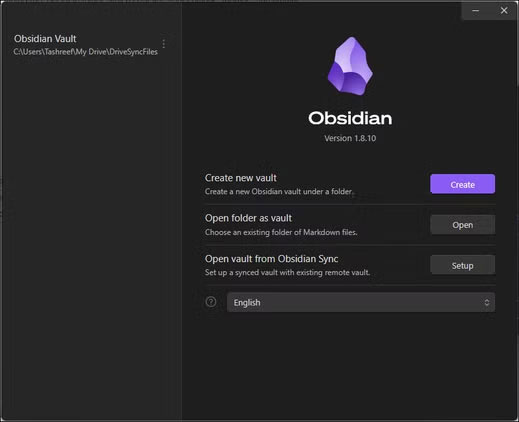
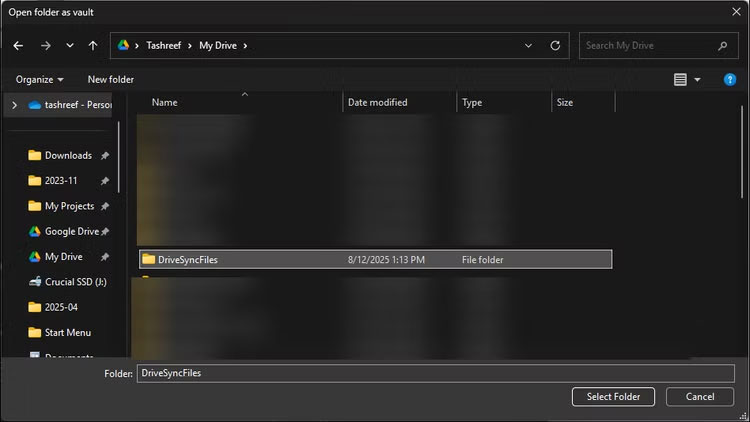
Finally, on your PC, click the vault name in the lower left corner and select Manage vaults . Click Open folder as vault , then navigate to your vault folder (currently located under DriveSyncFiles ) inside the Google Drive path and select that folder.
Obsidian will now work with local files while Drive automatically handles syncing. Any notes you create, edit, or delete will sync to Google Drive almost instantly.
Final Thoughts
Following the steps in order and checking version-specific settings should make it easier to Keep Your Notes in Perfect Sync Everywhere Without Spending. If an option looks different, verify the device, app, or operating-system version before changing additional settings.
FAQ
What is the best way to Keep Your Notes in Perfect Sync Everywhere Without Spending?
Start with the requirements described in the article and follow the steps in order. After switching to Obsidian, many people discovered that their sync service would add $60 to their subscription budget. So they found a completely free way to sync notes across all their devices.
What should you know about How to Sync Obsidian Notes on PC and Phone?
You can use your Google Drive account to sync your Obsidian notes between your PC and your Android phone. On your computer, Google Drive creates a standard folder that any app can use.
What should you do if the instructions do not match your screen?
Check the device, software version, account permissions, and regional settings. Interfaces can change after updates, so use the closest matching option and consult the official support documentation when necessary.
Related Articles
 How to Use Git to Sync Notes Easily: Step-by-Step Guide6 minutes read
 How to Share Sticky Notes Between Computers7 minutes read
 How to Create a Sync Note on Google Drive: Page Notes Chrome5 minutes read
 How to Use Windows Sticky Notes as the Ultimate Productivity Tool6 minutes read
 How to Use the Firefox Notes Note Utility: Notes on Firefox5 minutes read
 Three Note-taking Apps That Make a Perfect Combination: Google Keep4 minutes read
Reader Comments 0
Sign in with email or Google to join the discussion.