Table of Contents
Learn how to disable driver updates via Windows update with clear steps, practical tips, and troubleshooting guidance for a reliable result.
Disable driver updates via Hardware Settings
Step 1
Press the Windows + X key combination and then select System from the list that appears.
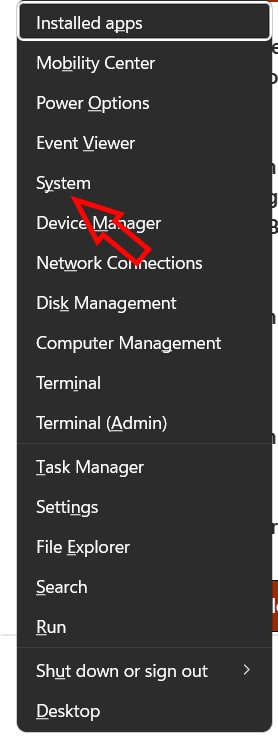
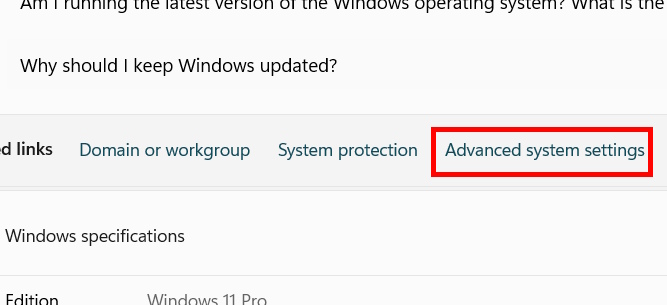
On the new interface, users click on Advanced System Settings to access advanced system settings.
Step 2
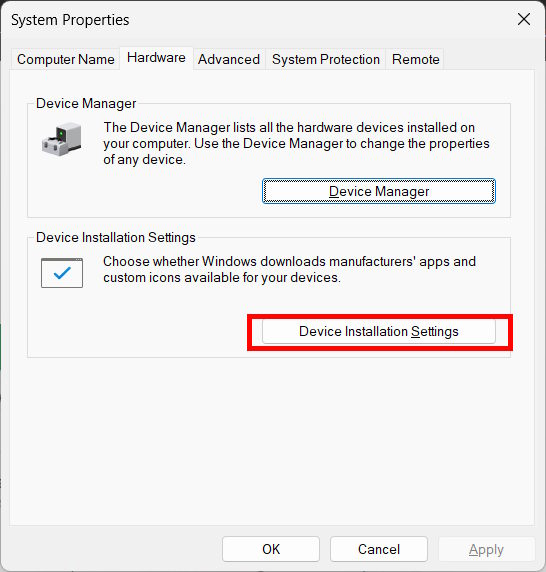
To display the System Properties interface, click the Hardware tab , and then select Device Installation Settings below.
Step 3
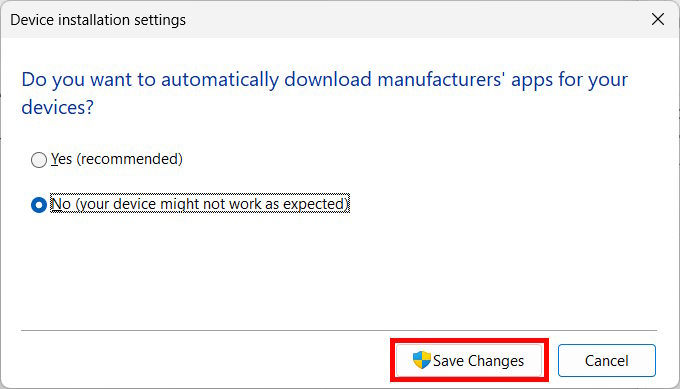
In the Device Installation Settings window, click No , then click Save changes at the bottom to save the changes.
Disable automatic driver updates via Group Policy
Step 1
Users enter the keyword gpedit.msc into the search bar and press Enter to access it. Next, navigate to Computer Configuration -> Administrative Templates -> System -> Internet Communication Management -> Internet Communication settings .
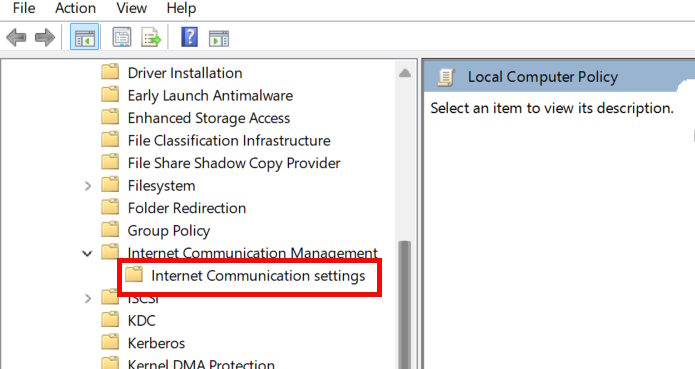
Step 2
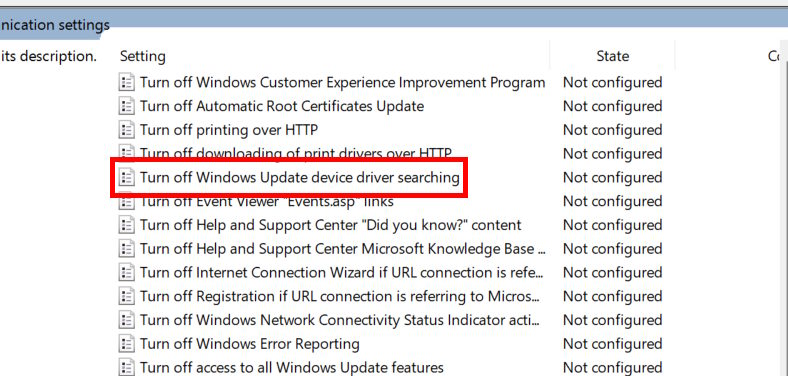
Look to the side and double-click on "Turn off Windows update device driver searching" to adjust the settings.
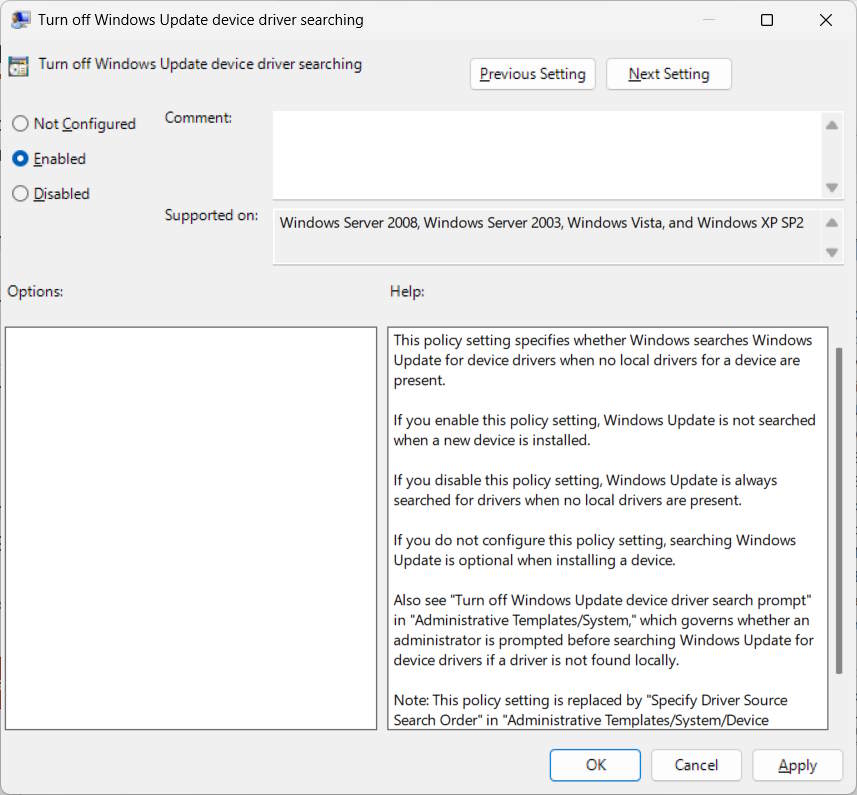
Here, click Enabled to activate the setting to disable automatic Windows driver updates.
How to disable automatic driver updates via Registry Editor
Step 1
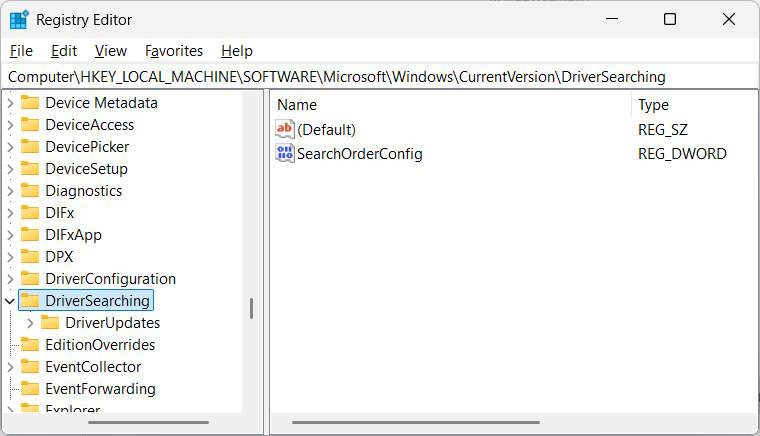
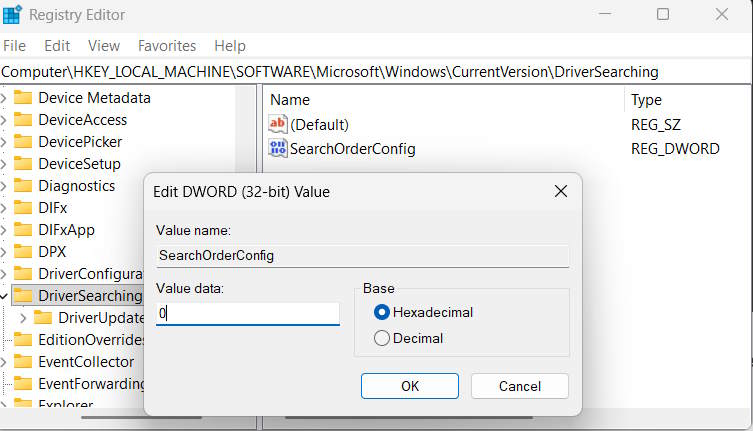
Type "regedit" into the search bar and then access it. Once you've accessed the new interface, follow the link below.
HKEY_LOCAL_MACHINESOFTWAREMicrosoftWindowsCurrentVersionDriverSearching
Look to the side and click on the SearchOrderConfig value to adjust it.
Step 2
The default value is set to 1 to enable automatic updates. To change the value, enter 0 to disable it .
Use PowerShell options
Open PowerShell in administrator mode, then enter the command below and press Enter to disable automatic driver updates on your computer.
Set-ItemProperty -Path "HKLM: SOFTWAREMicrosoftWindowsCurrentVersionDriverSearching" -Name "SearchOrderConfig" -Value 0 -Type DWord -Force
To restart the automatic driver update process, enter the following command.
Set-ItemProperty -Path "HKLM: SOFTWAREMicrosoftWindowsCurrentVersionDriverSearching" -Name "SearchOrderConfig" -Value 1 -Type DWord -Force
Final Thoughts
Use this guide as a practical checklist for how to disable driver updates via windows update. Work through the steps in order, verify each result, and adjust the options to match your needs.
FAQ
What do you need before following this How to Disable Driver Updates via Windows Update guide?
Review the required tools, accounts, settings, or materials mentioned in the article. Learn how to disable driver updates via Windows update with clear steps, practical tips, and troubleshooting guidance for a reliable result.
What are the main steps for how to disable driver updates via windows update?
Follow the sections in order, especially Disable driver updates via Hardware Settings, Step 1, Step 2. Complete each step before continuing and verify the result as you go.
What should you do if the process does not work as expected?
Recheck the prerequisites, update the relevant app or service, review the settings, and repeat the step that caused the issue. Use any troubleshooting notes included in the guide.
Related Articles
 The Best Driver Update Software for Computers10 minutes read
 The Trick Prevents Windows from Automatically Updating Specific7 minutes read
 How to Use Wandriver to Update Computer Drivers5 minutes read
 How to Stop Windows Updates on Your PC10 minutes read
 How to Hide Windows Update on Windows 103 minutes read
 When to Update the Computer Driver6 minutes read
Reader Comments 0
Sign in with email or Google to join the discussion.