Table of Contents
When you dig deeper, you'll definitely realize there are a lot of downsides, and this stems from the fact that OneDrive seems to actually affect how your desktop works, rather than just mirroring and providing easy access to your files.
Many people have been using OneDrive for a while, but the latest issue is the final straw. They're not impressed by Microsoft's push to sync their desktops with OneDrive, and consider this the default behavior when you first set up the Windows cloud storage app.
It seems convenient at first glance. However, when you dig deeper, you'll definitely find that there are a number of drawbacks, and this stems from the fact that OneDrive seems to actually affect how your desktop works, rather than just mirroring and providing easy access to your files.
When you reinstall Windows and log back into OneDrive, you expect the desktop to look exactly as it did when you first installed it. Instead, it reverts to a shell—the icons are still there, but most of the files behind them are unusable until they're finished downloading.
Why will so many people never use OneDrive again?
Many of the complaints I've had with OneDrive stem from its suggestion to sync desktops, and the myriad of issues that have followed.
1. Files disappear after reinstallation and restore
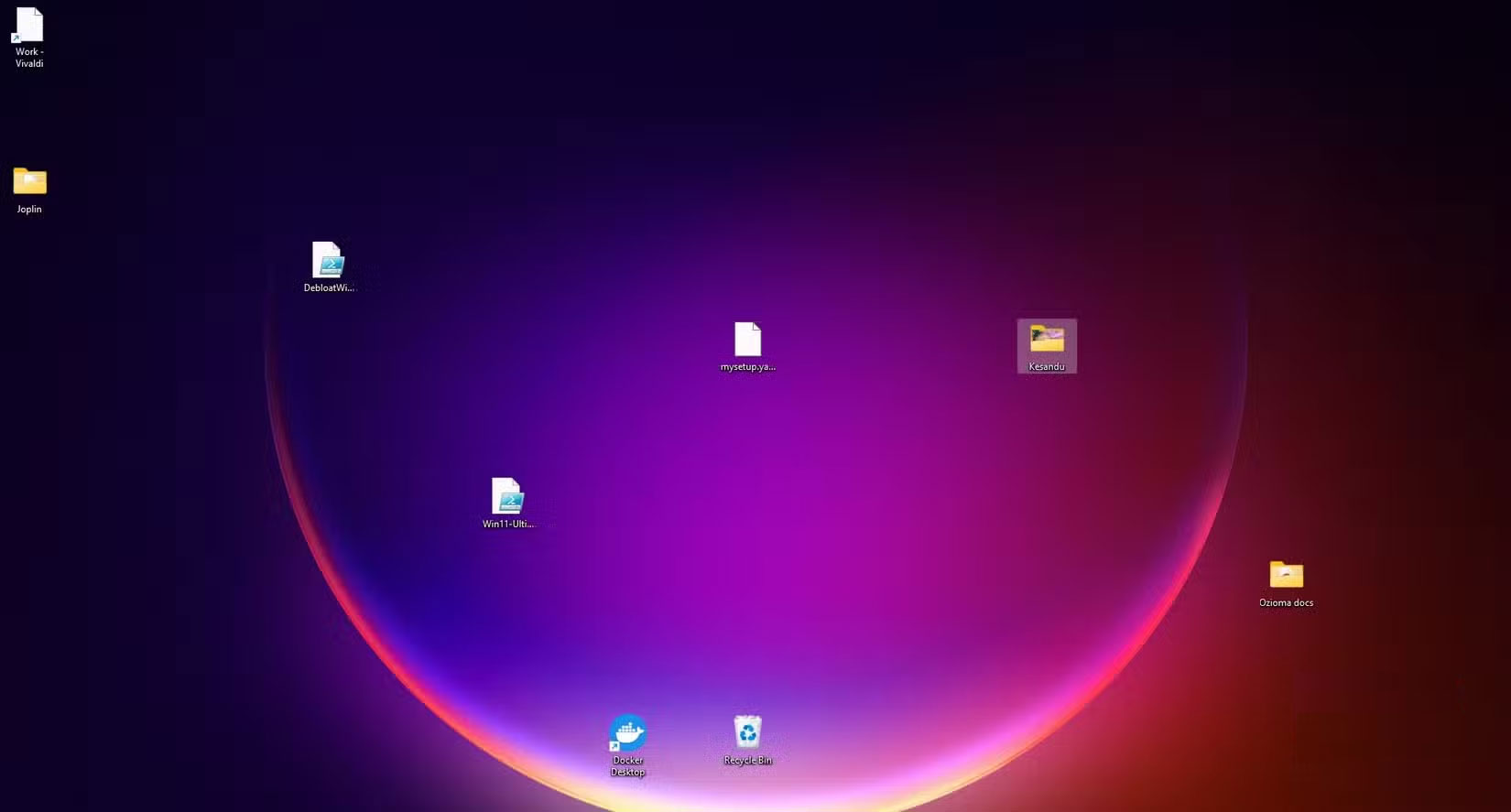
During a reinstall or when setting up a new PC, OneDrive can automatically rebuild your desktop from a cloud backup. But the files aren't fully formatted. Instead, OneDrive creates placeholders. These are icons and names that look like files but haven't actually been downloaded.
Many people love OneDrive placeholders because they think their files are downloaded, but when they try to open them in a location with a poor or slow internet connection, they become unavailable. Suddenly, you can be stuck for hours without any important files.
This is similar to how OneDrive implements the 'Always keep on this device' feature. If you reset your computer, it won't matter if you marked your files as 'Always keep on this device,' because those local copies will be deleted. You'll then need to mark them again to download them to your computer.
2. The sync icon is too cluttered
OneDrive has a visual feature that shows the sync status of your files and folders. Some files or folders may have a green icon to show they're ready, while others may have two blue arrows forming a circle to show they're still syncing.
Unfortunately, this feature comes at a visual cost. Icons, especially on large screens, can look overkill and cluttered. If you like your desktop to be organized, that's one thing you won't like about syncing your entire desktop.
This clutter is also annoying, as you're forced to memorize what each icon means just to know which files and folders are ready to use.
3. Conflicting files multiply rapidly after file editing
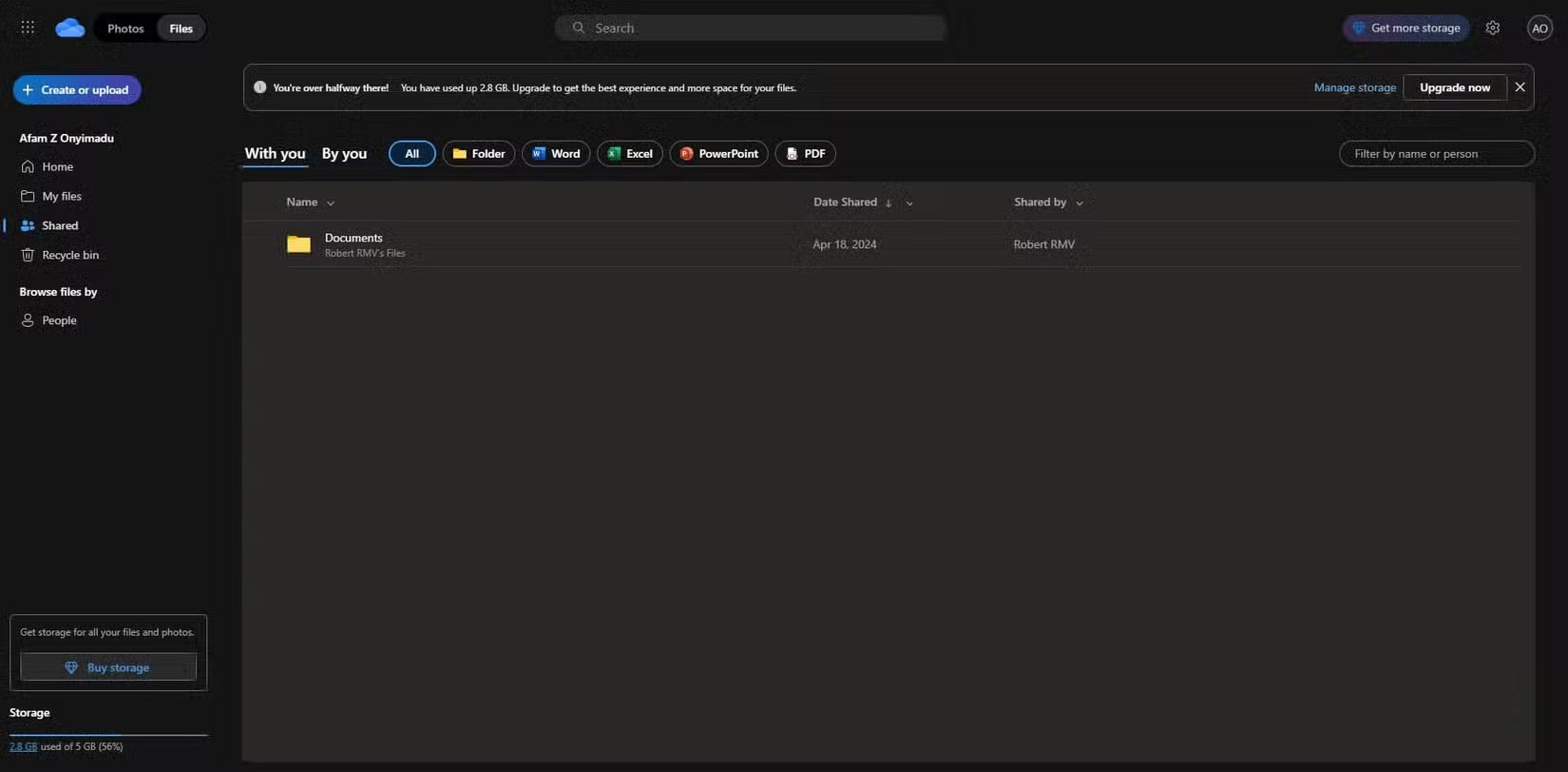
When your files are synced across devices, OneDrive can create duplicate copies of "-PCName-Conflict" if edits were made too close together. This error occurs when files are edited within seconds of each other on different devices. The short amount of time between edits causes OneDrive to create duplicate files. All the copies downloaded to your computer are confusing, and since they may not be exact copies, you may not know which file contains your most recent work.
Additionally, if you use apps like Photoshop or CAD that save temporary versions, OneDrive will treat them as modified files, increasing the number of copies on your desktop.
The worrying thing is that none of this is a common problem with cloud storage. Version control systems like Git and services like Dropbox, for example, use smart merges for duplicates. That's something OneDrive doesn't do. It just leaves you with a bunch of duplicates for you to clean up.
4. Sudden increase in storage capacity due to large files on the computer
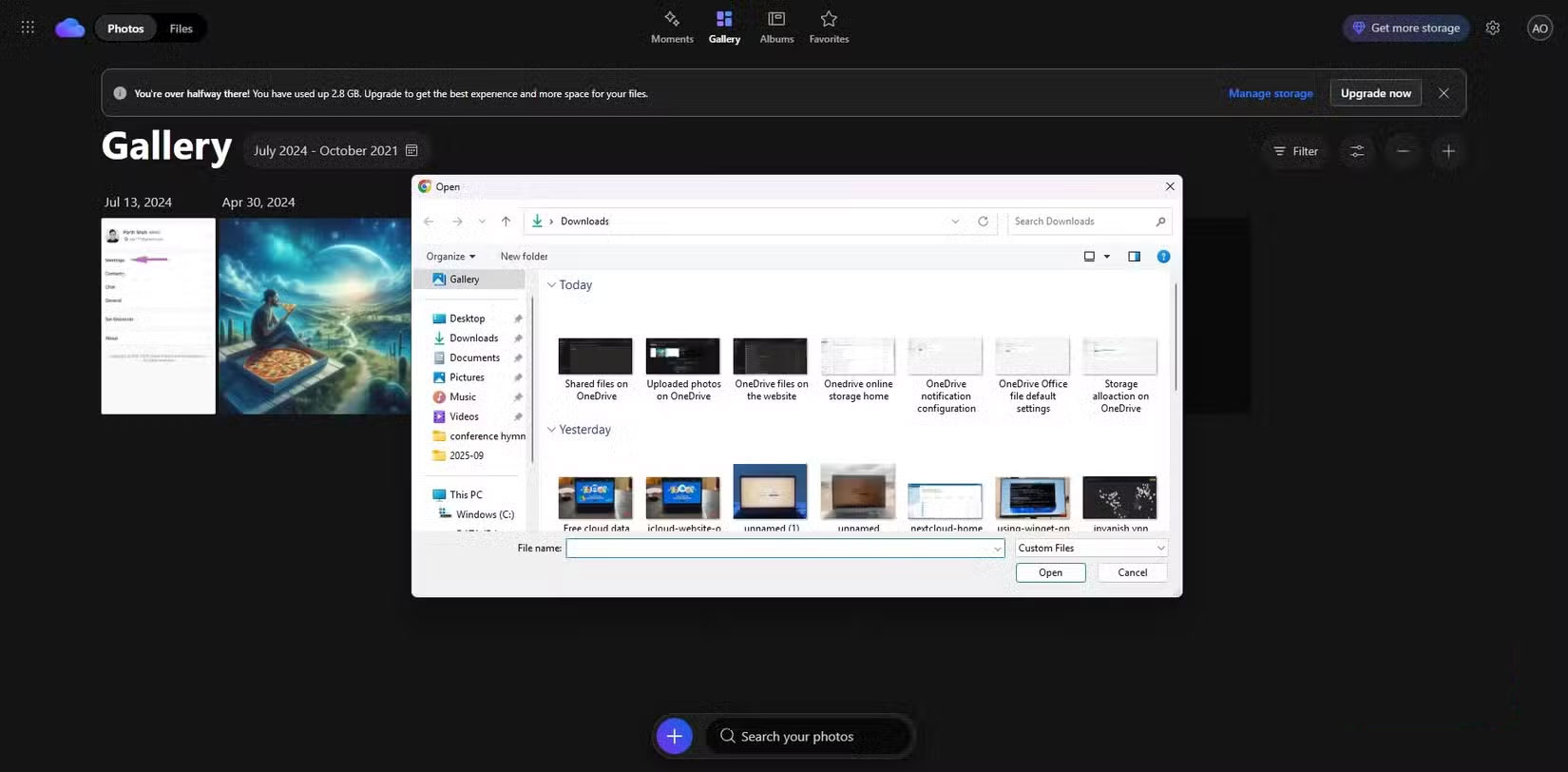
There is a serious problem with the way OneDrive handles uploads, which becomes more apparent when working with large files. OneDrive will start uploading any file as soon as it is added to a synced folder. However, OneDrive does this without any built-in filters to differentiate between large and small files, or high and low priority files.
In practice,, without planning ahead, your entire Internet upload bandwidth can be used up instantly, and there's really not much you can do until OneDrive is done. Your only alternative is to manually pause the entire sync process.
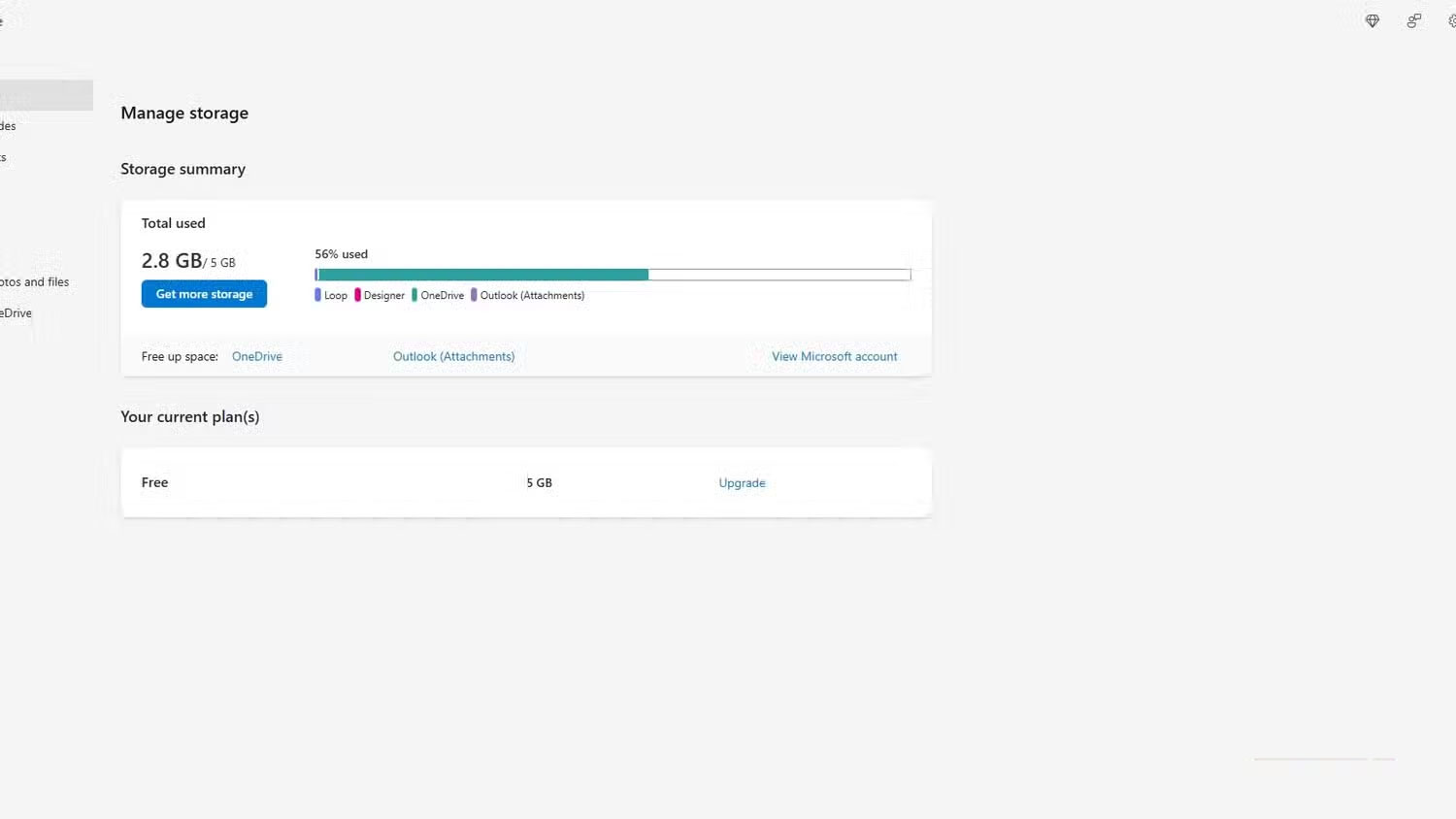
OneDrive sync crashes when large files exceed your OneDrive plan limits. This happens without warning or error, creating an incentive to upgrade your plan, as you don't want to risk a broken sync experience.
5. Change how files are arranged between devices
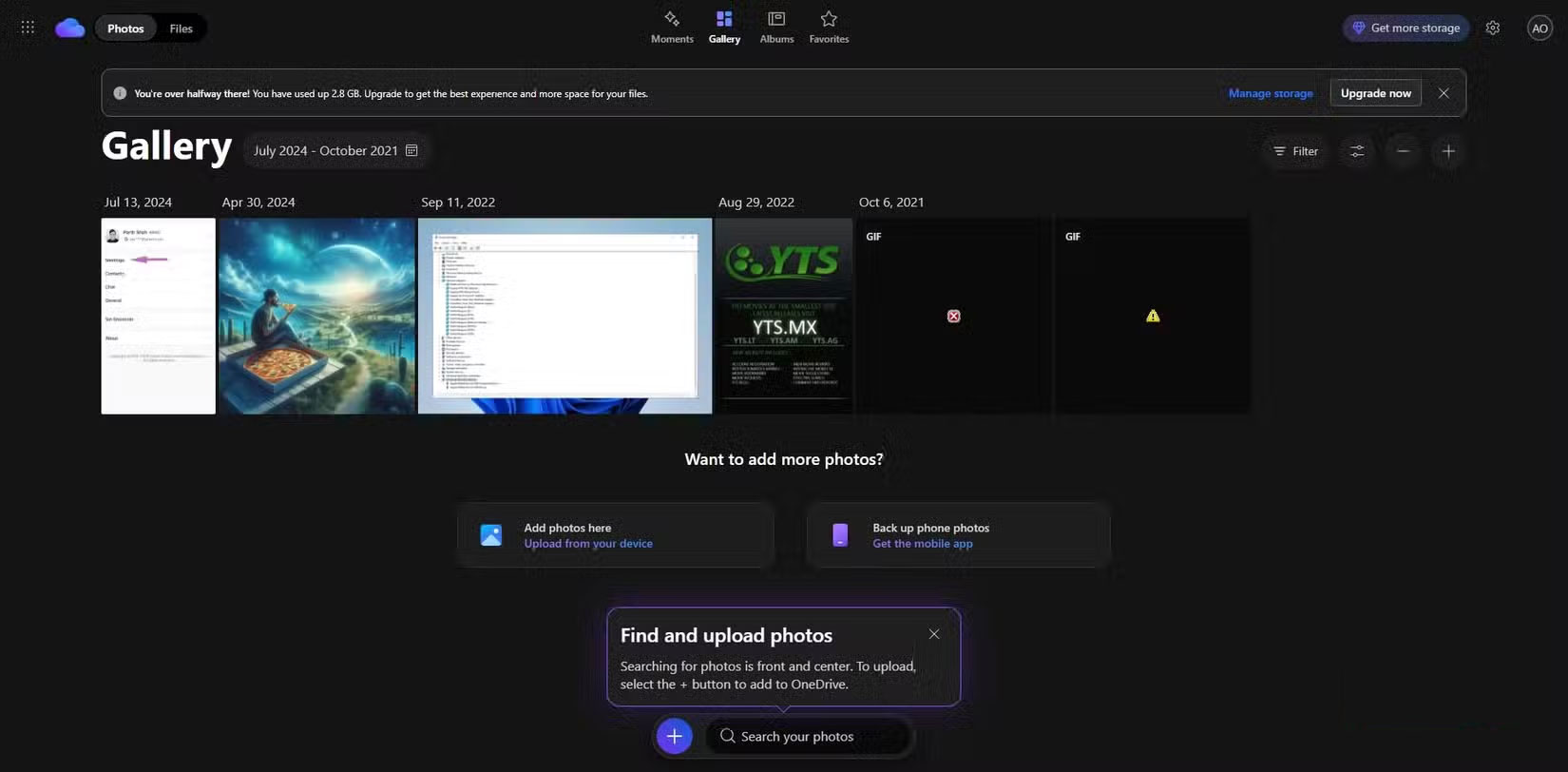
Windows uses a hidden grid to arrange desktop icons, with positions stored as coordinates. But since positions don't change with resolution, the layout will change when OneDrive rebuilds the desktop for a different screen size or resolution. This breaks the consistent experience you want across your devices.
That said, there is another change on devices that can corrupt some files. If you sync a shortcut linked to a specific path on one device to another, it becomes unstable and in some cases may not work at all. So even though you have the file shortcut, it won't work unless you go back to the original device with the correct path.
FAQ
Why Should I Stop Syncing My Desktop with OneDrive: Explained?
In practical terms, when you dig deeper, you'll definitely realize there are a lot of downsides, and this stems from the fact that OneDrive seems to actually affect how your desktop works, rather than just mirroring and providing easy access to your.
What factors are most important?
The article highlights that when you reinstall Windows and log back into OneDrive, you expect the desktop to look exactly as it did when you first installed it.
What is the main takeaway?
The main takeaway is that files disappear after reinstallation and restore During a reinstall or when setting up a new PC, OneDrive can automatically rebuild your desktop from a cloud backup.
Related Articles
 How to Prevent Onedrive from Syncing Windows Desktop Shortcuts4 minutes read
 How to Pause or Disable OneDrive in Windows 113 minutes read
 How to Fix the Problem of Syncing Onedrive on Windows 108 minutes read
 Microsoft Closes the Time to Declare from the Onedrive3 minutes read
 Easily Free Up OneDrive Storage Space: Step-by-Step Guide8 minutes read
 Turn Off OneDrive Sync on Windows: Step-by-Step Guide4 minutes read
Reader Comments 0
Sign in with email or Google to join the discussion.