Table of Contents
This practical guide explains how to enable advanced search in Windows 11. Follow the steps in order, review the requirements first, and use the troubleshooting notes when a setting or option does not work as expected.
Instructions to enable advanced search on Windows 11
Step 1:
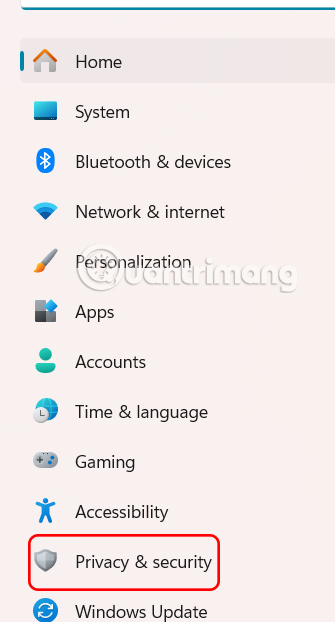
Press Windows + I to open Settings, then select Privacy & Security .
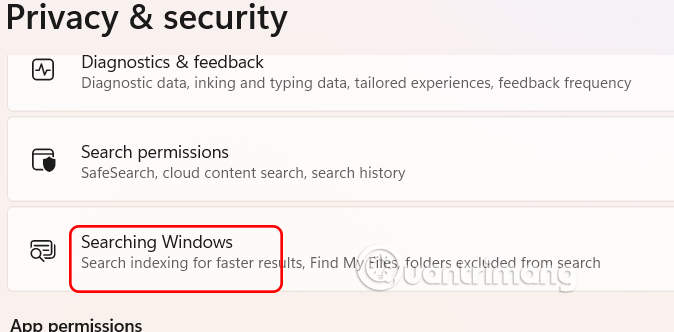
Switch to the setup interface on the computer, the user clicks on Searching Windows .
Step 2:
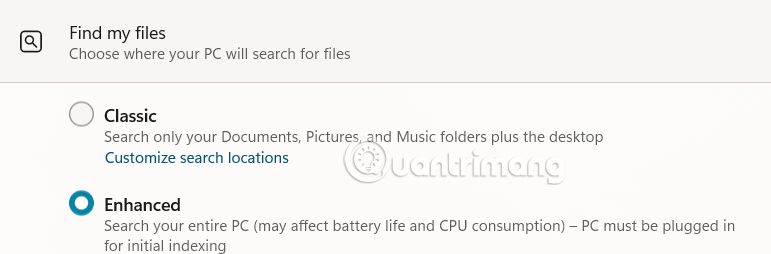
In Windows search settings, select Find my Files and then select Enhanced to replace Classic .
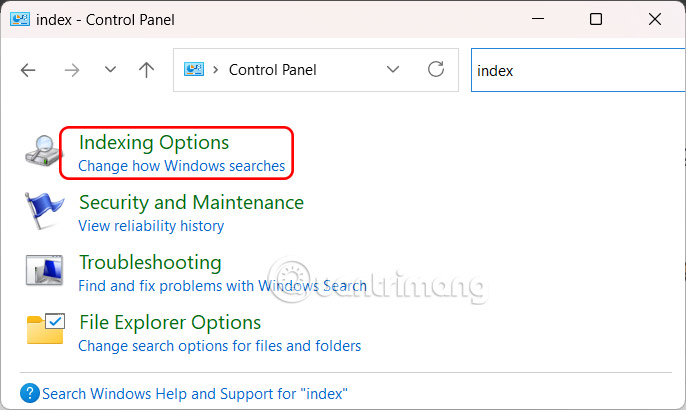
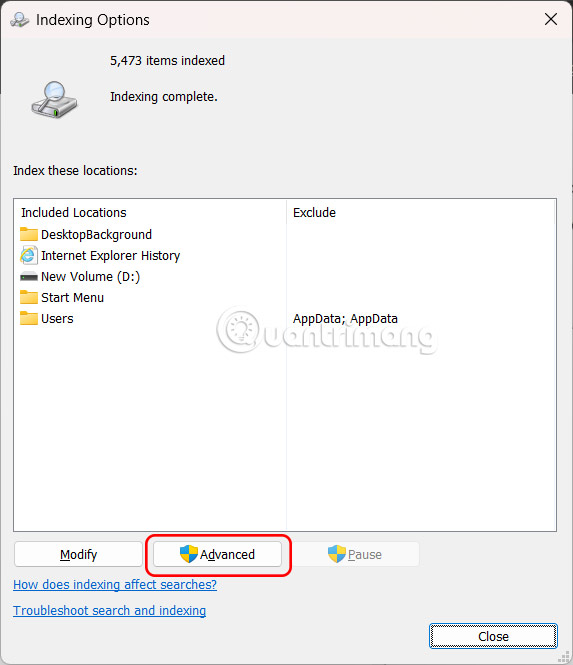
If you have problems after enabling Advanced Search, you should rebuild your search index. Open Control Panel and then click Indexing Options .
Continue clicking Advanced to open advanced settings on your computer.
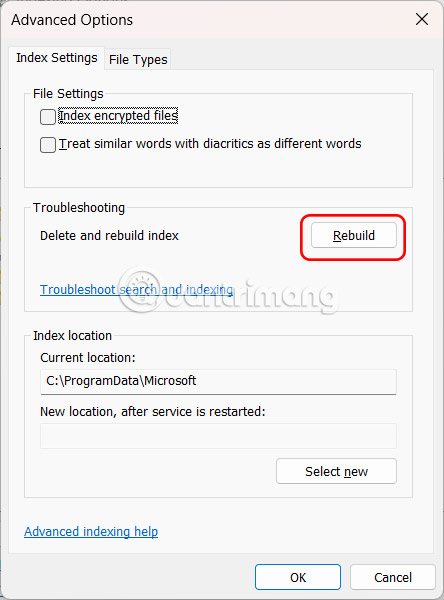
In the Troubleshooting section, the user clicks Rebuild to rebuild the index.
Now you search for save files on Windows and will find the search process more efficient.
FAQ
What should you know about instructions to enable advanced search on Windows 11?
Press Windows + I to open Settings, then select Privacy & Security.
What does this guide cover?
This guide explains enable advanced search in Windows 11, including the main steps, important details, and practical considerations.
Who is this guide for?
It is designed for readers who want a clear, practical overview and a reliable process they can follow without unnecessary complexity.
Related Articles
 Instructions on Enabling Advanced Search in Windows 11: Explained3 minutes read
 How to Enable Advanced Settings on Windows 114 minutes read
 Advanced Search in Windows 7 Is Similar to Windows XP7 minutes read
 How to Turn on Advanced Search Mode in Windows 106 minutes read
 How to Use WhatsApp's New Advanced Search Feature4 minutes read
 How to Enable Cloud Storage File Search on Windows 113 minutes read
Reader Comments 0
Sign in with email or Google to join the discussion.