Table of Contents
In Microsoft Edge, Ctrl + F (or Command + F on Mac) reliably finds words on the open page. Some experimental builds also displayed Copilot question suggestions beside Find on page. That suggestion interface was a limited rollout, so installing Edge Canary alone does not guarantee you will see it. You can still search normally and use the Copilot side pane to ask about a page when that feature is available.
Find text on the current page
- Open the webpage in Edge and press Ctrl + F, or choose Settings and more > Find on page.
- Type a distinctive word or phrase. Edge highlights matches; use the arrows in the search box to move between them. If the page is long, try a heading, product name or error code rather than a broad word such as “phone.”
In the illustrated experimental interface, Edge offered question suggestions while the user typed. Selecting one opened an answer in the Copilot pane. Those screenshots show the test behavior rather than a setting all Edge users can enable.
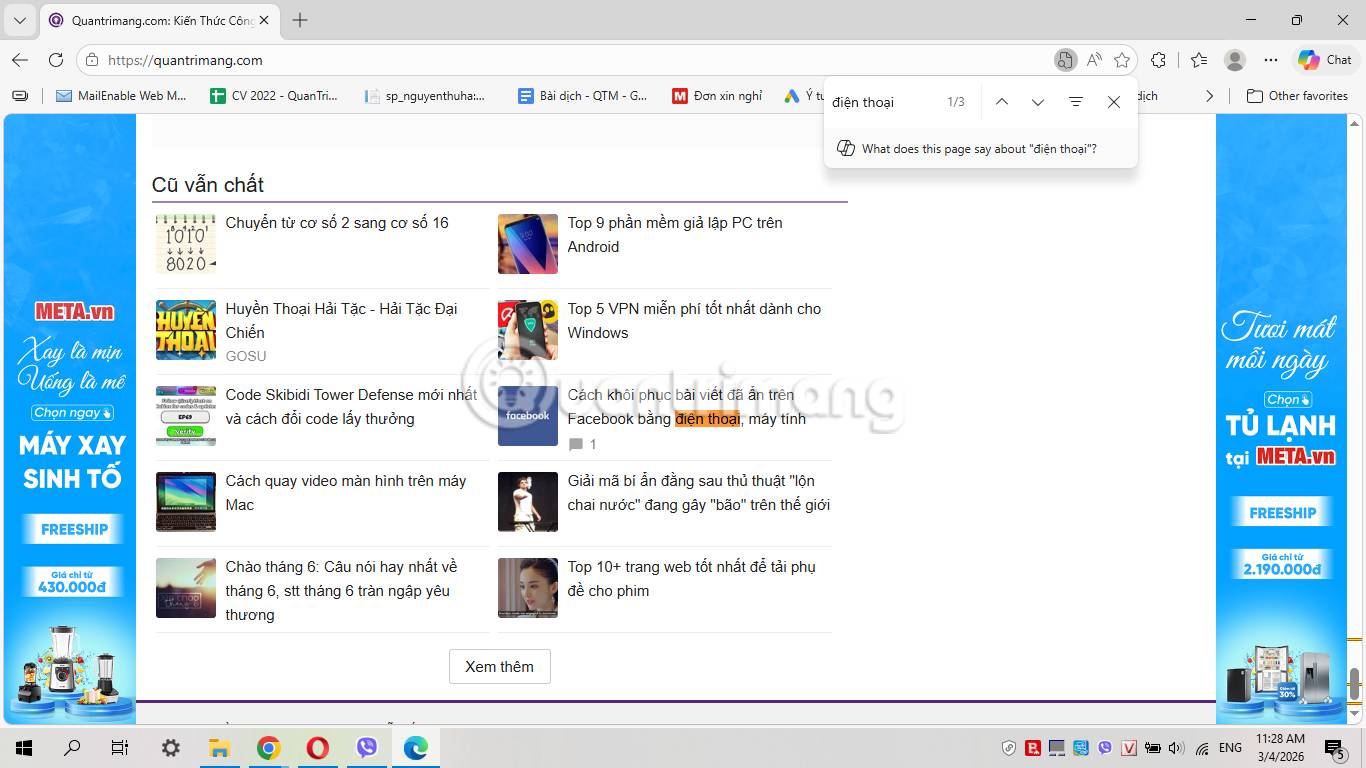
If Copilot suggestions appear
Enter a search term in Find on page, then select a relevant suggested question if one appears. Read the answer in the side pane and compare its wording with the actual page, especially for prices, dates and technical instructions. The images below show the suggestion, initial answer and follow-up prompts from the original test.
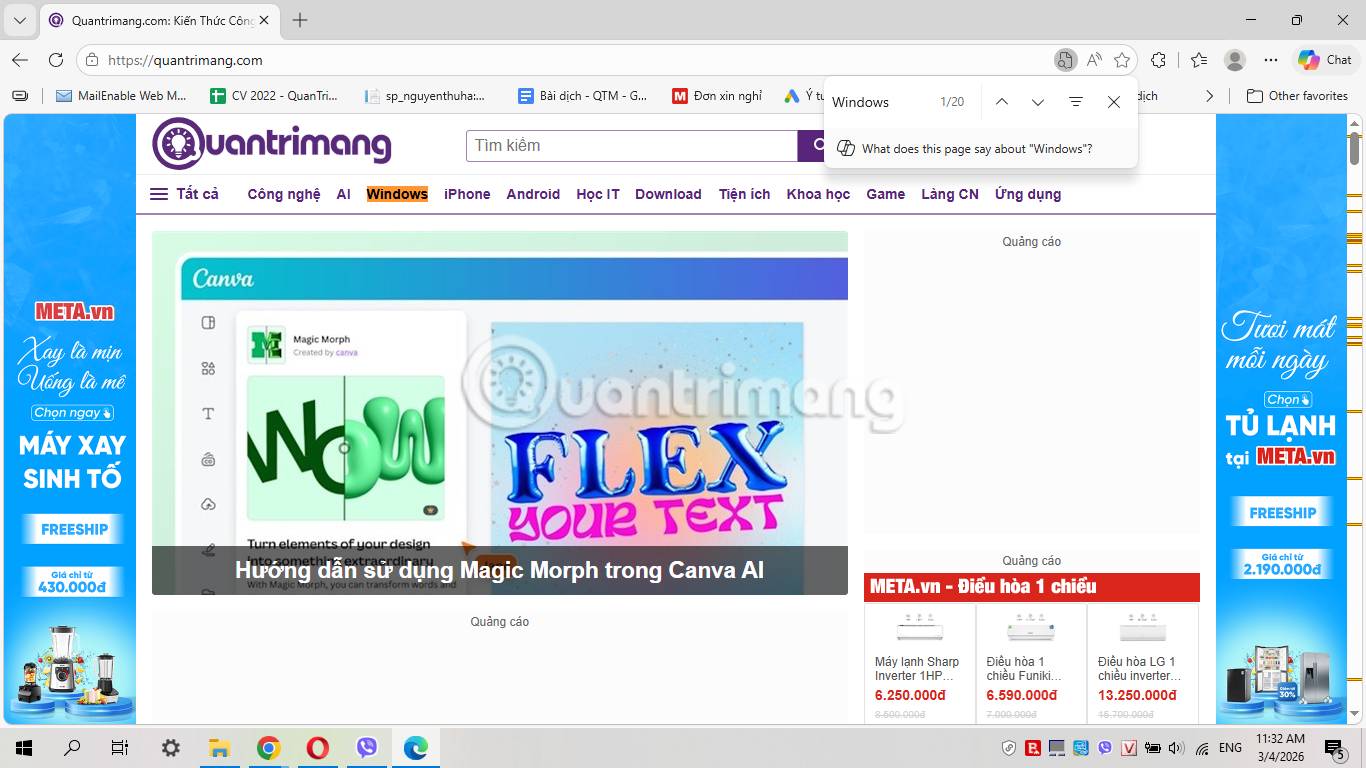
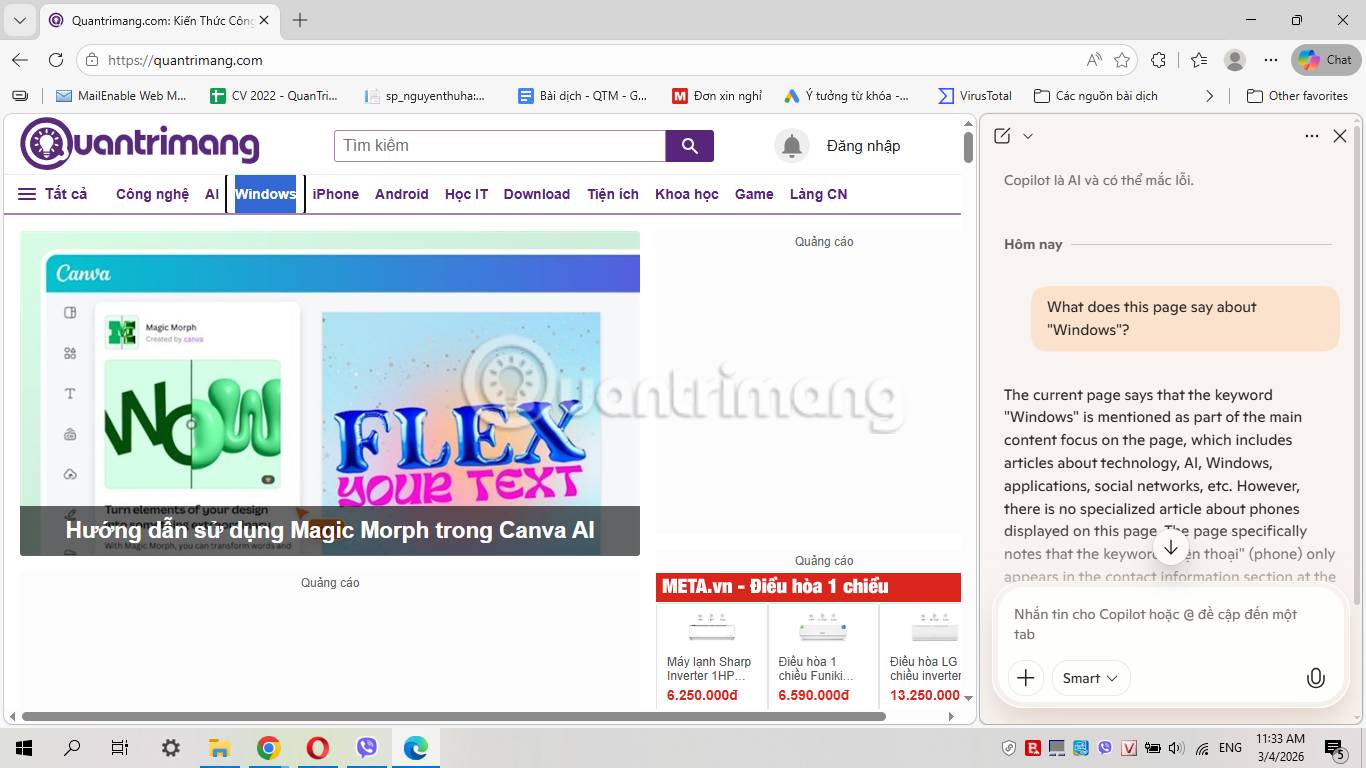
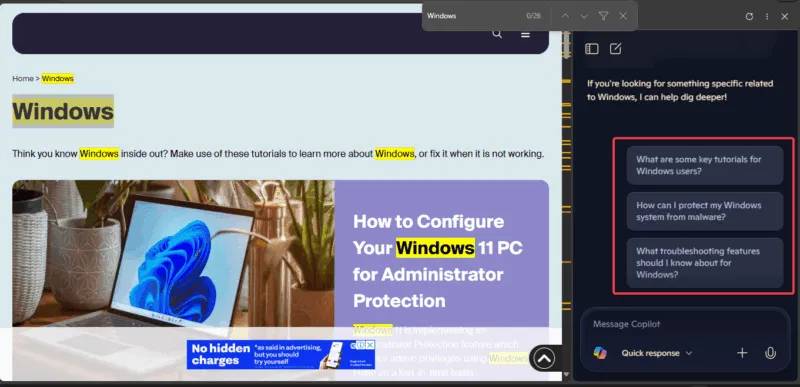
If you do not see a suggestion, continue using Find on page. You may separately open Copilot from Edge's toolbar and ask a specific question about the page. Microsoft's Copilot in Edge overview describes that page-question workflow. Access can depend on your version, account, region and workplace settings; do not assume an absent test feature can be forced on with a browser update.
Privacy and troubleshooting
Find on page may also show related matches, such as synonyms or alternate spellings. This is separate from a Copilot answer. According to Microsoft's Edge privacy documentation, when related matches are on, Edge sends the page text and search terms to a Microsoft service to process that query. The setting can be turned off under Settings > Privacy, search, and services > Services > Include related matches in Find on page; it is unavailable in InPrivate browsing.
Copilot may need permission to use page content. Review those permissions before using it on a private document or internal work page. TipsMake explains which sites Copilot can browse in Edge and how to disable Copilot in Edge if you prefer the regular search workflow.
Related Articles
 How to Turn Off Search Suggestions in Microsoft Edge3 minutes read
 Instructions on Disabling New Tab Copilot on Microsoft Edge3 minutes read
 How to Enable Circle to Copilot on Microsoft Edge: Practical Guide4 minutes read
 Microsoft Brings Copilot to Samsung TVs and Smart Displays4 minutes read
 What Are Copilot Labs: Clear Explanation5 minutes read
 How to Search Spotify Playlists on Copilot: Step-by-Step Guide4 minutes read
Reader Comments 0
Sign in with email or Google to join the discussion.