Table of Contents
This practical guide explains how to enable Google advanced protection. Follow the steps in order, review the requirements first, and use the troubleshooting notes when a setting or option does not work as expected.
What is Google Advanced Protection?
Advanced Protection is a one-touch security mode in Android 16 that locks down your phone from threats.
Once enabled, it will block downloads and prevent installation of external apps. Additionally, it turns off cellular connectivity to prevent fake WiFi.
Additionally, all core security settings like Google Play Protect and Safe Browsing are locked down, making it impossible for hackers to tamper with them.
Along with all this, you also get cool benefits like phishing/spam filtering in Google Messages, theft detection, and USB data transfer blocking to keep your data safe.
How to enable Advanced Protection on Android 16
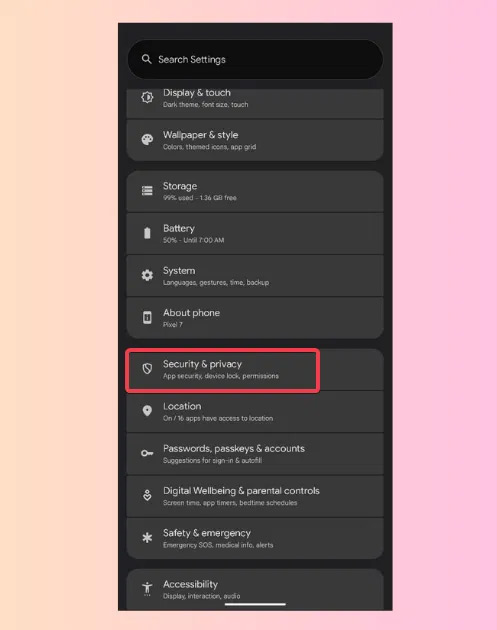
In the Google interface, users access Settings then select Google > Personal & device safety or Security & Privacy .
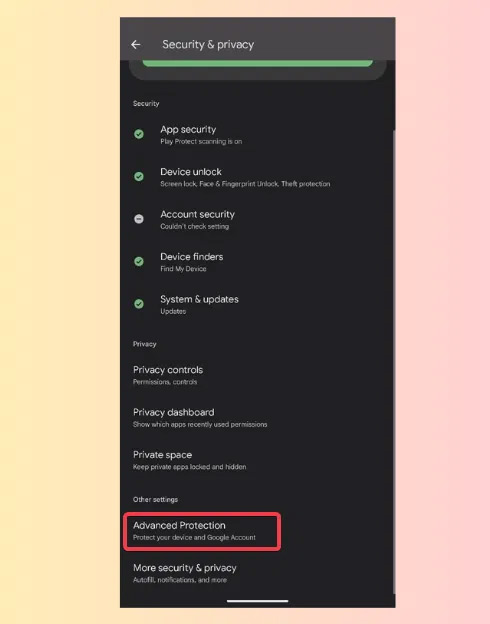
Click Advanced Protection under Other settings.
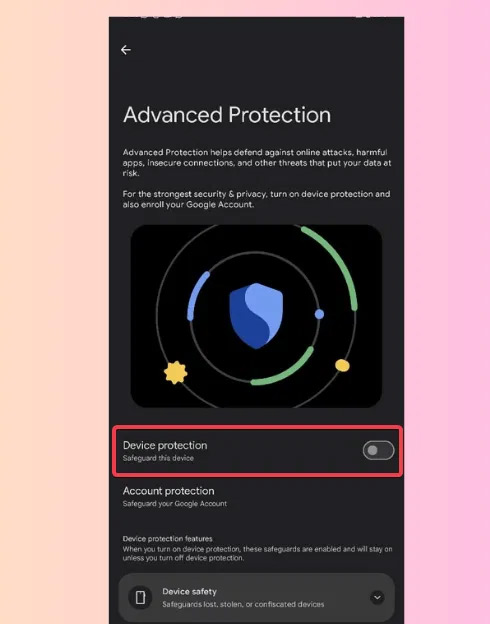
Enable Device Protection , note that you may need to verify your Google account. Then, restart your phone to apply the settings.
Requirements to enable Advanced Protection
Here's what you need to turn on Advanced Protection on your Google Pixel:
- Device compatible with Google Pixel 7 Pro or later or Android 16.
- You need a Google account with two-step verification enabled.
FAQ
What is Google Advanced Protection?
Advanced Protection is a one-touch security mode in Android 16 that locks down your phone from threats.
How to enable Advanced Protection on Android 16?
In the Google interface, users access Settings then select Google > Personal & device safety or Security & Privacy.
What should you know about requirements to enable Advanced Protection?
Here's what you need to turn on Advanced Protection on your Google Pixel:
Related Articles
 How to Enable Icloud Advanced Data Protection3 minutes read
 How to Enable and Use Advanced Protection in Android 168 minutes read
 Google Chrome Adds the Ability to Scan for Viruses Using Cloud Computing3 minutes read
 5 Reasons to Enable Enhanced Protection in Chrome6 minutes read
 How to Enable Advanced Settings on Windows 114 minutes read
 Increase the Protection of Windows Defender with the Following5 minutes read
Reader Comments 0
Sign in with email or Google to join the discussion.